
1. Introduction
The SHUAIGUO PT-210 is a compact and portable thermal printer designed for various applications including retail, restaurants, factories, and logistics. This manual provides essential information for setting up, operating, maintaining, and troubleshooting your PT-210 printer to ensure optimal performance and longevity.

Figure 1.1: SHUAIGUO PT-210 Portable Thermal Printer with a thermal paper roll.
The PT-210 printer is a handheld device, featuring a sleek design and a dedicated slot for thermal paper rolls. It is shown here alongside a fresh roll of thermal paper, ready for use.
2. Product Overview
Familiarize yourself with the components and dimensions of your PT-210 printer.
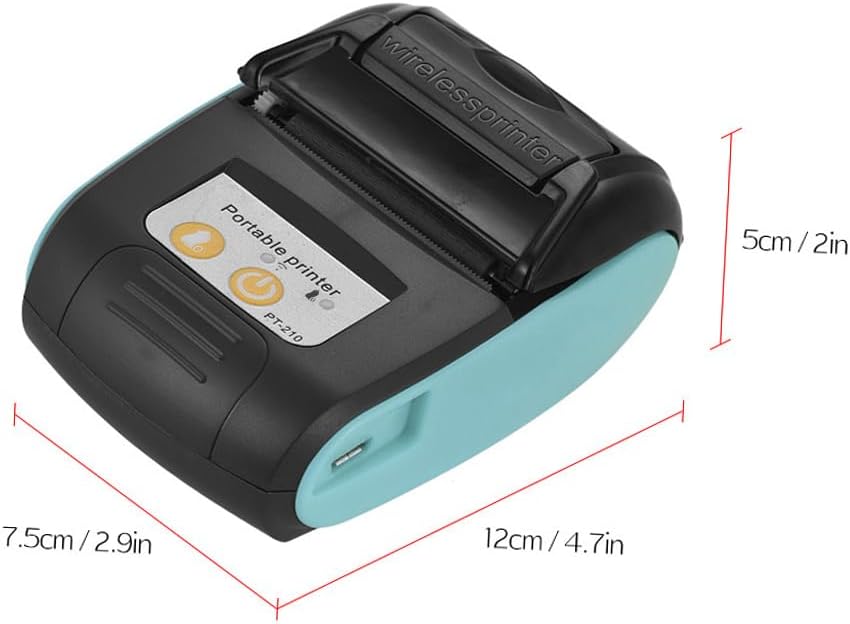
Figure 2.1: PT-210 Printer Dimensions.
The printer measures approximately 12 cm (4.7 inches) in length, 7.5 cm (2.9 inches) in width, and 5 cm (2 inches) in height, making it highly portable. The image highlights these key dimensions.

Figure 2.2: Side View with USB-C Port.
This side view of the printer clearly shows the USB-C charging port, which is used for charging the device and connecting it to a computer for printing.
3. Specifications
Detailed technical specifications for the PT-210 Portable Thermal Printer:
| Feature | Specification |
|---|---|
| Print Method | Thermal line printing |
| Bluetooth Version | 4.0 |
| Battery | 7.4V, 1500mAh Lithium-ion |
| Charging Time | 2-4 hours |
| Standby Time | 100 hours |
| Print Speed | 50~80mm/s |
| Resolution | 203dpi (8 dots/mm) |
| Paper Type | Thermal Paper |
| Paper Thickness | 0.05 - 0.10mm |
| Paper Width | 57mm +/- 0.5mm |
| Print Width | 48mm +/- 0.5mm |
| Rolling Paper Diameter | ≤40mm |
| Supported Barcode Types | UPC-A, UPC-E, EAN-13, EAN-8, CODE39, ITF25, CODEBAR, CODE93, CODE128, QR code, PDF417 |
| Working Temperature | -10°C to 50°C (14°F to 122°F) |
| Storage Temperature | -20°C to 70°C (-4°F to 158°F) |
| Supported Image Formats | JPG, BMP, TIF, JPEG, etc. |
| Supported Systems | Android, iOS, Windows (via USB) |
| Item Size | 12 x 7.5 x 5 cm (4.7 x 2.9 x 2 inches) |
| Item Weight | 210g (7.4 oz) |

Figure 3.1: Key Thermal Printing Specifications.
This image summarizes the key performance metrics of the PT-210, including print speed, resolution, effective print width, battery capacity, and Bluetooth version. It also includes important notes regarding initial setup.
4. Setup
4.1 Initial Battery Preparation
Before first use, ensure the battery is properly prepared:
- Open the battery compartment.
- Locate the rechargeable lithium-ion battery.
- Remove any insulating tape covering the battery contacts. This tape is for shipping protection and must be removed for the printer to power on and charge.
- Close the battery compartment securely.
4.2 Loading Thermal Paper
Proper paper loading is crucial for clear printing and to prevent jams.

Figure 4.1: Thermal Paper Roll Dimensions.
The thermal paper roll has a width of 5.7 cm (2.17 inches) and a core diameter of 3.0 cm (1.18 inches). Ensure you use paper rolls that match these specifications for optimal performance.

Figure 4.2: Correct Paper Loading Orientation.
This diagram illustrates the correct orientation for loading the thermal paper roll into the printer. The thermal side of the paper (which is typically smoother and slightly glossy) must face the print head. An incorrect orientation will result in blank prints.
- Open the printer's top cover by pressing the release button or lifting the latch.
- Insert the thermal paper roll into the compartment, ensuring the paper feeds from the bottom and the thermal side (the side that prints) faces upwards towards the print head. Refer to Figure 4.2 for correct orientation.
- Pull a small length of paper out beyond the print head.
- Close the top cover firmly until it clicks into place.
4.3 Software and Driver Installation
To use the printer with your device, you need to install the appropriate software:
- For Mobile Devices (Android/iOS):
Download a printing application. The manufacturer recommends the application "dlabel", which is available on app stores. - For Windows Computers:
Download the printer's PC driver from the official website. The driver download link is: http://www.xmjprt.com/2457747-2457747.html. Follow the on-screen instructions to complete the installation.
4.4 Bluetooth Pairing (for Mobile Devices)
After installing the mobile app, pair your printer via Bluetooth:
- Ensure the printer is powered on.
- Enable Bluetooth on your mobile device.
- Open the "dlabel" app (or your chosen printing app).
- Within the app, navigate to the Bluetooth settings or printer connection section.
- Scan for available devices and select "PT-210" or a similar identifier.
- Confirm the pairing. Once connected, the app will indicate the printer is ready for use.
5. Operating Instructions
5.1 Basic Printing
Once setup is complete, you can begin printing:
- Ensure the printer is powered on and connected to your device (via Bluetooth for mobile, or USB for PC).
- Open the document, image, or application you wish to print from.
- Select the print option.
- Choose the "PT-210" printer from the list of available printers.
- Adjust any print settings (e.g., paper size, orientation) as needed.
- Initiate the print job. The printer will begin printing at a speed of 50-80mm/s.

Figure 5.1: High Performance Print Head and Print Clarity.
The PT-210 features a high-performance print head capable of printing at speeds up to 80mm/s. The image demonstrates the clear and legible output produced by the thermal printing mechanism, suitable for various text and barcode applications.
5.2 Application Scenarios
The PT-210 is versatile and suitable for a range of environments:

Figure 5.2: Range of Application.
The PT-210 printer is ideal for use in retail stores for receipts, restaurants for order tickets, factories for labels, and logistics for shipping information. Its portability also makes it suitable for mobile applications such as delivery services or on-site inspections.
6. Maintenance
Regular maintenance ensures the longevity and optimal performance of your printer.
- Cleaning the Print Head: Use a soft, lint-free cloth lightly dampened with isopropyl alcohol to gently wipe the print head. Do this only when the printer is off and cooled down.
- Cleaning the Exterior: Wipe the printer's exterior with a soft, dry cloth. Avoid using harsh chemicals or abrasive cleaners.
- Paper Storage: Store thermal paper in a cool, dry place away from direct sunlight and heat to prevent premature fading.
- Battery Care: For long-term storage, charge the battery to about 50% and store the printer in a cool, dry place. Recharge periodically if not used for extended periods.
7. Troubleshooting
If you encounter issues with your PT-210 printer, refer to the following common problems and solutions:
- Printer Not Powering On:
• Ensure the battery insulating tape has been removed.
• Check if the battery is charged. Connect the printer to a power source using the USB-C cable.
• Verify the power button is pressed correctly. - No Print Output / Blank Pages:
• Check if thermal paper is loaded correctly with the thermal side facing the print head (refer to Figure 4.2).
• Ensure the paper roll is not empty.
• Clean the print head (refer to Section 6). - Poor Print Quality / Faded Prints:
• The thermal paper might be old or improperly stored. Try a new roll of paper.
• Clean the print head.
• Ensure the battery has sufficient charge. Low battery can affect print quality. - Cannot Connect via Bluetooth:
• Ensure Bluetooth is enabled on both the printer and your mobile device.
• Make sure the printer is within range of your device.
• Restart both the printer and your mobile device.
• Try unpairing and re-pairing the device in your mobile's Bluetooth settings. - Printer Not Recognized by PC:
• Ensure the USB cable is securely connected to both the printer and the PC.
• Verify that the correct PC driver has been installed (refer to Section 4.3).
• Try a different USB port on your PC.
If the problem persists after trying these solutions, please contact customer support.
8. Warranty and Support
For any technical assistance, troubleshooting beyond this manual, or inquiries regarding warranty information, please contact SHUAIGUO customer support. You can typically find contact details on the product packaging or the official SHUAIGUO website.
When contacting support, please have your printer's model number (PT-210) and a detailed description of the issue ready.