
Panasonic TV-40S55AEY
Panasonic TV-40S55AEY S55 Series 40 inch Full HD LED Smart TV User Manual
Model: TV-40S55AEY
1. Introduction
This manual provides detailed instructions for the setup, operation, maintenance, and troubleshooting of your Panasonic TV-40S55AEY S55 Series 40 inch Full HD LED Smart TV. Please read this manual thoroughly before using your television to ensure proper and safe operation.
2. Getting Started
2.1 What's in the Box
Upon unboxing, please verify that all components listed below are present:
- Panasonic TV-40S55AEY Television Unit
- Power Cable
- Remote Control (2 AA batteries included)
- TV Stand Components
2.2 Physical Setup
Carefully remove the TV from its packaging. Place the TV face down on a soft, clean surface to prevent screen damage. Attach the stand to the TV using the provided screws, ensuring it is securely fastened. For wall mounting, refer to a compatible VESA wall mount kit (sold separately) and its instructions.
Connect the power cable to the TV's power input and then to a wall outlet. For external devices, use the available HDMI, USB, and Ethernet ports located on the side and back of the TV.

Front view of the Panasonic TV-40S55AEY S55 Series 40 inch Full HD LED Smart TV, showcasing its sleek design and display.

Diagram illustrating the dimensions of the 40-inch Panasonic TV-40S55AEY, with measurements in millimeters.

Rear view of the Panasonic TV-40S55AEY, highlighting the various connectivity ports including HDMI, USB, and Ethernet.
2.3 Initial Power-On
After connecting the power, press the power button on the remote control or on the TV. Follow the on-screen instructions to complete the initial setup, including network connection, channel scanning, and Fire TV account setup.
3. Key Features and Operation
3.1 Smart TV with Fire TV Built-in
Your Panasonic TV comes with Fire TV built-in, providing a personalized home screen for easy access to streaming services, live TV, and smart home device control. Create up to six user profiles for a customized viewing experience for each family member.

The Fire TV interface displayed on the Panasonic Smart TV, showing various streaming applications and content recommendations.
Alexa Voice Control
Utilize the included Voice Remote with Alexa to control your TV using voice commands. Simply press the Alexa button on the remote and speak your command to change channels, launch apps, search for content, or manage compatible smart home devices.
A close-up of the Panasonic TV remote with the Alexa button, demonstrating voice control functionality for content playback.
Official Product Video: Panasonic S55 Series LED Full HD Smart TV with Fire TV
This video provides an overview of the Panasonic S55 Series LED Full HD Smart TV, highlighting its Fire TV integration, picture quality, and other key features.
3.2 Picture Quality
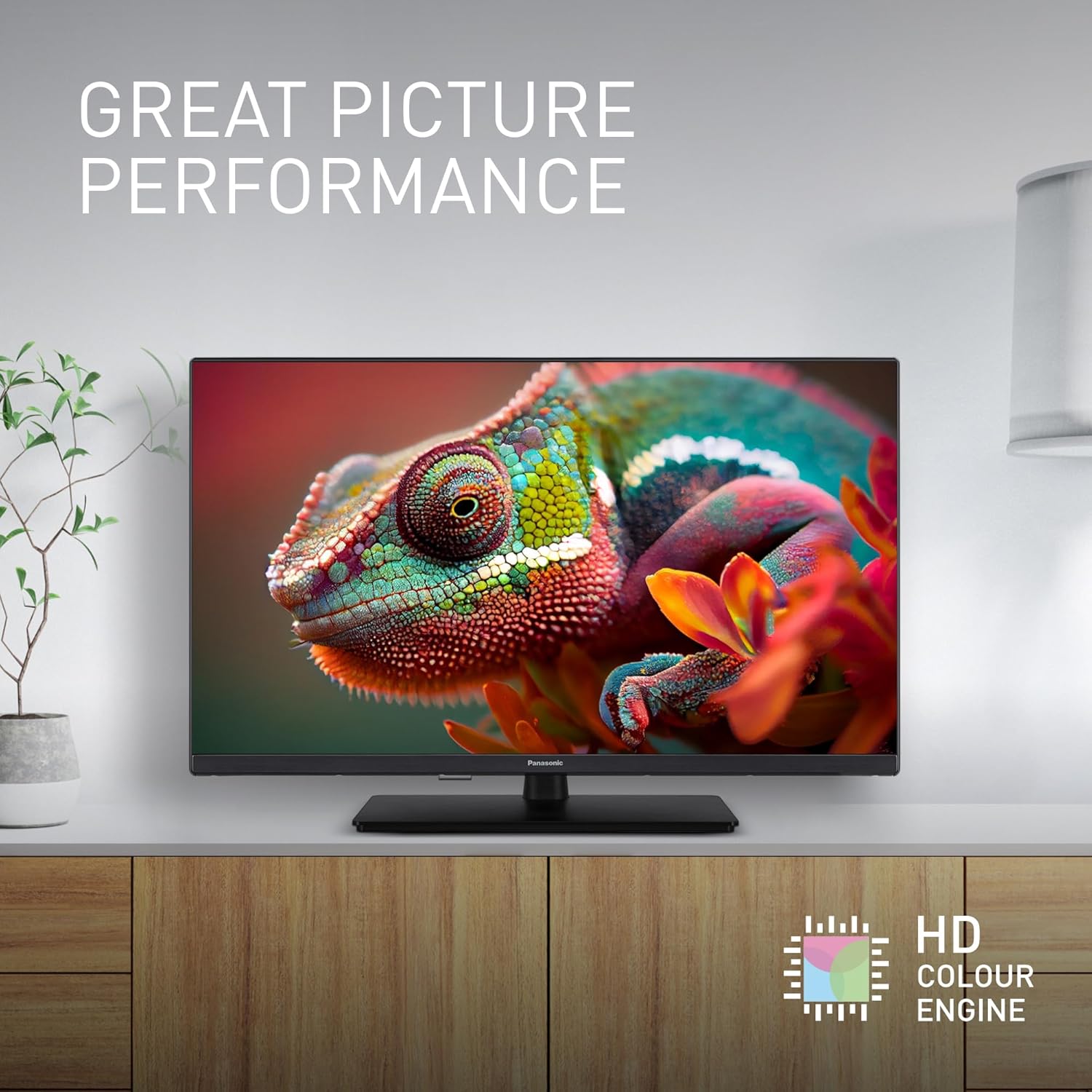
The TV-40S55AEY features an HD Colour Engine processing chip, which delivers natural and vibrant colors for an immersive viewing experience across all content. High Dynamic Range (HDR) technology enhances contrast, producing deeper blacks and brighter whites for an elevated visual experience.

An image demonstrating the enhanced picture performance achieved by the HD Colour Engine, showcasing rich and natural colors.
3.3 Audio Experience
Experience immersive audio with the TV's surround sound capabilities. This feature is designed to make the soundtrack feel as involving as the on-screen action, drawing you deeper into the story.
3.4 Gaming
The dedicated Game Mode is designed to reduce input lag, ensuring a smooth and responsive gaming experience. This feature is ideal for fast-paced games where quick reactions are crucial.

A visual representation of the Game Mode feature, indicating low latency and fast reaction times for an optimized gaming experience.
3.5 Media Playback
Connect USB drives to the TV's USB 2.0 port to access your personal music, videos, and photos through the built-in Media Player. This feature allows for easy viewing of your digital content directly on the TV screen.

An image illustrating the ease of accessing personal content stored on a USB drive using the TV's Media Player.
4. Maintenance and Care
To ensure the longevity and optimal performance of your Panasonic TV, follow these maintenance guidelines:
- Cleaning the Screen: Gently wipe the screen with a soft, lint-free cloth. For stubborn marks, slightly dampen the cloth with water or a specialized screen cleaner. Avoid using harsh chemicals or abrasive materials.
- Cleaning the Cabinet: Use a soft, dry cloth to clean the TV cabinet. Do not use liquid or spray cleaners directly on the TV.
- Ventilation: Ensure proper ventilation around the TV. Do not block the ventilation openings on the back or sides of the TV.
- Power Cord: Regularly check the power cord for any damage. If damaged, discontinue use and contact customer support.
5. Troubleshooting
If you encounter issues with your TV, refer to the following common problems and solutions:
| Problem | Possible Cause / Solution |
|---|---|
| No Power | Ensure the power cable is securely connected to both the TV and the wall outlet. Check if the wall outlet is functioning. |
| No Picture, but Sound is Present | Check the input source (HDMI, AV, etc.) to ensure it matches the connected device. Verify that the external device is powered on and functioning correctly. |
| No Sound, but Picture is Present | Check the volume level and ensure the TV is not muted. Verify audio cable connections for external devices. Check TV audio settings. |
| Remote Control Not Working | Replace the batteries in the remote control. Ensure there are no obstructions between the remote and the TV's IR sensor. |
| Cannot Connect to Wi-Fi | Ensure your Wi-Fi router is on and functioning. Re-enter the Wi-Fi password carefully. Try restarting both the TV and the router. |
| Apps Not Loading / Slow Performance | Check your internet connection speed. Close and restart the app. Try restarting the TV. Clear app cache if available in settings. |
For issues not covered here, or if problems persist, please contact Panasonic customer support.
6. Technical Specifications
| Feature | Specification |
|---|---|
| Model Number | TV-40S55AEY |
| Screen Size | 40 Inches / 102 cm |
| Display Technology | LCD |
| Resolution | 1080p (Full HD) |
| Refresh Rate | 60 Hz |
| Product Dimensions (D x W x H) | 17.8 x 90.2 x 57.4 cm |
| Weight | 7.5 kg |
| Connectivity Technology | Bluetooth, Wi-Fi, Ethernet |
| HDMI Ports | 2 (1 side, 1 back), HDMI 1.4 Support Feature, ARC (2 inputs, rear) |
| USB Ports | 1 (USB 2.0, side) |
| Headphone Output | 1 (side) |
| Digital Audio Output | 1 (rear) |
| Aspect Ratio | 16:9 |
| Special Features | Game Mode, Fire TV Built-in, Alexa Voice Control, HD Colour Engine, HDR, Media Player |
| Energy Efficiency Class | E |
6.1 Energy Efficiency Information

The energy efficiency label for the Panasonic TV-40S55AEY, indicating its energy class and consumption.
For more detailed energy information, please visit the official EU Product Registry for Energy Labelling (EPREL) at: https://eprel.ec.europa.europa.eu/qr/1883708
7. Warranty and Support
Your Panasonic TV-40S55AEY is covered by a manufacturer's warranty. Please refer to the warranty card included with your product for specific terms and conditions. For technical support, service, or warranty claims, please contact Panasonic customer service through their official website or the contact information provided in your product documentation.