
Panasonic TB-40S45AEZ
Panasonic TB-40S45AEZ 40-inch Full HD LED Smart TV User Manual
Model: TB-40S45AEZ
1. Introduction
Thank you for choosing the Panasonic TB-40S45AEZ Full HD LED Smart TV. This television is designed to provide an exceptional visual experience with its Full HD resolution and HD Colour Engine, delivering realistic and immersive images. Powered by TiVo, it offers a personalized Smart TV experience with access to various streaming applications and tailored recommendations. Enjoy hands-free control with integrated Google Assistant and Alexa voice commands, a dedicated Game Mode for smooth gaming, and a USB Media Player for flexible content viewing.
2. What's in the Box
Please check that all the following items are included in your package:
- Panasonic TB-40S45AEZ 40-inch Full HD LED Smart TV
- Remote Control
- Batteries for Remote Control
- Power Cord
- TV Stand (with screws)
- Quick Start Guide
3. Setup Guide
3.1 Unpacking and Placement
Carefully remove the TV from its packaging. Place the TV on a stable, flat surface or mount it on a wall using a compatible VESA mount (sold separately). Ensure adequate ventilation around the TV.

Front view of the Panasonic TB-40S45AEZ 40-inch Smart TV.

Detailed dimensions of the 40-inch Panasonic TV for placement planning.
3.2 Connecting Cables
- Power: Connect the power cord to the TV's power input and then to a wall outlet.
- Antenna/Cable: Connect your antenna or cable TV coaxial cable to the 'ANT/CABLE IN' port.
- HDMI Devices: Connect external devices like Blu-ray players, game consoles, or set-top boxes to the HDMI ports. This TV has 2 HDMI ports.
- USB Devices: For media playback, connect USB drives to the USB port. This TV has 1 USB port.
- Network: For internet connectivity, connect an Ethernet cable to the LAN port or use the built-in Wi-Fi.

Rear view of the Panasonic TV, illustrating the location of various connectivity ports.
3.3 Initial Setup
After connecting all necessary cables, plug in the TV and press the power button on the remote control. The TV will guide you through the initial setup process, which includes:
- Language selection
- Network connection (Wi-Fi or Ethernet)
- Channel scanning (for antenna/cable)
- Time zone and date settings
- TiVo account setup (if applicable)
4. Operating Instructions
4.1 Basic TV Functions
- Power On/Off: Use the power button on the remote.
- Channel Selection: Use the CH +/- buttons or number pad.
- Volume Control: Use the VOL +/- buttons.
- Input Source: Press the 'Source' or 'Input' button to switch between HDMI, TV, USB, etc.
4.2 TiVo Smart TV Features
The Panasonic TB-40S45AEZ is powered by TiVo, offering a personalized and intuitive smart TV experience. Access your favorite streaming apps and receive content recommendations based on your viewing habits.
- Home Screen: Navigate the home screen to find installed apps like Netflix, YouTube, Disney+, and more.
- Content Discovery: TiVo's intelligent system learns your preferences and suggests movies, shows, and live TV content.
- App Store: Download and install additional applications from the integrated app store.
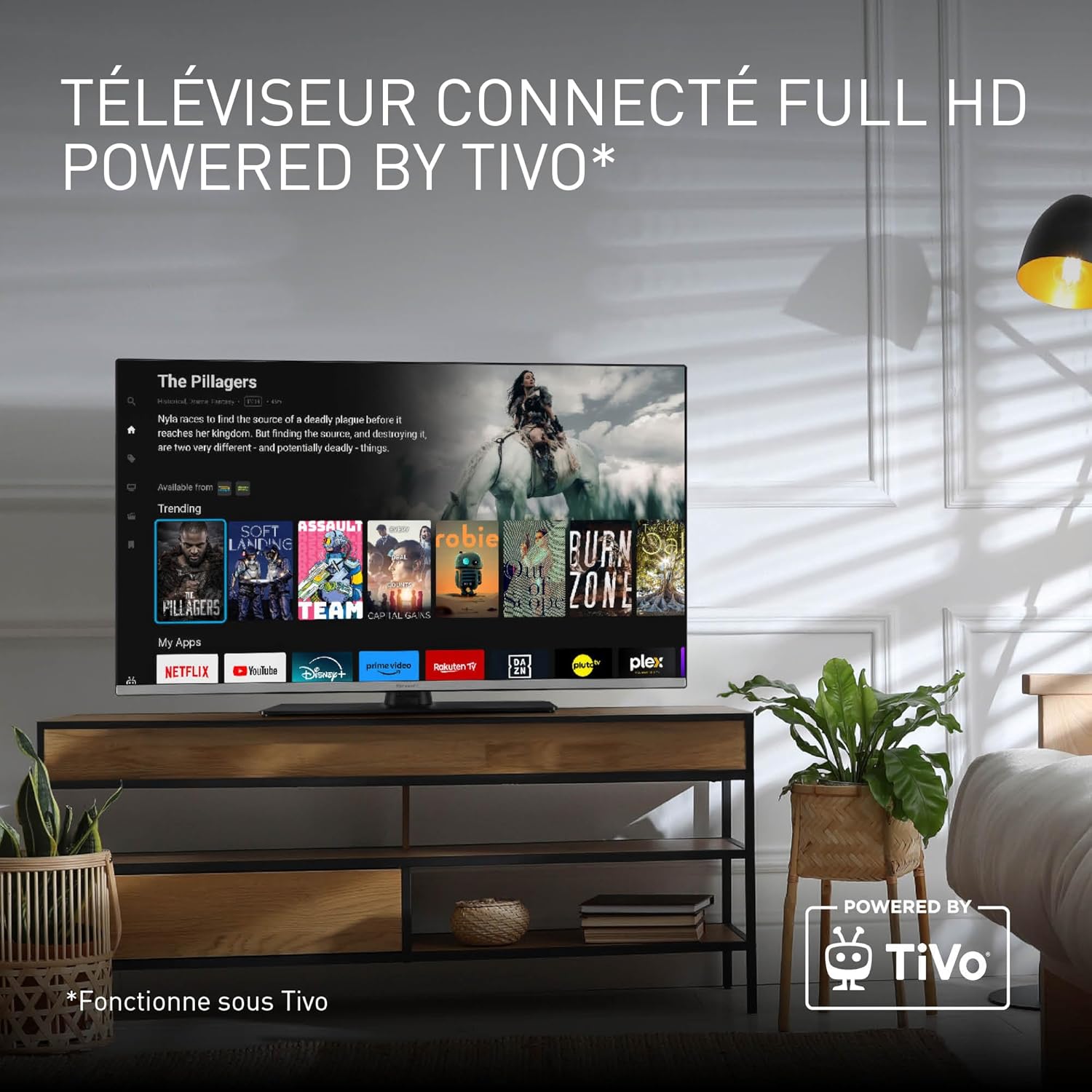
The TiVo Smart TV interface, showcasing various streaming applications available for access.
4.3 Voice Control (Google & Alexa)
Control your TV hands-free using Google Assistant or Alexa. Simply speak commands into the remote control's microphone (if equipped) or through a connected smart speaker.
- Activate Voice Control: Press the dedicated voice assistant button on your remote.
- Examples of Commands:
- "Open Netflix"
- "Change to Channel 5"
- "Increase volume"
- "Search for action movies"

A user interacting with the TV using voice commands, highlighting compatibility with Google Home and Alexa.
4.4 Media Player
The integrated USB Media Player allows you to view photos, play music, and watch videos directly from a USB storage device.
- Connect USB: Insert your USB drive into the TV's USB port.
- Access Media Player: Select the Media Player input source or launch the Media Player app from the home screen.
- Browse Files: Navigate through your files and select the content you wish to play.

The TV screen showing content being played through the built-in Media Player, accessible via USB.
4.5 Game Mode
Activate Game Mode for optimized performance during gaming sessions. This mode reduces input lag and enhances responsiveness, providing a smoother and more immersive gaming experience.
- Enable Game Mode: Access the picture settings menu and select 'Game Mode'.
- Connect Console: Ensure your game console is connected via HDMI for the best experience.

A person engaged in gaming on the TV, demonstrating the benefits of the dedicated Game Mode.
5. Picture and Sound Settings
5.1 Picture Settings
Adjust picture settings to suit your viewing preferences. The TV features Full HD resolution and HD Colour Engine for vibrant and realistic images, along with HDR support for enhanced contrast.
- Picture Modes: Choose from standard, vivid, movie, game, or custom modes.
- Brightness/Contrast/Color: Fine-tune these settings for optimal visual quality.
- HDR: High Dynamic Range provides deeper blacks, brighter whites, and a wider color palette.

A visual demonstration of the TV's high contrast and Full HD image performance.
5.2 Sound Settings
Customize audio settings for an immersive sound experience, including surround sound capabilities.
- Sound Modes: Select from standard, music, movie, or custom modes.
- Equalizer: Adjust specific frequency bands for personalized audio.
- Surround Sound: Enable surround sound for a more cinematic audio experience.
6. Maintenance
6.1 Cleaning the TV
- Always unplug the TV before cleaning.
- Use a soft, dry, lint-free cloth to wipe the screen and cabinet.
- For stubborn marks, lightly dampen the cloth with water or a mild, non-abrasive screen cleaner. Never spray liquid directly onto the screen.
- Avoid using harsh chemicals or abrasive cleaning materials.
6.2 Software Updates
Periodically check for software updates to ensure your TV has the latest features and performance improvements. Updates can usually be found in the TV's settings menu under 'System' or 'About'.
7. Troubleshooting
If you encounter any issues with your TV, please refer to the following common problems and solutions:
| Problem | Possible Solution |
|---|---|
| No Power | Ensure the power cord is securely plugged into the TV and the wall outlet. Check if the outlet is working. |
| No Picture, But Has Sound | Check the input source. Ensure external devices are powered on and connected correctly. |
| No Sound, But Has Picture | Check volume level and mute status. Ensure external audio systems are connected and configured correctly. |
| Remote Control Not Working | Replace batteries. Ensure no obstructions between remote and TV. Clean remote sensor on TV. |
| Cannot Connect to Wi-Fi | Check Wi-Fi password. Restart your router. Ensure TV is within range of the Wi-Fi signal. |
| Smart TV Apps Not Loading | Check internet connection. Restart the TV. Clear app cache or reinstall the app if possible. |
If the problem persists after trying these solutions, please contact customer support.
8. Specifications
| Feature | Detail |
|---|---|
| Brand | Panasonic |
| Model Number | TB-40S45AEZ |
| Screen Size | 40 Inches (102 cm) |
| Display Technology | LCD |
| Resolution | Full HD (1920 x 1080p) |
| Refresh Rate | 60 Hz |
| Smart TV Platform | TiVo Smart TV |
| Voice Control | Google Assistant, Alexa |
| Special Features | Game Mode, Media Player, HDR |
| Connectivity | Wi-Fi, 2x HDMI Ports, 1x USB Port |
| Tuner | DVB-T2 (Triple Tuner HD) |
| Energy Efficiency Class | E |
| Dimensions (L x W x H) | 90.2 x 23.5 x 57.4 cm |
| Weight | 7.5 kg |
9. Warranty and Support
9.1 Manufacturer's Warranty
This Panasonic TV comes with a manufacturer's warranty of 2 years. Please retain your proof of purchase for warranty claims. The warranty covers defects in materials and workmanship under normal use.
9.2 Customer Support
For technical assistance, troubleshooting beyond this manual, or warranty inquiries, please contact Panasonic customer support. Refer to the contact information provided in your product packaging or visit the official Panasonic website for your region.
Online Support: www.panasonic.com
Ask a question about this manual
Ask about setup, troubleshooting, compatibility, parts, safety, or missing instructions. Manuals+ will review the question and use this page’s manual context to help answer it.