
acer RM
acer Flex Wireless Gaming Headset User Manual
Model: RM
1. Product Overview
The acer Flex Wireless Gaming Headset is designed to provide an immersive audio experience for gaming, meetings, and music. It features versatile connectivity options including 2.4GHz wireless, Bluetooth 5.3, and a 3.5mm wired connection, ensuring compatibility with a wide range of devices such as PCs, laptops, gaming consoles (PS4, PS5, Xbox, Switch), tablets, and mobile phones.
Key features include dynamic 50mm drivers for crystal-clear sound, an extended battery life of up to 100 hours, and a clear voice microphone with noise-canceling capabilities for effective communication.
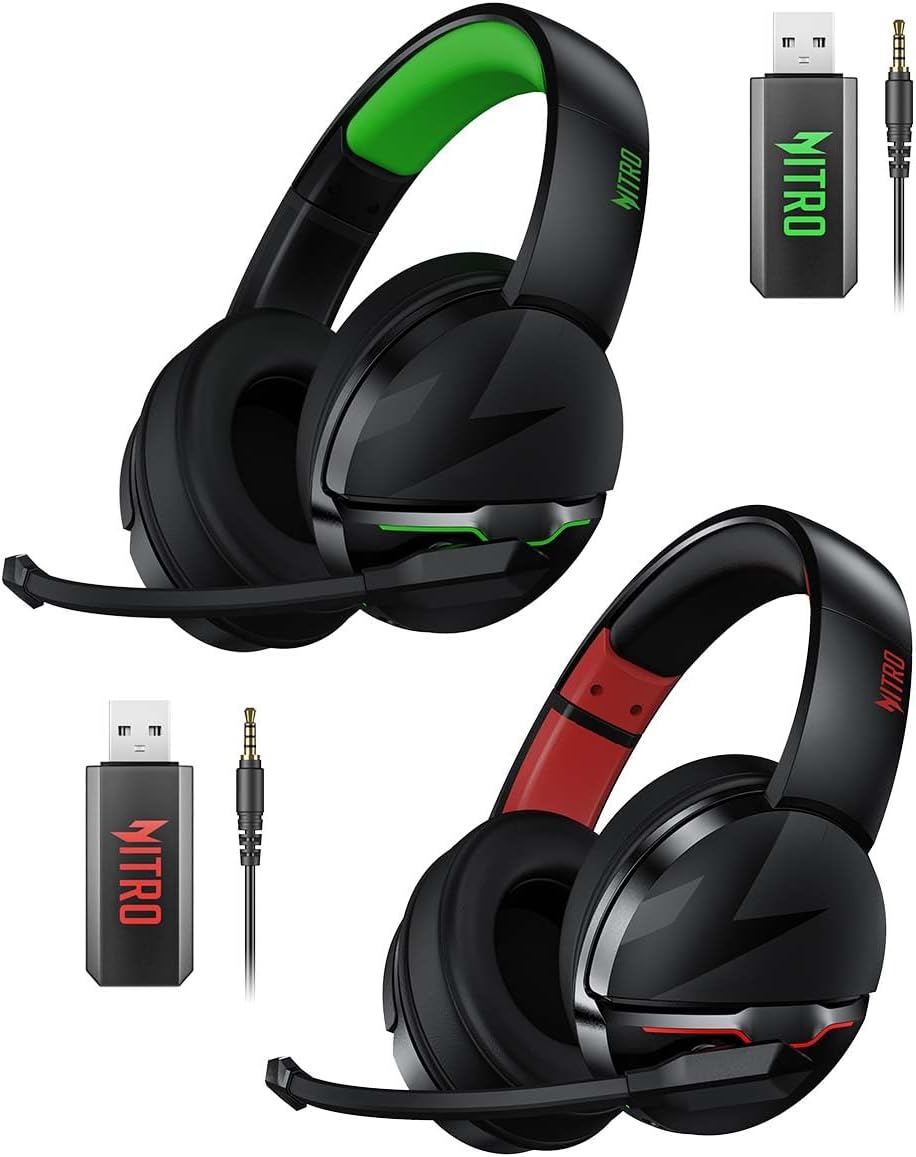
Figure 1.1: acer Flex Wireless Gaming Headsets (Red+Green and Green+Black variants) with accessories.
2. Package Contents
Please check the package contents upon unboxing:
- acer Flex Wireless Gaming Headset (1 unit)
- 2.4GHz USB Wireless Dongle (1 unit)
- 3.5mm Audio Cable (1 unit)
- USB Charging Cable (1 unit)
- User Manual (This document)
3. Product Features
- Immersive Sound Quality: Equipped with dynamic 50mm drivers, the headset delivers crystal-clear audio with deep bass and rich treble, enhancing your gaming and media consumption experience.

Figure 3.1: Advanced 50mm Drivers for Ultimate Sound.
- Lag-Free Wireless Connection: Enjoy seamless gameplay and audio with a stable and fast 2.4GHz wireless connection, minimizing latency to 20ms for a responsive experience.

Figure 3.2: Clear Voice Microphone with ENC and Ultra-Low Latency.
- Extended Battery Life: The headset provides up to 100 hours of continuous use on a single charge, ensuring long gaming sessions or music playback without interruption. A 1200mAh battery supports this extended duration, with a full charge taking approximately 4-6 hours.

Figure 3.3: 100 Hours Non-Stop Gaming.

Figure 3.4: Long Lasting Battery Life Details.
- Comfortable Fit: Designed for prolonged wear, the headset features a lightweight build, plush ear cushions with soft leather texture, and MIU memory foam for professional-grade soundproofing and comfort.

Figure 3.5: Zero-Feel Comfort Design.
- Built-in Noise-Canceling Mic: Communicate clearly with teammates using the integrated Environmental Noise Cancelling (ENC) microphone, ensuring your voice is heard without background distractions.
- Multiple Connectivity Modes: Seamlessly switch between 2.4GHz wireless, Bluetooth 5.3, and 3.5mm wired connections to suit your device and preference.

Figure 3.6: Connect Anywhere with Multiple Modes.

Figure 3.7: Three Types of Connection Modes.
4. Controls and Indicators
The headset features intuitive controls for easy operation. While specific button layouts may vary slightly, common controls include:
- Power Button: Used to turn the headset on/off and initiate pairing mode.
- Volume Wheel/Buttons: Adjusts the audio output volume.
- Microphone Mute Button: Toggles the microphone on or off.
- Mode Switch Button: (If applicable) Switches between 2.4GHz wireless, Bluetooth, or other modes.
- Charging Port: Typically a USB-C or Micro-USB port for charging.
- 3.5mm Audio Jack: For wired connection.
- LED Indicator: Displays battery status, connection status, and charging status.
Refer to the physical headset for exact button placement and labeling.
5. Setup
5.1 Charging the Headset
- Connect the provided USB charging cable to the headset's charging port.
- Connect the other end of the USB cable to a USB power source (e.g., computer USB port, USB wall adapter).
- The LED indicator will typically show a solid light while charging and turn off or change color when fully charged.
- A full charge takes approximately 4-6 hours.
5.2 Connecting via 2.4GHz Wireless Mode
This mode is ideal for PC, Laptop, and PS5 for low-latency gaming.
- Insert the 2.4GHz USB wireless dongle into an available USB port on your device (PC, Laptop, PS5).
- Power on the headset by pressing and holding the Power button.
- The headset should automatically connect to the dongle. The LED indicator on the headset will show a stable light once connected.
- On your device, ensure the headset is selected as the default audio input and output device in your sound settings.
5.3 Connecting via Bluetooth Mode
This mode is suitable for Laptops, PCs, iPads, Phones, and Macs.
- Ensure the headset is powered on.
- Press and hold the Power button (or a dedicated Bluetooth button if available) to enter Bluetooth pairing mode. The LED indicator will typically flash rapidly.
- On your device, go to Bluetooth settings and search for new devices.
- Select "acer Flex Headset" (or similar name) from the list of available devices.
- Once paired, the LED indicator on the headset will show a stable light.
5.4 Connecting via 3.5mm Wired Mode
This mode is compatible with devices featuring a 3.5mm CTIA jack, such as Laptops, Xbox controllers, and Nintendo Switch.
- Connect one end of the provided 3.5mm audio cable to the 3.5mm audio jack on the headset.
- Connect the other end of the 3.5mm audio cable to the 3.5mm audio port on your device or controller.
- The headset will operate in passive wired mode. No battery power is required for audio playback in this mode, though microphone functionality may depend on the device.
6. Operating Instructions
6.1 Power On/Off
- To Power On: Press and hold the Power button for approximately 3 seconds until the LED indicator lights up.
- To Power Off: Press and hold the Power button for approximately 5 seconds until the LED indicator turns off.
6.2 Volume Control
- Use the volume wheel or volume up/down buttons located on the headset to adjust the audio output level.
6.3 Microphone Usage
- Mute/Unmute: Press the Microphone Mute button (if available) to toggle the microphone on or off. A red LED on the microphone tip or headset body often indicates that the microphone is muted.
- Positioning: For optimal voice clarity, position the microphone approximately 1-2 inches from your mouth.
6.4 Switching Connection Modes
If your headset supports multiple wireless modes (2.4GHz and Bluetooth), there may be a dedicated button or a specific sequence to switch between them. Refer to the headset's physical controls for details.
7. Maintenance
- Cleaning: Use a soft, dry cloth to clean the headset. Do not use abrasive cleaners or solvents.
- Storage: Store the headset in a cool, dry place away from direct sunlight and extreme temperatures.
- Battery Care: To prolong battery life, avoid fully discharging the headset frequently. Charge it regularly, even if not in use for extended periods.
- Water Resistance: This headset is Not Water Resistant. Avoid exposure to liquids.
8. Troubleshooting
| Problem | Possible Cause | Solution |
|---|---|---|
| No sound from headset | Headset is off; Low battery; Incorrect connection mode; Volume too low; Device audio settings incorrect. | Ensure headset is powered on and charged. Check connection mode (2.4GHz, Bluetooth, 3.5mm). Increase headset and device volume. Verify headset is selected as default audio output on your device. |
| Microphone not working | Microphone muted; Incorrect device input settings; Loose connection (wired mode). | Unmute the microphone. Ensure the headset microphone is selected as the default input device in your device's sound settings. For wired connection, ensure the 3.5mm cable is fully inserted. |
| Wireless connection unstable/disconnects | Interference; Too far from dongle/device; Low battery. | Move closer to the dongle/device. Avoid strong electromagnetic interference. Ensure headset is fully charged. Re-pair the headset if necessary. |
| Headset not charging | Faulty cable/charger; Charging port issue. | Try a different USB cable and power source. Ensure the charging cable is securely connected. |
9. Specifications
| Feature | Detail |
|---|---|
| Model Name | acer 2.4GHz Flex Wireless Gaming Headset |
| Model Number | RM |
| Connectivity Technology | 2.4GHz Wireless (RF), Bluetooth 5.3, 3.5mm Wired |
| Audio Driver Type | Dynamic Driver (50mm) |
| Frequency Range | 20 Hz to 20,000 Hz |
| Battery Life | Up to 100 Hours |
| Charging Time | Approx. 4-6 Hours |
| Microphone | Built-in, Noise-Canceling (ENC) |
| Earpiece Shape | Over Ear |
| Compatible Devices | Laptops, Desktops, Gaming Consoles (PS4, PS5, Xbox, Switch), Tablets, Telephones, Smart Speakers, Televisions, Cellphones |
| Water Resistance Level | Not Water Resistant |
| Color Options | Black, Red, Green (Red+Green style) |
10. Warranty and Support
acer products are designed for reliability and performance. For warranty information, technical support, or service inquiries, please refer to the warranty card included with your product or visit the official acer support website.
For further assistance, you may contact acer customer support through their official channels.