
1. Introduction
This manual provides detailed instructions for the installation, operation, and maintenance of your Hikity Android 15 Car Stereo. This unit is designed to enhance your driving experience with advanced features such as Wireless CarPlay, Android Auto, Bluetooth connectivity, GPS navigation, and a 9-inch high-definition touchscreen.
Please read this manual thoroughly before using the product to ensure proper operation and to prevent damage.
2. Safety Information
Observe the following safety precautions to prevent injury or damage to the unit:
- Professional Installation Recommended: Due to the complexity of car audio systems, professional installation is highly recommended. Incorrect wiring can cause damage to the vehicle's electrical system or the stereo unit.
- Driving Safety: Do not operate the unit in a way that distracts you from driving. Always keep your eyes on the road and obey all traffic laws.
- Volume Control: Keep the volume at a level where you can still hear outside traffic sounds. Excessive volume can impair your ability to hear emergency vehicles or other warnings.
- Power Source: Connect the unit only to a 12V DC power supply with a negative ground.
- Avoid Moisture: Do not expose the unit to water or excessive moisture.
- Temperature: Avoid operating the unit in extreme temperatures. The recommended operating temperature range is -20℃ to +75℃.
- Cleaning: Use a soft, dry cloth for cleaning. Do not use abrasive cleaners or solvents.
3. Package Contents
Verify that all items listed below are included in your package. If any items are missing or damaged, please contact your retailer.
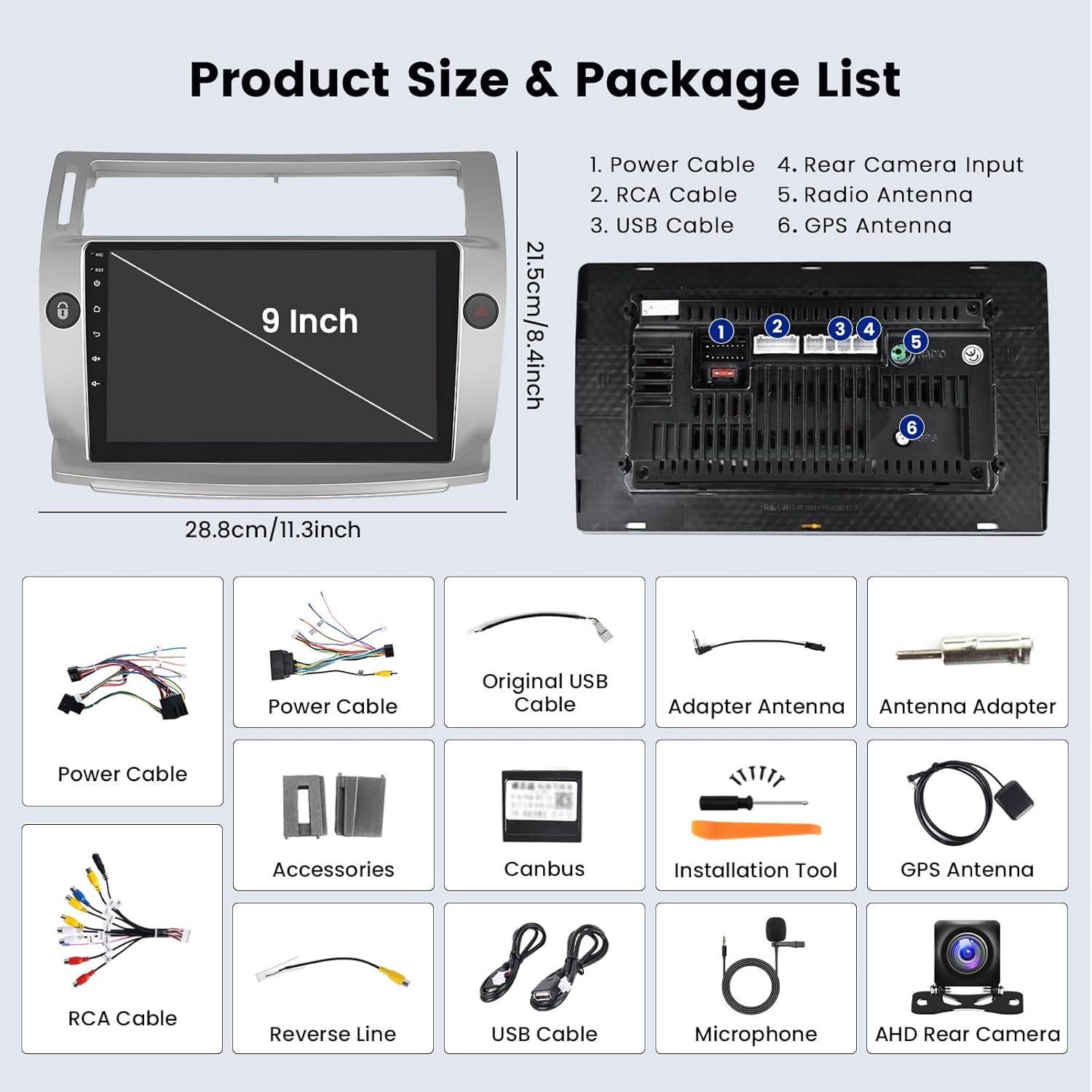
Image: Diagram showing the car stereo dimensions and a visual list of included accessories.
- Android Car Stereo Unit
- Canbus Decoder
- GPS Antenna
- AHD Reversing Camera
- Microphone
- Power Cable
- USB Cable (x2)
- Camera Input Cable
- RCA Cable
- Installation Tools
- Antenna Adapter
4. Setup and Installation
This section provides general guidance for installing your car stereo. For specific vehicle wiring, consult your vehicle's service manual or seek professional assistance.
4.1 Wiring Connections
Ensure all connections are secure and correctly matched to avoid damage. Refer to the wiring diagram provided with your unit for detailed connections.
- Power Cable: Connect the main power harness to your vehicle's power supply (12V DC, negative ground). Ensure the ACC, B+, and Ground wires are correctly identified and connected.
- CANBUS Decoder: Connect the CANBUS decoder if your vehicle requires it for steering wheel controls or other vehicle data integration.
- GPS Antenna: Mount the GPS antenna in a location with a clear view of the sky, typically on the dashboard or under the windshield.
- USB Cables: Connect the provided USB cables for external storage or wired CarPlay/Android Auto connections.
- Microphone: Connect the external microphone for improved call quality. Position it near the driver for optimal voice pickup.
4.2 Rear View Camera Installation
The included AHD rear view camera provides a clear view when reversing. Follow the diagram below for proper connection.

Image: Detailed wiring diagram for connecting the AHD rear view camera, showing connections to the stereo, power, and reversing lamp.
- Connect the camera's video output to the "CAM IN" or "Reverse Input" port on the car stereo.
- Connect the camera's red power wire to the vehicle's reversing lamp positive (+) terminal.
- Connect the camera's black ground wire to a suitable ground point on the vehicle chassis.
- Ensure the "Reverse" trigger wire from the stereo's harness is connected to the reversing lamp positive (+) terminal as well, so the stereo automatically switches to the camera view when reverse gear is engaged.
4.3 Steering Wheel Control (SWC)
The unit supports original car steering wheel controls. After correct wiring via the CANBUS decoder (if applicable) or direct key learning, you can operate the stereo using your steering wheel buttons.
- Access the "Steering Wheel Learning" or "SWC Settings" menu in the stereo's settings.
- Follow the on-screen prompts to assign functions to each button.
5. Operating Instructions
5.1 Basic Operation and User Interface
The car stereo features a 9-inch capacitive touchscreen. Navigate through menus by tapping icons and swiping. The unit offers 53 UI themes for personalization.

Image: Screenshot of the car stereo's user interface displaying icons for CarPlay, Android Auto, Mirror Link, Rear Camera, SWC, Split Screen, and Touch Screen.
5.2 Wireless/Wired CarPlay & Android Auto
Connect your iPhone or Android phone to access navigation, music, calls, and messages directly on the stereo screen.
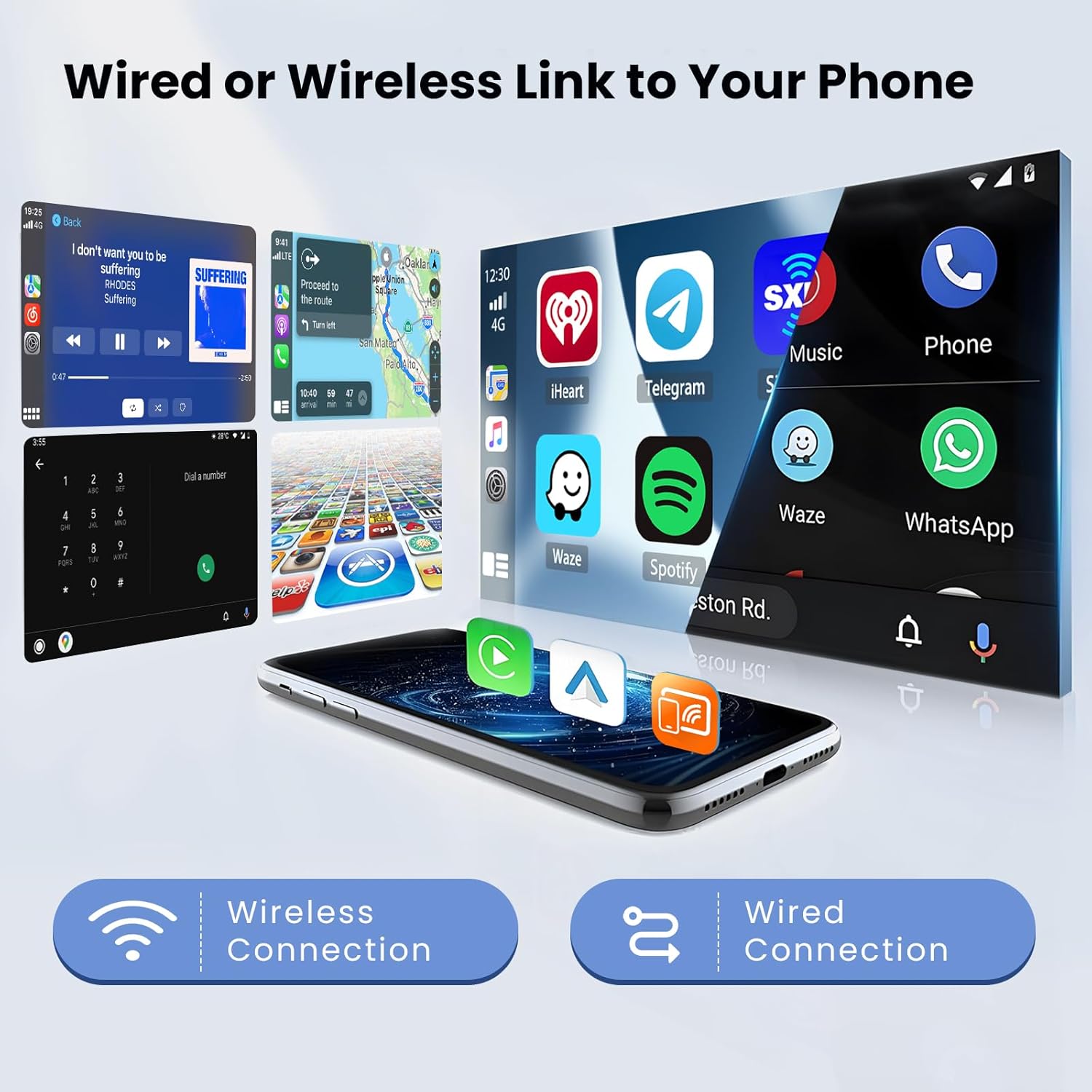
Image: Visual representation of the car stereo's ability to connect to a smartphone via both wireless and wired methods for CarPlay and Android Auto functionalities.
- Wireless Connection: Enable Bluetooth and Wi-Fi on your phone. Pair your phone with the car stereo via Bluetooth. Follow the on-screen prompts to initiate Wireless CarPlay or Android Auto.
- Wired Connection: Connect your phone to the stereo's USB port using a high-quality USB cable. The system should automatically detect and launch CarPlay or Android Auto.
5.3 Bluetooth Functionality
Pair your mobile phone with the stereo for hands-free calling and audio streaming.
- Go to the Bluetooth settings on the stereo.
- Enable Bluetooth on your phone and search for available devices.
- Select the stereo's Bluetooth name (e.g., "Hikity Car Stereo") from your phone's list and pair.
- Once paired, you can make/receive calls and play music wirelessly.
5.4 FM/RDS Radio
The built-in FM/RDS tuner allows you to listen to your favorite radio stations.

Image: Screenshot of the car stereo's interface showing the FM radio tuner with RDS information and the equalizer settings for audio customization.
- Select the "Radio" application from the main menu.
- Use the scan function to find available stations or manually tune to a frequency.
- Save your favorite stations as presets for quick access.
5.5 GPS Navigation & WiFi Hotspot
Utilize the integrated GPS for navigation and connect to Wi-Fi for online services.

Image: Display showing the car stereo's GPS navigation interface with map data and various online applications accessible via WiFi hotspot.
- GPS Navigation: The unit supports both offline and online GPS maps. Launch the navigation application and enter your destination.
- WiFi Hotspot: Connect the stereo to your phone's mobile hotspot or a local Wi-Fi network to access online features, stream videos, browse the internet, and download apps.
5.6 Audio Equalizer (EQ)
Customize your audio experience with the built-in equalizer, offering various sound effects and presets.
- Access the "EQ" or "Sound Settings" menu.
- Choose from preset modes (e.g., Pop, Rock, Jazz) or manually adjust frequency bands to suit your preference.
5.7 Split Screen Function
The split-screen feature allows you to run two applications simultaneously, such as navigation and music playback.
- While an application is open, long-press the recent apps button or drag an app to one side of the screen (depending on UI version) to activate split-screen mode.
- Select a second application to occupy the other half of the screen.
6. Maintenance
Proper maintenance ensures the longevity and optimal performance of your car stereo.
- Screen Cleaning: Use a soft, lint-free cloth to gently wipe the touchscreen. For stubborn smudges, slightly dampen the cloth with water or a screen-safe cleaner. Do not spray liquids directly onto the screen.
- Software Updates: Periodically check for software updates through the system settings or the manufacturer's website to ensure you have the latest features and bug fixes.
- Avoid Extreme Conditions: Protect the unit from direct sunlight for extended periods and extreme temperatures.
7. Troubleshooting
If you encounter issues with your car stereo, refer to the following common problems and solutions. If the problem persists, contact customer support.
| Problem | Possible Cause | Solution |
|---|---|---|
| No power / Unit does not turn on | Incorrect wiring; Blown fuse; Vehicle battery issue. | Check power connections (B+, ACC, GND). Verify the fuse in the power cable. Ensure vehicle battery is charged. |
| No sound | Volume too low; Mute activated; Speaker wiring issue; Incorrect audio output settings. | Increase volume. Check if mute is active. Verify speaker connections. Check audio settings (e.g., fader/balance). |
| Bluetooth not connecting | Bluetooth not enabled; Incorrect pairing process; Interference. | Ensure Bluetooth is enabled on both devices. Delete previous pairings and re-pair. Move closer to the unit. |
| GPS signal lost or inaccurate | GPS antenna obstructed or disconnected; Outdated map data. | Ensure GPS antenna has a clear view of the sky and is securely connected. Update map data if necessary. |
| Touchscreen unresponsive | Temporary software glitch; Screen protector interference; Physical damage. | Restart the unit. Remove any screen protectors to test. If persistent, contact support. |
| Steering Wheel Controls not working | Incorrect wiring; CANBUS issue; Not programmed. | Verify CANBUS/SWC wiring. Re-program the steering wheel controls in settings. |
Factory Reset: If software issues persist, a factory reset may resolve them. Navigate to System Settings > About Device > Factory Reset. The factory password is 1234. Note: A factory reset will erase all user data and settings.
8. Specifications
| Feature | Detail |
|---|---|
| Model Number | Hikity-A7186A3195A4MI2EU26-C304 |
| Operating System | Latest Android System (Android 15) |
| CPU Chipset | 8227L (4-core) |
| RAM | 2 GB |
| ROM (Internal Storage) | 64 GB |
| Screen Size | 9 inches |
| Screen Resolution | 1024 x 600 |
| Radio Chip | MTK |
| Power Output | 4 x 45 W (Max 180 Watts) |
| Amplifier Chip | TDA7388 |
| Operating Temperature | -20℃ to +75℃ |
| Connectivity | Bluetooth, Wi-Fi, USB |
| Special Features | Wireless CarPlay, Android Auto, GPS Navigation, FM/RDS Tuner, AHD Rear Camera Input, Steering Wheel Control, Split Screen, Multiple UI Themes |
| Audio Formats | APE, FLAC, WAV, MP3, WMA, etc. |
| Video Formats | MKV, RMVB, AVI, MP4, MDV, H.264, MPEG-4, etc. |
| Image Formats | PNG, JPEG, JPG, GIF, WBMP, BNP, etc. |
| Supported Languages | English, German, French, Italian, Spanish, Portuguese, Polish, etc. (up to 40 national languages) |
9. Warranty and Support
Your Hikity Android 15 Car Stereo comes with a standard manufacturer's warranty. Please refer to the warranty card included in your package or visit the official Hikity website for detailed warranty terms and conditions.
For technical support, troubleshooting assistance, or warranty claims, please contact Hikity customer service through the following channels:
- Online Support: Visit the Hikity official website for FAQs, support articles, and contact forms.
- Email Support: Refer to your purchase documentation for the customer support email address.
- Retailer Support: Contact the retailer from whom you purchased the product for initial assistance.
When contacting support, please have your product model number (Hikity-A7186A3195A4MI2EU26-C304) and purchase information readily available.