
1. Introduction
This manual provides comprehensive instructions for the proper setup, operation, maintenance, and troubleshooting of your Soueto WS415 Wireless RGB Backlit Keyboard. Please read this manual thoroughly before using the product to ensure optimal performance and longevity.
The Soueto WS415 is a full-size wireless keyboard featuring 7-color RGB backlighting with 4 modes, an ergonomic wrist rest, and an integrated holder for phones or tablets. It connects via 2.4G wireless technology and includes a built-in rechargeable battery.
2. What's Included
Verify that all items are present in the package:
- 1 x 2.4G Wireless Keyboard
- 1 x Separate Wrist Rest
- 1 x USB-A Receiver
- 1 x USB Cable (Type-C)
- 1 x User Manual (this document)
3. Setup Instructions
3.1. 2.4G Wireless Connection
- Locate the USB-A receiver, typically stored in a compartment on the underside of the keyboard.
- Plug the USB-A receiver into an available USB port on your computer (PC, laptop, etc.).
- Turn on the power switch located on the keyboard. The keyboard should automatically connect.
Note: If the keyboard backlight shuts off rapidly (1-2 seconds) without sensing a connection, ensure the USB receiver is plugged in before turning on the keyboard. This is a routine setting, not a product defect.

Figure 1: Soueto WS415 Wireless RGB Backlit Keyboard with its USB receiver.
3.2. Charging the Keyboard
The keyboard features a built-in 1500mAh rechargeable battery. Use the provided USB-C cable to charge the keyboard.
- Connect the USB-C end of the cable to the keyboard's charging port (Type-C).
- Connect the USB-A end of the cable to a power source (e.g., computer USB port, USB wall adapter).
- The charging indicator LED will illuminate during charging and turn off when fully charged.

Figure 2: Keyboard connected via USB-C for charging, highlighting the 1500mAh battery capacity.
3.3. Attaching the Wrist Rest
The ergonomic wrist rest is designed to provide comfort and support during extended typing sessions. Simply align the wrist rest with the front edge of the keyboard; it is designed to fit snugly.

Figure 3: Ergonomic wrist rest positioned in front of the keyboard for comfortable typing posture.
3.4. Using the Device Holder
The keyboard features an integrated 8.7-inch device holder, suitable for holding your smartphone or tablet, helping to keep your workspace organized.
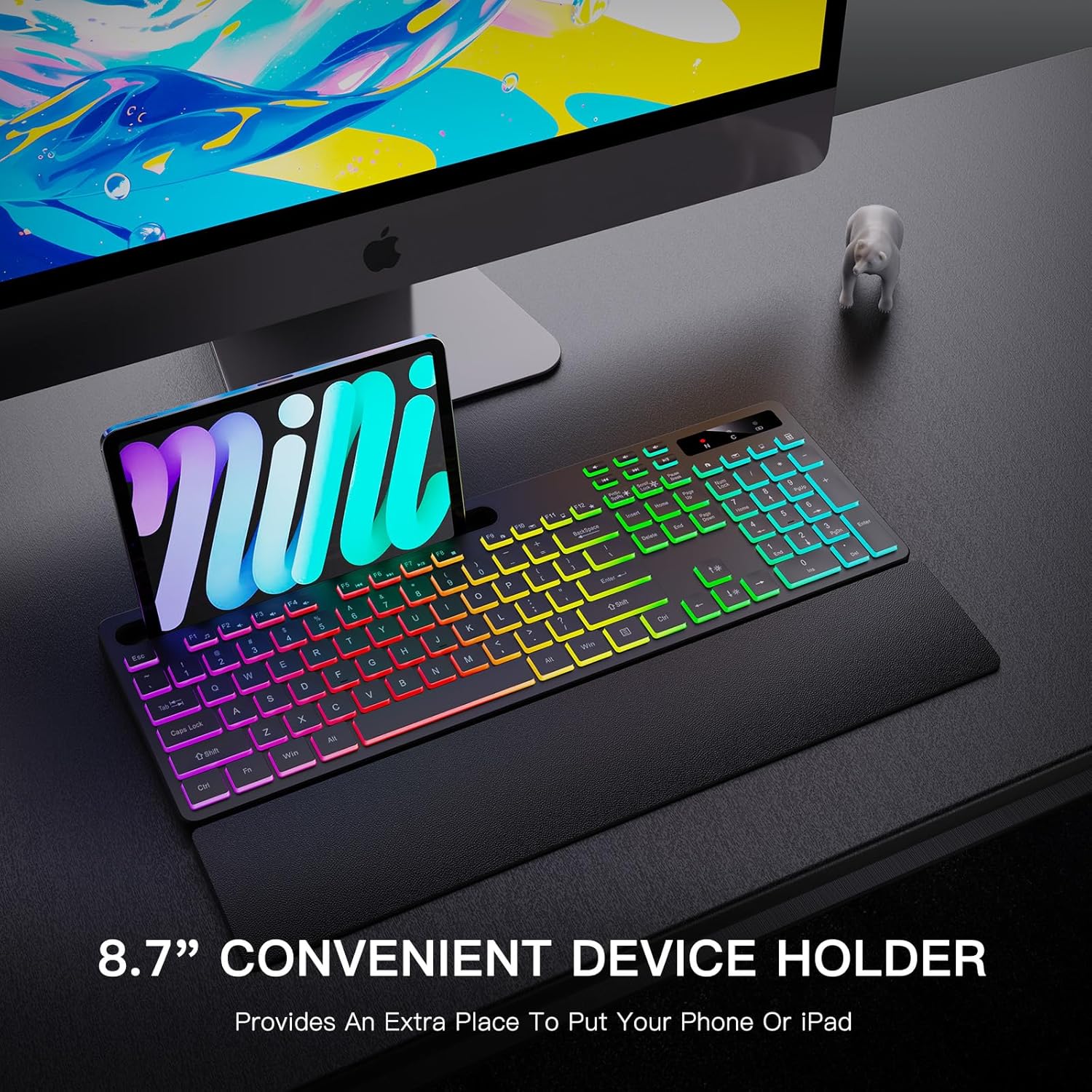
Figure 4: Tablet securely placed in the keyboard's integrated device holder.
3.5. Adjustable Feet
The keyboard includes adjustable feet on its underside to allow for a preferred typing angle. Flip them out to raise the back of the keyboard, or fold them in for a flatter profile.
4. Operating Instructions
4.1. Backlight Features
The keyboard offers 7 colors and 4 RGB backlight modes to customize your typing experience:
- Mode 1: Colorful Streamer (Rainbow Flow)
- Mode 2: Seven-colors (Comet Trail) - Order: red-yellow-green-cyan-purple-pink-white
- Mode 3: 7 Colors Breathing
- Mode 4: 7 Colors Monochrome
To switch between backlight modes, press Fn + Scroll Lock. To adjust brightness levels, press Fn + Page Up (increase) or Fn + Page Down (decrease).
The backlight is lit in three segments: 50%, 75%, and 100% (default). If the keyboard is not used, the backlight will turn off after 90 seconds, and the keyboard will enter sleep mode after 10 minutes.

Figure 5: Visual representation of the four distinct backlight modes available on the keyboard.
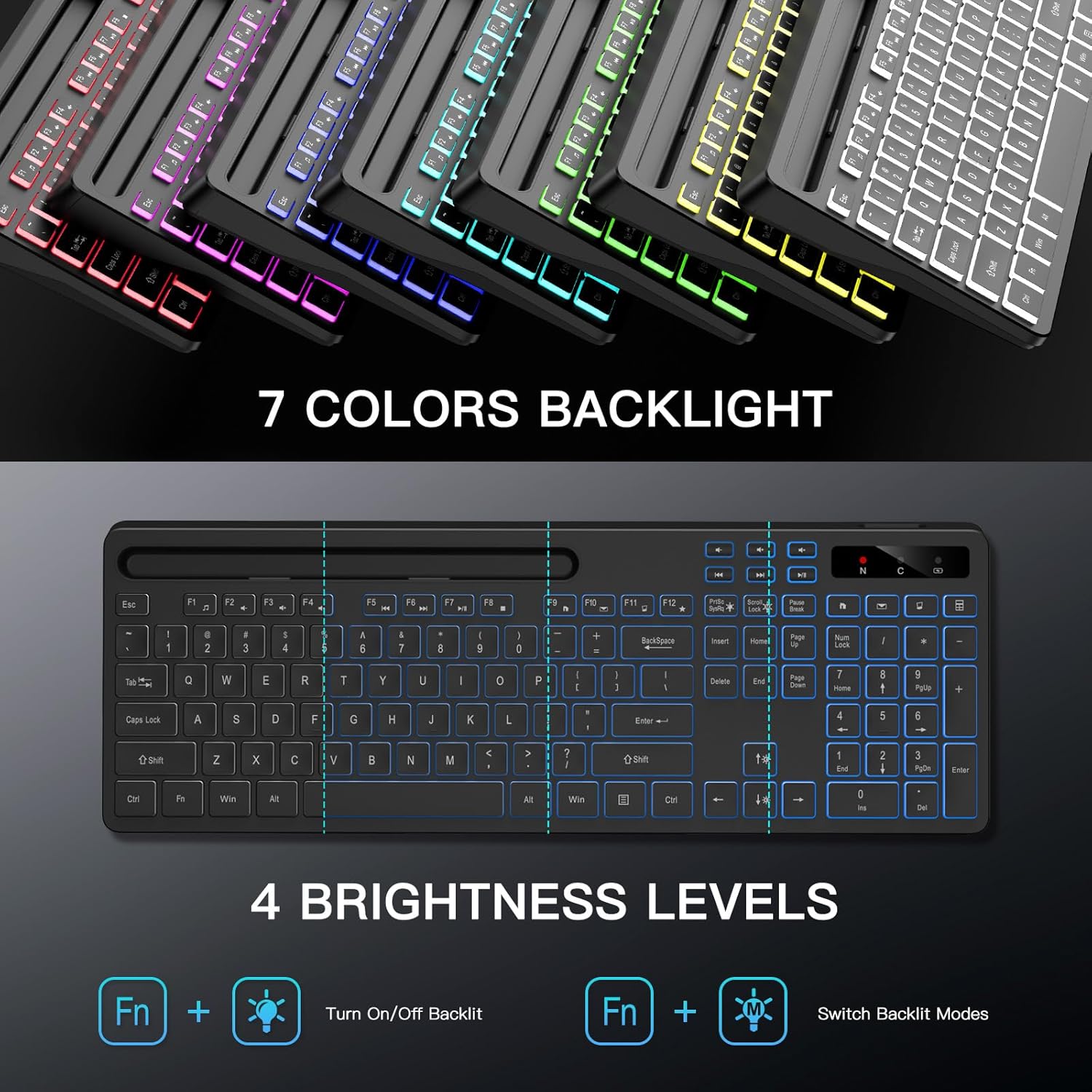
Figure 6: Illustration of the 7 available backlight colors and the function keys for brightness adjustment.
4.2. Multimedia and Shortcut Keys
The keyboard includes convenient access to multimedia and shortcut keys:
- Fn + F1: Media
- Fn + F2: Volume-
- Fn + F3: Volume+
- Fn + F4: Mute
- Fn + F5: Previous track
- Fn + F6: Next track
- Fn + F7: Play/Pause
- Fn + F8: Stop
- Fn + F9: Open the webpage/homepage
- Fn + F10: Mail
- Fn + F11: My Computer
- Fn + F12: My Favorite

Figure 7: Overview of the keyboard's shortcut and multimedia keys for enhanced workflow.
4.3. LED Indicators
The keyboard features three LED indicators (from left to right) for NUM, CAPS, and power:
- N (Num Lock): Indicates when Num Lock is active for numeric keypad use.
- C (Caps Lock): Indicates when Caps Lock is active for uppercase letters.
- Battery/Pairing: Flashes during pairing and indicates low battery voltage.
5. Maintenance
To ensure the longevity and optimal performance of your keyboard, follow these maintenance guidelines:
- Cleaning: Use a soft, dry cloth to wipe the keyboard surface. For deeper cleaning, a slightly damp cloth with mild soap can be used, ensuring no liquid enters the keycaps or internal components.
- Storage: When not in use for extended periods, turn off the keyboard to conserve battery life. Store it in a cool, dry place away from direct sunlight and extreme temperatures.
- Battery Care: Avoid fully discharging the battery frequently. Charge the keyboard when the low battery indicator appears.
- Avoid Spills: Keep liquids away from the keyboard to prevent damage to electronic components.
6. Troubleshooting
If you encounter issues with your Soueto WS415 keyboard, refer to the following common solutions:
6.1. Keyboard Not Working
- Check Battery Power: Ensure the built-in battery has sufficient power. If the battery cannot supply power properly, contact customer support.
- Re-code (Pairing): If the keyboard still does not function despite normal battery power, you may need to re-pair it.
- Insert the USB receiver into your computer's USB port.
- Turn on the keyboard's power switch.
- Hold down the "Esc" + "+" keys simultaneously until the indicator light is on.
- The keyboard should now be paired.
- If the device still cannot be used, contact customer support for further assistance.
6.2. Wireless Connection Issues
- Range: The normal working distance is 8 to 10 meters. Ensure the keyboard is within this range of the USB receiver.
- Interference: If there is obvious delay or intermittent flashing of the third indicator light, it may indicate wireless interference or low battery.
6.3. Backlight Turns Off
- The backlight will automatically turn off after 90 seconds of inactivity to conserve battery.
- The keyboard will enter hibernation mode after 10 minutes of inactivity, and the backlight will extinguish. Press any key to wake it up.
7. Specifications
| Feature | Detail |
|---|---|
| Model Number | WS415 |
| Connectivity Technology | 2.4G Wireless (USB-A Receiver) |
| Wireless Data Transfer | 2GB |
| Working Distance | >8 meters |
| Battery Capacity | 1500mAh (Lithium Ion) |
| Operating Voltage | 3.7V |
| Working Current | 150±20mA |
| Dormant Flow | <30uA |
| Key Life | Over 8000K |
| Keyboard Size | 430.2 x 152.3 x 28mm |
| Keyboard Weight | 576g |
| Compatible Devices | Gaming Console, Laptop, PC, Projector, Smart TV |
| System Support | Win XP/7/8/10/11, MacOSX10.4 or higher version |
| Backlight Colors | 7 Colors (RGB) |
| Material | Plastic, Silicone |

Figure 8: Detailed dimensions of the Soueto WS415 keyboard and wrist rest.
8. Warranty and Support
Soueto offers a 12-month worry-free warranty and friendly customer service. If you encounter any problems with your keyboard, please contact us for further assistance.
For support, please refer to the contact information provided with your purchase or visit the official Soueto website.
9. Official Product Video
Video 1: Official overview of the Soueto WS415 Wireless Keyboard, demonstrating its RGB backlighting and wrist rest features.