
Fuers A670901
Fuers 8-Channel 5MP Hybrid 6-in-1 Security DVR Recorder (Model A670901) User Manual
Model: A670901 | Brand: Fuers
1. Introduction
This manual provides detailed instructions for the installation, operation, and maintenance of your Fuers 8-Channel 5MP Hybrid 6-in-1 Security DVR Recorder. Please read this manual thoroughly before using the product to ensure proper functionality and safety.
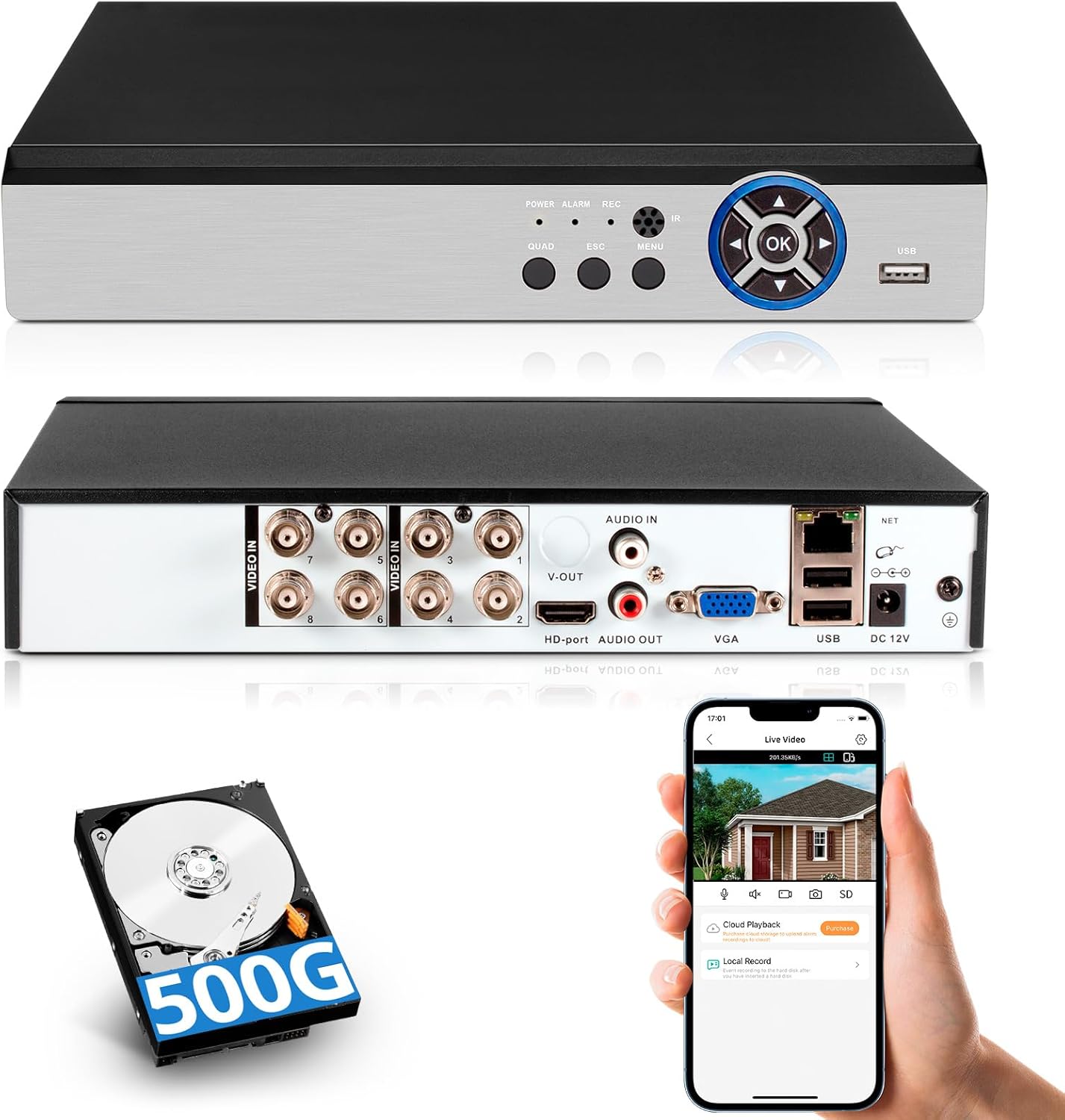
Image: Front and rear view of the Fuers DVR, illustrating its compact design and various connection ports. Also shown are the included 500GB hard drive and a smartphone demonstrating the remote viewing application.
The Fuers 8-Channel 5MP Hybrid DVR is designed for comprehensive surveillance, supporting various camera types including AHD, TVI, XVI, CVI, CVBS, and IP cameras. It features 5MP recording capability, human detection, 24/7 recording, and remote monitoring via a dedicated application. A 500GB hard drive is pre-installed for immediate use.

Image: Visual representation of the DVR system's capabilities, including multi-channel display, key features like motion detection and H.265+ compression, and the benefit of no monthly fees.
2. What's in the Box
Verify that all items are present in the package:
- 1x 5MP 8CH DVR
- 1x 500GB Hard Drive (Pre-installed on DVR)
- 1 X DVR Power Supply
- 1 X USB Mouse
- 1 X User Manual

Image: An illustration detailing the components included in the package, along with the physical dimensions of the DVR unit.
3. Product Overview
3.1 Front Panel
The front panel of the DVR features indicator lights and control buttons for basic operation and status monitoring.
- POWER: Power indicator light.
- ALARM: Alarm status indicator.
- REC: Recording status indicator.
- IR: Infrared remote control receiver.
- QUAD: Display multiple camera feeds.
- ESC: Exit menu or cancel operation.
- MENU: Access the main menu.
- OK: Confirm selection.
- USB Port: For connecting a USB mouse or external storage.
3.2 Rear Panel
The rear panel provides all necessary connection ports for cameras, display, audio, network, and power.
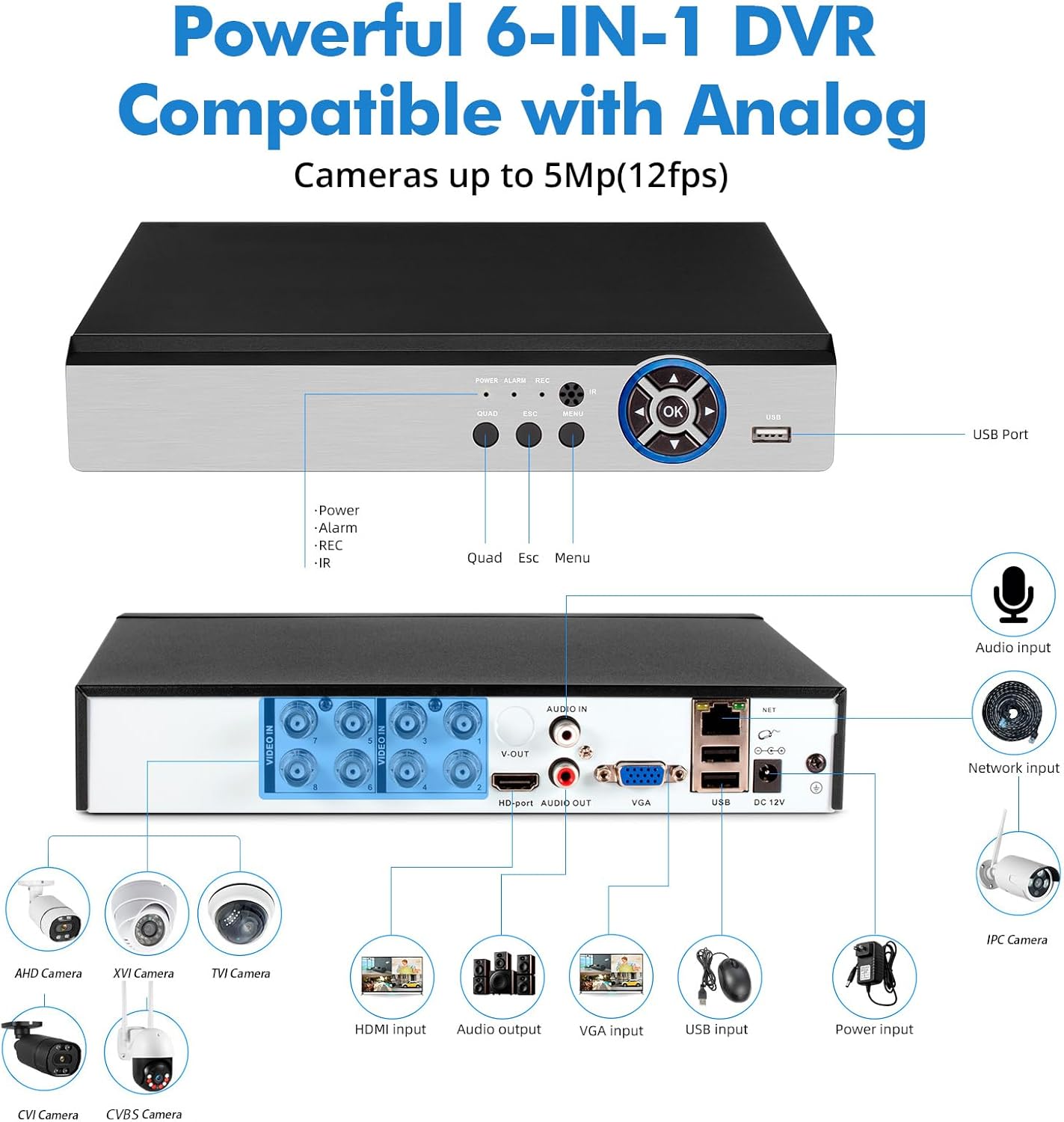
Image: A comprehensive view of the DVR's rear panel, highlighting each port and its function, along with examples of compatible camera types such as AHD, XVI, TVI, CVI, CVBS, and IP cameras.
- VIDEO IN (1-8): BNC connectors for analog cameras (AHD, TVI, XVI, CVI, CVBS).
- AUDIO IN/OUT: RCA connectors for audio input and output.
- V-OUT: BNC video output.
- VGA: VGA output for connecting to a monitor.
- HD-port (HDMI): HDMI output for connecting to a TV or monitor.
- NET: RJ45 Ethernet port for network connection.
- USB: USB ports for mouse and external devices.
- DC 12V: Power input for the DVR.
The DVR supports a 6-in-1 hybrid input, allowing compatibility with TVI, AHD, CVBS, CVI, XVI, and IP cameras. Note that it is not compatible with SDI/PoE cameras.
4. Setup Guide
4.1 Initial Connection
- Connect Cameras: Connect your surveillance cameras to the "VIDEO IN" BNC ports on the rear panel of the DVR.
- Connect Display: Connect a monitor or TV to the DVR using either the VGA or HDMI port.
- Connect USB Mouse: Plug the included USB mouse into one of the USB ports on the DVR.
- Connect Network (Optional): For remote access, connect an Ethernet cable from your router to the "NET" port on the DVR.
- Connect Power: Connect the DVR power supply to the "DC 12V" input and then plug it into a power outlet. The DVR will power on automatically.
Upon first power-on, the system will guide you through initial setup steps, including setting the date, time, and administrator password.
4.2 Remote Access Setup (iCSee App)
To view your surveillance system remotely on a smartphone or tablet, download the iCSee application.

Image: Instructions for setting up remote access, including physical connections, network setup, and downloading the iCSee mobile application using provided QR codes for both Android and iOS devices.
- Ensure the DVR is connected to your network via an Ethernet cable.
- Download the iCSee app:
- For Android: Google Play Store
- For iOS: Apple App Store
- Open the app and follow the on-screen instructions to add your DVR device. This typically involves scanning a QR code displayed on the DVR's monitor or manually entering the device ID.
- Once added, you can view live feeds and playback recorded footage from your mobile device.
5. Operating Instructions
5.1 Live View and Playback
After successful setup, the DVR will display live video feeds from connected cameras on the connected monitor. Use the USB mouse to navigate the on-screen menu.
- Live View: The default display shows multiple camera channels. You can switch between single-channel view and multi-channel view using the menu options or dedicated buttons on the front panel.
- Playback: Access the playback menu to review recorded footage. You can search by date, time, and event type (e.g., motion detection).

Image: Demonstration of accessing live and recorded video feeds through both a local monitor (laptop) and a remote mobile device, highlighting the flexibility of the system.
5.2 Recording Modes
The DVR supports continuous 24/7 recording and event-triggered recording.
- Continuous Recording: Records footage constantly, overwriting the oldest data when the hard drive is full.
- Motion Detection Recording: Records only when motion is detected by the cameras. This conserves storage space.
- Human Detection: The system features AI-powered human detection, which can differentiate human shapes from other moving objects, reducing false alarms. This feature requires compatible cameras.

Image: Illustration of the human detection feature, where the system identifies and highlights a human figure, triggering an alert via the iCSee application.
5.3 Alerts and Notifications
Configure the DVR to send alerts when specific events occur.
- Email Alert: Receive email notifications with snapshots when motion or other events are detected.
- App Push Notifications: Get instant alerts on your smartphone via the iCSee app.
6. Maintenance
6.1 Hard Drive Management
The DVR comes with a pre-installed 500GB hard drive. The system automatically manages storage by overwriting the oldest footage when the drive is full. You can configure recording settings to optimize storage usage.
The DVR supports H.265+ video compression, which significantly reduces storage requirements compared to H.264, saving approximately 50% of storage space while maintaining video quality.
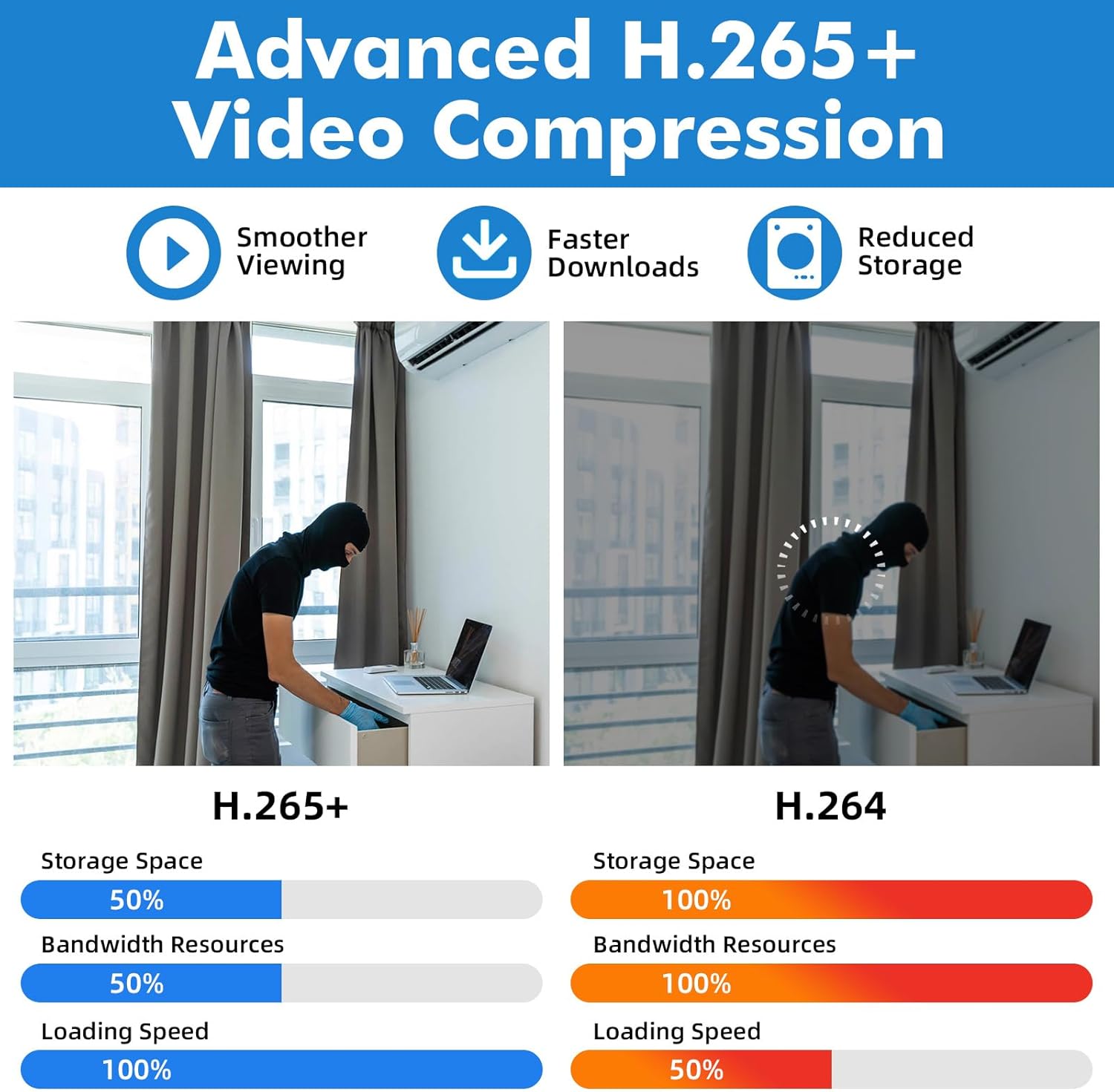
Image: A visual comparison highlighting the benefits of H.265+ video compression over H.264, specifically in terms of storage efficiency and streaming performance.
The DVR's storage capacity can be expanded up to 14TB. Replacing the hard drive may require a higher power supply.
6.2 System Updates
Periodically check the manufacturer's website or the iCSee app for firmware updates to ensure optimal performance and access to new features.
6.3 Cleaning
Clean the exterior of the DVR with a soft, dry cloth. Do not use liquid cleaners or aerosols. Ensure ventilation openings are free from dust to prevent overheating.
7. Troubleshooting
| Problem | Possible Cause | Solution |
|---|---|---|
| No video display on monitor. |
|
|
| Cannot access DVR remotely via app. |
|
|
| No recording or missing footage. |
|
|
| Poor video quality. |
|
|
If problems persist after attempting these solutions, please contact customer support.
8. Specifications
| Model Number | A670901 |
| Video Inputs | 8 Channels (BNC) |
| Video Compression | H.265+ |
| Supported Camera Types | AHD, TVI, XVI, CVI, CVBS, IP (Hybrid 6-in-1) |
| Max Resolution | 5MP (12fps) |
| Hard Drive Capacity | 500GB (Pre-installed), Expandable up to 14TB |
| Video Outputs | HDMI, VGA, BNC (V-OUT) |
| Audio Inputs/Outputs | RCA Audio In, RCA Audio Out |
| Network Interface | RJ45 Ethernet |
| USB Interface | Multiple USB ports for mouse and external devices |
| Power Supply | DC 12V |
| Product Dimensions | 7.3 x 7 x 1.5 inches (18.5 x 17.8 x 3.8 cm) |
| Item Weight | 3.39 pounds (1.54 kg) |
9. Warranty and Support
9.1 Warranty Information
This product is covered by a limited warranty against defects in materials and workmanship. Please refer to the warranty card included in your package or contact customer support for specific warranty terms and conditions.
9.2 Customer Support
For technical assistance, troubleshooting, or any questions regarding your Fuers DVR, please contact our customer support team. Contact information can typically be found on the manufacturer's website or in the product packaging.
When contacting support, please have your product model number (A670901) and purchase details ready.