
Introduction
This manual provides detailed instructions for the setup, operation, and maintenance of your PLEXTONE G30 Wired Gaming Earphone. Please read this manual thoroughly before using the product to ensure proper function and longevity.
Package Contents
Verify that all items are present in the package:
- PLEXTONE G30 Wired Gaming Earphones
- Main Earphone Cable
- Desktop Adapter (for PC connection)
- Additional Ear Tips (various sizes, including memory foam)
- Ear Hooks (various sizes)
Setup
1. Selecting Ear Tips and Ear Hooks
The G30 earphones come with various sizes of silicone ear tips and a set of memory foam ear tips, along with different ear hook sizes. Proper fit is crucial for both comfort and sound quality, especially for bass response and noise isolation.
- Experiment with different ear tip sizes to find the best seal for your ear canal. A good seal will provide optimal sound and noise isolation.
- The second-generation memory foam ear tips adapt to your ear shape, offering enhanced comfort and sound isolation. Gently compress the foam tip, insert it into your ear, and hold it in place for a few seconds while it expands to create a seal.
- Attach the appropriate ear hooks to secure the earphones during use.
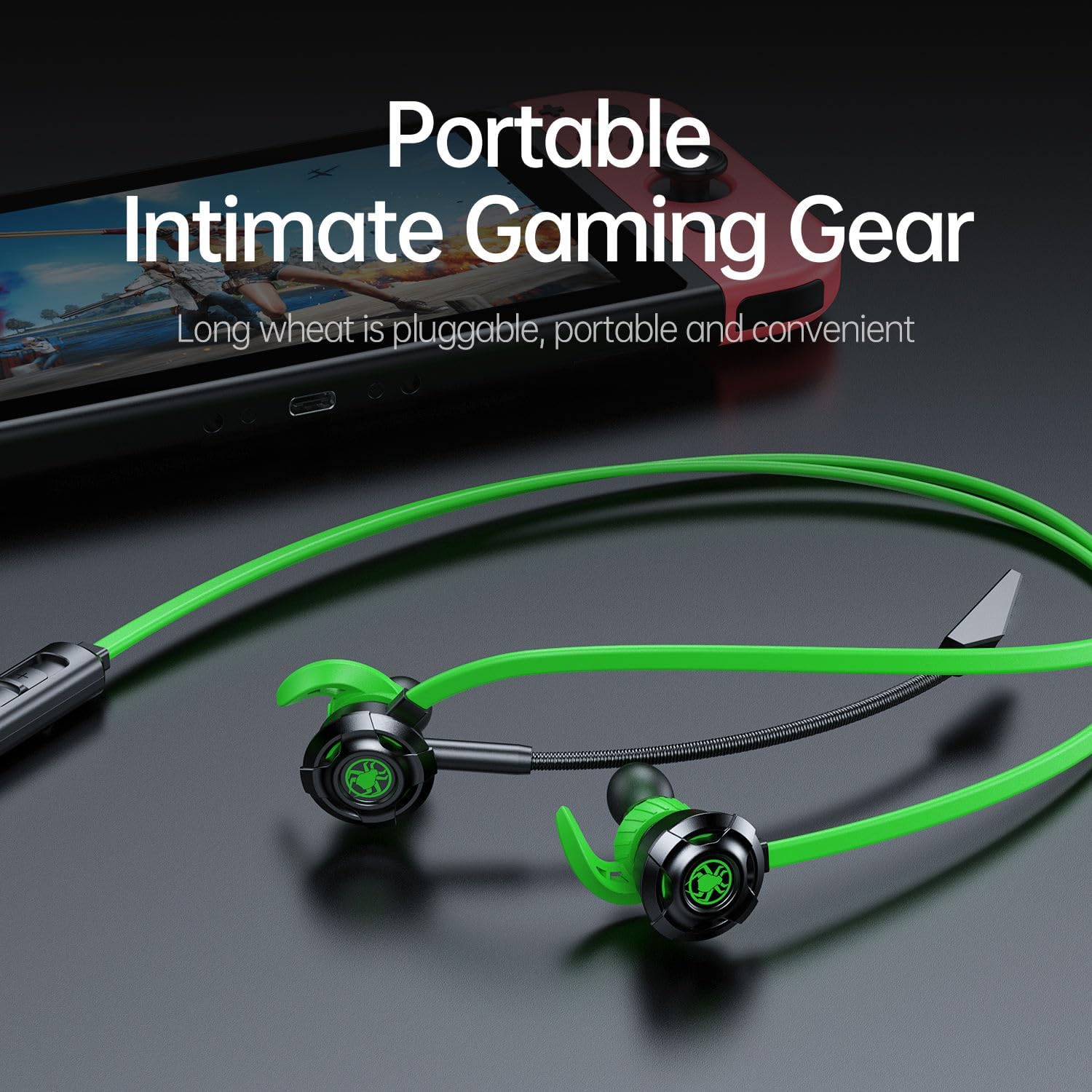
Figure 1: Earphone design with ear hooks and ear tips for comfortable wear.

Figure 2: Memory foam ear tips for improved comfort and noise isolation.
2. Connecting to Devices
The PLEXTONE G30 earphones are compatible with various devices including PCs, desktops, mobile phones, PS4, Xbox, and Nintendo Switch.
- For Mobile Devices/Consoles (with single 3.5mm jack): Plug the 3.5mm L-shaped connector of the earphone cable directly into your device's audio jack.
- For Desktop PCs (with separate audio and microphone jacks): Use the included desktop adapter. Connect the earphone's 3.5mm L-shaped connector to the adapter, then plug the adapter's green plug into your PC's audio output jack and the pink plug into your PC's microphone input jack.

Figure 3: Cable length and included adapters for versatile connectivity.

Figure 4: L-shaped 3.5mm plug for mobile device connection.
3. Adjusting the Microphone
The G30 features an adjustable 11cm microphone that can be rotated up to 360 degrees. Position the microphone close to your mouth for optimal voice capture and clear communication.
Operating Instructions
1. In-line Control Functions
The earphone cable includes an in-line control unit with buttons for volume adjustment, microphone mute, and multi-use key for calls and music playback.

Figure 5: In-line control unit functions.
| Button/Action | Function (Call Mode) | Function (Music Mode) |
|---|---|---|
| Volume + | Increase call volume | Increase music volume |
| Volume - | Decrease call volume | Decrease music volume |
| Mute Switch | Mute/Unmute microphone | N/A |
| Multi-use Key (Short-click) | Answer call | Play/Pause music |
| Multi-use Key (Short press once) | Hang up call | N/A |
| Multi-use Key (Long press 1 second) | Refuse call | N/A |
| Multi-use Key (Press three times) | N/A | Previous song |
| Multi-use Key (Press twice) | N/A | Next song |
2. Magnetic Absorption Feature
When not in use, the earbuds can be magnetically clipped together, allowing them to rest securely around your neck. This prevents tangling and loss.
3. Sound Experience
The G30 earphones feature a side-style guide hole design for enhanced dual deep bass effect, providing immersive sound. The noise-cancelling microphone ensures clear communication by reducing background noise.

Figure 6: User wearing the G30 earphones during a gaming session.
Maintenance
- Cleaning: Regularly clean the ear tips with a soft, dry cloth. For silicone tips, you may use a slightly damp cloth with mild soap, ensuring they are completely dry before reattaching. Do not use harsh chemicals or abrasive materials.
- Cable Care: Avoid sharp bends or excessive pulling on the cable to prevent internal damage. Use the magnetic absorption feature to keep the cable tidy when not in use.
- Storage: Store the earphones in a clean, dry place away from extreme temperatures and direct sunlight.
Troubleshooting
- No Sound or Low Volume:
- Ensure the 3.5mm jack is fully inserted into the device.
- Check the volume level on your device and on the earphone's in-line control.
- If using a desktop adapter, ensure both green (audio) and pink (mic) plugs are correctly inserted into the corresponding ports on your PC.
- Test the earphones with another device to rule out a device-specific issue.
- Microphone Not Working:
- Ensure the microphone mute switch on the in-line control is not activated.
- Verify that the microphone is properly connected and positioned.
- Check your device's audio settings to ensure the correct microphone input is selected and its volume is not muted.
- If using a desktop adapter, ensure the pink plug is correctly inserted into your PC's microphone input.
- Test the microphone with another device or application.
- Poor Sound Quality or Discomfort:
- Ensure you have selected the correct size ear tips for a proper seal. A poor seal can lead to reduced bass and overall sound quality.
- Adjust the ear hooks for a secure and comfortable fit.
Specifications
| Feature | Detail |
|---|---|
| Model Name | Earphone G30 |
| Connectivity Technology | Wired |
| Wireless Communication Technology | No |
| Included Components | Earphones, Main Cable, Desktop Adapter, Ear Tips, Ear Hooks |
| Compatible Devices | PCs, Desktops, Mobile Phones, PS4, Xbox, Nintendo Switch |
| Control Method | Remote (In-line control) |
| Audio Driver Type | Dynamic Driver (10mm "golden circle" speaker) |
| Earpiece Shape | Rounded Tips |
| Special Feature | Microphone Included, Magnetic Absorption, Dual Deep Bass Effect |
| Manufacturer | Plextone |
| Item Weight | 4.9 ounces |
| Cable Length | 2.2 meters (2200mm) total with extensions |
| Microphone Length | 11cm (adjustable 360 degrees) |
| Color | Black (with green accents) |
| Ear Placement | In Ear |
| Headphones Jack | 3.5 mm Jack |
Warranty and Support
Information regarding product warranty and customer support is not provided within this manual. For warranty details, technical assistance, or further inquiries, please refer to the manufacturer's official website or contact their customer service directly.
