
Introduction
The PLEXTONE G25 Gaming Earphones are engineered to deliver a customizable and immersive audio experience for gamers. Featuring a unique cavity duct separation structure with replaceable sound cells, these earphones allow users to tailor sound profiles for various gaming scenarios. This manual provides comprehensive instructions for the setup, operation, and maintenance of your G25 earphones to ensure optimal performance and longevity.
What's in the Box
Please verify that all the following items are included in your package:
- 1x PLEXTONE G25 Earphone
- 1x 3.5mm Y-Converter Cable (15cm)
- 1x 90cm Audio Extended Cable
- 1x User Guide (This manual)
- 2x Silica Gel Ear Cap (Large)
- 2x Silica Gel Ear Cap (Small)
- 3 pairs of Sound Enhancer Cells (Green, Red, Black)
- 1x Line Clip
- 1x Bundle Button
Product Overview and Key Features

Image: PLEXTONE G25 Gaming Earphones with included sound cells and inline control.
1. Cavity Duct Separation Structure with Replaceable Sound Cells
The G25 earphones feature an innovative cavity duct separation structure that allows for sound customization. The earphones include three types of replaceable sound cells (Green, Red, Black) that modify audio effects, enabling a personalized sound experience tailored to specific gaming needs.
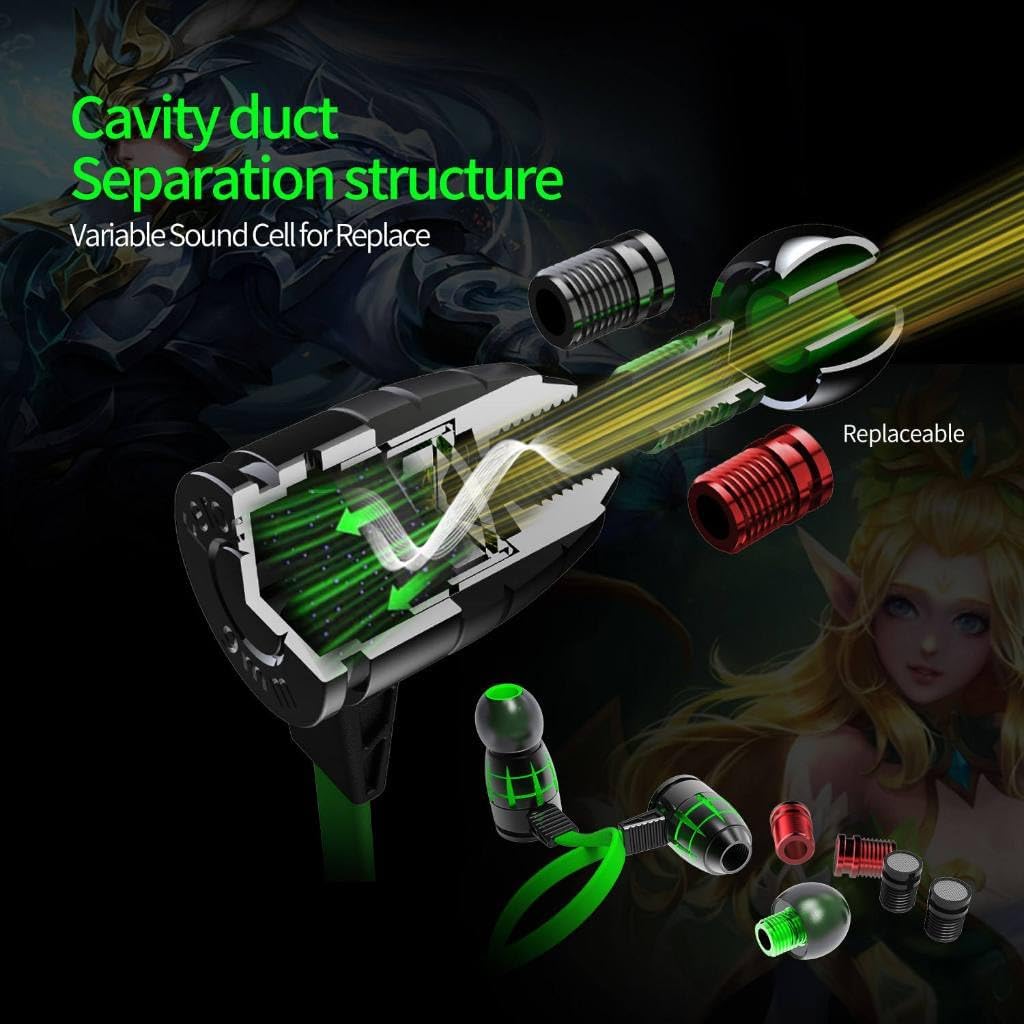
Image: Diagram illustrating the internal cavity duct separation structure and how sound cells are replaced.
2. Variable Sound Cells for Enhanced Audio Effects
- Green Sound Cell: Provides triple frequency equalization for a balanced sound profile. This is ideal for enhancing overall game audio clarity.
- Red Sound Cell: Designed to highlight bass frequencies for an immersive experience, making it suitable for emphasizing footsteps and other low-frequency effects during gameplay.
- Black Sound Cell: Enhances vocals and gunfire sounds, offering improved clarity for in-game communication and distinct gunshot audio.

Image: The three distinct sound cells (Green, Red, Black) and their specific audio enhancement properties.
3. Noise Cancelling with Built-in Microphone
The PLEXTONE G25 incorporates noise-cancelling technology to reduce ambient background noise, facilitating clear communication during gameplay. The integrated microphone is optimized for multiplayer environments, ensuring effective team communication.
4. Anti-Interference Electric Competition by Wire Control
These earphones feature a built-in filter circuit within the wire control to minimize interference during intense gaming sessions. This design ensures stable sound quality in competitive gaming environments, providing a distraction-free audio experience.

Image: Internal view of the inline controller, highlighting the v3.0PLUS chip for double noise immunity.

Image: Cross-section of the earphone cable, detailing the 500D bulletproof silk, oxygen-free copper wire, and TPEE shielding for enhanced durability and signal integrity.
5. Multi-Function Wire Control
The inline wire control provides convenient access to various functions, including music playback management, volume adjustment, and answering or rejecting calls. It allows for quick control of basic functions like play/pause and track navigation without needing to access your connected device.
6. Broad Compatibility
The G25 gaming earphones are compatible with a wide range of platforms, including PCs, mobile phones, and gaming consoles such as PS4, Xbox, and Nintendo Switch, offering versatility for gamers across different devices.
7. Durable Build Quality
Constructed from high-quality materials, the PLEXTONE G25 features a sturdy and durable design, ensuring long-lasting use even during extended gaming sessions.
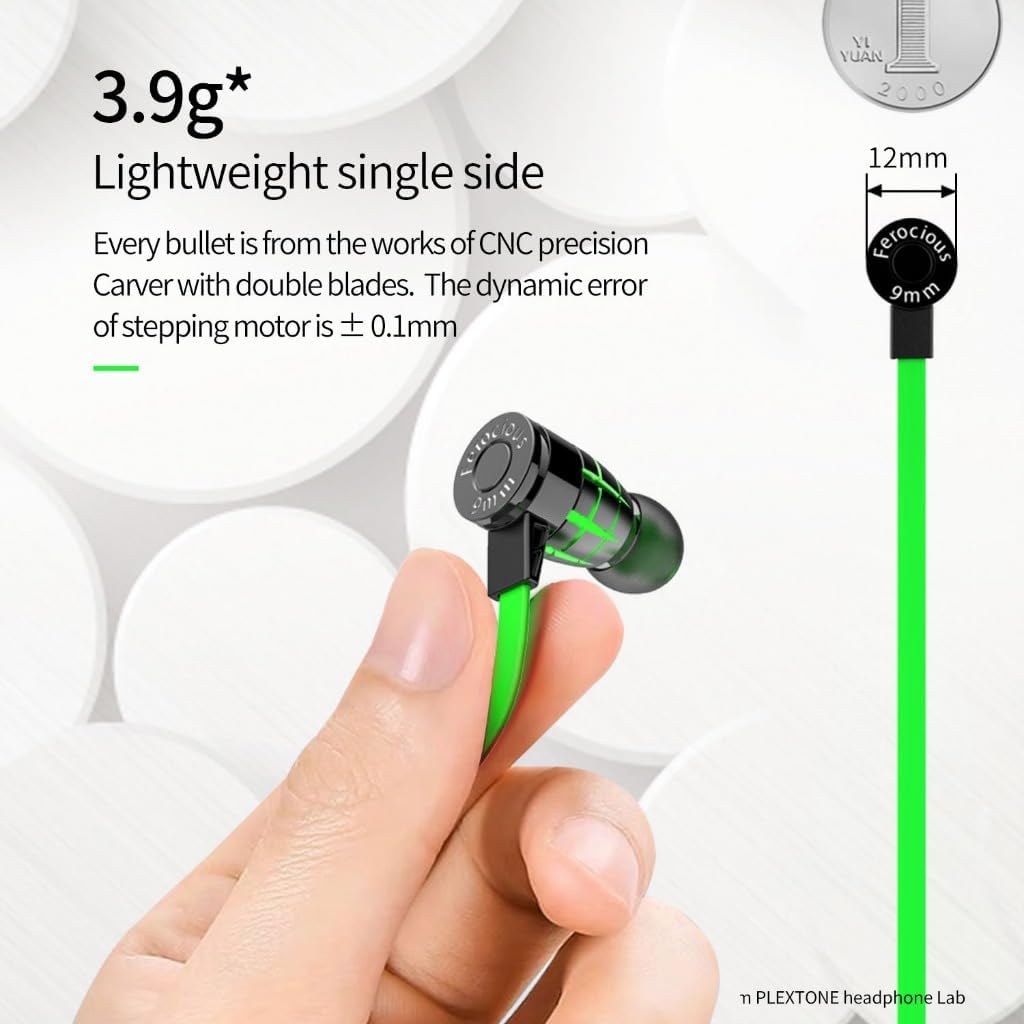
Image: A close-up of a single earbud, emphasizing its lightweight construction (approximately 3.9g per side).
Setup Instructions
1. Connecting the Earphones
- For Mobile Devices/Consoles: Plug the 3.5mm L-type jack directly into your device's headphone port.
- For PCs with Separate Audio/Mic Ports: Use the included 3.5mm Y-Converter Cable. Connect the earphone's 3.5mm jack to the Y-converter, then plug the green connector into your PC's audio output and the red connector into the microphone input.
- Using the Audio Extended Cable: If additional length is required, connect the 90cm audio extended cable between the earphones and your device or Y-converter.
2. Changing Sound Cells
- Gently twist and pull the existing sound cell from the earphone nozzle.
- Select your desired sound cell (Green for balanced, Red for bass, Black for vocals/gunfire).
- Align the new sound cell with the nozzle and gently push and twist until it is securely in place.
3. Selecting Ear Caps
Choose the silica gel ear caps (Large or Small) that provide the most comfortable and secure fit for your ears. A proper fit is crucial for optimal sound isolation and audio quality.
Operating Instructions
1. Wearing the Earphones
Insert the earbuds into your ears, ensuring a snug and comfortable fit. The L-type connector is designed for durability and ease of use with mobile devices.
2. Using the Inline Control
- Volume Control: Use the '+' and '-' buttons on the inline control to adjust the audio volume.
- Play/Pause: Press the central button once to play or pause audio.
- Next Track: Press the central button twice quickly to skip to the next track.
- Previous Track: Press the central button three times quickly to go to the previous track.
- Answer/End Call: Press the central button once to answer an incoming call or end an active call.
- Reject Call: Press and hold the central button for approximately 2 seconds to reject an incoming call.
3. Microphone Usage
Position the inline microphone appropriately for clear voice capture during calls or in-game communication. Ensure it is not obstructed by clothing or other objects.
Maintenance
- Cleaning Ear Caps: Regularly remove the silicone ear caps and clean them with a soft, damp cloth. Ensure they are completely dry before reattaching.
- Cleaning Earphones: Use a dry, soft cloth to wipe the earphone bodies. Avoid using harsh chemicals or abrasive materials.
- Cable Care: Avoid sharp bends or excessive pulling on the cable to prevent damage. Use the included line clip to manage cable slack.
- Storage: When not in use, store the earphones in a clean, dry place, preferably in a protective pouch to prevent tangling and damage.
Troubleshooting
- No Sound:
- Ensure the 3.5mm jack is fully inserted into the device.
- Check the volume level on both the inline control and your connected device.
- Verify that the correct audio output device is selected on your computer or console.
- Test with a different audio source or device to rule out device-specific issues.
- Microphone Not Working:
- Ensure the microphone is not muted on your device or in-game settings.
- If using a PC, ensure the Y-converter's microphone jack is correctly plugged into the microphone input.
- Check privacy settings on your device to ensure applications have permission to access the microphone.
- Sound Distortion or Poor Quality:
- Ensure the sound cells are securely installed.
- Check for any damage to the cable or connectors.
- Reduce the volume if distortion occurs at high levels.
- Earphones Do Not Fit Comfortably:
- Try the different sizes of silica gel ear caps provided to find the best fit.
- Ensure the earphones are inserted correctly into the ear canal.
Specifications
| Impedance | 16Ω ± 10% |
| Max Input Power | 10mW |
| Frequency Response | 20-20000Hz |
| Distortion | <0.1% |
| Interface | 3.5mm, L-type |
| Cable Length | 120cm |
| Weight | 10g / 0.35oz |
| Speaker Diameter | 9.2mm |
| Noise Control | Passive Noise Cancellation |
| Connectivity Technology | Wired |
| Material | Plastic |
Warranty and Support
Warranty Information
The PLEXTONE G25 Gaming Earphones come with a 1-year warranty from the date of purchase. This warranty covers manufacturing defects under normal use. Please retain your proof of purchase for warranty claims.
Customer Support
For further assistance, technical support, or warranty inquiries, please contact PLEXTONE customer service through their official website or the retailer from whom you purchased the product. Please have your product model (G25) and proof of purchase ready when contacting support.