
1. Introduction and Overview
The MILOUZ TK-Pro Remote Control with Phone Stand is a versatile device designed to enhance your digital experience across various platforms. It combines a stable phone stand with a multi-functional Bluetooth remote, allowing for hands-free interaction with your smartphone or tablet.
This device supports remote control for popular short video applications like TikTok and YouTube, enabling actions such as scrolling, volume adjustment, pausing/playing, and liking content. It also functions as an e-book page turner for reading apps (not compatible with Kindle devices) and a Bluetooth camera shutter for remote photo and video capture.

Image: MILOUZ TK-Pro Remote Control and Phone Stand in use with a smartphone displaying TikTok content.
Video: Overview of the MILOUZ Multi-functional Remote Control with Phone Holder, demonstrating its various uses.
2. What's in the Box
- Remote control
- Phone stand
- USB-C Charging Cable
- User's manual
3. Setup
3.1 Charging the Remote Control
Before first use, fully charge the remote control using the provided USB-C charging cable. A full charge takes approximately 1.5 hours and provides 70-80 hours of use.
3.2 Bluetooth Pairing
- Turn on the Remote Control: Long press the power button (usually located on the top or side) for 3 seconds until the indicator light flashes.
- Enable Bluetooth on Your Device: Go to your phone or tablet's Settings and ensure Bluetooth is turned on.
- Connect to "TK-PRO": In the Bluetooth settings, locate and select "TK-PRO" from the list of available devices to pair.
- (For iOS Users - Important Accessibility Setting): To ensure full functionality, especially for scrolling, navigate to your iOS device's Settings > Accessibility > Zoom. Turn on Zoom. If the screen becomes zoomed, double-tap the screen with three fingers to restore the normal view. This step is crucial for the remote's scrolling features to work correctly on iOS.
- Start Using: Once paired, you can open your desired app (TikTok, Kindle App, Camera) and begin using the remote.
Video: Detailed guide on connecting the MILOUZ TK-Pro remote control to iOS devices for TikTok scrolling.
4. Operating Instructions
4.1 Remote Control Functions

Image: MILOUZ TK-Pro Remote Control button layout and corresponding functions.
- Slide Up/Down: Use the up/down arrow buttons to scroll content vertically.
- Slide Left/Right: Use the left/right arrow buttons to navigate horizontally (e.g., turn pages in e-books).
- Volume +/-: Adjust media volume using dedicated buttons.
- Pause/Play: The 'OK' button typically functions as pause/play.
- Like/Continuous Likes: Pressing a specific button (often 'OK' or a designated 'like' button) can register a like. Double-clicking may enable continuous liking in some apps.
- Camera Shutter: Press the camera button to remotely take photos or start/stop video recording. Long press for 2 seconds to focus for clearer shots.
4.2 Using with TikTok and Short Video Apps
Place your phone on the stand. Use the up/down buttons to scroll through videos. Use the 'OK' button to pause/play or like videos. The remote allows for hands-free viewing and interaction.

Image: Remote control functions for TikTok, including slide up/down, left/right, volume, pause/play, and liking.
4.3 Using as an E-book Page Turner
For reading apps (e.g., Kindle App, not Kindle devices), use the left/right arrow buttons to turn pages forward or backward. This provides a comfortable reading experience without needing to touch the screen.
Note: Not compatible with dedicated Kindle e-readers (e.g., Paperwhite, Oasis).

Image: MILOUZ TK-Pro remote control used as an e-book page turner for various devices, highlighting incompatibility with Kindle devices.

Image: Demonstrating the remote control's use for scrolling through e-books on a tablet.
4.4 Using as a Bluetooth Camera Shutter
Open your device's camera app. Use the camera button on the remote to take photos or start/stop video recording from a distance. This is ideal for selfies, group photos, or stable video recording.

Image: Remote control functionality for taking photos and videos, including focusing for clearer shots.
4.5 Phone Stand Features
The integrated phone stand can rotate 360° to switch between horizontal and vertical screen orientations. It provides a stable base for your device, allowing for comfortable viewing.

Image: The phone stand's 180-degree rotation for horizontal/vertical viewing and the magnetic storage feature for the remote.
4.6 Magnetic Storage
The remote control is magnetically stored within the phone stand, preventing loss and ensuring it's always ready for use.
Video: Demonstration of the remote control's magnetic storage within the phone holder.
5. Maintenance
- Cleaning: Wipe the device with a soft, dry cloth. Avoid using harsh chemicals or abrasive materials.
- Storage: Store the device in a cool, dry place when not in use. Ensure the remote is securely stored in its magnetic slot.
- Charging: Charge the remote regularly to maintain battery health, even if not used frequently.
6. Troubleshooting
- Remote Not Connecting:
- Ensure the remote is charged and powered on.
- Check that Bluetooth is enabled on your device.
- Forget the device in your Bluetooth settings and try pairing again.
- Ensure no other Bluetooth devices are interfering.
- Scrolling Not Working (iOS):
- Verify that the Accessibility > Zoom setting is enabled as described in the Setup section.
- Remote Not Responding:
- Recharge the remote control.
- Restart your phone/tablet and try reconnecting.
- Incompatible with Kindle Devices:
- The remote is designed for reading apps on smartphones and tablets, not for dedicated Kindle e-readers.
7. Specifications
| Feature | Detail |
|---|---|
| Model Number | TK-Pro |
| Package Dimensions | 5.2 x 3.66 x 1.73 inches |
| Item Weight | 5.3 ounces |
| Batteries | 1 A battery required (included) |
| Charging Time | Approx. 1.5 hours |
| Use Time | Approx. 70-80 hours |
| Special Feature | Remote control, Phone Stand |
| Color | Black |
| Max Number of Supported Devices | 1 |
| Compatible Devices | iPhone, Android, iPad, Tablet (Incompatible Devices: Amazon Fire HD 10 (10th/11th generation)) |
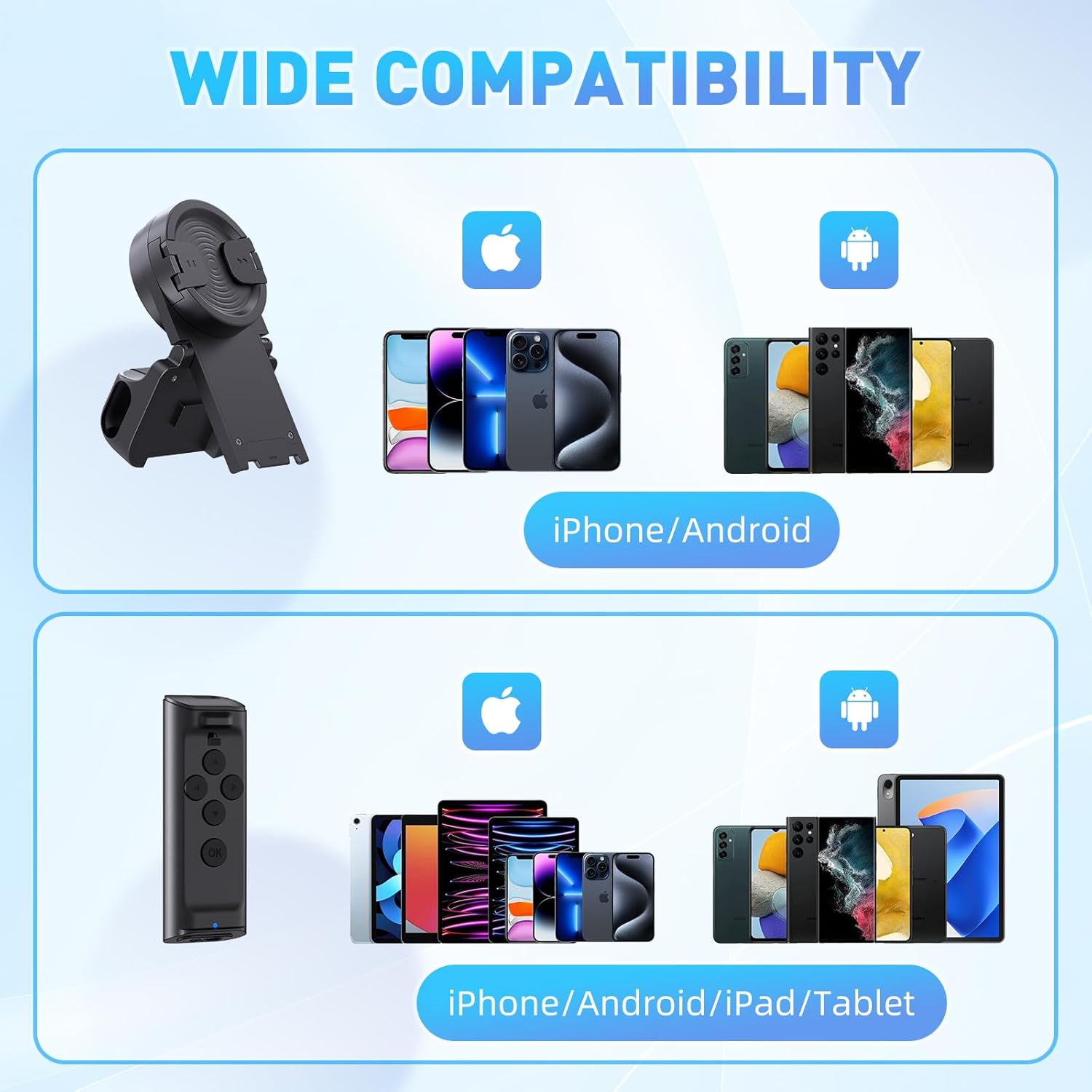
Image: Illustrates the wide compatibility of the MILOUZ TK-Pro with various mobile devices.
8. Warranty and Support
For warranty information, technical support, or any inquiries regarding your MILOUZ TK-Pro Remote Control with Phone Stand, please refer to the contact information provided with your purchase or visit the official MILOUZ website. Keep your purchase receipt for warranty claims.