
1. Introduction
The AK2515 Pro Audio Spectrum Analyzer is a versatile device designed for visualizing music and sound in both car and home audio environments. It features a high-resolution VFD display, multiple input options, and advanced functions like Automatic Gain Control (AGC) and a precise clock. This manual provides detailed instructions for setting up, operating, and maintaining your AK2515 unit.

Image: The AK2515 Pro Audio Spectrum Analyzer, showcasing its vibrant VFD display and compact design.
2. Features
- High-Resolution VFD Display: Dedicated 25x15 pixel VFD spectrum display for clear and accurate audio visualization.
- Wide Frequency Range: Supports 32Hz-16KHz frequency sweep for precise analysis of each band.
- Adjustable Display Parameters: Independently adjust the falling speed of the light bar, the holding time, and the falling speed of the peak.
- Brightness Control: 7 levels of adjustable brightness for optimal viewing in various lighting conditions.
- Accurate Clock Function: Equipped with an SD3078 crystal oscillator, ensuring high clock accuracy (<3.8ppm at 25°C) with an annual error of less than 2.0 minutes.
- Advanced AGC & Custom Output Curve: Software AGC and custom output curves ensure ideal output effects across a wide range of input signals.
- Custom Frequency Band Display: Ensures full display of the audio frequency range even with 25 segments.
- Ambient Noise Filter: Significantly reduces the impact of ambient noise on sound-controlled products.
- Versatile Input Options: Supports 3.5mm audio wired input and sound-controlled (MIC) input.
- Type-C Power Inputs: Dual Type-C power inputs on both the left and rear sides for flexible placement.
- Level Indicator Mode: Supports stereo level display when audio signals are input via the audio line.
- Multiple Frequency Division Modes: Accommodates various music types and usage scenarios.

Image: Close-up view of the AK2515's VFD display, highlighting its 25x15 pixel resolution.

Image: The AK2515 displaying a wide frequency sweep, demonstrating its audio analysis capabilities.
3. Package Contents
Please ensure all items are present in the package before proceeding with setup:
- 1 x AK2515 Pro Audio Spectrum Analyzer
- 1 x USB-C Power Cable
- 1 x 3.5mm Audio Cable
- 1 x 1:2 3.5mm Cable
- 2 x Acrylic Board
- 1 x Set of Installation Accessories

Image: All components included in the AK2515 product package, laid out for inspection.
4. Setup
- Assembly (if required): If your unit came with separate acrylic boards, assemble them according to the included installation accessories. The boards typically protect the VFD display and circuit board.
- Power Connection: Connect the provided USB-C power cable to one of the Type-C power input ports on the AK2515 unit. Connect the other end to a 5V DC power source (e.g., a USB wall adapter, computer USB port, or car USB charger).
- Audio Input:
- 3.5mm AUX Input: For wired audio, connect your audio source (e.g., smartphone, PC, audio player) to the 3.5mm AUX input port using the provided 3.5mm audio cable.
- MIC Input (Sound-Controlled): For ambient sound visualization, the unit can use its built-in microphone. No external connection is needed for this mode.
- Placement: Place the AK2515 on a stable, flat surface. Ensure adequate ventilation around the unit.
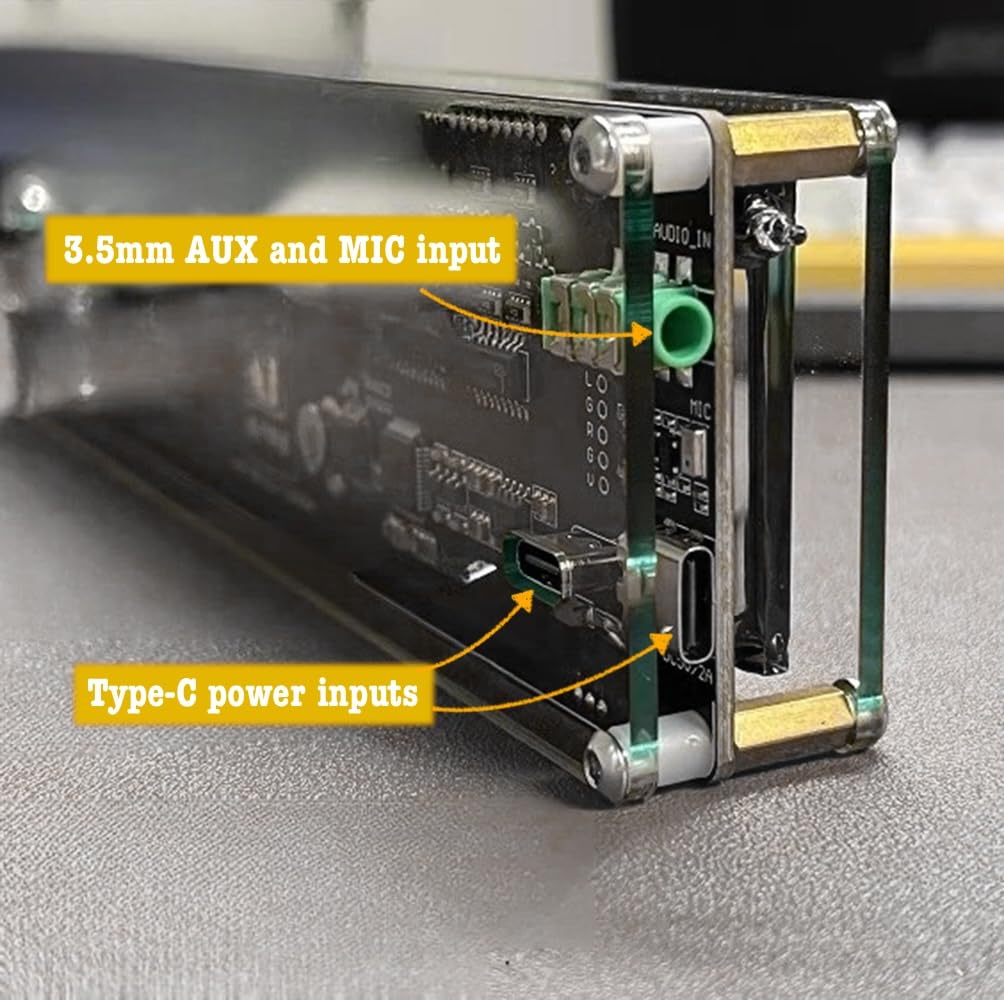
Image: Close-up of the AK2515's side, showing the 3.5mm AUX and MIC input ports, and the Type-C power inputs.
5. Operating Instructions
The AK2515 features three control buttons: UP, DOWN, and OK. These buttons are used to navigate menus and adjust settings. The functionality of these buttons changes based on the number of clicks or press duration.

Image: Side view of the AK2515, highlighting the UP, DOWN, and OK control buttons.
Basic Button Functions:
- UP Button: Generally used to cycle through modes, increase values, or select options.
- DOWN Button: Generally used to cycle through modes, decrease values, or select options.
- OK Button: Used to confirm selections, enter/exit settings, or adjust brightness.
Specific Operations:
The following table outlines the functions triggered by different button press combinations:
| Action | UP Button | DOWN Button | OK Button |
|---|---|---|---|
| Single Click | Mode change (Audio VU Meter Mode / Five clock mode) | Mode change | Brightness adjustment or enter VU meter mode |
| Double Click | Gain mode change (-10/-5/-3/-1/0dB) | Gain mode change | Brightness adjustment or enter VU meter mode |
| Triple Click | Display mode change (Normal / Updown) | Display mode change | Brightness adjustment or enter VU meter mode |
| Four Click | Frequency division mode change (e.g., 32Hz-16KHz, 20Hz-20KHz, 50Hz-16KHz, 150Hz-16KHz, 20Hz-10KHz) | Frequency division mode change | Brightness adjustment or enter VU meter mode |
| Five Click | Falling speed of light bar adjustment | Falling speed of light bar adjustment | Brightness adjustment or enter VU meter mode |
| Six Click | Peak holding time adjustment | Peak holding time adjustment | Brightness adjustment or enter VU meter mode |
| Seven Click | Peak falling speed adjustment | Peak falling speed adjustment | Brightness adjustment or enter VU meter mode |
| Long Press OK (2 seconds) | N/A | N/A | Enter Clock Setting Mode (Press OK 3 times to enter, then long press OK for 2 seconds to exit) |
Clock Setting Mode:
To enter clock setting mode, press the OK button three times, then long press the OK button for 2 seconds to exit.
- UP Button: Increases the selected time/date value (hours, minutes, year, month, day).
- DOWN Button: Decreases the selected time/date value.
- OK Button: Switches between setting items (hours, minutes, year, month, day).

Image: The AK2515 displaying various modes, including 'LINE IN' and 'MIC IN' for different audio input types, and spectrum visualization.
6. Specifications
| Display | VFD 25x15 pixels |
| Frequency Range | 32Hz-16KHz |
| Working Voltage | DC 5V |
| Dimensions (L x W x H) | 6.89 x 1.97 x 1.10 inches (17.5 x 5.0 x 2.8 cm) |
| Net Weight | 0.42 lb (190 g) |
7. Maintenance
- Cleaning: Use a soft, dry cloth to clean the exterior of the unit. Do not use liquid cleaners or abrasive materials, as they may damage the VFD display or casing.
- Handling: The VFD display is a glass component and can be fragile. Handle the unit with care to avoid impacts or drops.
- Environment: Avoid exposing the unit to extreme temperatures, high humidity, or direct sunlight for prolonged periods.
- Power: Always use the specified 5V DC power supply. Disconnect power when the unit is not in use for extended periods.
8. Troubleshooting
- No Display/Power: Ensure the USB-C power cable is securely connected to both the unit and a working 5V power source. Try a different USB-C cable or power adapter.
- No Audio Visualization:
- If using 3.5mm AUX input, ensure the audio cable is fully inserted into both the AK2515 and your audio source. Verify the audio source is playing and its volume is sufficiently high.
- If using MIC input, ensure there is ambient sound for the microphone to pick up. Check if the ambient noise filter is enabled and adjust if necessary.
- Check the gain settings (Double Click UP/DOWN) to ensure they are appropriate for your input signal level.
- Display Appears Dim: Adjust the brightness using the OK button (single click). Ensure the unit is not in a deep sleep or power-saving mode.
- Incorrect Time Display: Enter the clock setting mode (Long Press OK) and adjust the time and date as described in the Operating Instructions.
- Unresponsive Buttons: Disconnect power from the unit for a few seconds, then reconnect it to perform a soft reset.
9. Warranty and Support
For warranty information and technical support, please refer to the documentation provided with your purchase or contact VQP customer service directly. Keep your proof of purchase for warranty claims.