
Waytronic S11 Black
Waytronic PIR Infrared Motion Sensor Activated Sound Player
Model: S11 Black
Product Overview
The Waytronic S11 Black is a versatile PIR (Passive Infrared) motion sensor activated sound player designed for various applications, including door greeting, entry alerts, and sales advertising. It features a wide detection angle and range, automatically playing audio when motion is detected. The device supports custom voice replacement via USB, offers adjustable volume, and can connect to external speakers for enhanced sound output. It comes with a remote control for manual activation and includes all necessary mounting hardware.
Package Contents

Figure 1: Package Contents. This image displays all items included in the box: the main PIR motion sensor unit, a white remote control with a red button and antenna, a white USB-A to microUSB cable, a black wall mounting bracket, and a small black ball mounting accessory.
- 1x Waytronic PIR Motion Sensor Player (S11 Black)
- 1x USB Power Cable
- 1x Power Plug (Adapter)
- Mounting Screws
- Ball Mounting Bracket
- Remote Control
- User Manual (this document)
Setup Guide
1. Powering the Device

Figure 2: Battery Compartment. The back of the device with the battery cover removed, revealing the included Lithium Ion battery.
- Battery Installation: The device comes with a pre-installed Lithium Ion battery. Ensure it is properly connected. If not, open the battery compartment on the back of the unit and connect the battery.
- Initial Charge: Connect the provided USB power cable to the micro USB port on the side of the device and plug the other end into the power adapter. Plug the adapter into a standard wall outlet. Allow the device to charge fully before first use.
2. Mounting the Device

Figure 3: Side View with Controls and Mounting. This image shows the side of the device with the ON/OFF switch, volume slider, and the attachment point for the ball mounting bracket.
- Choose Location: Select a suitable location for the sensor, considering the 120-degree view angle and 16ft (5 meters) detection range. Ensure the area to be monitored is within this range.
- Attach Bracket: Use the provided mounting screws to secure the ball mounting bracket to a wall or desired surface.
- Mount Device: Attach the motion sensor player to the ball mounting bracket. The infrared detector can be rotated around 60 degrees, allowing for easy adjustment of the detectable area.
Operating Instructions
1. Basic Operation
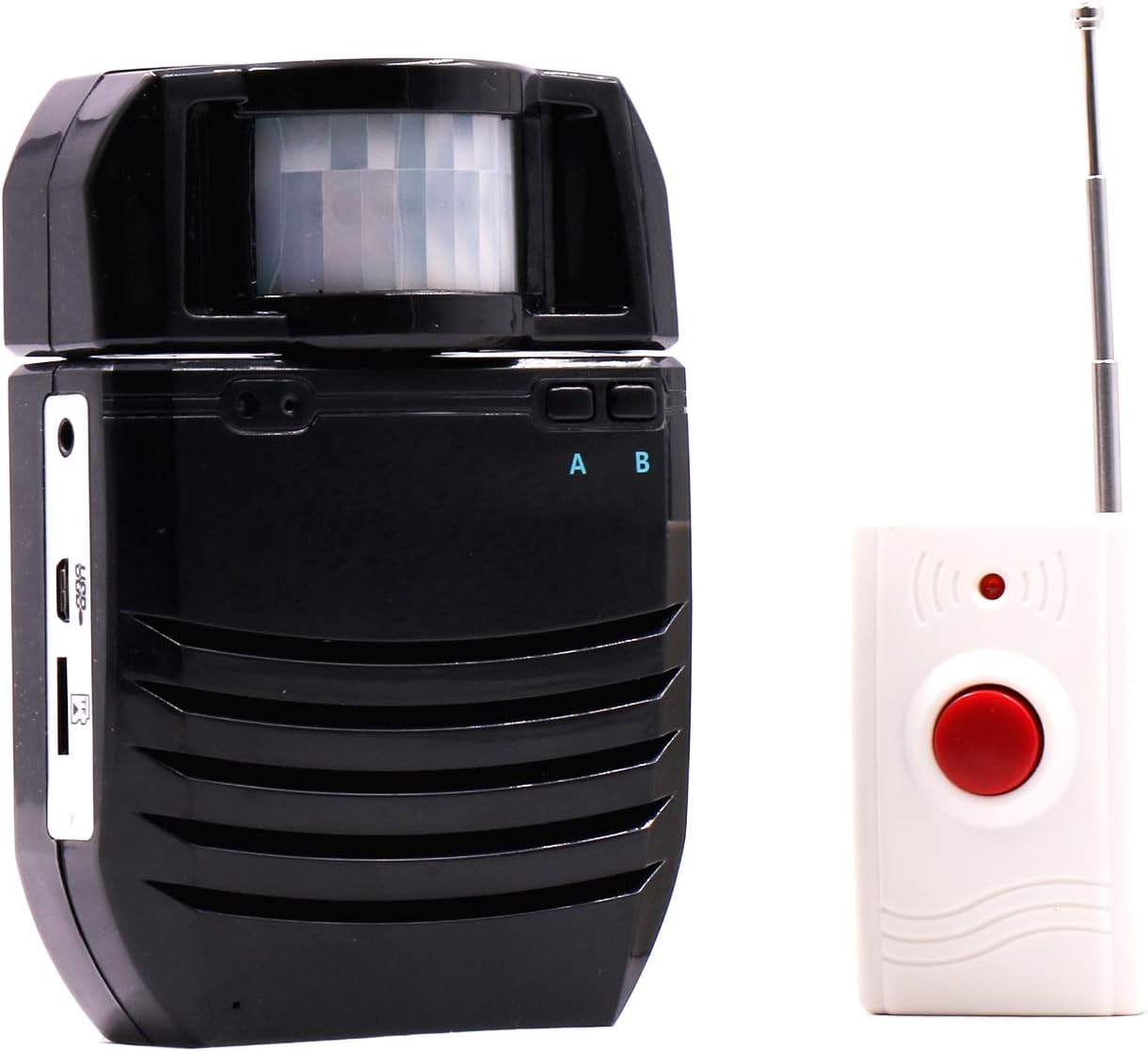
Figure 4: Main Unit and Remote Control. The primary device with its motion sensor visible at the top, alongside the white remote control.
- Power On/Off: Locate the ON/OFF switch on the side of the device (refer to Figure 3) and slide it to the 'ON' position to activate the unit. Slide to 'OFF' to power down.
- Motion Detection: Once powered on, the device will automatically play the selected audio when motion is detected within its 120-degree view angle and 16ft (5 meters) range.
- Adjust Volume: Use the volume slider on the side of the device (refer to Figure 3) to adjust the sound output. There are 8 levels of volume adjustment.
- Remote Control: The included remote control can be used to manually trigger audio playback. It operates within a 0-30 meter range and can work through walls.
2. Customizing Audio Files
The Waytronic S11 Black allows you to replace the default audio files with your own custom MP3s. The device supports a maximum of 4MB internal memory for audio files and also features a microSD card slot for additional storage.
- Connect to Computer: Use the provided micro USB data cable to connect the device to your computer. The device will be recognized as a removable storage device.
- Access Storage: Both the internal memory and any inserted microSD card will appear as drives on your computer.
- Transfer Files: Drag and drop your desired MP3 audio files into the device's storage. Ensure the files are in MP3 format.
- Select Playback: Use the 'A' and 'B' buttons on the top of the device (refer to Figure 4) to cycle through and select the desired audio file for playback. The device supports single song and full song loop playback.
- MicroSD Card Caution: When inserting a microSD card, ensure it is correctly aligned with the slot. There is a small gap above the slot, and incorrect insertion may cause the card to fall inside the device, requiring disassembly for retrieval.
3. External Speaker Connection
For louder sound or improved audio quality, the device features a 3.5mm audio interface for connecting external speakers.
- Connect Speaker: Plug a standard 3.5mm audio cable from your external speaker into the audio output jack on the Waytronic S11 Black.
- Adjust Volume: Adjust the volume both on the Waytronic device and your external speaker for optimal sound.
Maintenance
- Cleaning: Use a soft, dry cloth to wipe the exterior of the device. Do not use liquid cleaners or abrasive materials.
- Battery Care: To prolong battery life, avoid exposing the device to extreme temperatures. If storing for an extended period, ensure the battery is partially charged (around 50%) and store in a cool, dry place.
- Storage: When not in use, store the device in a clean, dry environment away from direct sunlight and excessive dust.
Troubleshooting
| Problem | Possible Cause | Solution |
|---|---|---|
| Device does not power on. | Battery is depleted or not connected. Power switch is OFF. | Charge the device using the USB cable. Ensure the battery is properly connected. Slide the ON/OFF switch to 'ON'. |
| No sound when motion is detected. | Volume is too low. Incorrect audio file selected. Motion sensor blocked or out of range. | Increase the volume using the slider. Use 'A'/'B' buttons to select a different audio file. Ensure the sensor has a clear line of sight and the subject is within 16ft. |
| Remote control not working. | Remote battery depleted. Remote not paired (if applicable). Out of range. | Replace the remote's 23A 12V Alkaline battery. Ensure you are within the 0-30m range. If pairing is required (check specific remote instructions), follow those steps. |
| Cannot transfer audio files to device. | Device not properly connected to computer. Incorrect file format. Memory full. | Ensure the USB cable is securely connected and the device is powered on. Verify audio files are in MP3 format. Check available memory; delete unnecessary files or use a microSD card. |
| MicroSD card falls inside the device. | Incorrect insertion into the microSD slot. | Carefully align the microSD card with the slot opening. If it has fallen inside, the unit may need to be opened to retrieve it. |
Specifications
| Feature | Detail |
|---|---|
| Brand | Waytronic |
| Model Number | S11 Black |
| Color | Black |
| Power Source | Battery Powered |
| Battery Type | 1 Lithium Ion battery (included) |
| Item Weight | 14.1 ounces (0.88 Pounds) |
| Product Dimensions (D x W x H) | 2"D x 4"W x 5.5"H |
| PIR Detection Angle | 120 Degrees |
| PIR Detection Range | Up to 16 feet (5 meters) |
| Infrared Detector Rotation | Approx. 60 Degrees |
| Internal Memory | Max 4MB (for audio files) |
| Audio Format Support | MP3 |
| Volume Levels | 8 levels adjustable |
| Loudspeaker | Built-in 2W/8Ω |
| External Audio Output | 3.5mm interface |
| Remote Control Range | 0-30 meters |
| Country of Origin | China |
Warranty and Support
Specific warranty details for the Waytronic S11 Black motion sensor sound player are not provided in this manual. Please refer to the product packaging, the seller's website, or contact Waytronic customer support directly for information regarding warranty coverage, terms, and conditions.
For technical support or further assistance, please contact Waytronic customer service through their official channels, typically found on their website or the product's purchase page.