
Lemore Magnetic Detachable Keyboard Case B0DBX8HBWP
Lemore Magnetic Detachable Keyboard Case for OnePlus Pad Pro 12.1'' / OnePlus Pad 2 12.1'' User Manual
1. Introduction
This manual provides detailed instructions for the setup, operation, and maintenance of your Lemore Magnetic Detachable Keyboard Case, designed for the OnePlus Pad Pro 12.1'' and OnePlus Pad 2 12.1'' tablets. Please read this manual thoroughly before using the product to ensure optimal performance and longevity.
2. Package Contents
- Magnetic Detachable Keyboard Case with Built-in Keyboard and Touchpad
- Wireless Mouse
- Charging Cable (for keyboard and mouse)
- User Manual (this document)
3. Setup
3.1 Charging the Keyboard and Mouse
The keyboard and mouse are equipped with rechargeable Lithium Ion batteries. Before initial use, ensure both devices are fully charged using the provided charging cable.
- Connect the charging cable to the charging port on the keyboard and mouse.
- Connect the other end of the cable to a USB power source (e.g., computer USB port, USB wall adapter).
- The charging indicator light will illuminate during charging and turn off when fully charged.
3.2 Attaching Your Tablet to the Case
The case features a magnetic design for secure attachment of your OnePlus Pad Pro 12.1'' or OnePlus Pad 2 12.1''.
- Align your tablet with the case.
- The tablet will magnetically snap into place, ensuring a snug fit and protecting all edges.

Image: Tablet in the keyboard case with the wireless mouse.
3.3 Bluetooth Pairing for the Keyboard
To connect the keyboard to your tablet:
- Ensure the keyboard is charged and powered on.
- On the keyboard, locate and press the Bluetooth connection button. This button is typically indicated by a Bluetooth symbol or a 'Connect' label. Refer to the image below for its location.
- The indicator light on the keyboard will begin to flash, signifying it is in pairing mode.
- On your OnePlus tablet, go to Settings > Bluetooth and turn Bluetooth on.
- Your tablet will search for available devices. Select the keyboard (e.g., "Bluetooth Keyboard") from the list.
- Follow any on-screen prompts to complete the pairing process. The indicator light on the keyboard will stop flashing once successfully paired.

Image: Keyboard layout with the Bluetooth connect button indicated.
3.4 Bluetooth Pairing for the Mouse
To connect the wireless mouse to your tablet:
- Ensure the mouse is charged and powered on.
- Activate the pairing mode on the mouse (usually by pressing a button on the bottom or holding a button).
- On your OnePlus tablet, go to Settings > Bluetooth.
- Select the mouse (e.g., "Bluetooth Mouse") from the list of available devices.
- Follow any on-screen prompts to complete the pairing process.
4. Operating Instructions
4.1 Magnetic Detachable Design
The keyboard and the tablet case are magnetically detachable, allowing for flexible use. You can easily separate the keyboard from the case when not needed, or reattach it for a laptop-like experience.

Image: Keyboard and tablet case detached.
4.2 Horizontal and Vertical Stand Modes
The case is designed to support your tablet in both horizontal (landscape) and vertical (portrait) orientations, providing versatile viewing angles for typing, reading, viewing media, or drawing.
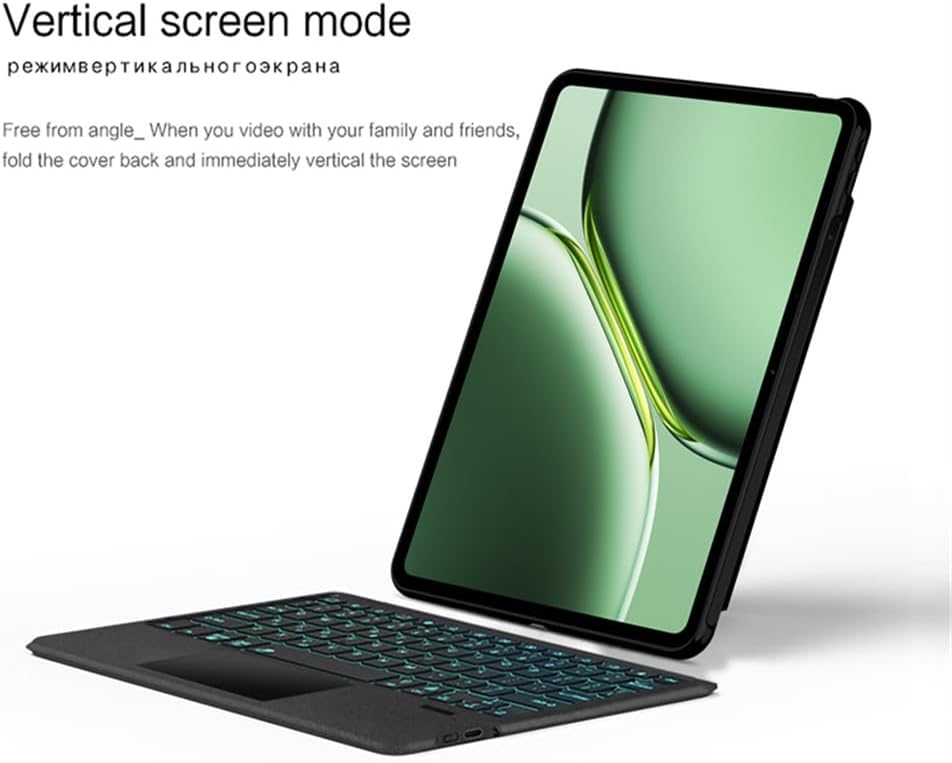
Image: Tablet in vertical stand mode.

Image: Multiple stand configurations (horizontal and vertical).
4.3 Backlit Keyboard
The keyboard features backlighting for improved visibility in low-light conditions. The backlighting color support is single color. Refer to the keyboard's function keys for backlight control (e.g., a dedicated backlight key or a combination with the 'Fn' key).
4.4 Touchpad Functionality
The integrated touchpad allows for precise cursor control on your tablet, mimicking a laptop experience. Ensure the touchpad is enabled in your tablet's settings if you encounter any issues.
5. Maintenance
- Cleaning: Use a soft, dry, lint-free cloth to clean the keyboard and case. For stubborn dirt, slightly dampen the cloth with water. Avoid harsh chemicals or abrasive materials.
- Storage: When not in use, store the keyboard case in a cool, dry place away from direct sunlight and extreme temperatures.
- Battery Care: To prolong battery life, avoid fully discharging the keyboard and mouse frequently. Charge them regularly.
6. Troubleshooting
6.1 Keyboard/Mouse Not Connecting via Bluetooth
- Check Power: Ensure the keyboard and mouse are powered on and have sufficient battery charge.
- Re-pair: Delete the device from your tablet's Bluetooth list and attempt the pairing process again (refer to Section 3.3 and 3.4).
- Distance: Ensure the keyboard/mouse is within the effective Bluetooth range (typically 10 meters) of your tablet.
- Interference: Move away from other wireless devices that might cause interference.
- Restart Devices: Try restarting your tablet, keyboard, and mouse.
6.2 Keys Not Responding
- Battery: Check if the keyboard battery is low and recharge it.
- Connection: Verify that the keyboard is properly connected via Bluetooth.
- Clean: Ensure no debris is lodged under the keys.
6.3 Touchpad Not Working
- Enable Touchpad: Check your tablet's settings to ensure the touchpad is enabled.
- Connection: Verify Bluetooth connection.
- Clean: Ensure the touchpad surface is clean and free of obstructions.
7. Specifications
| Feature | Detail |
|---|---|
| Brand | Lemore |
| Compatible Devices | OnePlus Pad Pro 12.1'', OnePlus Pad 2 12.1'' |
| Connectivity Technology | Bluetooth |
| Keyboard Description | Backlit (English QWERTY layout) |
| Special Features | Backlit, Trackpad, Magnetic Detachable, Horizontal/Vertical Stand |
| Material | Acrylonitrile Butadiene Styrene |
| Batteries | 1 Lithium Ion battery required (included) |
| Item Weight | 1.79 pounds |
| Package Dimensions | 12.2 x 9.84 x 2.76 inches |
8. Warranty and Support
For warranty information and customer support, please refer to the product packaging or contact Lemore customer service directly. Contact details are typically available on the manufacturer's official website or through your point of purchase.