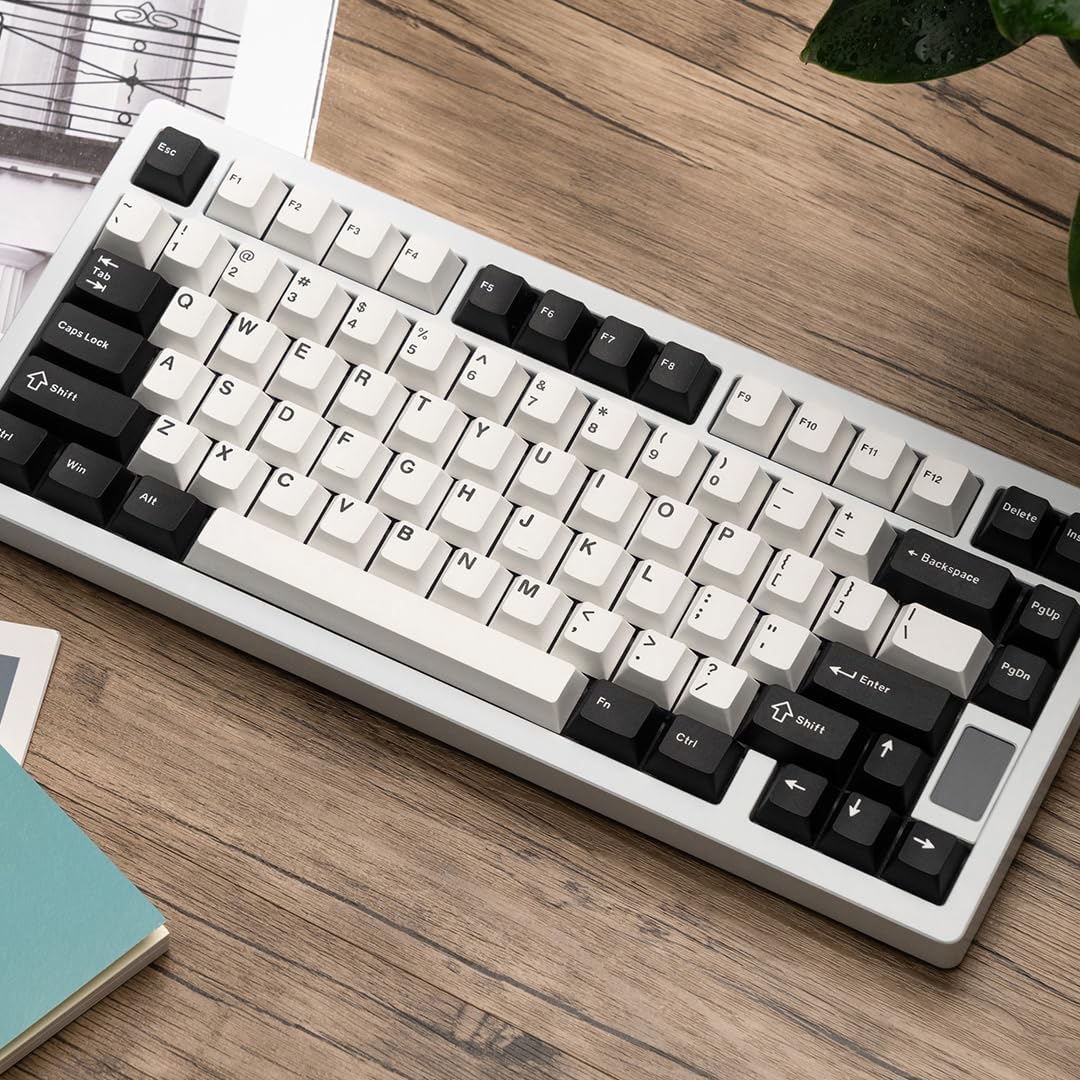
Chilkey ND75 Aluminum 75% Wireless Mechanical Keyboard User Manual
Model: ND75
1. Introduction
This manual provides detailed instructions for the setup, operation, and maintenance of your Chilkey ND75 Aluminum 75% Wireless Mechanical Keyboard. Please read this manual thoroughly before using the product to ensure optimal performance and longevity.
The Chilkey ND75 is a high-performance 75% layout mechanical keyboard featuring a full aluminum alloy case, multi-mode connectivity (Bluetooth 5.0, 2.4GHz wireless, USB-C wired), hot-swappable switches, per-key RGB backlighting, and an integrated LCD screen for enhanced functionality.
Image: The Chilkey ND75 keyboard, showcasing its 75% layout and aluminum casing.
2. Package Contents
Verify that all items are present in your package:
Chilkey ND75 Aluminum Mechanical Keyboard
USB-C Cable
Switch Puller / Keycap Puller Tool
User Manual (this document)
Additional hardware (e.g., screwdriver, spare mounting system components if applicable)
Note: The product includes 2 Lithium Polymer batteries (pre-installed).
3. Setup
3.1 Initial Connection
The ND75 keyboard supports three connection modes: Bluetooth 5.0, 2.4GHz wireless, and USB-C wired.
3.1.1 Wired Mode (USB-C)
Connect the provided USB-C cable to the keyboard's USB-C port.
Connect the other end of the USB-C cable to an available USB port on your computer.
The keyboard will automatically be detected and ready for use.
3.1.2 2.4GHz Wireless Mode
Locate the 2.4GHz USB receiver. This is typically stored in a compartment on the keyboard or included separately.
Remove the Right Shift keycap to access the wireless switch. Ensure the switch is in the 2.4GHz position.
Insert the 2.4GHz USB receiver into an available USB port on your computer.
The keyboard should connect automatically. If not, press Fn + 4 to activate 2.4GHz pairing mode.
3.1.3 Bluetooth 5.0 Mode
Remove the Right Shift keycap to access the wireless switch. Ensure the switch is in the Bluetooth position.
On your computer or device, enable Bluetooth and search for new devices.
On the keyboard, press and hold Fn + 1, Fn + 2, or Fn + 3 for 3-5 seconds to enter pairing mode for one of the three available Bluetooth channels. The LCD screen will indicate pairing status.
Select "Chilkey ND75" from the list of available Bluetooth devices on your computer/device to complete pairing.
You can switch between paired Bluetooth devices using Fn + 1, Fn + 2, or Fn + 3.
3.2 Mounting System Adjustment
The ND75 keyboard features a screwless quick assembly structure and supports three different mounting systems: Split O-Ring Mounting, Silica Gel Particle Mounting, and Top Mounting. These can be adjusted to customize typing feel.
Image: Close-up view of the keyboard's internal structure highlighting the three mounting systems: Top Mount, Split O-Ring Mount, and Silica Gel Particle Mount. Each system offers a distinct typing experience.
Refer to the detailed instructions provided with the additional hardware for specific guidance on disassembling and reassembling the keyboard to change mounting systems.
4. Operating Instructions
4.1 LCD Screen Functions
The integrated LCD screen provides real-time information and allows for quick adjustments without software. Functions include:
Connection Mode display (BT, 2.4G, USB-C)
Battery Level indicator
Backlight Brightness/Speed adjustment
RGB Mode/Color selection
Volume control
Language settings
Custom GIF/Image display
Image: The ND75 keyboard with an overlay illustrating the various functions accessible via the LCD screen, including configuration, connection modes, RGB settings, system information, and volume control.
Navigate the LCD screen menu using the dedicated knob or specific key combinations (refer to the quick guide provided with the keyboard).
4.2 RGB Backlighting
The ND75 keyboard features per-key RGB backlighting with 19 preset lighting effects. Custom light colors can also be defined.
Image: The ND75 keyboard illuminated with per-key RGB backlighting, demonstrating the range of colors and effects available.
Adjust lighting effects and colors directly via the LCD screen or using specific Fn key combinations. Consult the quick guide for a list of shortcuts.
4.3 Hot-Swappable Switches
The ND75 keyboard is equipped with a hot-swappable PCB, allowing users to replace switches without soldering. It supports both 3-pin and 5-pin switches.
Image: A switch puller tool is used to remove a mechanical switch from the keyboard, illustrating the hot-swappable functionality.
To replace a switch:
Carefully remove the keycap using the keycap puller tool.
Use the switch puller tool to gently grip the top and bottom clips of the switch.
Pull the switch straight up to remove it from the PCB.
Align the pins of the new switch with the holes on the PCB.
Press the new switch firmly into place until it clicks. Ensure the pins are not bent.
Replace the keycap.
Caution: Apply gentle, even pressure when inserting switches to avoid bending pins or damaging the PCB.
4.4 Software Customization
The ND75 keyboard supports independent driver/software for advanced customization, including key remapping, macro creation, and further RGB lighting control. The software can be downloaded from the official Chilkey website.
Note: Some users have reported that the software can be clunky. Refer to the official Chilkey Discord community or support channels for assistance with software usage.
5. Maintenance
5.1 Cleaning the Keyboard
Disconnect the keyboard from your computer before cleaning.
Use a soft brush or compressed air to remove dust and debris from between the keycaps.
For deeper cleaning, keycaps can be removed using the provided keycap puller. Clean keycaps with a mild soap solution and allow them to dry completely before reattaching.
Wipe the keyboard case with a soft, damp cloth. Avoid harsh chemicals or abrasive materials.
5.2 Battery Care
The keyboard contains two Lithium Polymer batteries. To prolong battery life:
Avoid fully discharging the battery frequently.
Store the keyboard in a cool, dry place if not used for extended periods.
Charge the keyboard using the provided USB-C cable or a compatible charger.
6. Troubleshooting
6.1 Keyboard Not Responding
Wired Mode: Ensure the USB-C cable is securely connected to both the keyboard and the computer. Try a different USB port or cable.
2.4GHz Wireless Mode: Ensure the USB receiver is properly inserted and the wireless switch (under the Right Shift keycap) is in the 2.4GHz position. Try re-pairing by pressing Fn + 4.
Bluetooth Mode: Verify Bluetooth is enabled on your device and the keyboard is paired. Ensure the wireless switch is in the Bluetooth position. Try re-pairing by holding Fn + 1/2/3.
Battery: Check the battery level on the LCD screen. Connect the keyboard to a power source to charge if the battery is low.
6.2 Keys Not Registering or Double-Typing
This may indicate a faulty switch. Utilize the hot-swappable feature to replace the affected switch.
Ensure the switch is fully seated in the PCB.
6.3 RGB Lighting Issues
Check the lighting settings via the LCD screen or software.
Ensure the keyboard firmware is up to date.
6.4 Software Not Detecting Keyboard
Ensure the keyboard is connected via USB-C wired mode when attempting to use the software.
Download the latest version of the software from the official Chilkey website.
Temporarily disable any antivirus or firewall software that might be blocking the connection.
7. Specifications
Model
ND75
Layout
75%
Case Material
Full Aluminum Alloy (CNC with electrophoretic surface treatment)
Connectivity
Bluetooth 5.0, 2.4GHz Wireless, USB-C Wired
Switches
Hot-swappable (supports 3-pin/5-pin switches), Pre-lubed Linear Switches
Image: Technical drawing illustrating the precise dimensions of the ND75 keyboard.
Image: Exploded view diagram detailing the internal layers and components of the ND75 keyboard, including keycaps, switches, case, and sound dampening materials.
8. Warranty and Support
For warranty information, technical support, or further assistance, please refer to the official Chilkey website or contact their customer service. You may also find helpful resources and community support on the official Chilkey Discord server.
Manufacturer: OOCTPK
Ask a question about this manual
Ask about setup, troubleshooting, compatibility, parts, safety, or missing instructions. Manuals+ will review the question and use this page’s manual context to help answer it.