
Introduction
Thank you for choosing the Bangfun 65W Multi-Port Car Charger Adapter. This device is designed to provide efficient and fast charging for a wide range of electronic devices in your vehicle. Featuring both USB-C (PD 30W) and USB-A (QC 18W) ports, it supports simultaneous charging for multiple devices. Please read this manual carefully to ensure proper use and optimal performance.
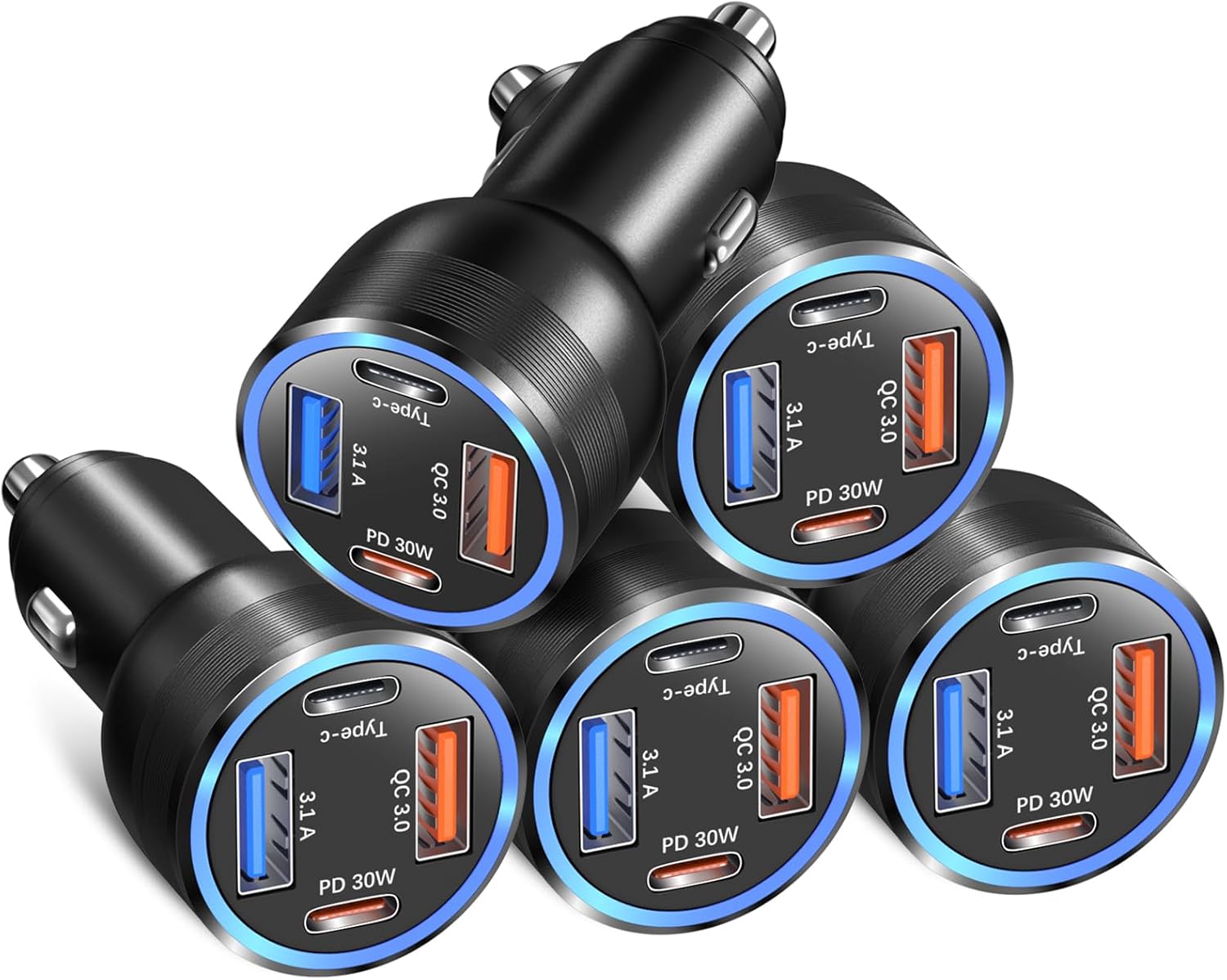
Image: A set of five Bangfun 65W Multi-Port Car Charger Adapters, showcasing their compact design and multiple charging ports.
Product Features
- 65W Fast Charging: Equipped with upgraded PD (Power Delivery) and QC 3.0 (Quick Charge) technology, supporting a maximum of PD 30W and QC 18W for simultaneous charging.
- Multi-Port Design: Features 2 USB-C ports and 2 USB-A ports, allowing for charging of up to four devices concurrently.
- Wide Compatibility: Supports a broad range of devices including iPhones (15/14/13/12/11 Pro Max/Plus/Mini), iPads, Samsung Galaxy phones (S24/S23/S22/S21/S20/S10/S9/S8+, Note series, A-series), Motorola, LG, Pixel phones, dash cams, USB fans, and other USB-C and USB accessories.
- Safety Features: Built-in smart chip and all-aluminum alloy exterior protect against over-current, over-voltage, short-circuit, and over-heating. Automatically stops charging when devices are fully charged.
- Soft Blue LED Light: An integrated blue LED light helps locate charging ports easily in low-light conditions.
- Compact and Durable: Small, mini-sized design with a robust aluminum alloy exterior for enhanced durability.

Image: A visual representation of the different charging protocols supported by the adapter: 3.1A, 18W (QC), and 30W (PD 3.0), indicating their respective charging speeds.
Setup
Setting up your Bangfun car charger is a straightforward process:
- Locate the Cigarette Lighter Socket: Identify the 12V cigarette lighter socket in your vehicle. This is typically located in the dashboard or center console.
- Insert the Charger: Firmly insert the Bangfun car charger into the 12V cigarette lighter socket. Ensure it is fully seated for a stable connection. The soft blue LED light will illuminate, indicating that the charger is powered on and ready for use.
- Connect Your Devices: Plug your device's charging cable into the appropriate USB-C or USB-A port on the car charger.
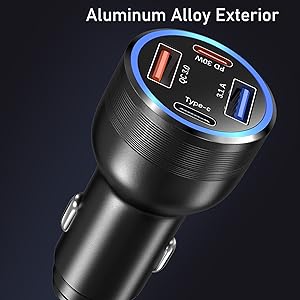
Image: A hand demonstrating the insertion of the Bangfun car charger into a vehicle's cigarette lighter socket, showing the compact fit.
Operating Instructions
The Bangfun car charger is designed for simple and efficient operation:
- Power On: Once inserted into the 12V socket, the charger is active. The blue LED light confirms power.
- Charging Single Device: For optimal fast charging, connect your device to the appropriate port. Use a USB-C to USB-C cable for PD 30W charging (e.g., for iPhone 15 Pro Max, iPad, MacBook) or a USB-A cable for QC 18W charging (e.g., for Android devices).
- Charging Multiple Devices: You can charge up to four devices simultaneously. The charger intelligently distributes power. For best results when charging multiple devices, prioritize high-power devices on the PD 30W USB-C ports and other devices on the QC 18W USB-A ports.
- Fast Charging Tips: To achieve the fastest charging speeds, ensure your device and charging cable support the PD (Power Delivery) or QC (Quick Charge) protocols.
- Automatic Shut-off: The charger will automatically cease power delivery to a device once it reaches full charge, preventing overcharging. When the car ignition is turned off, the 12V outlets typically power down, turning off the charger.

Image: A graphic illustrating the 4X faster charging capability of the Bangfun car charger, showing an iPhone 15 Pro Max reaching 60% and a Samsung S24 Ultra reaching 88% in 30 minutes with PD 30W, compared to older PD2.0W.

Image: Three separate panels demonstrating the charging of an iPad Pro (72%), iPhone 15 Pro (80%), and Samsung A55 (88%) using the car charger, highlighting the 5V-12V output for different devices.

Image: An infographic titled 'Small Tips to Get the Best Fast Charging', detailing recommended port usage and power distribution when charging one, two, or three devices simultaneously for optimal fast charging.
Maintenance
To ensure the longevity and optimal performance of your car charger, follow these simple maintenance guidelines:
- Keep Clean: Periodically wipe the exterior of the charger with a dry, soft cloth to remove dust and debris. Avoid using liquid cleaners directly on the device.
- Inspect Ports: Ensure the USB-C and USB-A ports are free from lint, dust, or foreign objects that could obstruct connections or cause damage. Use a small, non-metallic tool if necessary to gently clear any blockages.
- Avoid Extreme Temperatures: Do not expose the charger to extreme heat or cold, as this can affect its internal components. Store it in a cool, dry place when not in use.
- Handle with Care: Avoid dropping the charger or subjecting it to strong impacts, which could damage its internal circuitry or aluminum casing.
Troubleshooting
If you encounter issues with your Bangfun car charger, refer to the following common problems and solutions:
| Problem | Possible Cause | Solution |
|---|---|---|
| Charger not powering on (no blue LED) | Loose connection; Vehicle's 12V socket is off; Blown fuse in vehicle. | Ensure charger is firmly seated. Check if vehicle ignition is on. Consult vehicle manual for fuse box location and replace fuse if necessary. |
| Device not charging or charging slowly | Faulty cable; Device not compatible with fast charging; Dirty charging port on device/charger; Overloaded ports. | Try a different charging cable. Verify device supports PD/QC. Clean device/charger ports. Reduce number of devices charging simultaneously. |
| Charger gets excessively hot | Normal operation under heavy load; Poor ventilation; Faulty unit. | Some warmth is normal. Ensure charger is not covered. If it's unusually hot or emits smoke/smell, discontinue use immediately and contact support. |
| Blue LED light flickers | Unstable power from vehicle; Loose connection. | Ensure charger is firmly seated. Check vehicle's electrical system if issue persists. |
Specifications
| Feature | Detail |
|---|---|
| Product Dimensions | 2.75 x 1.18 x 1.18 inches |
| Item Weight | 1.23 ounces |
| Model Number | BHCC04 |
| Brand | Bangfun |
| Connector Type | USB Type A, USB Type C |
| Compatible Devices | Cameras, Dashcams, Headphones, Laptops, Tablets, Smartphones |
| Special Feature | Charging Indicator, Fast Charging, Lightweight Design, Short Circuit Protection |
| Color | Black |
| Input Voltage | 12 Volts (DC 12V-24V) |
| Amperage | 3 Amps |
| Total USB Ports | 4 (2x USB-C, 2x USB-A) |
| USB-C Output | PD 30W Max |
| USB-A Output | QC 18W Max |

Image: A comprehensive diagram illustrating the wide range of compatible devices for both USB-C (PD 30W) and USB-A (QC 18W) ports, including various iPhone, Samsung, Google Pixel models, iPads, MacBooks, and other accessories like dash cams and USB fans.
Warranty and Support
Bangfun is committed to providing high-quality products. Your purchase includes a standard manufacturer's warranty against defects in materials and workmanship. For specific warranty terms and duration, please refer to the product packaging or contact our customer support.
If you receive any defective car plugs or encounter any other problems with our products, please do not hesitate to contact us. Our customer service team is available to assist you with troubleshooting, replacements, or any questions you may have regarding your Bangfun car charger.
For support, please visit the Bangfun Store on Amazon or contact us through the Amazon platform.