
1. Introduction
This manual provides detailed instructions for the Winnes Car Dashcam Model 24A01013-W. Please read this manual carefully before using the device to ensure proper operation and to maximize its features. Keep this manual for future reference.
The Winnes Car Dashcam is a three-channel recording system designed to capture video from the front, interior, and rear of your vehicle. It features 1080P Full HD video recording, a 3.0-inch IPS display, wide-angle lenses, G-Sensor, WDR technology, 24-hour parking mode, and loop recording.
2. Package Contents
Verify that all items are present in the package:
- 1 x Winnes Dashcam (Main Unit)
- 1 x Rear Camera (Lens)
- 1 x Mounting Bracket
- 1 x Type-C Car Charger (Power Cable)
- 1 x Instruction Manual
- 1 x 64GB TF Card (Micro SD Card)
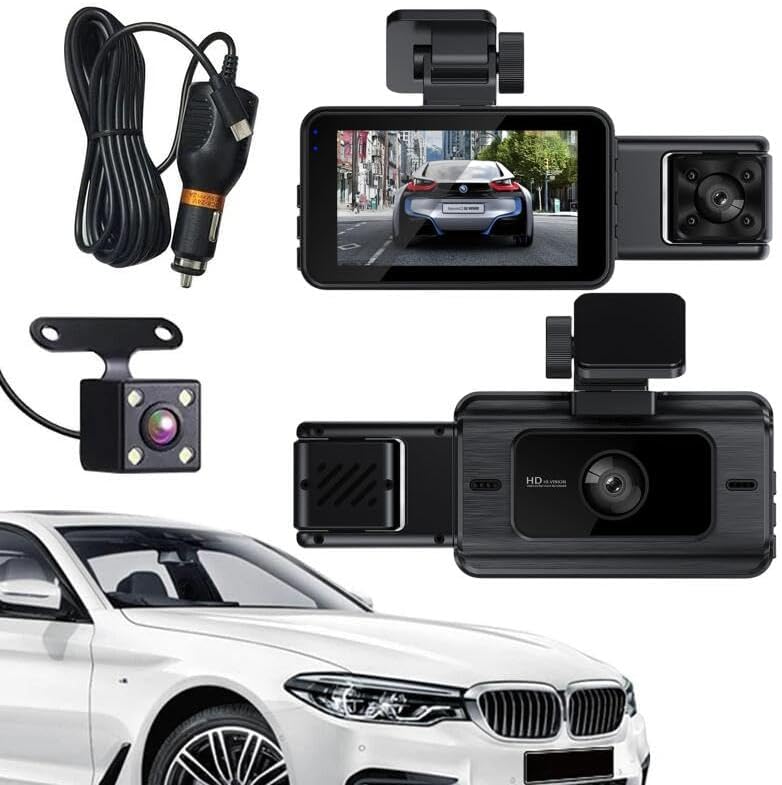
Figure 2.1: Contents of the Winnes Car Dashcam package.
Video 2.1: Unboxing and initial overview of the Winnes Car Dashcam and its components.
3. Product Overview
The Winnes Car Dashcam is equipped with advanced features to provide comprehensive vehicle surveillance.
3.1 Key Features
- Three-Channel Recording: Simultaneous recording from front (140°), interior (100°), and rear (100°) cameras.
- Full HD Video: 1080P front video resolution for clear recordings.
- 3.0" IPS Display: Provides real-time video feedback from all three cameras.
- Super Night Vision & WDR: Enhanced clarity and color accuracy in low-light conditions.
- G-Sensor: Automatically locks footage upon collision detection to prevent overwriting.
- Loop Recording: Overwrites the oldest unprotected files when the memory card is full.
- 24-Hour Parking Mode: Monitors your vehicle for collisions even when parked (no hardwire kit needed).
- Motion Detection: Records automatically when motion is detected around the vehicle.
- Wi-Fi Connectivity: For easy access and management of recordings.
- Memory Card Support: Supports up to 128GB TF card (64GB included).
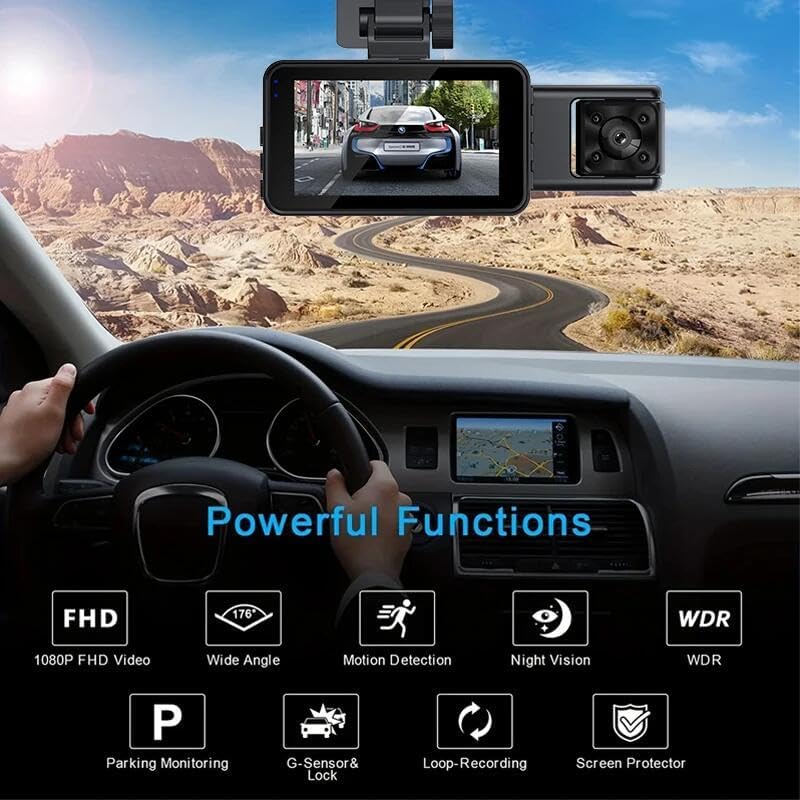
Figure 3.1: Overview of the dashcam's powerful functions.

Figure 3.2: Three-channel recording capability.

Figure 3.3: UHD Night Vision with WDR technology.
4. Setup Instructions
4.1 Inserting the Memory Card
- Ensure the dashcam is powered off.
- Locate the TF card slot on the side of the main dashcam unit.
- Insert the provided 64GB TF card (or another compatible card up to 128GB) into the slot until it clicks into place.
4.2 Mounting the Dashcam
- Clean the windshield area where you intend to mount the dashcam. Ensure it is free from dust and grease.
- Attach the mounting bracket to the main dashcam unit.
- Peel off the protective film from the adhesive pad on the bracket.
- Firmly press the dashcam with the attached bracket onto the chosen spot on your windshield, ideally behind the rearview mirror to avoid obstructing your view. Hold for a few seconds to ensure a secure bond.
4.3 Connecting the Rear Camera
- Connect the rear camera cable to the designated port on the main dashcam unit.
- Route the rear camera cable neatly along the vehicle's headliner and pillar trim to the rear of the vehicle.
- Mount the rear camera on the rear windshield using its adhesive pad or screws, ensuring it has a clear view.
4.4 Power Connection
- Plug the Type-C car charger into the dashcam's power input port.
- Insert the other end of the car charger into your vehicle's 12V power outlet (cigarette lighter socket).
- Route the power cable neatly to avoid interference with driving controls.
5. Operating Instructions
5.1 Powering On/Off
- The dashcam will automatically power on and begin recording when your vehicle's ignition is turned on (and power is supplied to the 12V outlet).
- It will automatically power off when the ignition is turned off.
- To manually power on/off, press and hold the Power button on the dashcam.
5.2 Basic Recording
- Once powered on, the dashcam will automatically start continuous loop recording.
- The 3.0-inch IPS screen will display live views from the front, interior, and rear cameras simultaneously.
- To switch between different display modes (e.g., front only, front + interior, all three), refer to the on-screen menu or dedicated buttons.

Figure 5.1: Main dashcam unit with live view.
5.3 G-Sensor (Emergency Recording)
- The built-in G-Sensor detects sudden impacts or collisions.
- When a collision is detected, the dashcam automatically locks the current video segment, preventing it from being overwritten by loop recording.
- These locked files are stored in a separate folder on the SD card.

Figure 5.2: G-Sensor collision detection and video locking.
5.4 Loop Recording
- The dashcam records video in continuous segments (e.g., 1, 3, or 5 minutes).
- When the memory card is full, the oldest unprotected video segments are automatically overwritten by new recordings.
- Emergency recordings (triggered by G-Sensor) are protected and will not be overwritten.

Figure 5.3: Loop recording mechanism.
5.5 Parking Mode (24-Hour Monitoring)
- When the vehicle is parked and the dashcam detects a collision, it will automatically power on and record a protected video.
- This feature does not require a separate hardwire kit.
5.6 Motion Detection
- When enabled, the dashcam will start recording automatically if it detects motion in its field of view while parked.
- This helps capture events like someone approaching your vehicle.
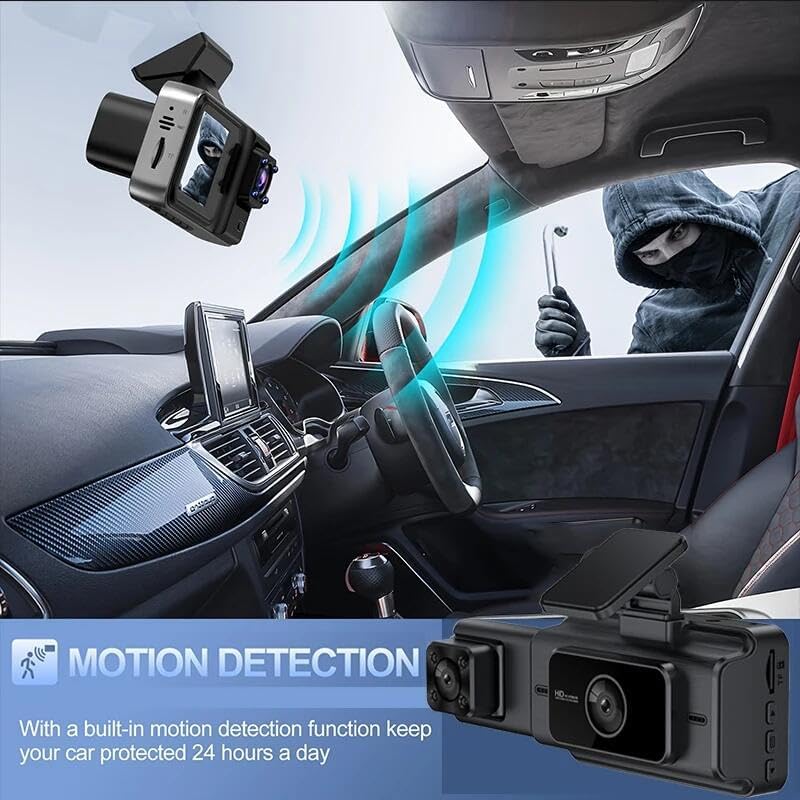
Figure 5.4: Motion detection feature in action.
5.7 Wi-Fi Connectivity
- The dashcam supports 2.4G Wi-Fi.
- Refer to the user manual's specific section on Wi-Fi connection for detailed instructions on pairing with your smartphone and accessing recordings.
5.8 Menu Settings
Access the menu to configure various settings such as video resolution, photo resolution, loop recording duration, G-Sensor sensitivity, parking mode, motion detection, date/time, and language.

Figure 5.5: Full HD 1080P resolution display.
6. Maintenance
6.1 Cleaning the Device
- Use a soft, dry cloth to clean the dashcam body and screen.
- For lenses, use a specialized lens cleaning cloth to avoid scratches.
- Do not use abrasive cleaners or solvents.
6.2 Memory Card Management
- It is recommended to format the memory card periodically (e.g., once a month) to maintain optimal performance and prevent data corruption.
- Format the card directly through the dashcam's menu settings.
- Always power off the dashcam before inserting or removing the memory card.
7. Troubleshooting
| Problem | Possible Cause | Solution |
|---|---|---|
| Dashcam does not power on. | No power supply; faulty car charger; loose connection. | Check car charger connection and vehicle's 12V outlet. Ensure the car charger is functional. |
| Recording stops unexpectedly. | Memory card full; memory card error; G-Sensor triggered too often. | Format the memory card. Replace the memory card if errors persist. Adjust G-Sensor sensitivity in settings. |
| Video footage is blurry or unclear. | Protective film on lens; dirty lens; poor lighting conditions. | Remove any protective film. Clean the camera lenses. Ensure sufficient lighting for optimal recording. |
| Rear camera not displaying. | Loose connection; faulty rear camera. | Check the connection of the rear camera cable to the main unit. |
| Wi-Fi connection issues. | Incorrect password; out of range; interference. | Ensure correct Wi-Fi password. Move closer to the dashcam. Check for other wireless devices causing interference. |
8. Specifications
| Feature | Detail |
|---|---|
| Model Name | 24A01013-W |
| Video Resolution (Front) | 1920 x 1080P (FHD) |
| Video Resolution (Internal/Rear) | 640 x 480 |
| Video Format | AVI |
| Display | 3.0 inch IPS |
| Front Camera Angle | 140° |
| Internal Camera Angle | 100° |
| Rear Camera Angle | 100° |
| Connectivity Technology | Wi-Fi (2.4G) |
| Special Features | G-Sensor, Motion Detection, WDR, Night Vision, Parking Monitoring, Loop Recording |
| Memory Card Support | TF card up to 128GB (Class 10 or higher recommended) |
| Power Supply | Type-C Car Charger |
| Item Dimensions | 6.02 x 4.33 x 2.83 inches |
| Item Weight | 11.6 ounces |
| Manufacturer | Winnes |
9. Warranty and Support
For warranty information and technical support, please refer to the contact details provided on the product packaging or the official Winnes website. Keep your purchase receipt as proof of purchase.