
1. Product Overview
The Hodozzy 7-inch Portable Car Stereo is designed to enhance your driving experience with advanced connectivity and entertainment features. This device offers a high-definition touchscreen display, wireless Apple CarPlay and Android Auto compatibility, Bluetooth audio, FM transmission, AUX input, and TF card support. It is suitable for a wide range of vehicles with 12V-24V power systems.
Key Features:
- 7-inch HD 1024*600 Touchscreen Display
- Wireless Apple CarPlay and Android Auto
- Bluetooth Music and Hands-free Calling
- FM Transmitter for Car Audio Integration
- AUX Output for Wired Connection
- TF Card Support for Audio/Video Playback and Image Display
- Built-in Speaker
- EQ Sound Adjustment
- 360° Adjustable Suction Cup Mount
- Compatible with 12V-24V Vehicle Power Systems
2. Package Contents
Verify that all items are present in the package before proceeding with installation.
- 7-inch Smart Screen Player
- Universal Mounting Bracket (Suction Cup)
- User Manual
- Cigarette Lighter Power Cable
- AUX Cable
- Camera Adapter Cable (for optional rear camera, not included)
- Accessories (e.g., adhesive pad for mount)

Image: Contents of the Hodozzy 7-inch Portable Car Stereo package, including the main unit, power cord, AUX cable, camera input cable, user manual, mounting bracket, and additional accessories.
3. Setup and Installation
The Hodozzy portable car stereo is designed for easy installation without complex wiring.
3.1 Mounting the Device
- Choose a suitable location on your dashboard or windshield that does not obstruct your view or interfere with driving controls.
- Clean the chosen surface thoroughly to ensure proper adhesion of the suction cup mount.
- Attach the universal suction cup mounting bracket to the back of the 7-inch display unit.
- Press the suction cup firmly onto the cleaned surface and engage the locking mechanism to secure it.
- Adjust the bracket to achieve an optimal viewing angle. The bracket supports 360° rotation and various tilt adjustments for safe driving.

Image: Demonstrates the 360-degree adjustable mounting bracket, showing vertical installation and windshield mounting options for the Hodozzy car stereo.
3.2 Power Connection
- Connect the cigarette lighter power cable to the power input port on the side of the Hodozzy unit.
- Insert the other end of the power cable into your vehicle's 12V-24V cigarette lighter socket.
- The device will power on automatically or prompt you to press the power button.
4. Operating Instructions
4.1 Wireless Apple CarPlay / Android Auto
This feature allows seamless integration with your smartphone for navigation, music, calls, and more.
- Ensure Bluetooth and Wi-Fi are enabled on your smartphone.
- On the Hodozzy unit, select the "CarPlay" or "Android Auto" icon from the main menu.
- The unit will display a Wi-Fi network name. Connect your phone to this Wi-Fi network.
- Once connected, your phone will prompt you to enable CarPlay or Android Auto. Confirm the connection.
- Your phone's interface will now be mirrored on the Hodozzy display, allowing access to compatible apps.
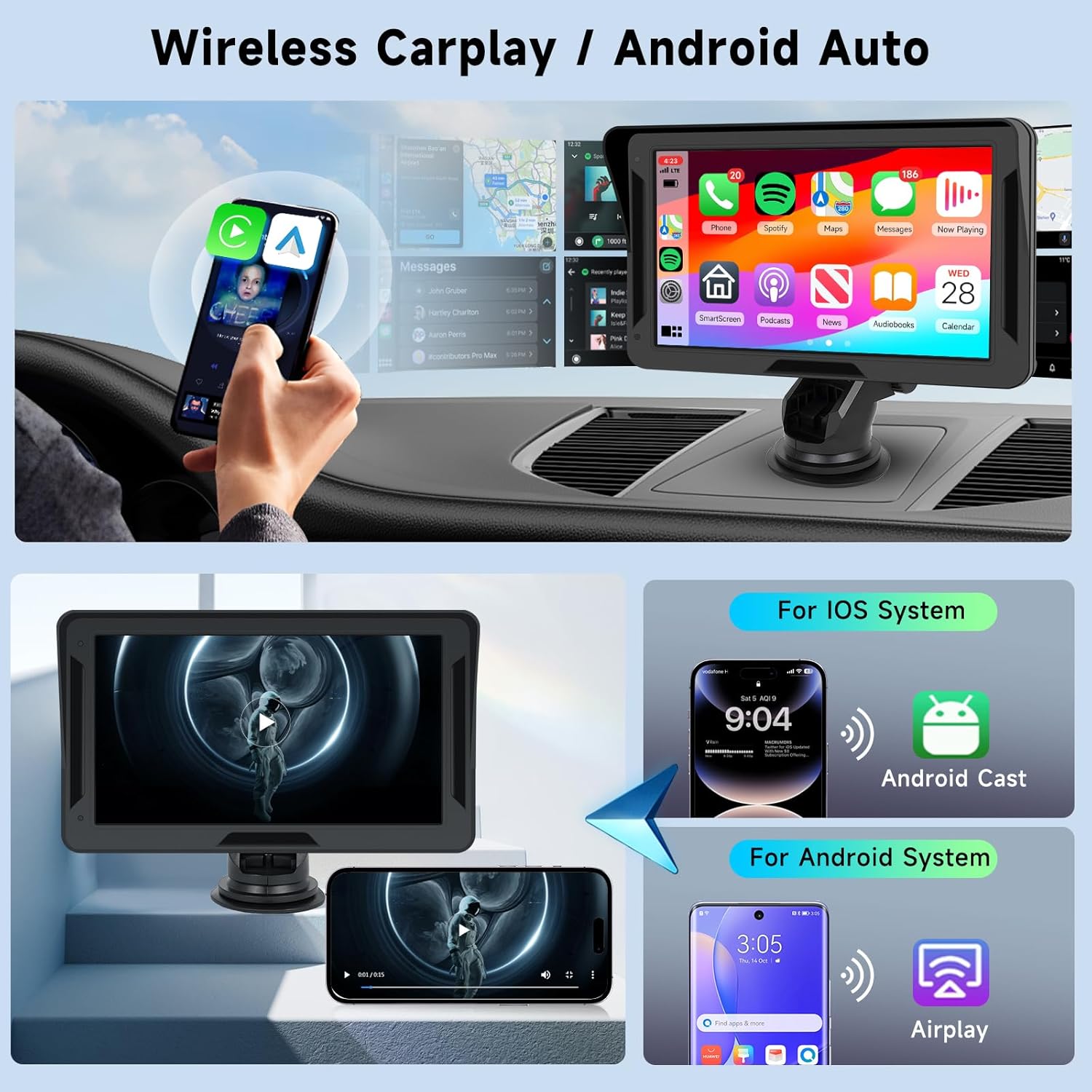
Image: Shows the Hodozzy unit displaying the CarPlay interface with various apps, and a smartphone connected wirelessly via Android Cast or Airplay.
4.2 Voice Control (Siri/Google Assistant)
When connected to CarPlay or Android Auto, you can use voice commands for hands-free operation.
- Activate Siri (for iOS) or Google Assistant (for Android) by saying "Hey Siri" or "Hey Google", or by pressing the voice command button on the screen (if available).
- Issue commands such as "Navigate to [address]", "Play [song name]", "Call [contact name]", or "Send a message to [contact name]".

Image: Illustrates a driver using voice control with CarPlay, showing examples of commands like "Hey Siri, turn on music" and "Navigate to Queens Road".
4.3 Bluetooth Connectivity
Connect your phone via Bluetooth for music streaming and hands-free calls.
- On the Hodozzy unit, select the "Bluetooth" icon.
- Enable Bluetooth on your smartphone and search for available devices.
- Select the Hodozzy unit (e.g., "Hodozzy Car Stereo") from your phone's Bluetooth list to pair.
- Once paired, you can play music from your phone or make/receive calls directly through the unit.
4.4 FM Transmitter
Transmit audio from the Hodozzy unit to your car's FM radio for playback through your vehicle's speakers.
- On the Hodozzy unit, select the "FM Transmitter" icon.
- Choose an unused FM frequency (e.g., 87.5 MHz - 108 MHz) on the unit.
- Tune your car's FM radio to the exact same frequency.
- Audio from the Hodozzy unit will now play through your car's speakers.
4.5 AUX Connection
Use the AUX cable to connect the Hodozzy unit to your car's AUX input for direct audio transmission.
- Connect one end of the provided AUX cable to the AUX output port on the Hodozzy unit.
- Connect the other end to your vehicle's AUX input port.
- Select "AUX" as the audio source on your car's stereo system.
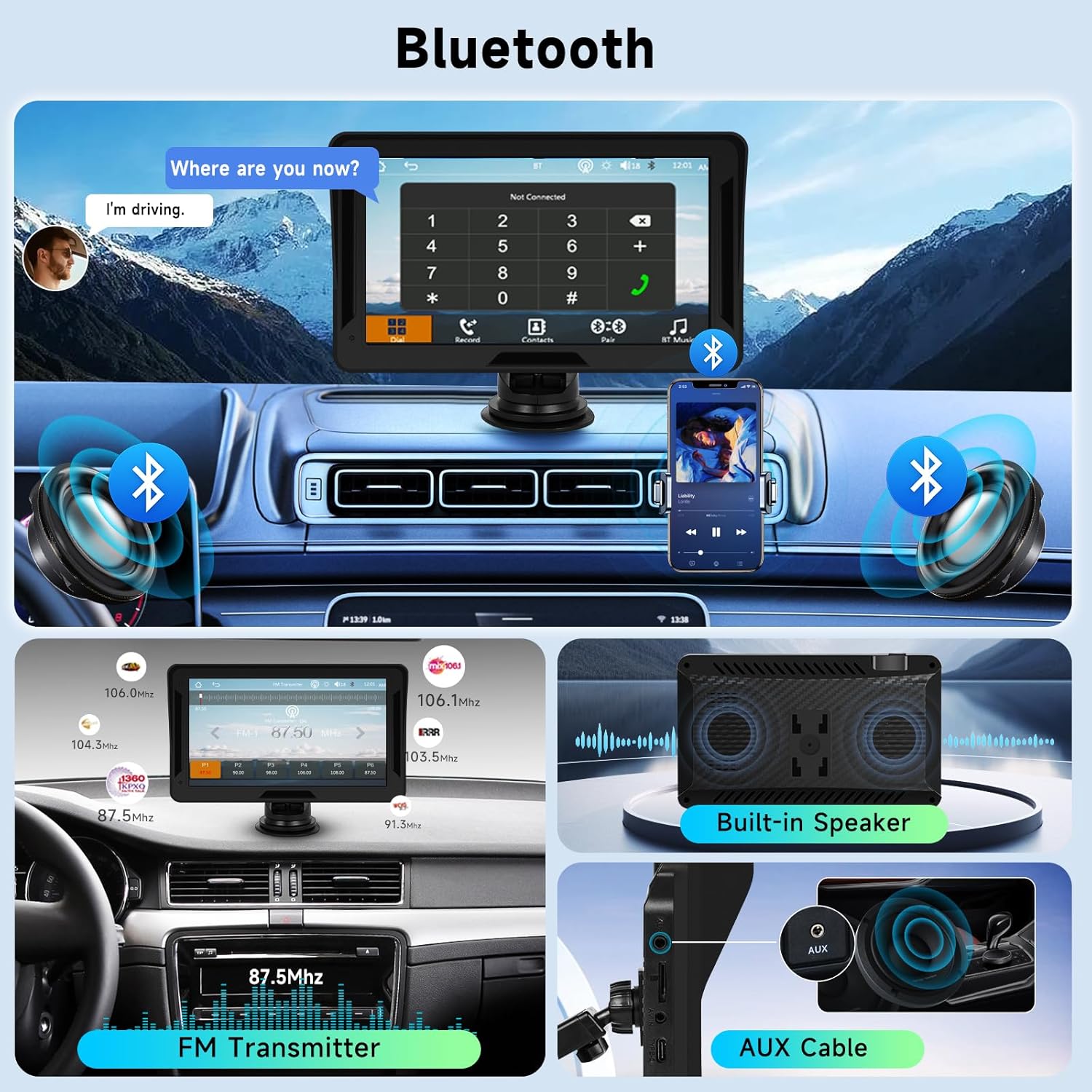
Image: Displays the various connectivity options including Bluetooth pairing, FM transmitter interface, built-in speaker, and AUX cable connection for the Hodozzy car stereo.
4.6 TF Card Playback
Insert a TF (microSD) card into the designated slot to play audio, video, or view images.
- Insert a TF card containing media files into the TF card slot on the unit.
- Select the "TF Card" icon from the main menu.
- Browse and select your desired audio, video, or image files for playback.
4.7 EQ Adjustment
Customize the audio output using the Equalizer (EQ) settings.
- From the main menu, navigate to "Sound Setup" or "EQ".
- Adjust the frequency bands (e.g., 30Hz, 60Hz, 125Hz, etc.) to your preference.
- Select from preset modes like Jazz, Classic, Rock, Pop, Flat, or customize a user profile.
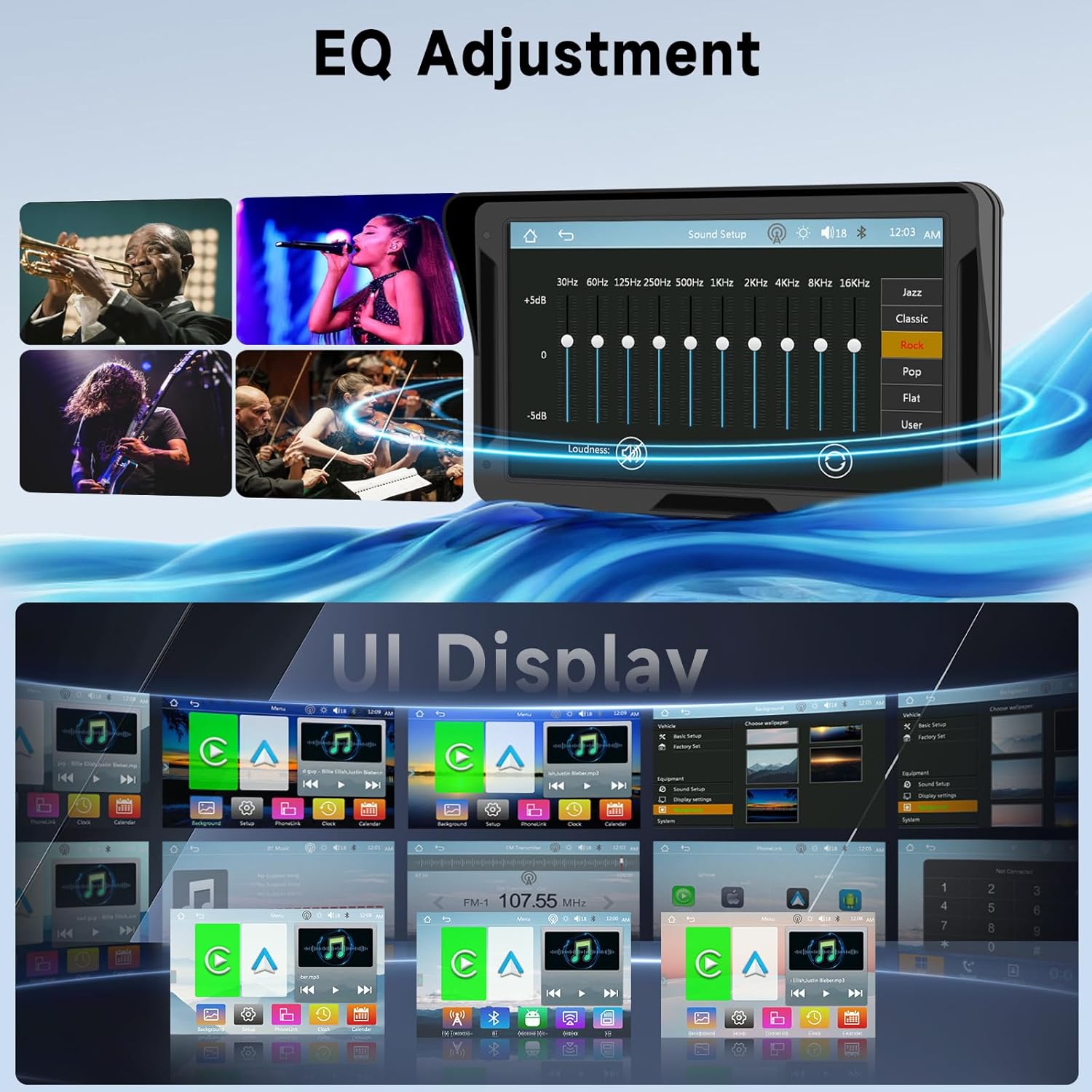
Image: Shows the EQ adjustment interface with various frequency bands and sound presets, along with examples of the user interface display options.
5. Specifications
| Feature | Description |
|---|---|
| Screen Size | 7 inches (17.78 cm) |
| Screen Resolution | HD 1024*600 |
| Operating Voltage | 12V-24V |
| Operating Temperature | -4°F to 149°F (-20°C to 65°C) |
| Connectivity | Wireless CarPlay, Wireless Android Auto, Bluetooth, Wi-Fi, FM Transmission, AUX, TF Card |
| Cooling Method | Passive Cooling |
| Supported Languages | Chinese, English, French, German, Italian, Japanese, Portuguese, Russian, Spanish, Polish, Turkish, Dutch, Czech, etc. |
| Audio Output Mode | Stereo |
| Surround Sound Channel Configuration | 2.0 |
| Video Encoding | H.264, H.265/HEVC, MPEG-4 |
| Model Number | fa71920c-e26a-4468-be27-42234d9860fe |
6. Troubleshooting
If you encounter issues with your Hodozzy car stereo, please refer to the following common solutions.
- No Power:
- Ensure the cigarette lighter power cable is securely connected to both the unit and the vehicle's power socket.
- Check if the vehicle's cigarette lighter socket is receiving power (e.g., by testing with another device).
- Verify the vehicle's fuse for the cigarette lighter socket is not blown.
- No Sound:
- If using FM transmission, ensure the unit and your car radio are tuned to the exact same, clear FM frequency.
- If using AUX, ensure the AUX cable is properly connected and your car stereo's input is set to AUX.
- Check the volume levels on both the Hodozzy unit and your car stereo.
- Ensure Bluetooth is properly paired and selected as the audio source if streaming wirelessly.
- CarPlay/Android Auto Not Connecting:
- Ensure Bluetooth and Wi-Fi are enabled on your smartphone.
- Forget the device from your phone's Bluetooth/Wi-Fi settings and attempt to reconnect.
- Restart both your smartphone and the Hodozzy unit.
- Ensure your phone's operating system is up to date.
- Touchscreen Unresponsive:
- Restart the unit by disconnecting and reconnecting the power.
- Perform a touch calibration if available in the settings menu.
For further assistance, please contact customer support.
7. Warranty and Support
Manufacturer Warranty: The product comes with a 2-year manufacturer warranty.
Software Updates: Information regarding guaranteed software updates is not available.
Spare Parts Availability: Information regarding spare parts availability is not available.
For customer support, please refer to the contact information provided with your purchase or on the manufacturer's official website.