
Introduction
Welcome to the user manual for your Hodozzy 9-inch Android 8-Core Car Stereo. This manual provides comprehensive instructions for installation, operation, maintenance, and troubleshooting to ensure optimal performance and user experience. Please read this manual thoroughly before using the device.
Safety Information
Please read all safety warnings and instructions carefully before installing and operating this device. Failure to do so may result in injury or damage to the product or vehicle.
- Do not operate the device in a manner that distracts you from driving. Always prioritize road safety.
- Ensure all wiring is correctly connected to prevent short circuits, electrical hazards, or damage to the unit and vehicle.
- Consult a professional for installation if you are unsure about any steps or electrical connections.
- Keep the device away from water, excessive moisture, and extreme temperatures to prevent malfunction.
- Do not attempt to disassemble or modify the unit. This will void the warranty and may cause damage.
Package Contents
Verify that all items listed below are included in your package before proceeding with installation.

Image: The package contents include the main car stereo unit, power cable, RCA cable, rear camera input cable, GPS antenna, USB cable, mounting bracket, a user manual, an external microphone, and a rear camera.
- Hodozzy 9-inch Car Stereo Unit
- Power Cable
- RCA Cable
- Rear Camera Input Cable
- GPS Antenna
- USB Cable
- Mounting Bracket
- User Manual
- Microphone
- Rear Camera
Product Overview
The Hodozzy 9-inch Android 8-Core Car Stereo is designed to enhance your in-car entertainment and navigation experience. It features a high-definition IPS touchscreen, powerful 8-core processor, and extensive connectivity options.

Image: The main product image showcasing the 9-inch display with its Android interface, highlighting the 8-core processor, 6GB RAM, and 128GB ROM. Also shown are the included rear camera, external microphone, and smartphone integration features like Wireless Carplay, Android Auto, and Mirror Link.
Key Features
- 9-inch IPS HD Touchscreen for clear visuals and responsive interaction.
- Android 13 Operating System for a smooth and intuitive user experience.
- 8-Core Processor with 6GB RAM + 128GB ROM for fast performance and ample storage.
- Wireless Carplay & Android Auto for seamless smartphone integration.
- Built-in DSP (Digital Sound Processor) with 32 EQ settings for customizable audio quality.
- GPS Navigation for reliable guidance, supporting both online and offline maps.
- Bluetooth Connectivity for hands-free calling and audio streaming.
- FM/RDS Radio for access to local and regional broadcasts.
- Mirror Link Function to display your smartphone's screen on the stereo.
- Split Screen Display to run two applications simultaneously.
- Support for Rear Camera and Steering Wheel Control (SWC) for enhanced safety and convenience.
Setup and Installation
Proper installation is crucial for the performance and safety of your car stereo. It is recommended to have the unit installed by a qualified professional.
Wiring Diagram
Refer to the following diagram for correct wiring connections. Incorrect wiring can cause damage to the unit or vehicle.

Image: A comprehensive diagram illustrating the rear connections of the car stereo and the color-coded wiring harness. Labels indicate connections for power, RCA audio/video, USB, GPS, radio antenna, and specific control wires like REAR, FRONT, SUB WOOFER, AMP CONT, and SWC.
General Installation Steps
- Disconnect Battery: Always disconnect the vehicle's negative battery terminal before starting any electrical work to prevent short circuits.
- Remove Old Unit: Carefully remove the existing car stereo unit from your vehicle's dashboard.
- Connect Wiring: Connect the power cable, speaker wires, and other necessary cables (RCA, USB, GPS antenna, radio antenna) according to the provided wiring diagram. Ensure all connections are secure.
- Install GPS Antenna: Install the GPS antenna in a location with a clear view of the sky, typically on the dashboard or under the windshield.
- Connect Rear Camera (Optional): If using the included rear camera, connect its input cable to the stereo and install the camera at the rear of the vehicle.
- Mount Unit: Secure the new Hodozzy car stereo unit into the dashboard using the provided mounting brackets.
- Reconnect Battery: Reconnect the vehicle's negative battery terminal.
- Test Functionality: Turn on the vehicle and test all functions of the stereo to ensure proper operation.
Operating Instructions
Basic Operation
- Power On/Off: Press and hold the power button on the front panel or use the steering wheel control to turn the unit on or off.
- Volume Control: Use the volume buttons on the front panel or steering wheel controls to adjust the audio level.
Touchscreen Interface
The 9-inch IPS HD touchscreen provides a clear and responsive interface. Navigate through menus and applications by tapping, swiping, and pinching. The system offers various UI themes and wallpaper options for personalization.
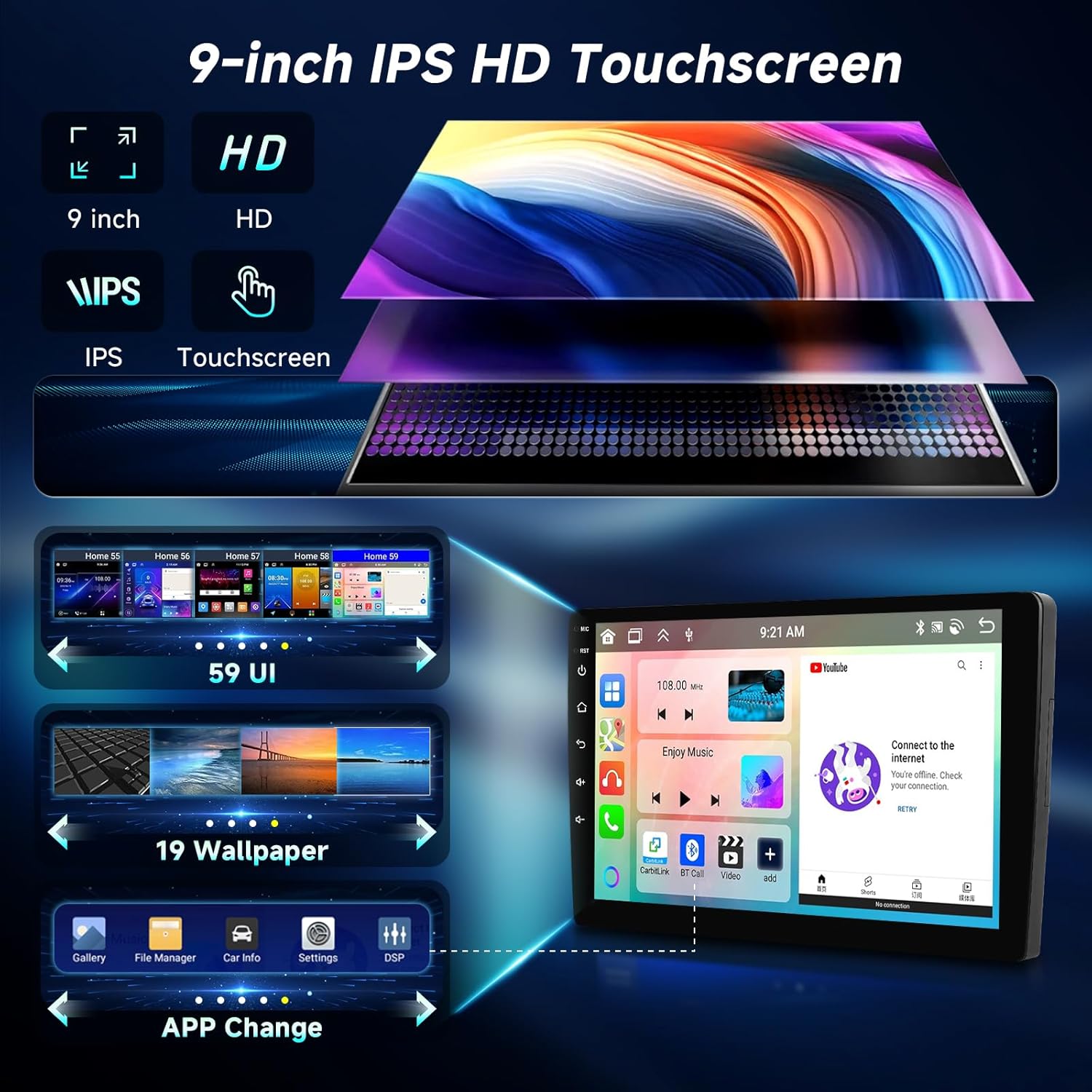
Image: This visual demonstrates the high-definition IPS touchscreen, showcasing different user interface themes and wallpaper customization options available on the device.
Wireless Carplay / Android Auto
Connect your compatible smartphone wirelessly for seamless integration of navigation, music, calls, and messages directly on the car stereo display.
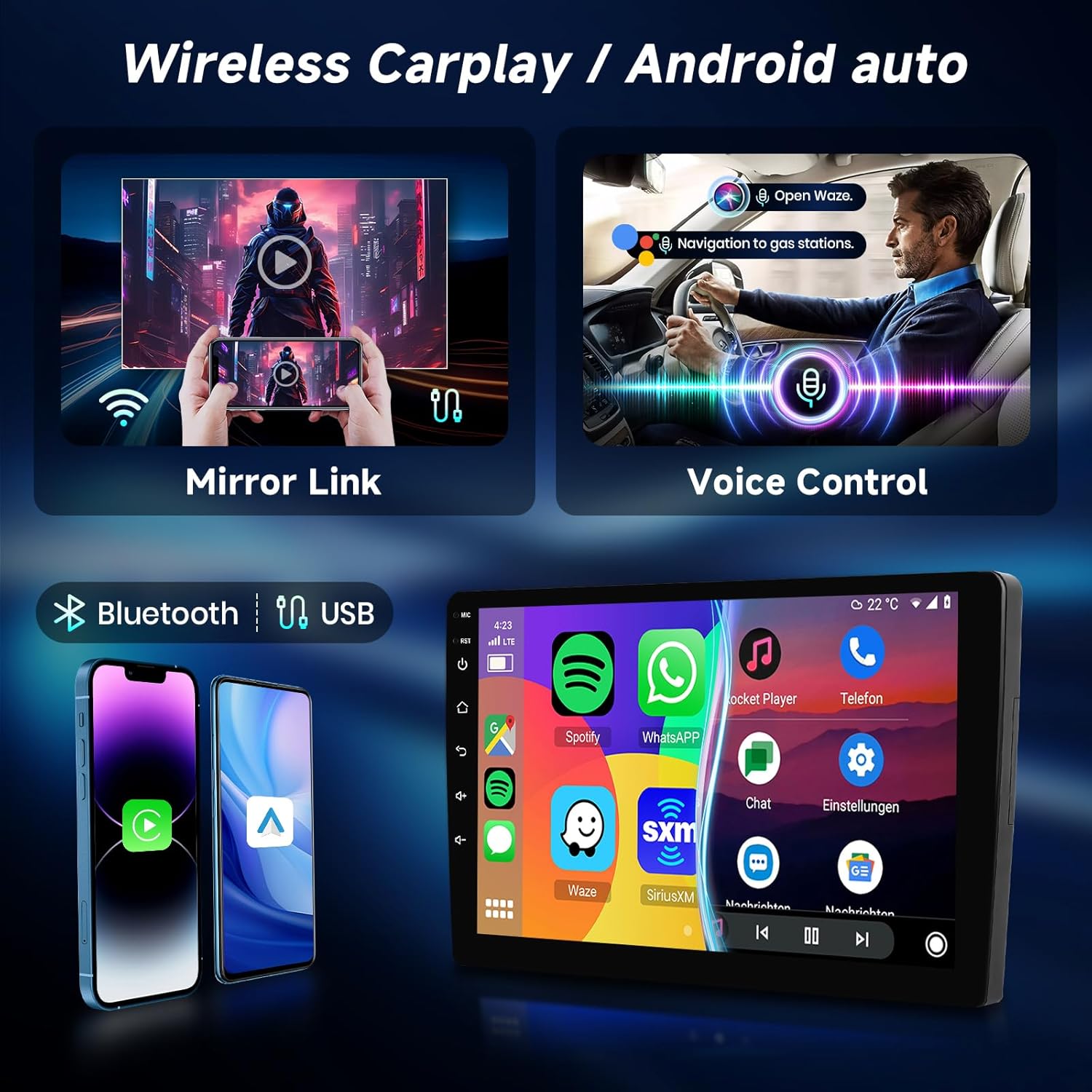
Image: This graphic highlights the wireless connectivity for Apple Carplay and Android Auto, enabling smartphone mirroring and voice control for hands-free operation.
Connection Steps:
- Ensure Bluetooth and Wi-Fi are enabled on your smartphone.
- On the car stereo, open the Carplay or Android Auto application.
- Follow the on-screen prompts to pair your device.
Bluetooth Connectivity
Pair your mobile phone via Bluetooth for hands-free calling and audio streaming from your device.
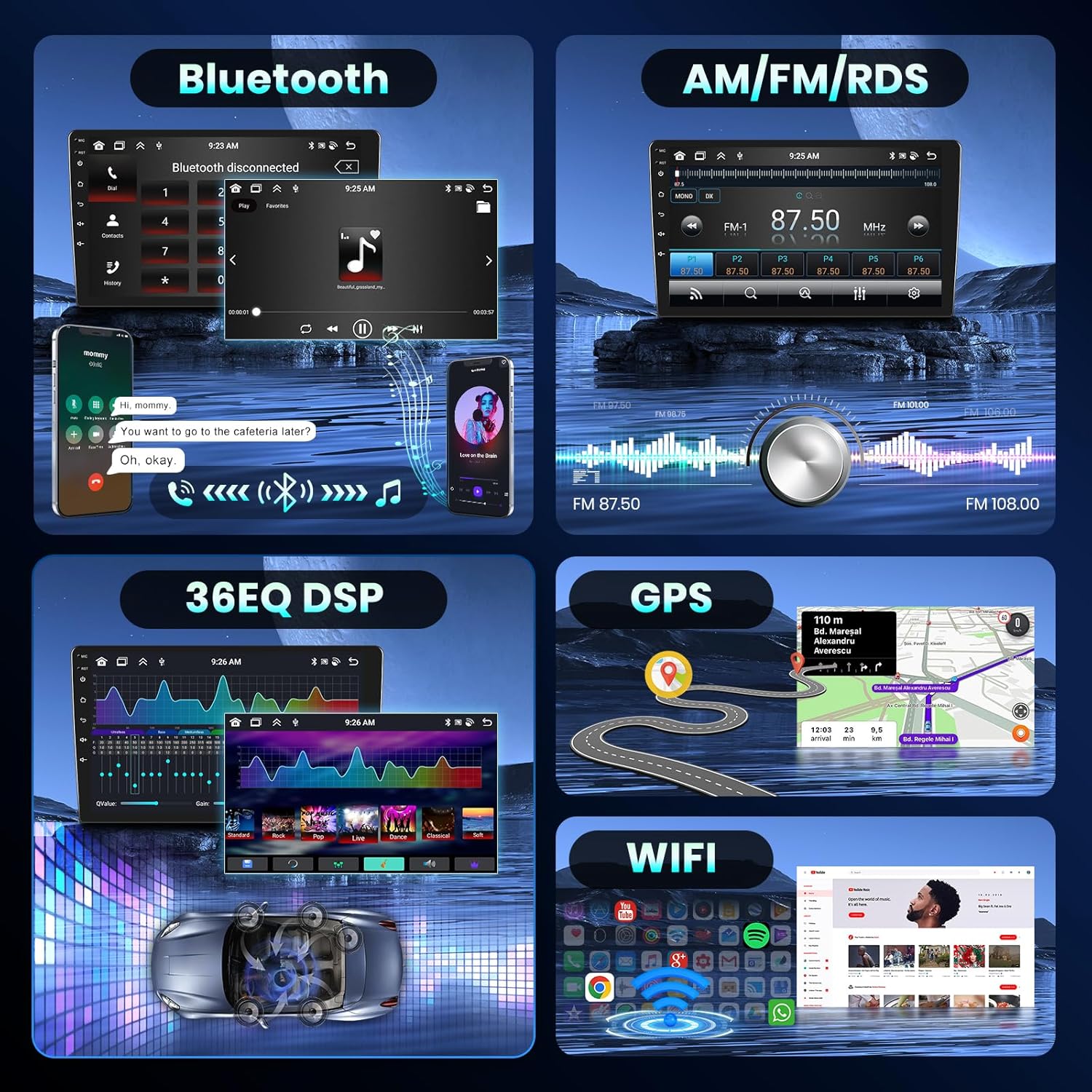
Image: A multi-panel display showing the Bluetooth interface for phone pairing and music playback, alongside other features like FM/RDS radio, DSP audio settings, GPS navigation, and WiFi.
Pairing Steps:
- Go to the Bluetooth settings on the car stereo.
- Enable Bluetooth on your phone and search for available devices.
- Select the car stereo's Bluetooth name (e.g., "Hodozzy Car Stereo") and confirm the pairing code.
GPS Navigation
The unit supports online and offline GPS navigation. Download maps for offline use or connect to Wi-Fi for real-time traffic updates and online map services.

Image: This graphic illustrates the GPS navigation capabilities, supporting both offline maps and online navigation with WiFi connectivity for internet-based services.
FM/RDS Radio
Tune into your favorite radio stations with FM and RDS support. RDS (Radio Data System) displays station information such as song titles and artist names where available.
DSP Audio Settings
Customize your audio experience with the integrated Digital Sound Processor (DSP) and its 32-band EQ settings. Adjust frequencies to match your preferences and vehicle acoustics.
Mirror Link
Mirror your smartphone's screen directly onto the car stereo display, allowing you to view and control your phone's content on the larger screen.
Split Screen Function
Utilize the split-screen feature to run two applications simultaneously, such as navigation on one side and music playback on the other, enhancing multitasking capabilities.

Image: This image shows the car stereo display divided into multiple sections, demonstrating the split-screen functionality that allows users to view and interact with several applications concurrently.
Rear Camera Operation
When the vehicle is shifted into reverse gear, the unit automatically displays the rear camera feed, providing a clear view of the area behind your vehicle for safer parking and maneuvering.
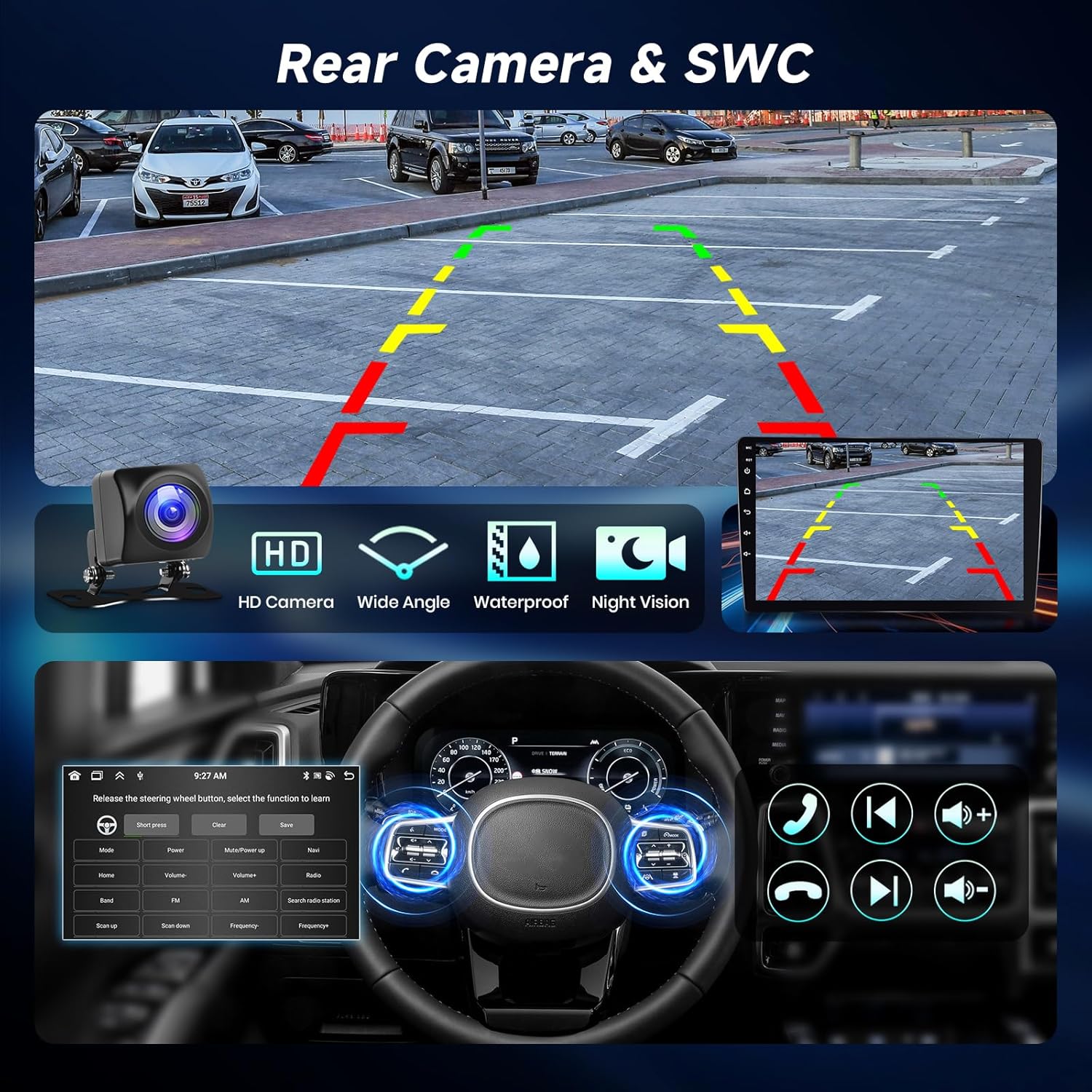
Image: This visual depicts the rear camera display with parking assistance lines and the interface for configuring steering wheel controls.
Steering Wheel Control (SWC)
Configure your vehicle's steering wheel buttons to control the car stereo, allowing for safe and convenient operation without taking your hands off the wheel.
Maintenance
- Cleaning: Use a soft, dry cloth to clean the screen and unit. Avoid abrasive cleaners, solvents, or harsh chemicals that could damage the surface.
- Software Updates: Periodically check for software updates through the system settings to ensure optimal performance, access to new features, and improved stability. Connect to Wi-Fi for updates.
- Temperature: Avoid exposing the unit to extreme temperatures, both hot and cold, as this can affect its performance and lifespan.
Troubleshooting
If you encounter any issues with your Hodozzy car stereo, refer to the following table for common problems and their solutions.
| Problem | Possible Cause | Solution |
|---|---|---|
| Unit does not power on. | Incorrect wiring; Blown fuse; Vehicle battery low. | Check power connections (ACC and B+); Replace fuse in the vehicle's fuse box or on the stereo's wiring harness; Charge vehicle battery. |
| No sound. | Volume too low; Speaker wires disconnected; DSP settings misconfigured; Mute activated. | Increase volume; Check speaker connections; Reset DSP settings to default; Deactivate mute function. |
| GPS signal weak/lost. | GPS antenna obstructed or improperly installed; Antenna faulty. | Ensure GPS antenna has a clear view of the sky (e.g., on dashboard); Reinstall antenna in a better position; Test with a different GPS antenna if possible. |
| Touchscreen unresponsive. | System frozen; Screen dirty; Software glitch. | Restart the unit by pressing the reset button or power cycling; Clean the screen with a soft cloth; Perform a software update if available. |
| Bluetooth not connecting. | Bluetooth not enabled on either device; Incorrect pairing; Interference. | Ensure Bluetooth is on for both devices; Delete previous pairings and re-pair the devices; Move away from other electronic devices causing interference. |
| Wireless Carplay/Android Auto not working. | Wi-Fi/Bluetooth issues; Software glitch; Phone compatibility. | Restart phone and stereo; Check Wi-Fi/Bluetooth connection; Ensure your phone's OS is updated and compatible; Update stereo software. |
Specifications
Detailed technical specifications for the Hodozzy 9-inch Android 8-Core Car Stereo.
| Feature | Detail |
|---|---|
| Model | 9 Inch |
| Operating System | Android 13 |
| Processor | 8-Core |
| RAM | 6GB |
| ROM | 128GB |
| Display | 9-inch IPS HD Touchscreen |
| Connectivity | Bluetooth, Wi-Fi, USB |
| Audio Output Power | 180 Watts (Max), 45 Watts (RMS) |
| Supported Features | Wireless Carplay, Android Auto, GPS, DSP, FM/RDS, Mirror Link, Rear Camera, SWC |
| Package Dimensions | 31.5 x 19.7 x 9 cm |
| Item Weight | 1.29 kg |
Warranty and Support
Hodozzy is committed to providing high-quality products and excellent customer service. This product comes with a 2-year replacement policy and lifetime technical support.

Image: Hodozzy's customer support information, detailing 18-hour response time, 60-day return policy, 2-year replacement warranty, and lifetime support, along with the support email address.
For technical assistance, troubleshooting, or warranty claims, please contact Hodozzy customer support at: hodozzyofficial@163.com.
Please provide your product model and purchase details when contacting support to help us assist you more efficiently.


