
MYPIN PC000371
User Manual for MYPIN Portable Stereo Walkman Cassette Recorder Player
Model: PC000371
Introduction
This manual provides comprehensive instructions for the operation and maintenance of your MYPIN Portable Stereo Walkman Cassette Recorder Player. This versatile device allows you to play your cherished cassette tapes, convert tape audio to MP3 format via a USB flash drive, and record audio to blank tapes using its built-in microphone or an external microphone. Please read this manual thoroughly before using the product to ensure proper function and longevity.
What's in the Box
- Portable Cassette Player (1 unit)
- USB-C Charging Cable (1 unit)
- User Manual (1 unit)
- Mini Microphone (1 unit)
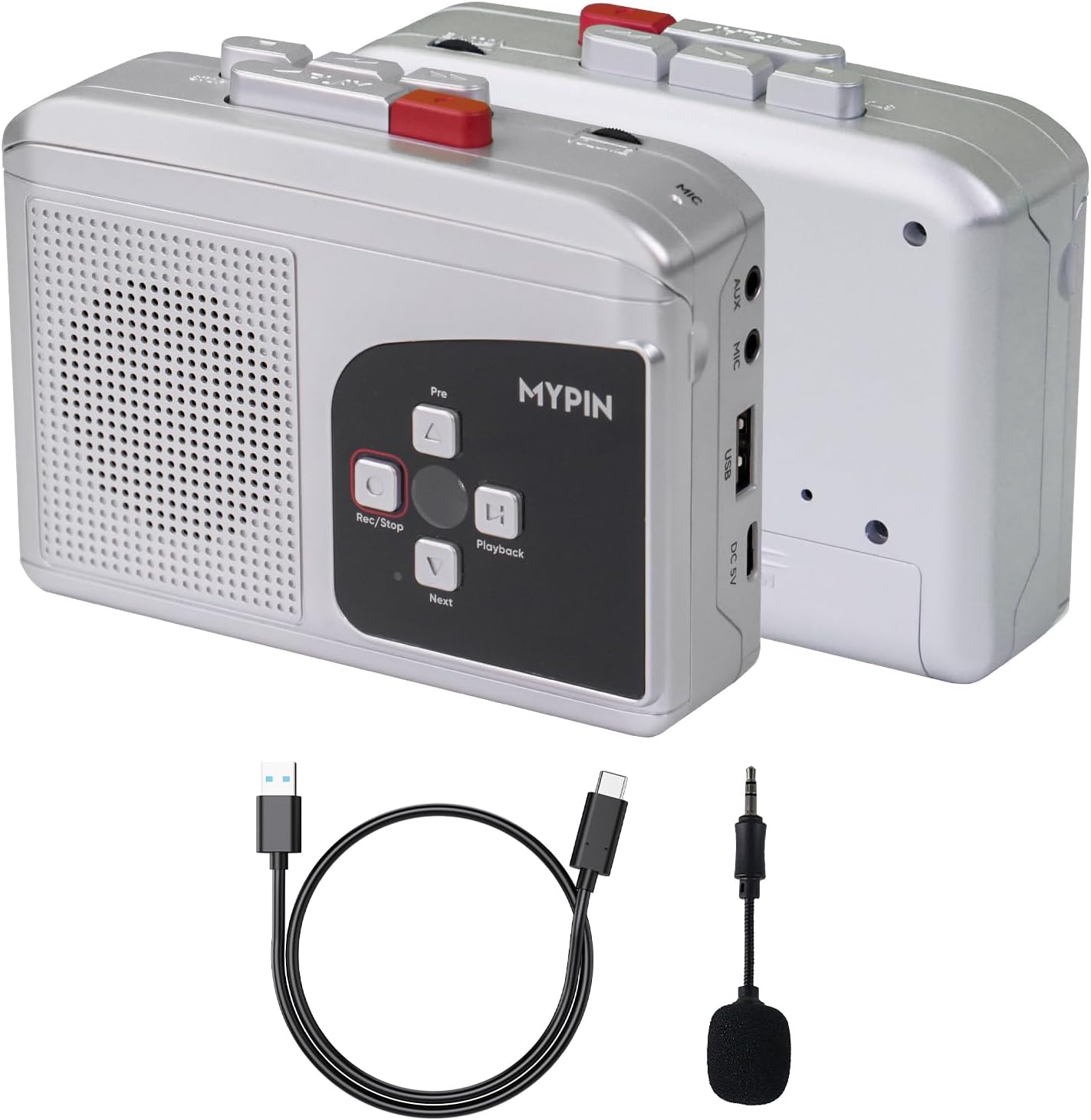
Image: The MYPIN Portable Cassette Player shown with its included accessories: a USB-C charging cable and a mini microphone.

Image: A visual representation of the packing list, displaying the cassette player, user manual, USB-C charging cable, and mini microphone. Dimensions of the player are also indicated.
Product Overview and Controls
Familiarize yourself with the various parts and controls of your MYPIN Portable Cassette Player.

Image: A detailed diagram highlighting the various buttons, ports, and features of the MYPIN Portable Cassette Player, each labeled with a number for easy identification.
- Record / Stop button (Tape to MP3): Initiates or stops recording from tape to MP3 format.
- DOWN button: Plays the next track in playback mode; used for manual or auto recording settings.
- Playback / Stop button: Controls playback and stops the current operation.
- UP button: Plays the previous track in playback mode.
- USB-C Port: For power supply and data transfer.
- OTG: Used to save recorded MP3 files to a USB flash drive.
- Microphone Jack: Connects an external microphone for recording.
- AUX: Audio output to earphones or external speakers.
- Speaker: Built-in speaker for audio output.
- Record (Microphone to Blank Tape): Button to initiate recording from microphone to a blank tape.
- Play Button: Starts tape playback.
- Stop Playing Tape: Stops tape playback.
- Tape Rewind: Rewinds the cassette tape.
- Tape Fast Forward: Fast forwards the cassette tape.
- Built-In Microphone: Internal microphone for recording.
Setup
Powering the Device
Your MYPIN cassette player can be powered in two ways:
- USB-C Cable: Connect the included USB-C cable to the USB-C Port (5) on the device and to a 5V power adapter (not included) or a USB port on a computer.
- AA Batteries: Insert 2 AA batteries (not included) into the battery compartment located on the back of the device. Ensure correct polarity.

Image: An illustration demonstrating the two power options for the device: using the USB-C cable for indoor operation and using 2 AA batteries for portable outdoor use.
Inserting a Cassette Tape
- Gently open the cassette compartment door.
- Insert your cassette tape with the open side facing the player's head.
- Close the compartment door firmly until it clicks.

Image: A hand demonstrating how to manually flip a cassette tape to switch between Side A and Side B within the player's compartment.
Connecting an External Microphone
For clearer audio recording, you can connect the included mini microphone or another compatible external microphone.
- Plug the 3.5mm jack of the external microphone into the Microphone Jack (7) on the side of the device.
Operating Instructions
Playing a Cassette Tape
- Ensure a cassette tape is properly inserted.
- Press the Play Button (11) to begin playback.
- Adjust the volume using the volume control dial (if present, not explicitly labeled in diagram but implied by "Stereo Sound Effects").
- To stop playback, press the Stop Playing Tape button (12).
- Use the Tape Fast Forward (14) and Tape Rewind (13) buttons to navigate through the tape.

Image: A user enjoying music through headphones connected to the 3.5mm headphone jack of the MYPIN cassette player, illustrating private listening.
Converting Tape to MP3 (via USB Flash Drive)
This feature allows you to digitize your cassette collection without a computer. Ensure your USB flash drive is formatted to FAT or FAT32 and has sufficient space (supports up to 32GB).
- Insert a USB flash drive into the OTG port (6).
- Insert the cassette tape you wish to convert.
- Press the Play Button (11) to start playing the tape.
- Press the Record / Stop button (Tape to MP3) (1) to begin recording. The device will convert the audio to MP3 format and save it to the USB drive.
- You can choose between automatic or manual recording. Use the DOWN button (2) to select the desired mode.
- To stop recording, press the Record / Stop button (Tape to MP3) (1) again.
- To check the recorded file, use the Playback / Stop button (3) and UP/DOWN buttons (4, 2) to navigate.

Image: A visual guide illustrating the process of converting audio from a cassette tape to an MP3 file, which is then saved directly onto a USB flash drive connected to the player.
Recording Audio to Blank Tape
You can record audio from the built-in microphone, an external microphone, or an external audio source via AUX input onto a blank cassette tape.
- Insert a blank cassette tape into the player.
- For Microphone Recording:
- Use the Built-In Microphone (15) or connect an external microphone to the Microphone Jack (7).
- Press the Play Button (11) and the Record (Microphone to Blank Tape) button (10) simultaneously to start recording.
- For External Audio Source Recording (via AUX):
- Connect your external audio source (e.g., CD player, turntable) to the AUX port (8) using an AUX cable.
- Press the Play Button (11) and the Record (Microphone to Blank Tape) button (10) simultaneously to start recording the external audio.
- To stop recording, press the Stop Playing Tape button (12).

Image: The MYPIN cassette player positioned on a table, with a group of people in the background, suggesting its use for recording conversations or voices onto a blank tape.

Image: The MYPIN cassette player connected to a turntable using an AUX cable, illustrating its capability to record external audio sources onto a blank tape or convert to MP3.
Using the 3.5mm Headphone Jack
For private listening, connect your headphones to the 3.5mm headphone jack (AUX port 8). The built-in speaker will automatically mute when headphones are connected.
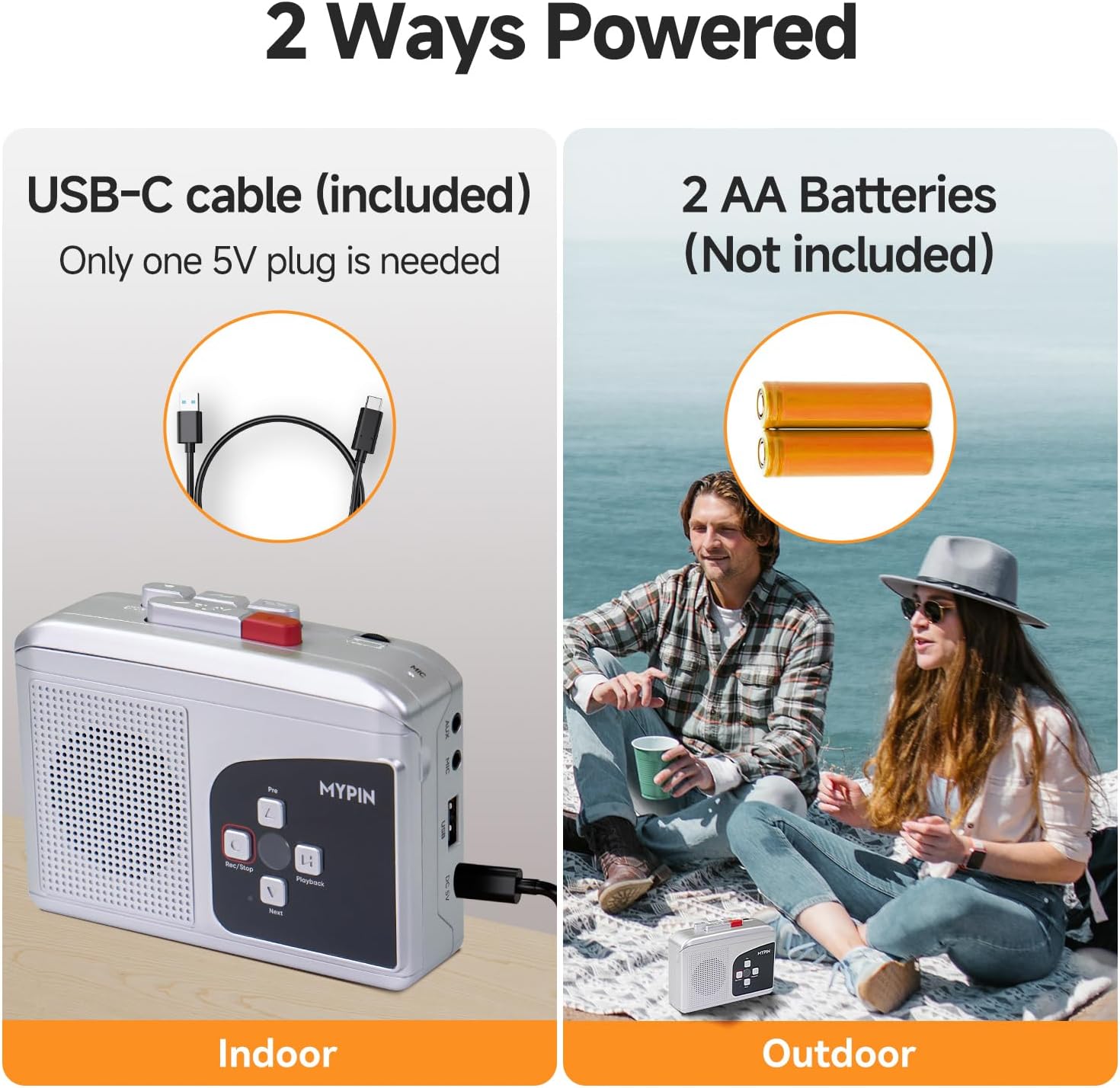
Image: A person using the MYPIN cassette player with headphones, demonstrating the private listening feature via the 3.5mm earphone jack.
Maintenance
General Care
- Keep the device clean and free from dust. Use a soft, dry cloth for cleaning the exterior.
- Avoid exposing the device to extreme temperatures, direct sunlight, or high humidity.
- Do not drop or subject the device to strong impacts.
- When not in use for extended periods, remove the AA batteries to prevent leakage.
Cleaning the Cassette Head
Periodically clean the cassette head and pinch rollers to ensure optimal sound quality and prevent tape damage. Use a cotton swab lightly dampened with isopropyl alcohol.

Image: An internal view of the MYPIN cassette player, highlighting the high-quality cassette head and motor, which are crucial for smooth tape playback and recording.
Troubleshooting
| Problem | Possible Cause | Solution |
|---|---|---|
| Device does not power on. | No power supply; batteries drained or incorrectly inserted; USB-C cable not connected properly. | Check battery insertion and charge level. Ensure USB-C cable is securely connected to a working power source. |
| No sound during playback. | Volume too low; headphones connected; tape not inserted correctly; dirty cassette head. | Increase volume. Disconnect headphones if using built-in speaker. Reinsert tape. Clean cassette head. |
| Poor sound quality / distorted audio. | Dirty cassette head; worn-out tape; low battery power. | Clean cassette head. Try a different tape. Replace batteries or use USB-C power. |
| MP3 conversion not working. | USB flash drive not inserted; incorrect format (not FAT/FAT32); drive full; tape not playing. | Ensure USB drive is inserted. Format drive to FAT/FAT32. Delete files to free space. Ensure tape is playing before pressing record. |
| Recording to tape not working. | Blank tape not inserted; microphone not connected (if external); record button not pressed simultaneously with play. | Insert a blank tape. Connect external microphone if desired. Press Play and Record buttons together. |
Specifications
| Feature | Detail |
|---|---|
| Model Number | PC000371 |
| Power Supply | 2 x AA Batteries (not included) or USB-C 5V |
| Audio Output | Built-in Speaker, 3.5mm Headphone Jack (AUX) |
| Recording Format | MP3 (for USB conversion), Analog (for tape recording) |
| USB Flash Drive Support | FAT, FAT32 format, Max 32GB |
| Microphone | Built-in, External Microphone support (3.5mm jack) |
| Dimensions | 6.18 x 4.92 x 2.32 inches (approx.) |
| Item Weight | 10.5 ounces / 0.3 Kilograms |
Warranty and Customer Support
MYPIN provides a 12-month warranty for this Portable Stereo Walkman Cassette Recorder Player from the date of purchase. This warranty covers manufacturing defects and workmanship under normal use.
For any questions, technical assistance, or warranty claims, please contact our customer service team. We offer 24/7 customer service to assist you.
Please refer to your purchase documentation or the MYPIN official website for specific contact details.
Additional Information

Image: The MYPIN cassette player demonstrating its compact and portable design, fitting easily into a bag pocket and comfortably held in one hand.

Image: The MYPIN cassette player positioned in a car, indicating its compatibility and convenience for listening to cassette tapes on the go, potentially through the car's AUX system.

Image: A collage of images depicting the MYPIN cassette player being used in diverse settings such as home, fishing, camping, gardening, and the kitchen, highlighting its versatility.
Related Documents - PC000371
 |
Cassette to USB Converter AV203 User Manual User manual for the AV203 Cassette to USB Converter, providing operating instructions, safety information, features, and troubleshooting FAQs for converting cassette tapes to digital audio. |
 |
MYPIN TA Series Temperature Controller Instruction Manual Comprehensive instruction manual for MYPIN TA Series Temperature Controllers (TA4, TA6, TA7, TA8, TA9), detailing specifications, installation, parameter settings, applications, and troubleshooting for industrial temperature control. |
 |
AGPtek LKV372A HDMI Extender Over Network Cable User Manual User manual for the AGPtek LKV372A HDMI Extender Over Network Cable, detailing installation, connections, FAQ, and specifications for extending HDMI signals up to 60m over a single Cat6 cable. |
 |
MYPIN FH/FC Series Digital Counter and Length Meter - Specifications and Manual Comprehensive manual for MYPIN FH/FC Series digital counters and length meters. Details specifications, ordering codes, operation, parameter settings, and terminal connections for models FH4, FH6, FH7, FH8, FH9, FH10. |
 |
MYPIN FH Series Intelligent Meters: Frequency, Tacho, Counting, Batch - Technical Specifications Comprehensive technical specifications, features, and operational modes for the MYPIN FH series intelligent meters, including frequency, tacho, counting, and batch functions. This document details dimensions, parameters, and connection diagrams. |