
1. Introduction
This manual provides detailed instructions for setting up, operating, maintaining, and troubleshooting your Beelink SER5 MAX Mini PC. Please read this manual thoroughly before using the device to ensure optimal performance and longevity.
The Beelink SER5 MAX Mini PC is a compact desktop computer featuring an AMD Ryzen 7 7735HS processor, 24GB LPDDR5 RAM, and a 1TB NVMe PCIe 4.0 SSD. It supports 4K triple screen display and includes modern connectivity options like WiFi 6 and Bluetooth 5.2.
2. What's in the Box
- 1 x Beelink SER5 MAX Mini PC
- 1 x HDMI Cable
- 1 x Power Adapter
- 1 x User Manual
- 1 x VESA-mounted bracket
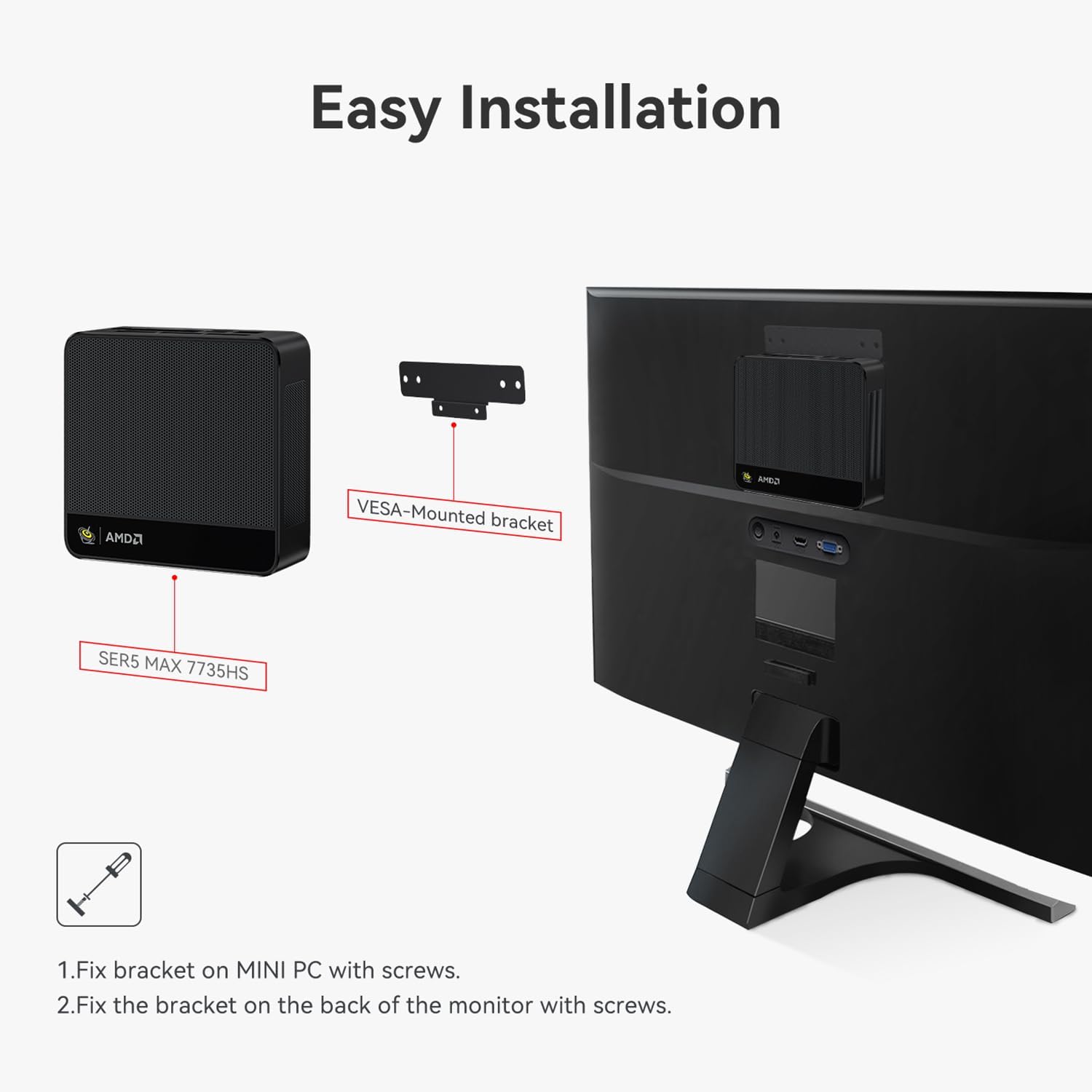
Figure 2.1: Included Accessories
The package includes the essential components for immediate use. The VESA-mounted bracket allows for convenient mounting behind a monitor.
3. Product Features
The Beelink SER5 MAX Mini PC is designed for high performance and versatility in a compact form factor.

Figure 3.1: Key Features Overview
3.1. Processor and Performance
Equipped with the AMD Ryzen 7 7735HS processor (8 Core/16 Thread, TSMC 6nm FinFET), offering a base operating frequency of up to 4.75GHz and a 16MB smart cache. This provides stable and reliable performance for various computing tasks.

Figure 3.2: AMD Ryzen 7 7735HS Processor
3.2. Memory and Storage
The system includes 24GB LPDDR5 RAM, which operates 30% faster than DDR4 memory. It also features a 1TB M.2 2280 NVMe PCIe 4.0x4 SSD. The Mini PC supports dual M.2 2280 PCIe 4.0x4 SSD slots, allowing for storage expansion up to 4TB.

Figure 3.3: 24GB LPDDR5 Memory

Figure 3.4: Dual M.2 PCIe SSD Support
3.3. Connectivity and Ports
The Mini PC offers a variety of ports for comprehensive connectivity:
- 1 x HDMI port
- 1 x DP port
- 2 x USB 3.2 Gen2 (10Gbps) ports
- 2 x USB 2.0 ports
- 1 x Type-C (Data & Video) port
- 1 x DC Jack port
- 1 x RJ45 2.5G port
- 1 x Audio Jack (HP & MIC) port

Figure 3.5: Front Ports

Figure 3.6: Rear Ports
3.4. Triple Screen Display
The Mini PC supports triple monitor setups via HDMI, DisplayPort (DP), and USB-C, enabling enhanced work efficiency and immersive visual experiences. It utilizes AMD Radeon Graphics 12core 2200 MHz for 4K@60Hz HD video playback and 3D rendering.

Figure 3.7: Triple Screen Display Setup
4. Setup Instructions
4.1. Initial Connection
- Connect your monitor(s) to the HDMI, DP, or Type-C ports on the Mini PC.
- Connect a keyboard and mouse to the available USB ports.
- Connect the power adapter to the DC Jack port and then to a power outlet.
- Press the power button on the front of the Mini PC to turn it on.
4.2. VESA Mount Installation
The included VESA mount allows you to attach the Mini PC to the back of a compatible monitor, saving desk space.
- Secure the VESA bracket to the Mini PC using the provided screws.
- Attach the Mini PC with the bracket to the VESA mounting holes on the back of your monitor using appropriate screws.

Figure 4.1: Easy Installation with VESA Mount
4.3. Windows System Installation
If you need to reinstall the Windows operating system, follow these steps:
- Prepare a USB drive (U disk) with a storage capacity of at least 16GB.
- Right-click the USB drive in 'This PC' or 'Disk Management', select 'Format', choose NTFS as the file system, and set the Volume label to 'WINPE'. Click 'Start' to finish formatting.
- Copy your system files to the root directory of the formatted USB drive.
- Insert the USB drive into the Mini PC. Boot the Mini PC and immediately press the F7 key repeatedly to enter the boot device menu interface.
- Select 'UEFI: [Your USB Drive Name]' and press Enter.
- The system will begin loading automatically.
Video 4.1: Windows System Installation Tutorial. This video demonstrates the process of installing a Windows operating system on the Beelink Mini PC, including preparing a bootable USB drive and selecting it from the boot menu.
4.4. Auto Power On Configuration
To configure the Mini PC to automatically power on after a power loss:
- Turn on the computer.
- Press the Delete key repeatedly during startup to enter the BIOS interface.
- Navigate to the 'Chipset' section.
- Locate 'Restore AC Power Loss' and set it to 'Power On'.
- Press F4 to save the changes and exit the BIOS.
- Unplug the power cord.
- Plug the power cord back in; the device will automatically turn on.
Video 4.2: Beelink Mini PC Auto Power On. This video illustrates how to access the BIOS settings and enable the 'Auto Power On' feature, allowing the Mini PC to start automatically after a power interruption.
5. Operating Instructions
5.1. Basic Operation
- Power On/Off: Press the power button on the front of the device.
- Restart: Use the operating system's restart function or press the power button briefly if the system is unresponsive.
- Sleep Mode: The system can enter sleep mode through the operating system settings.
5.2. Dual/Triple Screen Display
The Mini PC supports connecting multiple monitors to extend or duplicate your desktop.
- Connect your desired monitors to the available HDMI, DP, and Type-C video output ports.
- Once connected, right-click on the desktop and select 'Display settings' (Windows) or 'System Settings' > 'Displays' (Linux).
- From the display settings, you can choose to 'Duplicate these displays' to show the same content on all screens, or 'Extend these displays' to create a larger desktop area across multiple screens.
Video 5.1: Beelink Mini PC Dual Screen Display. This video demonstrates how to set up and configure dual-screen displays on the Beelink Mini PC, showing both duplicate and extended display modes.
6. Maintenance
6.1. Adding a Hard Drive
The Beelink SER5 MAX Mini PC allows for the addition of a 2.5-inch SATA hard drive (HDD/SSD) for expanded storage.
- Ensure the Mini PC is powered off and unplugged from the power source.
- Carefully remove the screws on the bottom panel of the Mini PC.
- Open the bottom panel to reveal the internal components and the hard drive bay.
- Mount your 2.5-inch SATA HDD/SSD into the designated bay and connect the SATA data and power cables.
- Secure the hard drive with screws if necessary.
- Close the bottom panel and re-secure the screws.
Video 6.1: How to Add a Hard Drive. This video provides a step-by-step guide on how to open the Beelink Mini PC and install an additional 2.5-inch SATA hard drive for storage expansion.

Figure 6.1: Exploded View of Mini PC Components
6.2. Cleaning
Regularly clean the exterior of the Mini PC with a soft, dry cloth. Ensure ventilation holes are free from dust to maintain optimal cooling performance. Do not use liquid cleaners directly on the device.
7. Troubleshooting
If you encounter issues with your Beelink SER5 MAX Mini PC, refer to the following common troubleshooting tips:
- No Power: Ensure the power adapter is securely connected to both the Mini PC and a working power outlet. Verify the power outlet is functional.
- No Display: Check all video cable connections (HDMI, DP, Type-C) between the Mini PC and your monitor(s). Ensure the monitor is powered on and set to the correct input source.
- System Unresponsive: Try performing a hard reset by pressing and holding the power button for 5-10 seconds until the device turns off, then power it back on.
- Peripheral Issues: If a keyboard, mouse, or other USB device is not working, try connecting it to a different USB port or restarting the Mini PC. Ensure drivers are up to date if applicable.
- Slow Performance: Check for excessive background applications, ensure sufficient free storage space, and verify that the system's cooling is not obstructed.
For more complex issues, refer to the official Beelink support resources or contact customer service.
8. Specifications
| Feature | Specification |
|---|---|
| Brand | Beelink |
| Model Name | Beelink SER5 |
| CPU Model | AMD Ryzen 7 7735HS (8 Cores, 16 Threads) |
| CPU Speed | Up to 4.75 GHz |
| RAM Memory Installed Size | 24 GB LPDDR5 |
| Memory Speed | 5600 MHz |
| Hard Disk Description | 1TB M.2 PCIe4.0 X 4 SSD (Dual M.2 2280 PCIe4.0x4 SSD slots, up to 4TB) |
| Graphics Coprocessor | AMD Radeon 12core 2200 MHz (Integrated) |
| Video Output Interface | HDMI, DisplayPort (DP), Type-C |
| Display Resolution Maximum | 3840 x 2160 Pixels (4K UHD) |
| Wireless Connectivity | Wi-Fi 6, Bluetooth 5.2 |
| Operating System | Windows 11 Pro |
| Ports | 1x HDMI, 1x DP, 2x USB 3.2 Gen2, 2x USB 2.0, 1x Type-C, 1x DC Jack, 1x RJ45 2.5G, 1x Audio Jack |
| Cooling Method | Air (MSC2.0 Cooling System) |
| Color | Grey |
9. Warranty and Support
9.1. Warranty Information
The Beelink SER5 MAX Mini PC comes with a 3-year factory professional support warranty. Please retain your proof of purchase for warranty claims.
9.2. Customer Service
For any questions, technical assistance, or support needs, please contact Beelink customer service. They offer 7*24 hours online customer service to assist you with any problems you may encounter.


