
1. Introduction
The jehdfbvssjcbcsvfd T10 PRO Smart Voice Translator is a portable, multi-functional device designed to facilitate communication across language barriers. It supports real-time online translation for 138 languages and offline translation for 14 languages. This manual provides detailed instructions on how to set up, operate, and maintain your T10 PRO translator to ensure optimal performance.
2. Product Overview
The T10 PRO translator is a compact device, approximately half the size of a smartphone, featuring a 2.4-inch touch screen for easy navigation. It is equipped with dual silicon microphones for accurate voice recognition and a special BOX cavity speaker for clear audio output.
2.1 Key Features
- 138 Languages Online Translation: Supports real-time two-way instant translation.
- 14 Languages Offline Translation: Enables translation without an internet connection.
- Recording Translation: Converts spoken recordings into text and translates them.
- Photo Translation: Translates text from images.
- AI Learning Conversion: Integrates AI for enhanced translation accuracy.
- 2.4-inch Touch Screen: Intuitive interface for easy operation.
- 1500mAh Battery: Provides long working hours and extended standby time.
- Automatic Online Upgrades: Ensures the device always has the latest system features.
2.2 Device Layout
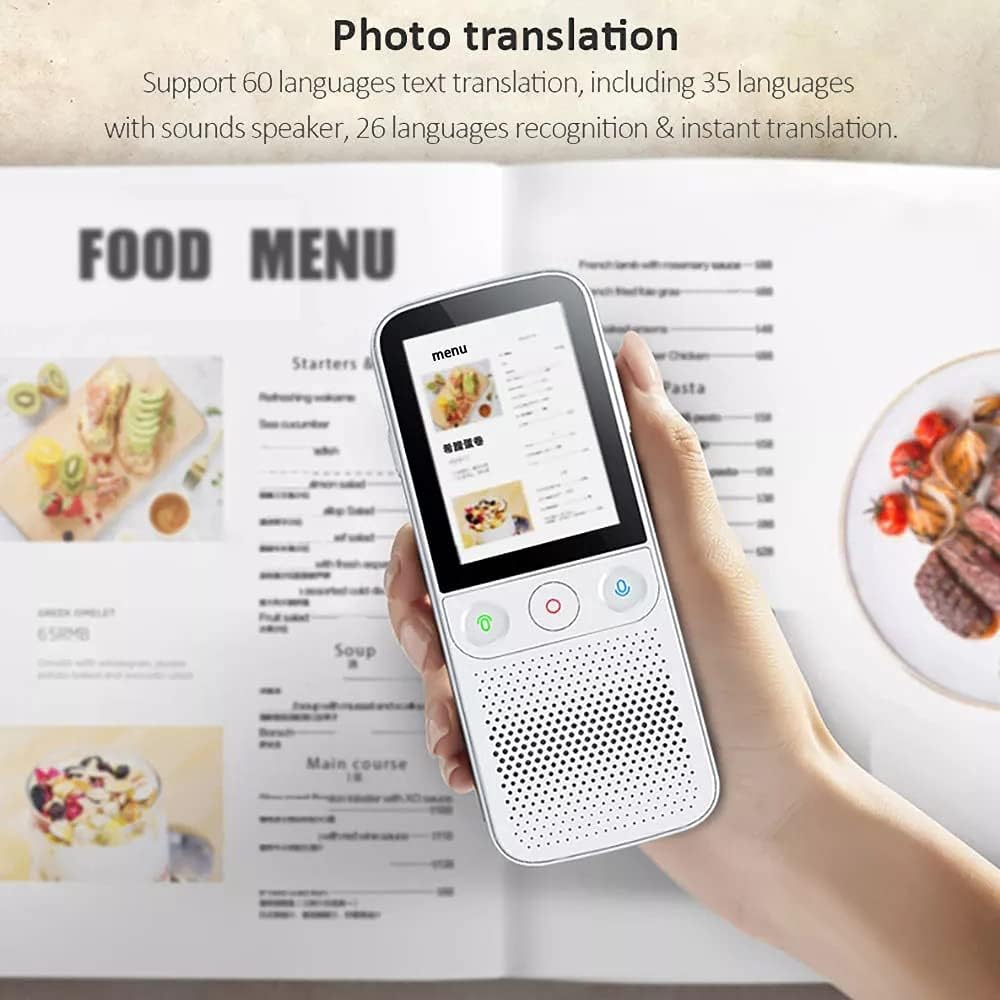
Figure 1: Front view of the T10 PRO Smart Voice Translator. The device features a screen at the top, three circular buttons below it, and a speaker grille at the bottom.
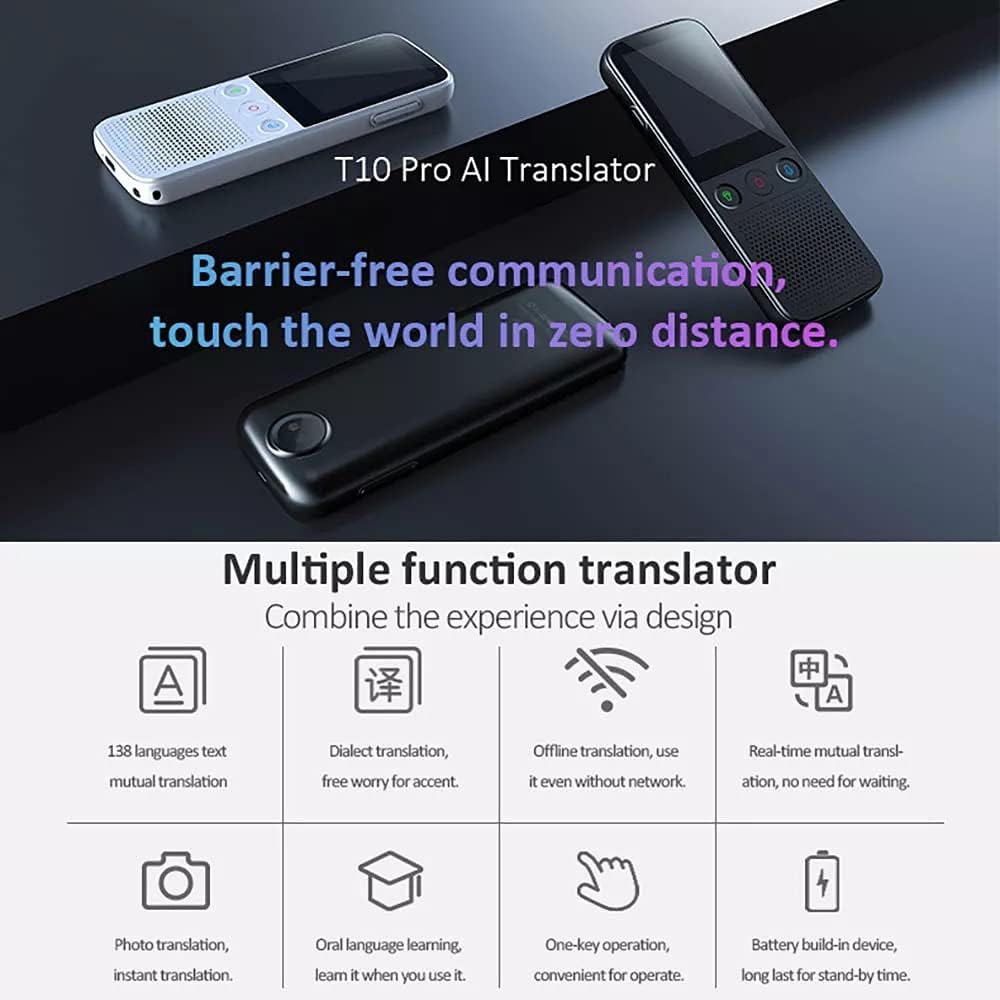
Figure 2: Overview of the T10 PRO's multiple functions. This image highlights features such as 138 languages text mutual translation, dialect translation, offline translation, real-time mutual translation, photo translation, oral language learning, one-key operation, and a built-in battery.
3. Setup
3.1 Charging the Device
Before initial use, fully charge the T10 PRO translator. Connect the device to a 5V/1A charging adapter using the provided Micro USB cable. The charging indicator will show the charging status.
3.2 Powering On/Off
- To Power On: Press and hold the power button (usually located on the side) until the screen illuminates.
- To Power Off: Press and hold the power button, then select "Power Off" on the screen.
3.3 Network Connection
For online translation, the device requires an internet connection via Wi-Fi or a mobile hotspot.
- Go to the "Settings" menu on the device.
- Select "Wi-Fi" or "Hotspot Connection".
- Choose your desired network and enter the password if prompted.
3.4 Initial Language Settings
Upon first use, you may need to select the device's display language and your primary translation languages.
- Navigate to "Settings" and then "Language Settings".
- Select the device's interface language.
- Choose your source and target languages for translation.
4. Operating Instructions
4.1 Online Instant Translation
Ensure the device is connected to the internet.
- Select the "Online Translation" mode from the main menu.
- Set the source and target languages.
- Press and hold the corresponding language button (e.g., button A for source language, button B for target language) and speak clearly into the microphone.
- Release the button, and the translated text will appear on the screen and be spoken aloud.
4.2 Offline Translation
The T10 PRO supports offline translation for 14 languages, allowing use without an internet connection.
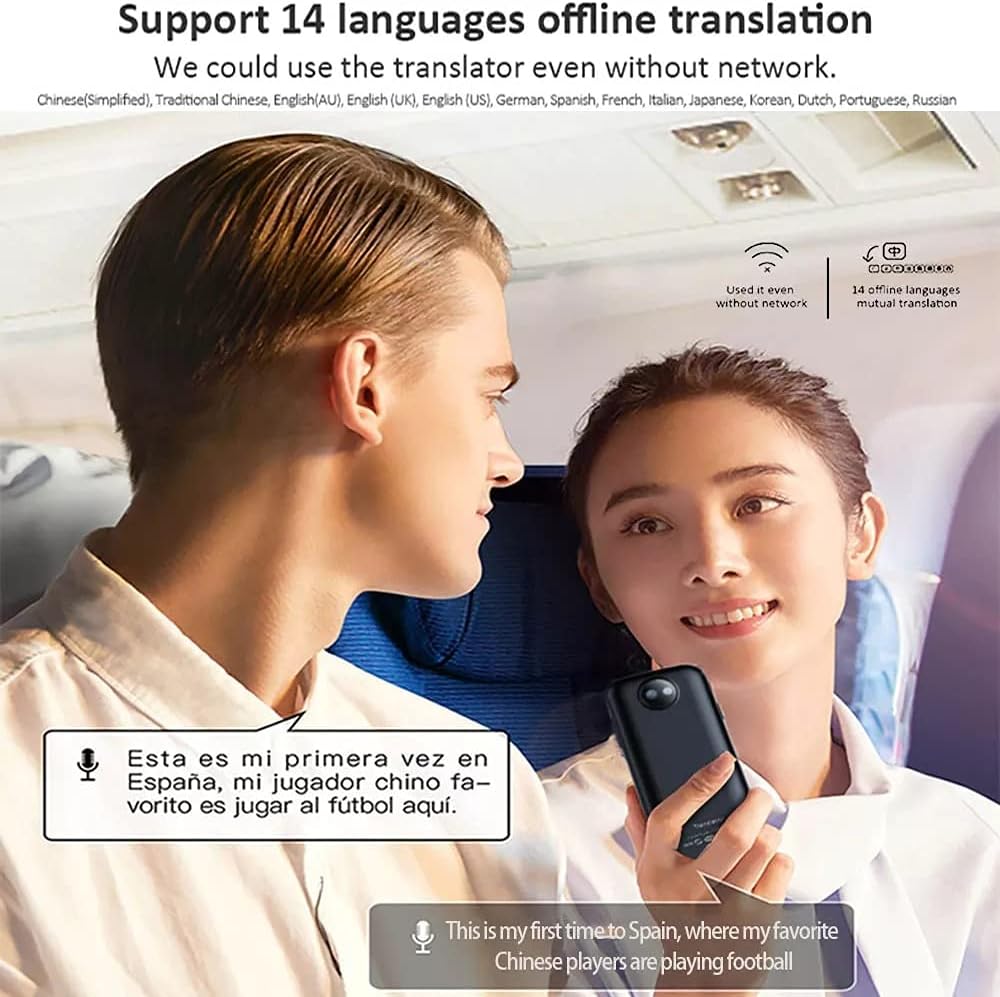
Figure 3: Demonstrates offline translation capability. The image shows two individuals communicating with the aid of the T10 PRO translator, highlighting its ability to translate 14 languages without an internet connection.
- Select the "Offline Translation" mode.
- Choose from the available offline language pairs.
- Speak into the microphone as you would for online translation.
4.3 Photo Translation
This feature allows you to translate text from images, such as menus or signs.
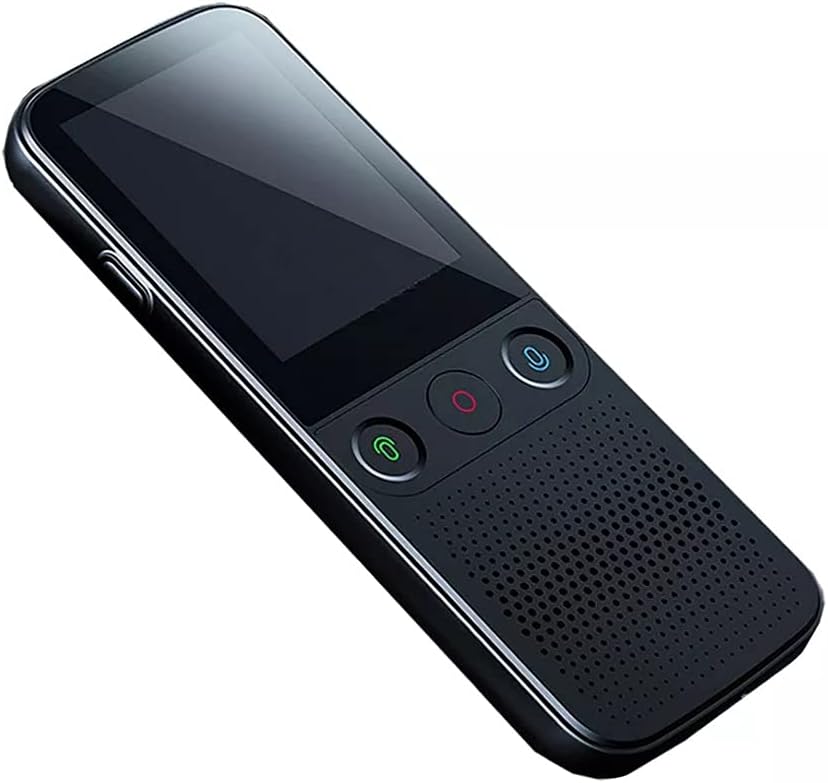
Figure 4: Illustrates the photo translation function. The translator is shown scanning a physical menu, with the screen displaying a translated version of a menu item, demonstrating its ability to translate text from images.
- Select the "Photograph" icon from the main screen.
- Position the device's camera over the text you wish to translate.
- Tap the screen to capture the image.
- The device will process the image and display the translated text.
4.4 Recording Translation
The device can record speech and then translate the recorded audio.
- Select the "Sound Recording" icon.
- Start recording by tapping the record button.
- Once recording is complete, select the option to translate the recorded audio.
5. Maintenance
5.1 Cleaning
Use a soft, dry cloth to clean the device. Avoid using liquid cleaners or abrasive materials, as they may damage the screen or casing.
5.2 Battery Care
- Avoid fully discharging the battery frequently.
- Store the device in a cool, dry place when not in use for extended periods.
- Use only the recommended charging adapter (5V/1A).
5.3 Software Updates
The T10 PRO supports automatic online system upgrades. Ensure your device is connected to the internet to receive the latest updates.
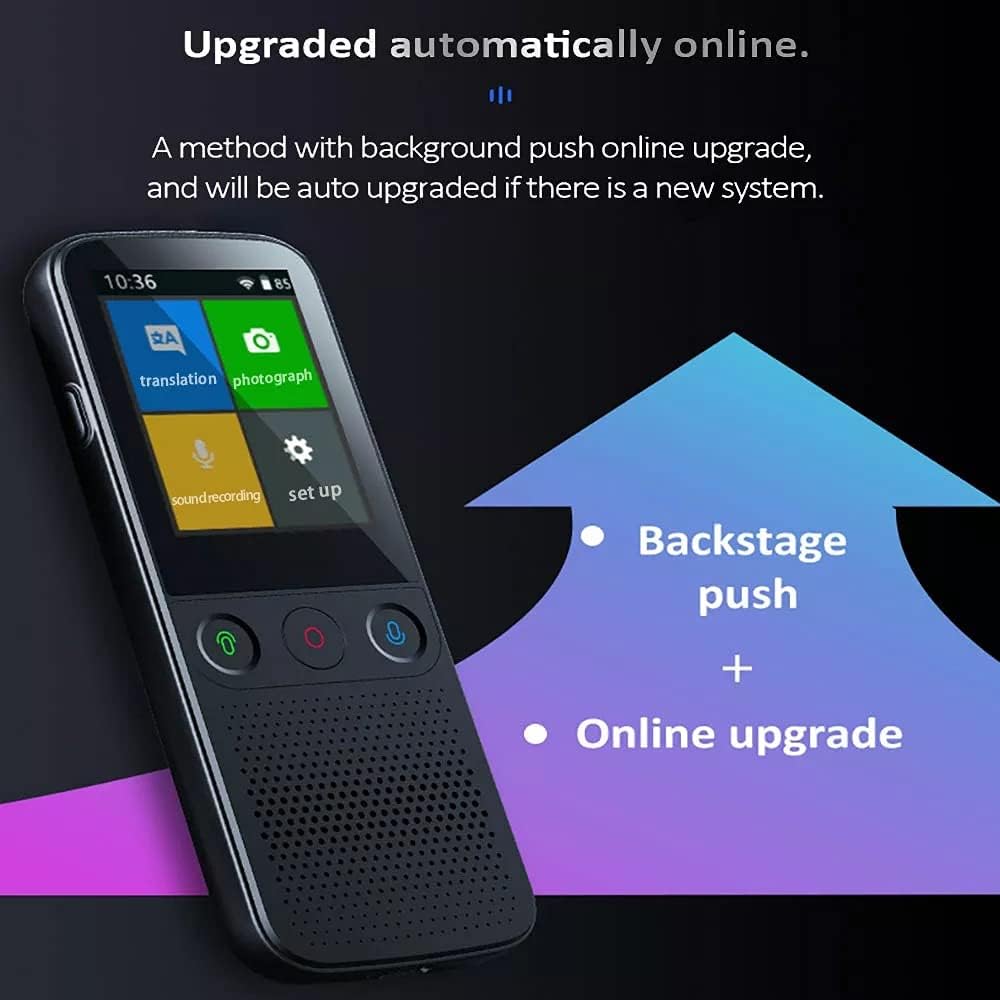
Figure 5: Illustrates the automatic online upgrade process. The image shows the device's main interface with an arrow pointing to the concept of 'Backstage push + Online upgrade', indicating that the system updates automatically when connected to the internet.
The device will notify you if a new system version is available and will automatically upgrade in the background.
6. Troubleshooting
| Problem | Possible Cause | Solution |
|---|---|---|
| Device does not power on. | Low battery or device malfunction. | Charge the device for at least 30 minutes. If it still doesn't turn on, contact support. |
| Online translation not working. | No internet connection or weak signal. | Check Wi-Fi or mobile hotspot connection. Ensure signal strength is adequate. |
| Translation is inaccurate. | Unclear speech, background noise, or complex sentence structure. | Speak clearly and at a moderate pace. Reduce background noise. Rephrase complex sentences. |
| Photo translation fails. | Poor lighting, blurry image, or text not clearly visible. | Ensure good lighting and a steady hand. The text should be clear and well-focused. |
| Battery drains quickly. | High screen brightness, continuous online use, or background apps. | Adjust screen brightness. Close unused applications. Use offline mode when possible. |
7. Specifications
| Feature | Detail |
|---|---|
| Model | T10 PRO |
| Online Translation Languages | 138 Kinds |
| Offline Translation Languages | 14 Kinds |
| Display Screen | 2.4 inch Touch Screen |
| Battery Capacity | 1500mAh |
| Standby Time | 4 days |
| Working Hours | 6 hours |
| Microphone | Double Silicon MIC |
| Speaker | Special BOX cavity speaker |
| Interface | Micro USB |
| Charging Adapter | 5V/1A |
| Connection | Wi-Fi + Mobile Hotspot |
| Compatible System (APP) | For Android and iOS System |
| Material | Plastic, Electronic Components |
8. Warranty and Support
For warranty information and customer support, please refer to the documentation provided with your purchase or contact the seller directly. Keep your proof of purchase for any warranty claims.