
1. Introduction
The jehdfbvssjcbcsvfd T8 Intelligent Voice Translator is a portable device designed for seamless communication across language barriers. It supports simultaneous voice translation and photo translation for 106 languages, offering a fast and accurate translation experience. With its compact design, touch screen interface, and AI voice assistant, it is suitable for various scenarios including travel, business, and learning.
2. Safety Information
- Do not expose the device to extreme temperatures, direct sunlight, or high humidity.
- Avoid dropping or subjecting the device to strong impacts.
- Keep the device away from water and other liquids.
- Use only the specified charging cable and adapter to prevent damage.
- Do not attempt to disassemble or repair the device yourself. Contact customer support for assistance.
- Dispose of the device and its battery according to local regulations.
3. Package Contents
Please check the package contents upon unboxing:
- jehdfbvssjcbcsvfd T8 Intelligent Voice Translator
- USB Charging Cable
- User Manual (this document)
4. Product Overview
Familiarize yourself with the components of your T8 translator.

Image 1: Front and back view of the T8 Intelligent Voice Translator. The front features a screen with icons for voice translation, photo translation, AI assistant, and network connection. The back shows a speaker grille and camera lens.
- 2.4-inch HD Touch Screen: For visual operation, displaying translated text and menu options.
- Microphones: Dual microphone noise reduction array for accurate voice input.
- Speaker: Special BOX cavity speaker for clear audio output.
- Camera: For photo translation and OCR recognition.
- Power Button: To turn the device on/off and wake/sleep the screen.
- Volume Buttons: To adjust audio output.
- Translation Buttons: Dedicated buttons for initiating voice translation.
- USB Port: For charging the device.
5. Setup
5.1 Charging the Device
- Connect the USB charging cable to the device's USB port.
- Plug the other end of the cable into a compatible USB power adapter (not included) or a computer's USB port.
- The screen will indicate charging status. A full charge typically takes approximately 2-3 hours.
5.2 Power On/Off
- To Power On: Press and hold the Power button until the screen lights up.
- To Power Off: Press and hold the Power button, then select "Power Off" on the screen.
- To Sleep/Wake: Briefly press the Power button to put the device to sleep or wake it up.
5.3 Network Connection
The T8 translator supports Wi-Fi and hotspot networking for online translation features.
- From the home screen, tap the "Network Connection" icon.
- Select "Wi-Fi" and choose your desired network from the list.
- Enter the password if prompted and tap "Connect".
- Alternatively, you can connect via a mobile hotspot.

Image 2: The T8 translator displaying its 2.4-inch touch screen and highlighting its 180-hour super-long standby capability.
6. Operating Instructions
6.1 Voice Translation
The device supports translation between 106 languages with multi-national accent recognition.
- From the home screen, tap the "Voice Translation" icon.
- Select the source language (your language) and target language (the language you want to translate to).
- Press and hold the corresponding translation button (usually indicated by different colors or symbols) and speak clearly into the microphone.
- Release the button when you finish speaking. The device will display and speak the translation.
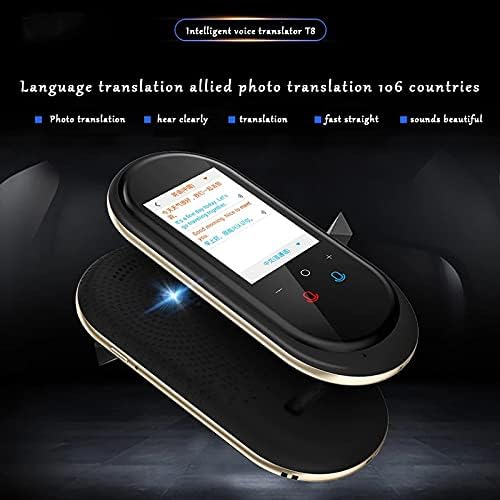
Image 3: The T8 translator showing a conversation being translated in real-time on its screen, demonstrating the voice translation feature.
6.2 Photo Translation
Translate text from images using the built-in camera and OCR technology.
- From the home screen, tap the "Photo Translation" icon.
- Point the camera at the text you wish to translate (e.g., a menu, sign, or document).
- Ensure the text is well-lit and within the camera's frame.
- Tap the capture button on the screen. The device will process the image and display the translated text.

Image 4: A hand holding the T8 translator, using its camera to translate text from a menu, demonstrating the photo translation feature with professional OCR recognition technology.
6.3 AI Voice Assistant
Access intelligent voice services such as weather, time, and travel information.
- From the home screen, tap the "AI Assistant" icon.
- Speak your query clearly, for example, "What's the weather like today?" or "What time is it in Tokyo?".
- The AI assistant will provide a spoken and displayed response.
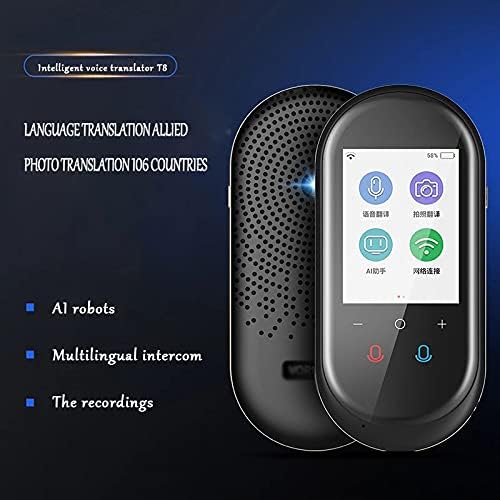
Image 5: The T8 translator's screen highlighting features such as AI robots (AI assistant), multilingual intercom, and the ability to record translations.
7. Maintenance
- Cleaning: Use a soft, dry cloth to clean the device. Do not use liquid cleaners or aerosols.
- Storage: Store the device in a cool, dry place when not in use.
- Software Updates: The device supports FOTA (Firmware Over-The-Air) network upgrades. Ensure your device is connected to the internet to receive continuous updates for improved functionality and interface.
8. Troubleshooting
| Problem | Possible Solution |
|---|---|
| Device does not power on. | Ensure the device is fully charged. Connect it to a power source and try again. |
| Translation is inaccurate or slow. | Check your internet connection. Speak clearly and at a moderate pace. Ensure the correct source and target languages are selected. Update the device firmware if available. |
| Cannot connect to Wi-Fi. | Verify the Wi-Fi password. Ensure the device is within range of the Wi-Fi router. Restart the device and try connecting again. |
| Photo translation not working. | Ensure the text is well-lit and clear. Hold the device steady. Avoid glare on the text. |
9. Specifications
| Model | T8 |
| Screen | 2.4-inch HD Touch Screen |
| Battery | 1200mAh High-Performance Lithium Battery |
| Translation Languages | 106 Languages (Voice & Photo) |
| Networking | Wi-Fi, Hotspot |
| Microphone | Dual Microphone Noise Reduction Array |
| Speaker | Special BOX Cavity Speaker |
| Dimensions | Ergonomic, compact, and portable design (specific dimensions not provided in source) |
| Manufacturer | jehdfbvssjcbcsvfd |
| ASIN | B0DBL6ZR9C |
10. Warranty and Support
For warranty information and technical support, please refer to the documentation provided with your purchase or contact the manufacturer directly. Keep your proof of purchase for warranty claims.
Manufacturer: jehdfbvssjcbcsvfd