
Product Overview
The doqo Keyboard Case is designed to transform your Samsung Galaxy Tab into a versatile laptop-like device. It features a magnetic floating cantilever stand, a multi-touch trackpad, and a backlit keyboard, enhancing productivity and user experience. The case also includes a dedicated S Pen holder for convenience and protection.

Image: The doqo Keyboard Case in white, shown with a Samsung Galaxy Tab attached, illustrating its laptop-like configuration with the screen angled for viewing and the keyboard and trackpad visible.
Compatibility
This keyboard case is specifically designed for 12.4-inch Samsung Galaxy Tab models. Please verify your tablet's model number to ensure compatibility.
- Samsung Galaxy Tab S9+/S9 Plus (Models SM-X810/X816B/X818U)
- Samsung Galaxy Tab S9 FE+ 2023 (Models SM-X610N/X616B)
- Samsung Galaxy Tab S8+/S8 Plus (Models SM-X800/X806/X808) 2022
- Samsung Galaxy Tab S7+/S7 Plus (Models SM-T970/T975/T976/T978) 2020
- Samsung Galaxy Tab S7 FE 5G (Models SM-T730/T733/T735/T736/T738) 2021
Note: This case is not compatible with Samsung Tab S10 Ultra/S9 Ultra, Samsung Tab S10 FE/S9 FE, or Samsung Tab A9+ Plus.
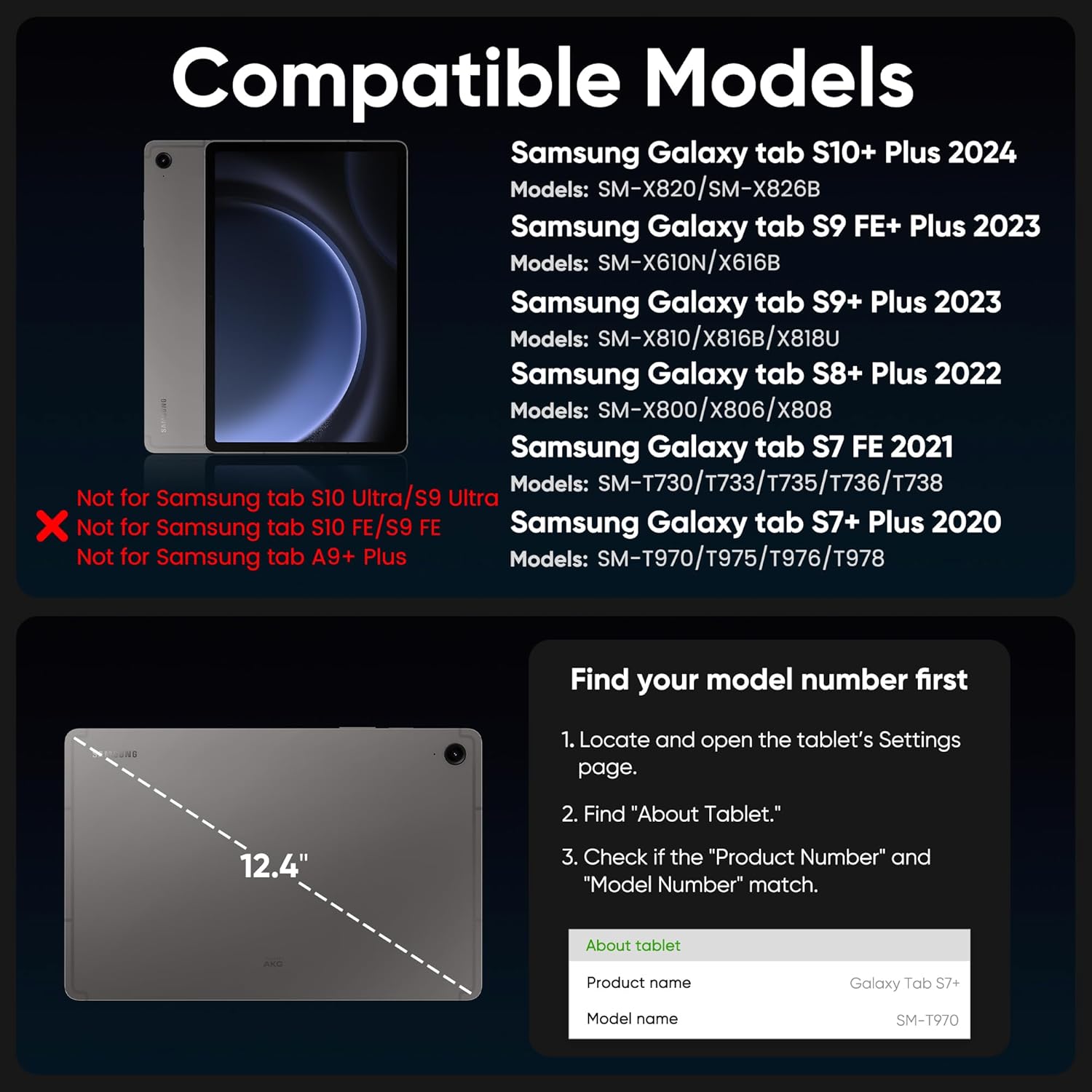
Image: A graphic illustrating the compatible Samsung Galaxy Tab models and how to find your tablet's model number in the settings (About tablet section).
Setup
Attaching Your Tablet
The doqo keyboard case features a magnetic design for secure attachment of your Samsung Galaxy Tab. Simply align your tablet with the magnetic back cover of the case. The magnets will automatically secure the tablet in place, allowing for a stable floating cantilever stand design.

Image: An illustration demonstrating the magnetic floating cantilever stand design, highlighting the 22+ magnets and 3700 GS ultra magnetic attraction for stable tablet adsorption. It also shows the 125-degree adjustable viewing angle and the S Pen holder with AI alloy hinges.
Bluetooth Pairing
- Ensure the keyboard is charged (refer to the Charging section).
- Turn on the keyboard by pressing the power button (usually located on the side or top edge of the keyboard).
- On your Samsung Galaxy Tab, go to Settings > Connected devices > Bluetooth.
- Enable Bluetooth.
- The keyboard should appear in the list of available devices (e.g., "doqo Keyboard"). Tap on it to pair.
- If prompted, enter the pairing code displayed on your tablet screen using the keyboard, then press Enter.
- Once paired, the keyboard will connect automatically when turned on and within range of your tablet.
Operating Instructions
Keyboard Usage
The keyboard provides a full QWERTY layout with scissor keys for a comfortable typing experience. It includes a row of practical shortcut keys for quick access to various functions.

Image: A close-up view of the keyboard, highlighting the top row of shortcut keys for functions such as screen brightness, volume control, media playback, and more.
Backlight Control
The keyboard features 7 colors of rainbow backlighting and 3 adjustable brightness levels. This allows for comfortable typing in various lighting conditions, including dim environments.
- To change backlight color: Press the Fn key + Color Cycle key (often represented by a light bulb icon or specific function key).
- To adjust brightness: Press the Fn key + Brightness Up/Down keys (often represented by sun icons).

Image: The keyboard with its 7-color rainbow backlight illuminated, demonstrating the visual appeal and functionality in a low-light setting.
Multi-Touch Trackpad
The integrated multi-touch trackpad provides fluid and sensitive cursor control, enabling laptop-like navigation and gestures on your tablet. This feature is designed for Galaxy Tab S9+/S8+/S7+/S7 FE models.
Common gestures include:
- Single finger tap: Left-click.
- Two-finger tap: Right-click.
- Two-finger scroll: Scroll up or down.
- Pinch to zoom: Zoom in or out.
- Three-finger swipe up: View open applications.
- Three-finger swipe left/right: Switch between open applications.

Image: A hand demonstrating the use of the multi-touch trackpad on the keyboard case, with the tablet screen displaying a desktop-like interface.
S Pen Holder
The case includes a built-in S Pen holder on the back cover, ensuring your S Pen is conveniently stored and protected, preventing loss while on the go.

Image: A person using the keyboard case with a tablet, showing the integrated S Pen holder on the back of the case, designed for easy storage and access of the S Pen.
Charging
The doqo keyboard case is equipped with a large-capacity battery for extended use. To charge the keyboard:
- Locate the Type-C charging port on the side of the keyboard.
- Connect the provided USB-C charging cable to the keyboard's charging port.
- Connect the other end of the cable to a compatible USB power adapter (not included) or a computer's USB port.
- The charging indicator light (if present) will illuminate during charging and turn off or change color when fully charged.
Battery Life:
- Working time (with backlight off): Approximately 80 hours
- Working time (with backlight on): Approximately 5 hours
- Charging time: Approximately 3 hours
- Standby time: Up to 90 days

Image: A close-up view of the keyboard's side, showing the Type-C charging port. Text overlays indicate the long battery life: approximately 5 hours working time with backlight, 80 hours with backlight off, 3 hours charging time, and 90 days standby time.
Maintenance
To ensure the longevity and optimal performance of your doqo Keyboard Case, follow these maintenance guidelines:
- Cleaning: Use a soft, lint-free cloth to wipe down the exterior of the case and keyboard. For stubborn marks, slightly dampen the cloth with water or a mild, non-abrasive cleaner. Avoid excessive moisture.
- Storage: When not in use, keep the keyboard case closed to protect the tablet screen and keyboard. Store in a cool, dry place away from direct sunlight and extreme temperatures.
- Avoid Liquids: Do not expose the keyboard case to liquids. In case of spills, immediately power off the keyboard and allow it to dry completely before reuse.
- Handle with Care: While designed for durability, avoid dropping the case or subjecting it to strong impacts, which could damage internal components or the tablet.
Troubleshooting
| Problem | Possible Cause | Solution |
|---|---|---|
| Keyboard not connecting via Bluetooth. | Low battery; Bluetooth not enabled on tablet; keyboard not in pairing mode; interference. | Charge the keyboard. Ensure Bluetooth is enabled on your tablet. Put the keyboard into pairing mode (refer to Setup section). Move closer to the tablet and away from other wireless devices. |
| Keys not responding. | Low battery; connection issue; software glitch. | Charge the keyboard. Re-pair the keyboard with your tablet. Restart your tablet. |
| Trackpad not working. | Trackpad disabled; software issue; connection problem. | Ensure the trackpad is enabled (check keyboard shortcuts or tablet settings). Re-pair the keyboard. Restart your tablet. |
| Backlight not working or dim. | Backlight off; low battery; brightness set too low. | Press the backlight control keys (Fn + Brightness/Color Cycle). Charge the keyboard. |
Specifications
- Model: MP124
- Compatibility: Samsung Galaxy Tab S9+/S9 Plus, S9 FE+, S8+/S8 Plus, S7+/S7 Plus, S7 FE (12.4-inch models)
- Connectivity: Bluetooth 2.0
- Keyboard Type: Scissor Keys, Multi Functional
- Number of Keys: 79
- Special Features: Backlit (7 colors, 3 brightness levels), Multi-touch Trackpad, Magnetic Floating Cantilever Stand, S Pen Holder, Lightweight, Portable
- Material: PU Leather (case), AI alloy (hinges)
- Battery: 1 Lithium Ion battery (included)
- Charging Port: Type-C
- Working Time: ~5 hours (backlight on), ~80 hours (backlight off)
- Charging Time: ~3 hours
- Standby Time: ~90 days
- Item Weight: 2.27 pounds
- Dimensions: 13.5 x 8.58 x 2.48 inches (Package Dimensions)
Warranty and Support
For warranty information and technical support, please refer to the documentation included with your purchase or visit the official doqo website. Keep your proof of purchase for warranty claims.
Package Contents:
- 1 x doqo Keyboard Case (Tablet and S Pen are NOT Included)
- 1 x User Manual (this document)

