
1. Introduction
The Tenda U11 is a high-performance Wi-Fi 6 USB adapter designed to provide fast and stable wireless internet connectivity for your desktop or laptop computer. Featuring dual-band support (2.4GHz and 5GHz), MU-MIMO technology, and a convenient driver-free installation, the U11 offers an enhanced online experience for various activities, from 4K/HD video streaming to online gaming.

Figure 1: Tenda U11 Wi-Fi 6 USB Adapter. This compact device plugs into a USB port on your computer.
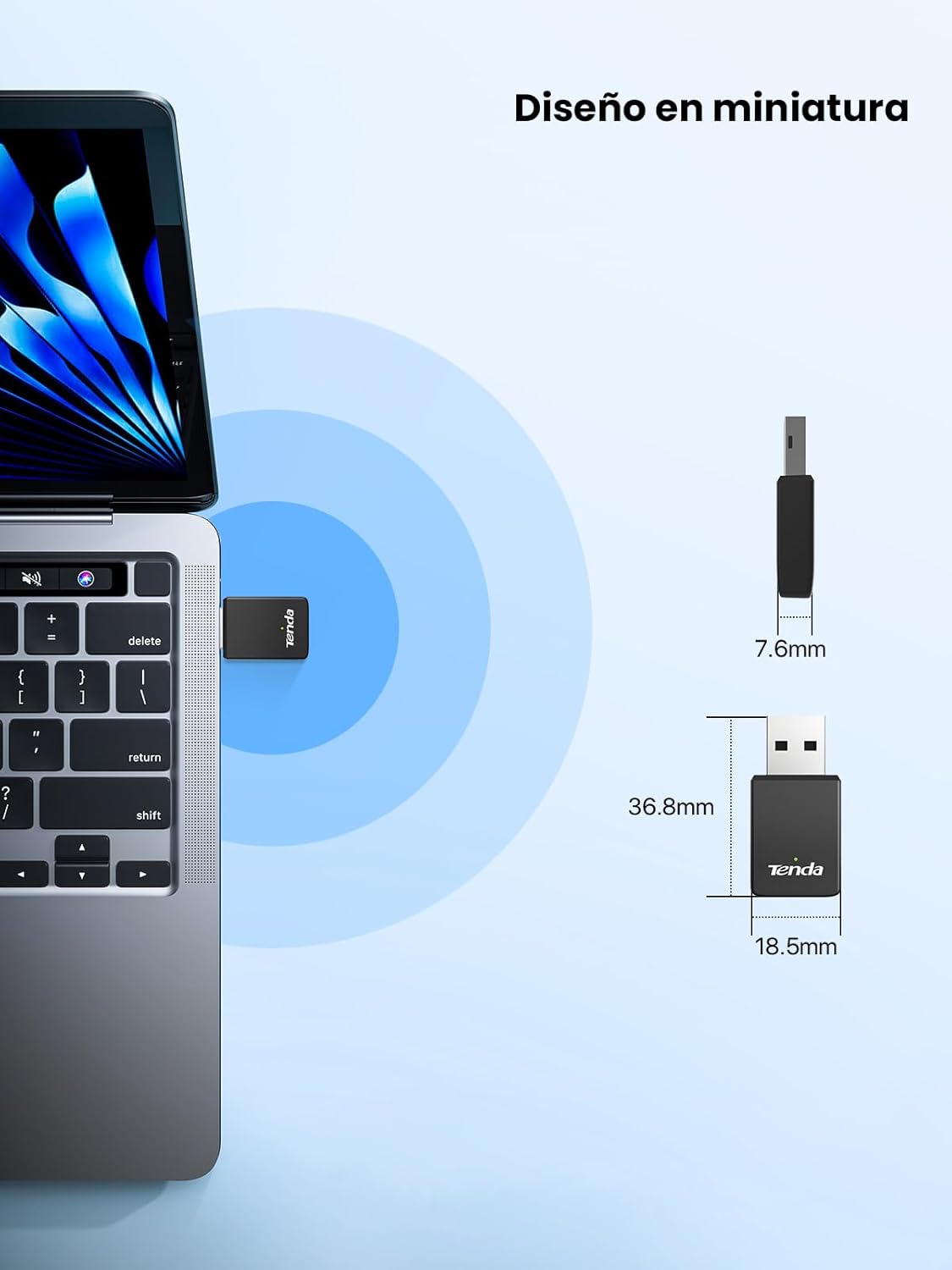
Figure 2: Miniature design of the Tenda U11, showing its compact size (36.8mm x 18.5mm x 7.6mm) for discreet integration with your device.
2. Key Features
- Wi-Fi 6 Technology: Supports next-generation Wi-Fi 6 for improved efficiency and performance.
- Dual-Band Connectivity: Offers speeds up to 286Mbps on the 2.4GHz band and 600Mbps on the 5GHz band, ideal for 4K/HD video, gaming, and music.
- Driver-Free Installation: Features an integrated pre-recorded driver for automatic installation upon plugging into your computer, eliminating the need for manual driver downloads.
- Soft-AP Mode: Transforms your PC into a Wi-Fi hotspot, allowing other wireless devices (e.g., mobile phones, tablets) to access the internet. Note: Soft-AP mode supports only the 5GHz band.
- MU-MIMO Technology: Enables simultaneous data transmission to multiple devices, reducing latency and ensuring a smoother network experience in Soft-AP mode.
- Enhanced Security: Supports WPA-PSK/WPA2-PSK and WPA/WPA2 encryption protocols for robust network security and privacy protection.
- Wide Compatibility: Compatible with Windows 7, Windows 10, and Windows 11 operating systems.

Figure 3: Illustration of the Tenda U11's dual-band capabilities, providing 600 Mbps on the 5 GHz band and 286 Mbps on the 2.4 GHz band for various online activities.
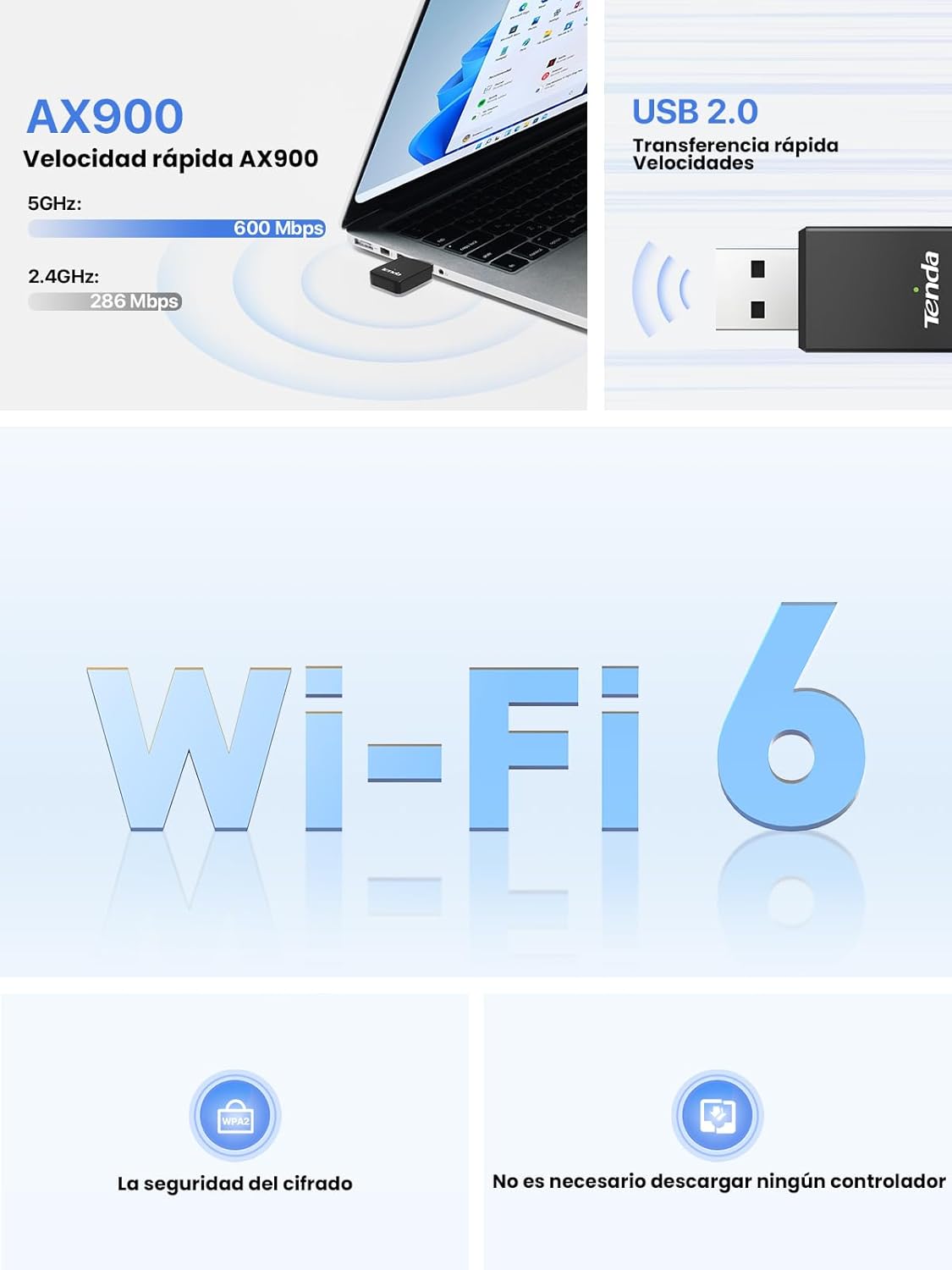
Figure 4: Overview of Tenda U11 features, including AX900 speed, USB 2.0 interface, Wi-Fi 6 support, encryption security, and driver-free operation.
3. Setup Guide
3.1 System Requirements
- Operating System: Windows 7, Windows 10, Windows 11
- Available USB port (USB 2.0 or higher recommended)
3.2 Installation Steps
The Tenda U11 features a built-in driver for automatic installation, simplifying the setup process.
- Insert the Adapter: Plug the Tenda U11 Wi-Fi adapter directly into an available USB port on your desktop or laptop computer.
- Automatic Driver Installation: The operating system will automatically detect the new hardware and begin installing the integrated driver. A progress bar may appear, indicating the installation status. Wait for the installation to complete (typically indicated by 100% completion or a notification).
- Connect to Wi-Fi: Once the driver installation is finished, open your computer's network settings. Scan for available Wi-Fi networks and select your desired network. Enter the network password if prompted to establish a connection.
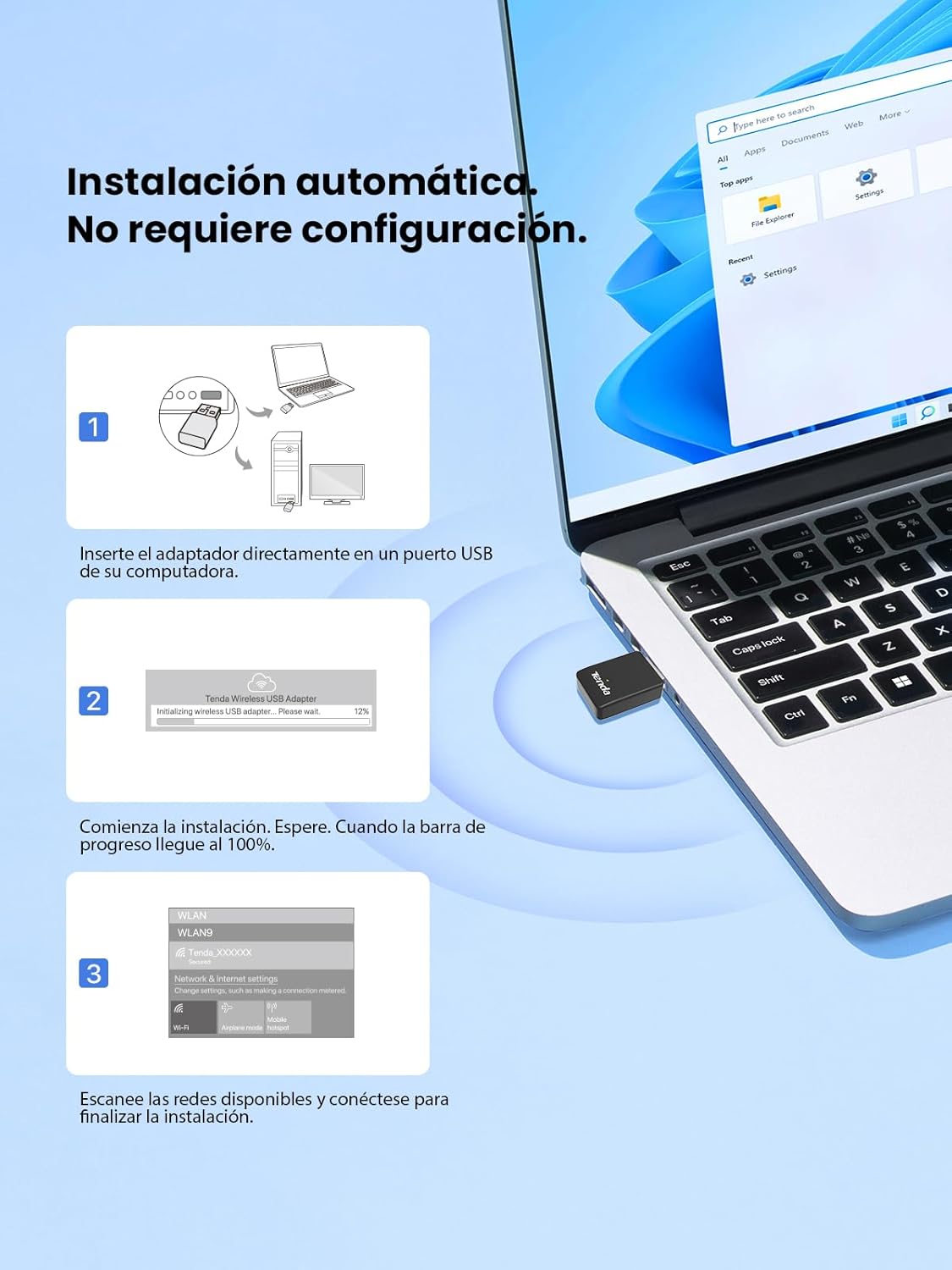
Figure 5: Visual guide for the automatic installation process of the Tenda U11. Simply plug in the adapter, wait for the driver to install, and then connect to your Wi-Fi network.
4. Operating Instructions
4.1 Connecting to a Wi-Fi Network
After successful installation, your computer will be able to detect wireless networks. To connect:
- Click on the Wi-Fi icon in your system tray (usually in the bottom-right corner of the screen).
- A list of available networks will appear. Select your preferred Wi-Fi network.
- Click 'Connect'. If the network is secured, you will be prompted to enter the network security key (password).
- Once connected, the Wi-Fi icon will indicate a successful connection.
4.2 Soft-AP Mode (Wi-Fi Hotspot)
The Soft-AP mode allows your Tenda U11 adapter to function as a wireless access point, sharing your computer's internet connection with other Wi-Fi enabled devices. To activate and configure Soft-AP mode:
- Ensure your computer has an active internet connection (e.g., via Ethernet).
- Access the Tenda U11 utility software or your operating system's mobile hotspot settings.
- Enable the Soft-AP or Mobile Hotspot feature.
- Configure the network name (SSID) and password for your new Wi-Fi hotspot.
- Other devices can now search for and connect to this new Wi-Fi network.
Important Note:
- In Soft-AP mode, the Tenda U11 adapter only supports the 5GHz band. Devices connecting to this hotspot must be 5GHz compatible.
- The MU-MIMO feature in Soft-AP mode helps manage multiple connected devices efficiently, reducing latency.

Figure 6: Comparison illustrating the improved coverage and stability of the Tenda U11 adapter compared to a regular adapter, thanks to its intelligent algorithm for signal transmission.
5. Maintenance
To ensure optimal performance and longevity of your Tenda U11 Wi-Fi adapter, consider the following maintenance tips:
- Keep Drivers Updated: While the U11 is driver-free for initial setup, periodically check the official Tenda website for any updated drivers or firmware that may improve performance or address compatibility issues.
- Proper Placement: Ensure the adapter is not obstructed by other objects or placed in an area with poor ventilation, which could affect signal strength or lead to overheating.
- Cleanliness: Keep the USB port and the adapter's connector free from dust and debris. Use a soft, dry cloth for cleaning.
- Avoid Physical Damage: Handle the adapter with care. Avoid bending or applying excessive force to the USB connector.
6. Troubleshooting
If you encounter issues with your Tenda U11 adapter, refer to the following common problems and solutions:
- Adapter Not Detected or Not Working:
- Ensure the adapter is firmly plugged into a functioning USB port. Try a different USB port.
- Important: Do not connect this adapter to a docking station if the docking station is connected to many devices, as this can cause unstable current and affect the adapter's normal operation. Plug it directly into the computer's USB port.
- Restart your computer.
- Check Device Manager (Windows) to see if the adapter is listed and if there are any error indicators.
- Slow or Unstable Connection:
- Ensure you are within range of your Wi-Fi router.
- Try connecting to the 5GHz band for higher speeds if your router supports it and you are close to the router. The 2.4GHz band offers better range but lower speeds.
- Minimize interference from other electronic devices (e.g., cordless phones, microwaves).
- Update your router's firmware.
- Anti-Virus Software Warning During Installation:
- When the installer is used for the first time, some anti-virus software may detect the automatically running program as risky. Please ignore the prompt and allow it to run. The integrated driver is safe.
- Soft-AP Mode Not Working on 2.4GHz:
- Please note that the adapter in Soft-AP Mode only supports the 5GHz Band. Ensure devices attempting to connect are 5GHz compatible.
7. Technical Specifications
| Feature | Specification |
|---|---|
| Brand | Tenda |
| Model Number | U11 |
| Color | Black |
| Interface | USB 2.0 |
| Data Transfer Rate | 886 Mbps (Combined: 286 Mbps on 2.4GHz, 600 Mbps on 5GHz) |
| Wireless Standard | Wi-Fi 6 (AX900) |
| Frequency Bands | 2.4GHz and 5GHz (Dual Band) |
| Compatible Operating Systems | Windows 7, Windows 10, Windows 11 |
| Dimensions (L x W x H) | 36.8 x 18.5 x 7.6 mm |
| Item Weight | 4.2 Grams |
| Country of Origin | China |
8. Warranty and Support
Tenda provides a 1-year warranty for the U11 Wi-Fi adapter, ensuring peace of mind regarding product quality and performance.
For any additional questions, technical clarifications, or support inquiries regarding your Tenda U11 Wi-Fi adapter, please contact Tenda customer support:
Email: Support.fr@tenda.cn
Please include your product model (U11) and a detailed description of your issue when contacting support to facilitate a quicker resolution.