
1. Introduction
This manual provides essential information for setting up, operating, maintaining, and troubleshooting your Dell Precision 3450 Small Form Factor (SFF) Workstation Desktop. Please read this manual thoroughly before using your system to ensure proper operation and to prevent damage.
2. Safety Information
Always follow basic safety precautions to reduce the risk of fire, electric shock, and injury to persons. This includes, but is not limited to:
- Ensure the power cord is connected to a grounded outlet.
- Do not open the computer chassis unless instructed by qualified personnel.
- Keep liquids away from the computer.
- Operate the computer in a well-ventilated area.
- Disconnect all power before cleaning or performing maintenance.
3. Package Contents
Verify that all items are present in your package. Contents may vary based on region and configuration.
- Dell Precision 3450 SFF Workstation Desktop
- Power Cable
- Documentation (Quick Start Guide, Safety Information)
- (Optional) Keyboard and Mouse
4. Physical Overview
4.1 Front Panel
The front panel provides easy access to frequently used ports and the optical drive.
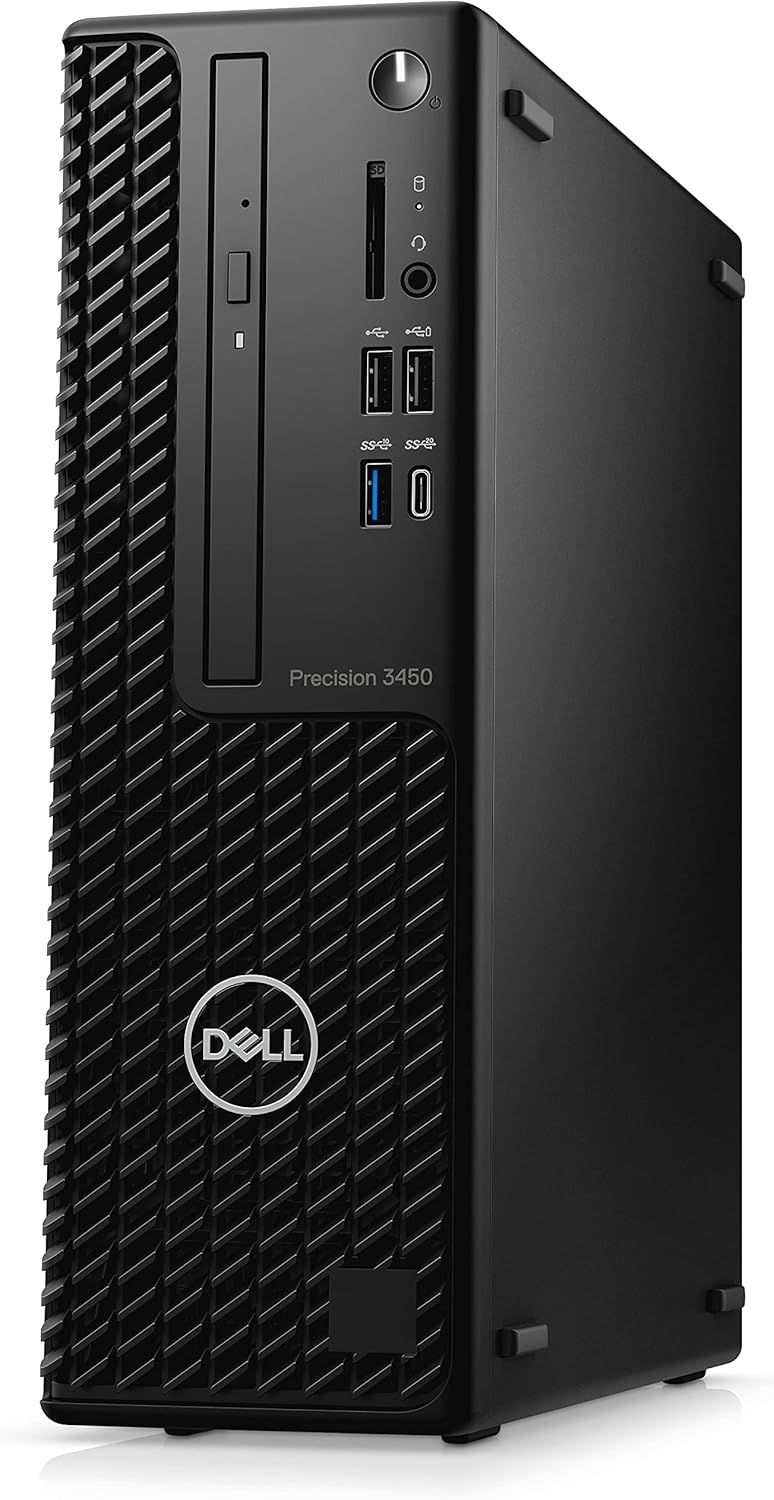
Image 4.1: Front view of the Dell Precision 3450 SFF Workstation Desktop. This image displays the front of the desktop tower, highlighting the optical drive, power button, USB ports (including USB-C), and SD card reader.
- Power Button: Turns the system on or off.
- Optical Drive: For reading and writing CDs/DVDs.
- USB 3.2 Gen 2 Type-C Port: High-speed data transfer.
- USB 3.2 Gen 1 Type-A Ports: Standard USB ports for peripherals.
- Universal Audio Jack: For headphones or headsets.
- SD Card Reader: For reading SD memory cards.
4.2 Rear Panel
The rear panel contains ports for connecting essential peripherals and network cables.
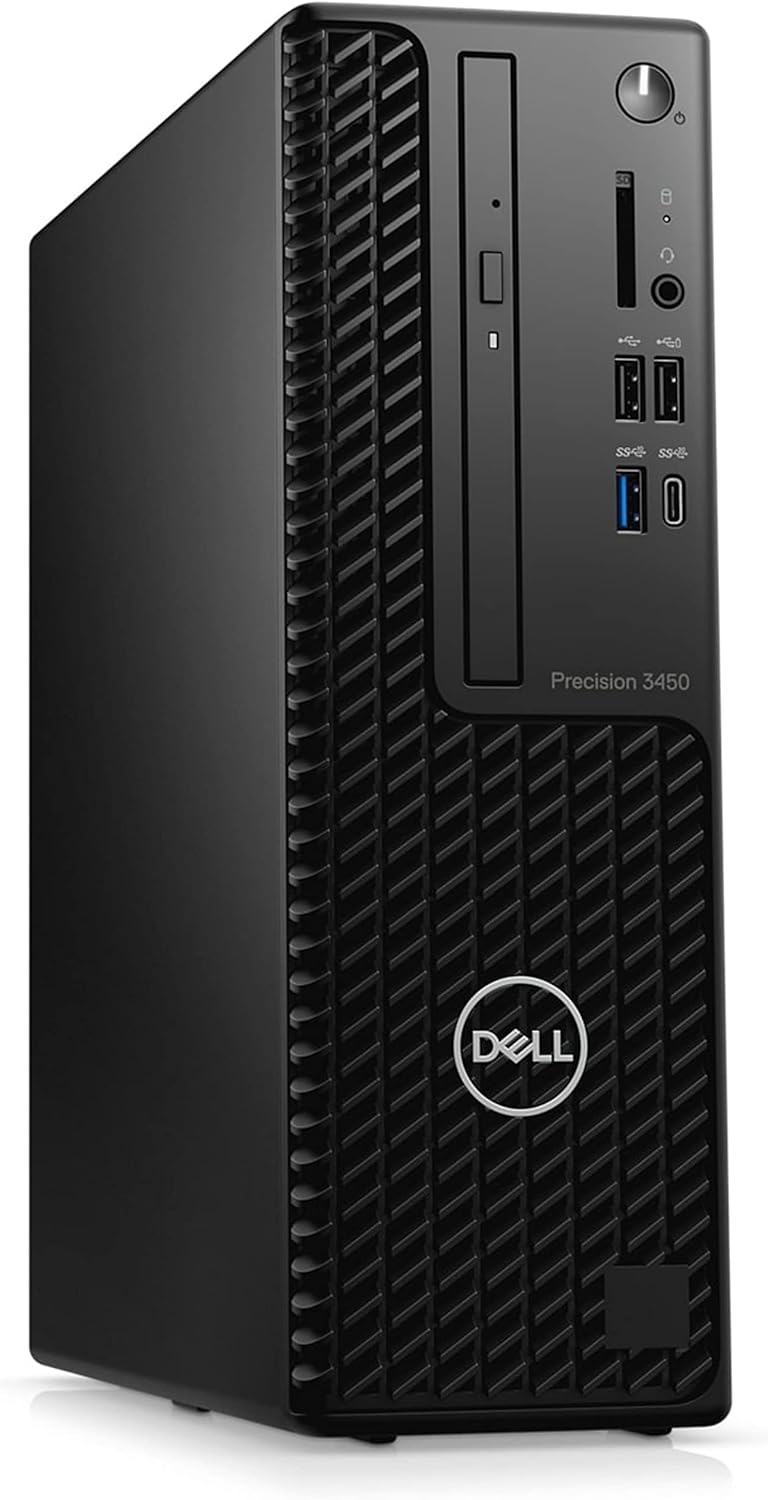
Image 4.2: Rear view of the Dell Precision 3450 SFF Workstation Desktop. This image shows the back of the desktop, detailing the various video output ports (DisplayPort, HDMI), USB ports, Ethernet port, audio jacks, and the power connector.
- DisplayPort / HDMI Ports: For connecting monitors.
- USB 3.2 Gen 1 Type-A Ports: For connecting peripherals.
- USB 2.0 Type-A Ports: For connecting peripherals.
- Ethernet Port (RJ-45): For network connection.
- Audio Line-out/Line-in Ports: For speakers or microphones.
- Power Connector: For connecting the power cable.
5. Setup
5.1 Connecting Peripherals
- Connect your monitor(s) to the DisplayPort or HDMI ports on the rear panel.
- Connect your keyboard and mouse to any available USB ports.
- If using a wired network, connect an Ethernet cable to the RJ-45 port.
- Connect any other peripherals (e.g., printer, external hard drive) to appropriate ports.
5.2 Powering On
- Connect the power cable to the power connector on the rear panel and then to a grounded electrical outlet.
- Press the power button on the front panel of the desktop.
- The system will boot up, and the operating system (Windows 11 Pro) will load.
5.3 Initial Windows Setup
Follow the on-screen instructions to complete the initial setup of Windows 11 Pro, including language selection, network connection, user account creation, and privacy settings.
6. Operating the System
6.1 Basic Usage
Your Dell Precision 3450 SFF Workstation comes pre-installed with Windows 11 Pro. Familiarize yourself with the Windows interface, Start Menu, and taskbar for navigating applications and settings.
6.2 Network Connection
- Wired Connection: If you connected an Ethernet cable during setup, your system should automatically connect to the network.
- Wireless Connection (if applicable): If your system includes a wireless adapter, click the network icon in the taskbar, select your Wi-Fi network, and enter the password.
6.3 Installing Software
Software can be installed from various sources:
- Microsoft Store: Access the Microsoft Store for verified applications.
- Web Downloads: Download installation files from trusted websites.
- Optical Drive: Insert a software CD/DVD into the optical drive.
7. Maintenance
7.1 Cleaning
- Use a soft, lint-free cloth to clean the exterior of the desktop.
- For stubborn marks, dampen the cloth with water or a mild, non-abrasive cleaner.
- Use compressed air to clear dust from vents and ports periodically.
- Always disconnect power before cleaning.
7.2 Software Updates
Regularly update your operating system and drivers to ensure optimal performance and security. Windows Update can be accessed via Settings > Windows Update.
7.3 Data Backup
It is recommended to regularly back up your important data to an external drive or cloud storage to prevent data loss.

Image 7.1: Exploded view of the Dell Precision 3450 SFF internal components. This image illustrates the modular design of the workstation, showing components like the motherboard, cooling fan, and expansion cards separated, indicating ease of access for maintenance or upgrades.
8. Troubleshooting
This section addresses common issues you might encounter.
| Problem | Possible Cause | Solution |
|---|---|---|
| System does not power on. | Power cable not connected, power outlet issue. | Check power cable connections. Try a different power outlet. |
| No display on monitor. | Monitor cable loose, monitor off, incorrect input selected. | Ensure monitor cables are securely connected. Turn monitor on. Select correct input source on monitor. |
| Slow performance. | Too many applications running, low disk space, outdated drivers. | Close unnecessary applications. Free up disk space. Update drivers and Windows. |
| Peripheral (keyboard/mouse) not working. | Loose connection, faulty peripheral, driver issue. | Check connections. Try a different USB port. Test with another peripheral. Update/reinstall drivers. |
9. Specifications
| Feature | Detail |
|---|---|
| Model | Dell Precision T3450 SFF Desktop |
| Processor | Intel Core i7-11700 (8 cores, up to 4.9 GHz) |
| RAM | 8 GB DDR SDRAM |
| Storage | 256 GB Solid State Drive (SSD) |
| Operating System | Windows 11 Pro |
| Hardware Platform | PC |
| Dimensions (LxWxH) | 11.53 x 3.65 x 11.42 inches |
| UPC | 602072518515 |
10. Warranty Information
This Dell Precision 3450 SFF Workstation Desktop is a renewed product. Warranty terms and conditions are provided by the seller, TekBoost Certified. Please refer to your purchase documentation or contact the seller directly for specific warranty details and duration. Dell's standard warranty may not apply to renewed products.
11. Support
For technical assistance, troubleshooting beyond this manual, or warranty claims, please contact the seller, TekBoost Certified, directly. You may also find additional resources and drivers on the official Dell Support website by searching for "Precision 3450 SFF".