
1. Product Overview
The S80/S80 Pro Smart Translator is a portable AI-powered device designed for seamless communication across language barriers. It offers a range of translation functions, including online, offline, photo, and simultaneous interpretation, making it suitable for travel, business, and learning environments. The S80 Pro model includes a camera function for photo translation.

Figure 1: Front view of the S80/S80 Pro Smart Translator, displaying its user interface with options for online translation, offline translation, photo translation, and simultaneous interpretation.
1.1 Package Contents
Upon unboxing, please verify that all items listed below are present and in good condition:
- 1 x S80/S80 Pro Smart Translator Device
- 1 x User Manual
- 1 x Data Cable (USB-C)
2. Product Features
The S80/S80 Pro Smart Translator is equipped with advanced features to facilitate communication:
- Online Translation: Supports translation in up to 138 languages when connected to the internet.
- Offline Translation: Provides high-precision translation for 18 commonly used languages (including Chinese, English, Japanese, Korean) without an internet connection.
- Simultaneous Interpretation: Enables real-time, simultaneous translation with subtitle display and bilingual control, allowing for hands-free communication.
- ChatGPT AI Assistant Integration: Utilizes advanced AI technology for intelligent suggestions, information retrieval, and enhanced daily conversation translation.
- Smart Recording: Records memos and provides real-time translation of recorded content.
- Group Translation: Facilitates group chats with multiple participants speaking different languages, supporting up to 117 people in the same group.
- Language Learning Mode: Allows users to read text and receive intelligent scoring for language practice.
- Exchange Rate & Unit Conversion: Convenient tools for travel and international shopping, including currency and unit conversions.
- Photo Translation (S80 Pro only): Translates text from images captured by the device's camera.
- Multilingual System Interface: Supports 18 system language settings for a personalized user experience.

Figure 2: An illustration detailing the comprehensive features of the S80/S80 Pro Smart Translator, highlighting its capabilities for diverse communication needs.
3. Setup Guide
3.1 Initial Charging
Before first use, fully charge the device using the provided USB-C data cable and a compatible power adapter (not included). The charging indicator will show progress, and the device will indicate when charging is complete.
3.2 Powering On/Off
- To Power On: Press and hold the Power button (usually located on the side) for a few seconds until the screen illuminates.
- To Power Off: Press and hold the Power button until a power-off menu appears on the screen. Select "Power Off" or "Shut Down".
3.3 Network Connection (Wi-Fi)
For online translation and other internet-dependent features, connect the device to a Wi-Fi network:
- From the home screen, navigate to Settings.
- Select Wi-Fi.
- Toggle Wi-Fi On.
- Select your desired network from the list.
- Enter the Wi-Fi password if prompted and tap Connect.
3.4 Language Settings
To set the device's system language:
- Go to Settings.
- Select Language & Input (or similar).
- Choose your preferred system language from the available 18 options.
4. Operating Instructions
4.1 Basic Translation Modes
The device offers several translation modes accessible from the main screen:
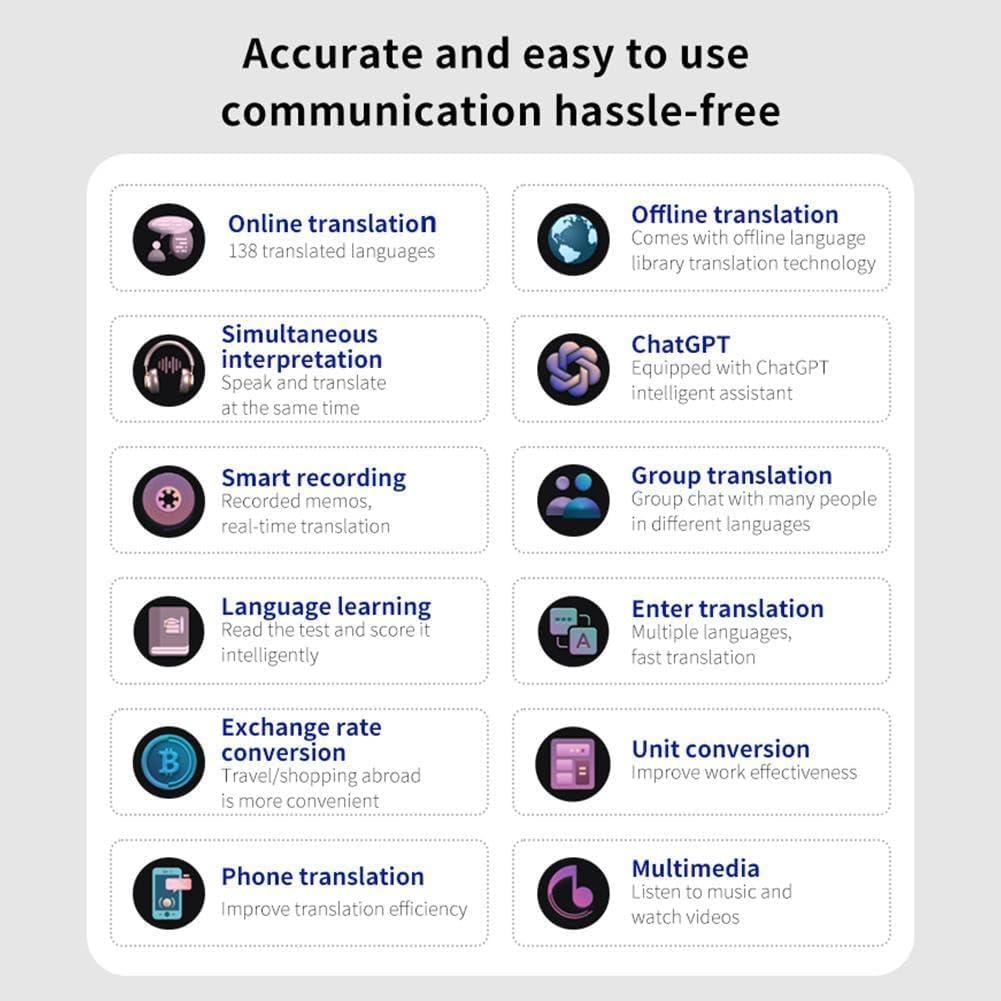
Figure 3: The main interface of the translator, illustrating the quick access icons for different translation functionalities.
4.1.1 Online Translation
Requires an active Wi-Fi connection. Supports 138 languages.
- Tap the Online Translation icon.
- Select the source and target languages.
- Press and hold the designated microphone button (usually marked with a language icon) and speak clearly. Release the button to hear the translation.
4.1.2 Offline Translation
No internet connection required. Supports 18 pre-loaded languages.
- Tap the Offline Translation icon.
- Select the desired offline language pair.
- Press and hold the microphone button and speak. Release to get the translation.
4.1.3 Photo Translation (S80 Pro only)
Utilizes the built-in camera to translate text from images.
- Tap the Photo Translation icon.
- Align the text you wish to translate within the camera frame.
- Tap the capture button. The device will process the image and display the translated text.
4.1.4 Simultaneous Interpretation
For real-time, continuous translation in conversations.
- Tap the Simultaneous Interpretation icon.
- Set the two languages for interpretation.
- Begin speaking. The device will automatically detect the language and provide real-time translation, often with on-screen subtitles.

Figure 4: The S80/S80 Pro Smart Translator facilitating simultaneous interpretation in a group setting, emphasizing its hands-free operation and high-fidelity audio output.
4.2 Advanced Functions
4.2.1 Group Translation
Allows multiple users to communicate in a group chat across different languages.
- Access the Group Translation feature from the main menu.
- Create a new group or join an existing one using a group ID.
- Participants can speak in their native language, and the device will translate for others in the group.

Figure 5: The group translation interface, demonstrating how multiple users can engage in cross-language communication within a single chat session.
4.2.2 Exchange Rate & Unit Conversion
Access these utilities for quick calculations during travel or daily use.
- Navigate to the Tools or Utilities section.
- Select Exchange Rate Conversion or Unit Conversion.
- Input the values and select the desired units/currencies for conversion.

Figure 6: The device's interface for exchange rate and unit conversions, providing practical tools for various daily scenarios.
5. Maintenance
5.1 Cleaning the Device
- Use a soft, lint-free cloth to wipe the screen and body of the device.
- For stubborn smudges, slightly dampen the cloth with water or a screen cleaner. Avoid harsh chemicals or abrasive materials.
- Ensure no liquid enters the ports or openings.
5.2 Storage
- Store the device in a cool, dry place away from direct sunlight and extreme temperatures.
- If storing for an extended period, ensure the battery is charged to about 50% to prolong its lifespan.
5.3 Software Updates
Periodically check for software updates to ensure optimal performance and access to new features:
- Connect the device to Wi-Fi.
- Go to Settings > About Device > Software Update (or similar).
- Follow the on-screen prompts to download and install any available updates.
6. Troubleshooting
This section addresses common issues you might encounter with your Smart Translator.
| Problem | Possible Cause | Solution |
|---|---|---|
| Device does not power on. | Low battery; device frozen. | Charge the device for at least 30 minutes. If still unresponsive, perform a forced restart (refer to manual for specific button combination, usually holding power button for 10+ seconds). |
| Translation is inaccurate or slow. | Poor internet connection (online mode); unclear speech; outdated software. | Ensure stable Wi-Fi. Speak clearly and at a moderate pace. Check for and install software updates. |
| Offline translation not working. | Offline language packs not downloaded or corrupted. | Connect to Wi-Fi and download/re-download the required offline language packs from settings. |
| Photo translation not working (S80 Pro). | Poor lighting; text too small/blurry; camera lens obstructed. | Ensure adequate lighting. Hold the device steady and close enough for clear text. Clean the camera lens. |
| Device freezes or crashes frequently. | Too many applications running; low storage; software bug. | Close background applications. Clear cache or free up storage. Perform a factory reset if issues persist (Note: This will erase all data). |
7. Specifications
Technical specifications for the S80 and S80 Pro Smart Translators:
| Feature | S80 Model | S80 Pro Model |
|---|---|---|
| Memory | 1GB RAM + 8GB Storage | 1GB RAM + 8GB Storage |
| Battery Capacity | 1000 mAh | 1500 mAh |
| Photo Translation Function | No | Yes |
| Model Number | N/A (Generic-562303-94 for S80pro) | Generic-562303-94 |
| Brand | Generic | Generic |
| Connectivity | Wi-Fi | |
| Offline Languages | 18 (Chinese, English, Japanese, Korean, etc.) | |
| Online Languages | Up to 138 | |
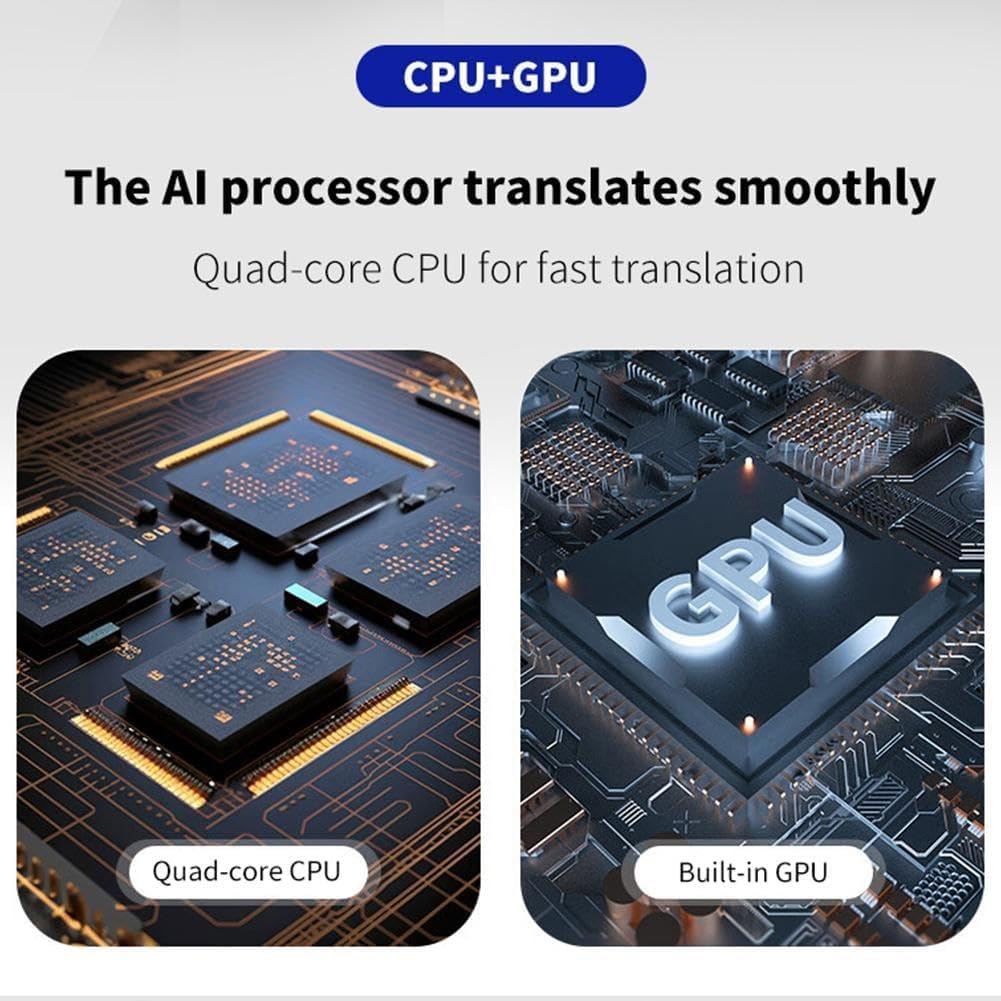
Figure 7: Illustration of the internal AI processor, featuring a Quad-core CPU and Built-in GPU, designed for smooth and efficient translation.
8. Warranty & Support
8.1 Warranty Information
This product comes with a standard manufacturer's warranty. Please refer to the warranty card included in your package for specific terms and conditions, including warranty duration and coverage details. Keep your purchase receipt as proof of purchase for warranty claims.
8.2 Customer Support
For technical assistance, troubleshooting, or warranty inquiries, please contact the manufacturer or seller through the platform where you purchased the device. Provide your model number (S80pro or Generic-562303-94) and a detailed description of the issue to expedite support.
For further assistance, you may also visit the product's support page on the retailer's website or contact the seller directly via their contact information provided at the time of purchase.

