1. Introduction
The Anycubic Kobra S1 Combo is a high-performance 3D printer designed for both enthusiasts and professionals, offering multi-color printing capabilities, high-speed operation, and precise results. This manual provides essential information for setting up, operating, and maintaining your printer to ensure optimal performance and longevity.
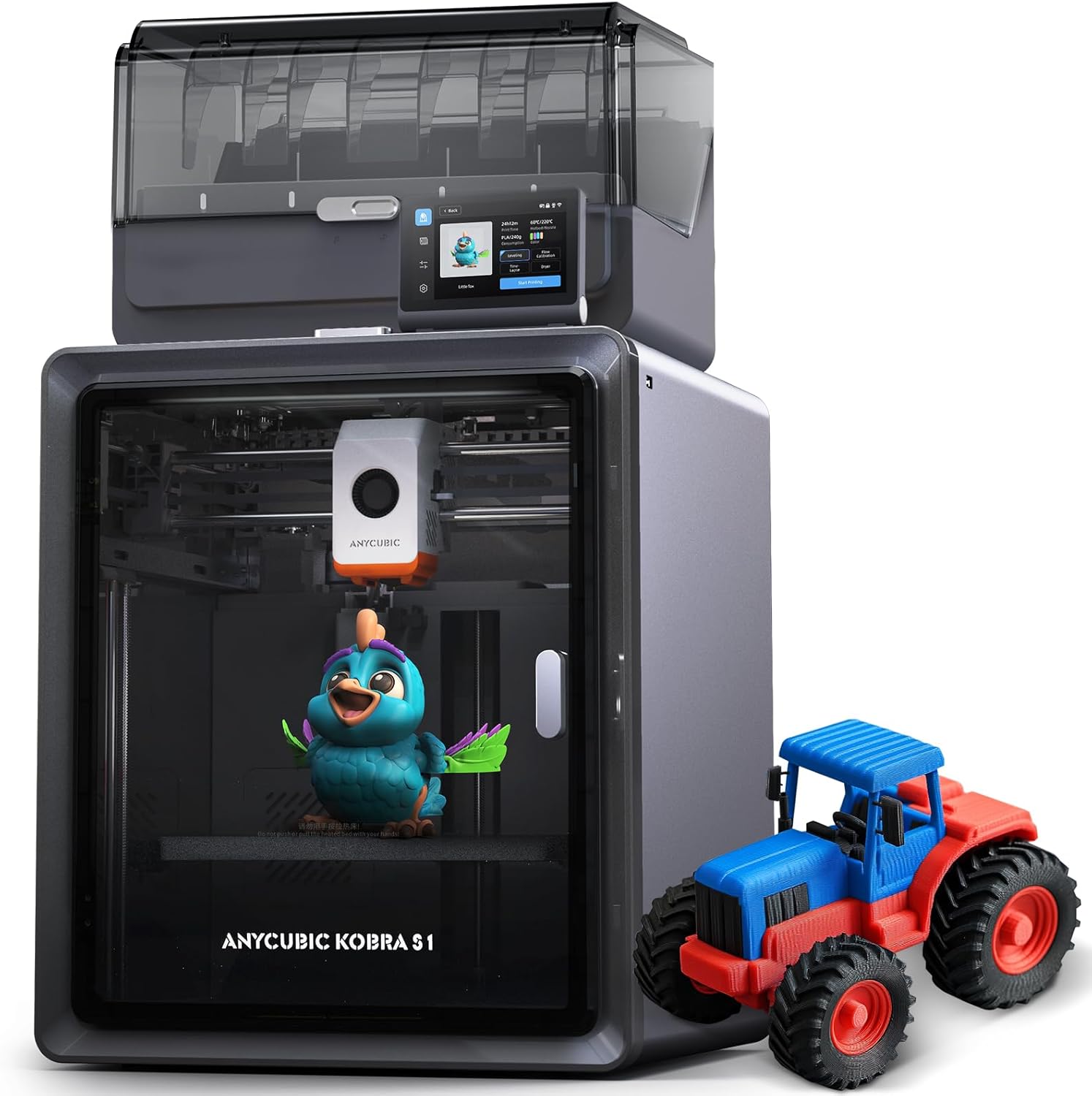
Figure 1: Anycubic Kobra S1 Combo 3D Printer with its multi-color printing unit.
2. Key Features
- Multi-Color Printing: The Anycubic ACE PRO features 4 slots, enabling basic four-color printing. Combining two ACE PRO units allows for eight-color printing, expanding creative possibilities.
- Drying While Printing: Integrated filament drying functionality ensures optimal filament condition throughout the printing process, eliminating the need for a separate dryer.
- High-Speed Printing: Achieves print speeds up to 600mm/s with an acceleration of 20,000 mm/s², significantly faster than standard FDM printers while maintaining accuracy.
- Flow Correction: Anycubic Kobra OS includes a flow compensation feature for precise filament extrusion, resulting in smoother model surfaces and reduced material overflow.
- Anycubic App Remote Control: Offers one-click printing and remote monitoring from mobile devices, supporting multi-plate document parsing for complex print jobs.
- Fully Enclosed CoreXY Construction: Provides a stable and quiet printing environment.
- 320°C Full-Metal Hotend: Features an anti-clogging aerospace-grade ceramic composite throat tube for reliable high-temperature printing.
- Auto-Leveling: Equipped with an upgraded LeviQ3.0 auto-leveling system for hassle-free bed calibration.
3. Setup Guide
3.1 Unboxing and Initial Assembly
The Anycubic Kobra S1 Combo is designed for quick setup. Most components are pre-assembled. Follow the included quick start guide for detailed assembly instructions. Ensure all packaging materials are removed before proceeding.

Figure 2: Firmware upgrade instructions, often part of initial setup.
3.2 Auto-Leveling
Power on the printer and follow the on-screen prompts to initiate the auto-leveling process. This ensures optimal first layer adhesion and print quality.
Video 1: Official overview of the Anycubic Kobra S1 Combo 3D Printer, demonstrating key features and ease of use.
4. Operating Instructions
4.1 Filament Loading and Multi-Color Printing
Load filaments into the Anycubic ACE PRO unit. The system supports up to four colors, or eight with an additional ACE PRO. The printer automatically manages filament switching during multi-color prints.

Figure 3: The Anycubic Kobra S1 Combo demonstrating its 4-color and 8-color printing capabilities with the ACE PRO unit.
Video 2: Official video showcasing the multi-color printing capabilities of the Anycubic Kobra S1 Combo.
4.2 Starting a Print
Prepare your 3D model using Anycubic Slicer Next software. This software includes optimized printing parameter presets for various filaments. Transfer the sliced file to the printer via USB or use the Anycubic App for one-click remote printing.

Figure 4: The Makeronline platform, offering a variety of 3D models for printing.
4.3 Monitoring Prints
Monitor print status in real-time using the Anycubic App on your mobile device. The app also supports time-lapse recording of the printing process.
5. Maintenance
5.1 Filament Drying
The ACE PRO unit continuously dries filament during printing. Ensure the unit is properly loaded and the drying function is active for optimal print quality, especially with hygroscopic filaments.

Figure 5: The ACE PRO unit actively drying filament while the printer is in operation.
Video 3: Official video demonstrating the filament drying capabilities of the Anycubic ACE PRO.
5.2 Hotend Maintenance
The 320°C full-metal hotend is designed for durability and clog-free operation. For maintenance or replacement, the hotend features a tool-free quick-release mechanism.
6. Troubleshooting
This section addresses common issues you might encounter with your Anycubic Kobra S1 Combo 3D Printer.
- Print Adhesion Issues: Ensure the print bed is clean and properly leveled. The auto-leveling system should minimize this, but manual cleaning with isopropyl alcohol can help.
- Filament Clogging: Verify that the filament is dry and free of debris. The integrated drying function helps prevent this. If a clog occurs, use the hotend's quick-release feature for inspection and clearing.
- Print Quality Degradation: Check filament drying status. Ensure correct print settings (temperature, speed, flow) are selected in the slicer software for your specific filament type. Firmware updates can also improve performance.
- Noise Levels: The printer is designed for ultra-quiet operation (as low as 44dB). If unusual noises occur, inspect for loose components or obstructions.
7. Technical Specifications
| Feature | Specification |
|---|---|
| Product Dimensions | 19.06 x 19.29 x 22.56 inches |
| Item Weight | 56.9 pounds |
| Print Size | 250 x 250 x 250mm |
| Max Print Speed | 600mm/s |
| Max Acceleration Speed | 20,000 mm/s² |
| Hotend Temperature | 320°C |
| Heat Bed Temperature | 120°C |
| Nozzle Diameter | Standard 0.4mm (Supports 0.2/0.6/0.8mm expansion) |
| Supported Filaments | PLA, PLA+, TPU, ABS, ASA, PETG, Matte PLA, Silk PLA |
| Auto-Leveling | Full-Auto |
| Noise Level | ≤48dB |
| Connectivity | Wi-Fi, USB |

Figure 6: Visual summary of key product parameters.
8. Warranty and Support
ANYCUBIC provides professional after-sales technical support. For any inquiries or assistance, please refer to the official ANYCUBIC website or contact their customer support. Information regarding warranty coverage can be found on the product's purchase page or the official brand website.
- Customer Support: Refer to the official ANYCUBIC channels for direct assistance.
- Returns: Typically, a 30-day easy return policy is available for products purchased through authorized retailers.
- Firmware Updates: Regularly check for and install the latest firmware versions to unlock new functions and improve performance. Connect to Wi-Fi and upgrade via the printer's interface or download from the official website.