
Introduction
This manual provides detailed instructions for the installation, operation, and maintenance of your Rimoody Wireless Carplay Android 13 Car Radio. Please read this manual thoroughly before using the product to ensure proper functionality and safety.
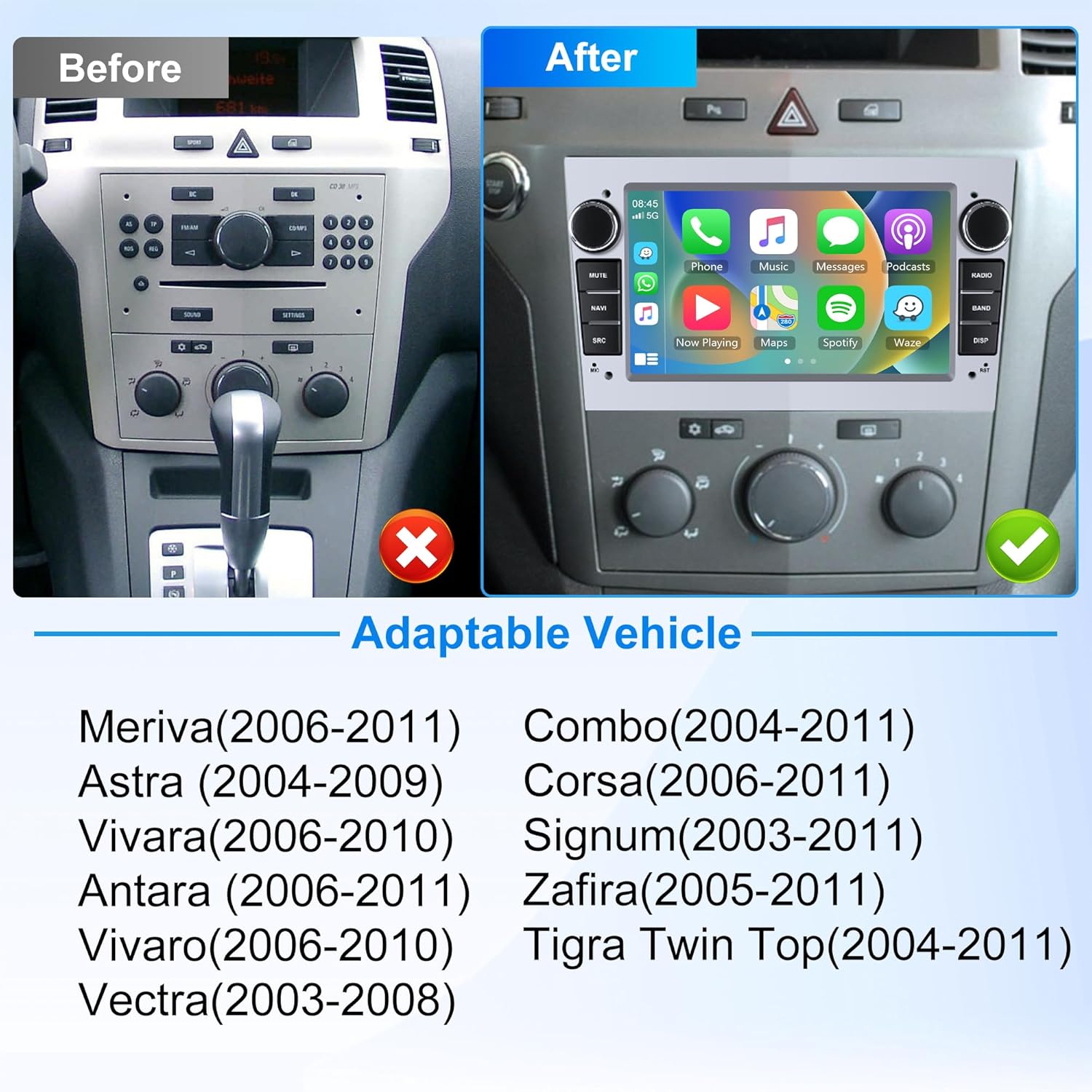
Compatible Vehicles
- Opel Astra (2004-2009)
- Opel Antara (2006-2011)
- Opel Vectra (2003-2008)
- Opel Corsa (2006-2011)
- Opel Zafira (2005-2011)
- Opel Meriva (2006-2011)
- Opel Vivaro (2006-2010)
- Opel Combo (2004-2011)
- Opel Signum (2003-2011)
- Opel Tigra Twin Top (2004-2011)
What's in the Box
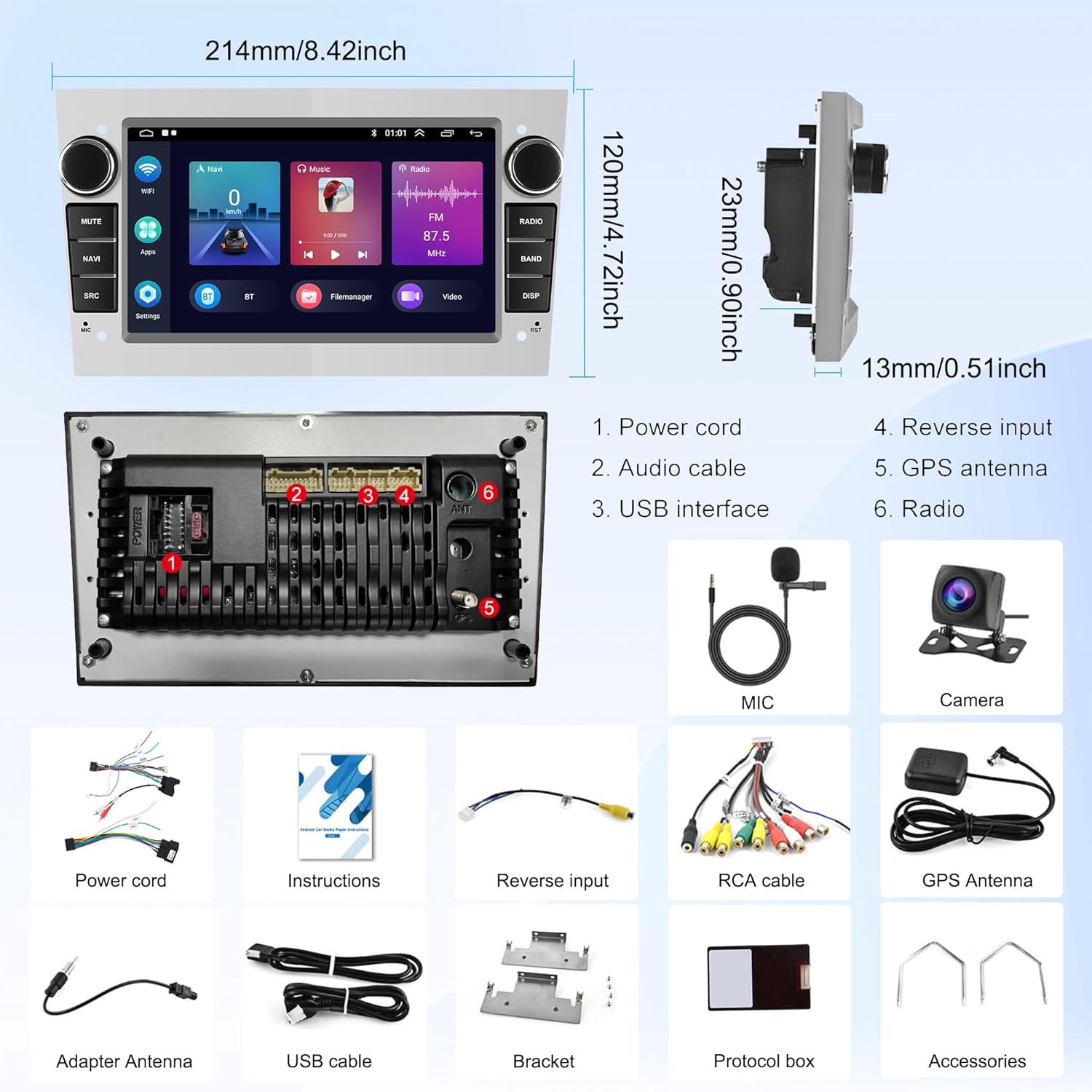
Your package includes the following components:
- 1 x Android Player (Main Unit)
- 1 x GPS Antenna
- 2 x Power Cable
- 1 x User Manual
- 2 x USB Cable
- 1 x RCA Cable
- 1 x Radio Antenna
- 1 x CANBUS Box
- 1 x Camera Input Cable
- 1 x Reversing Camera
Setup and Installation
Follow these steps to install your new car radio:
- Remove the Original Unit: Carefully use prying tools to detach the side panels of your car's dashboard around the existing radio. Once the panels are loose, remove the screws securing the original car radio. Disconnect the power and antenna cables from the back of the old unit.
- Connect USB Cables: Route the provided USB cables from the radio compartment to a convenient location, such as the glove box, for easy access.
- Connect Rear View Camera: Connect the rear view camera cable to the main wiring harness. Ensure the video signal cable (yellow RCA) and the power wire (red) are correctly connected. The red wire from the camera cable should connect to the reverse light power source, and the yellow RCA connects to the 'CAM IN' port on the main unit.
- Connect Main Wiring Harness: Connect the main wiring harness, including the CANBUS box if applicable for your vehicle model, to the car's electrical system. Ensure all connections are secure.
- Connect Antenna Adapter: Attach the radio antenna adapter to the main unit's antenna input.
- Connect External Microphone: If using an external microphone, connect it to the designated port on the main unit and route it to an optimal position, such as near the rearview mirror or A-pillar, for clear audio.
- Install the New Unit: Carefully manage all cables to ensure they do not interfere with the unit's placement. Slide the new Android car radio into the dashboard slot and secure it with screws. Reattach the dashboard panels.
Installation Video Guide
Video: This video demonstrates the step-by-step process of removing the old car radio and connecting the new Rimoody Android unit, including USB cables, antenna, and rear view camera wiring.
Operating Instructions
Your Rimoody car radio offers a wide range of features for an enhanced driving experience:
Wireless Carplay & Android Auto
Connect your iOS or Android smartphone wirelessly to access phone functions, navigation, music, and more directly on the car radio's display. This feature supports voice control for hands-free operation.

GPS Navigation & WiFi
The integrated GPS module supports both online and offline maps, providing accurate navigation with voice guidance and real-time traffic information. Connect to the internet via built-in WiFi to stream online content, download apps like Waze or YouTube, and browse the web.

Bluetooth & FM/RDS Radio
Utilize Bluetooth for hands-free calling and wireless music streaming from your mobile phone. The FM/RDS radio tuner allows for manual or automatic station search, with 18 preset stations to save your favorites.

Rear Camera & Steering Wheel Controls
The included AHD rear view camera automatically displays the rear view on the screen when reversing, enhancing safety and convenience. The unit supports steering wheel controls, allowing you to manage essential functions without taking your hands off the wheel.

Split Screen & Hi-Fi Audio
The split-screen function allows you to view two applications simultaneously, such as navigation and music playback. Enjoy high-quality audio with the integrated Hi-Fi amplifier and customizable equalizer settings.

Feature Demonstration Video
Video: This video provides a demonstration of the various functionalities of the Rimoody Android car radio, including navigation, media playback, and smart connectivity features.
Settings and Customization
Access the 'Settings' menu to personalize your car radio experience:
- CANBus Configuration: Navigate to 'Factory Settings' (password: 1617) and select the correct CAN Box type, Car Brand (Opel), and Car Model (Astra) to ensure proper integration with your vehicle's systems.
- Themes: Customize the user interface with various themes available in the 'Themes' section.
- App Updates: Ensure your pre-installed apps are up-to-date by connecting to WiFi and checking for updates in the App Store or relevant settings.
- Steering Wheel Control Learning: If your steering wheel controls are not automatically recognized, you may need to manually configure them in the 'Steering Wheel Control' settings.
Specifications
| Feature | Specification |
|---|---|
| System | Android 13 |
| RAM | 1GB |
| ROM | 32GB |
| Screen Size | 7 inches |
| Screen Resolution | 1024*600 |
| Output Power | 4*45W |
| Bluetooth Version | 4.0 |
| Radio Band | FM/RDS |
| Connectivity | Bluetooth, USB, Wi-Fi |
| Compatible Peripherals | Smartphone, Tablet |
| Supported Audio Formats | APE/FLAC/WAV/MP3/WMA etc. |
| Supported Video Formats | MKV/RMVB/AVI/MP4/MDV etc. |
| Supported Image Formats | PNG/JPEG/JPG/GIF/WBMP/BNP etc. |
| External Microphone | Support |
| Rear Camera Input | CVBS & AHD720 |
| Weight | 1.22 Kilograms |
| Dimensions | 32.6 x 28.2 x 9.9 cm |
Troubleshooting
If you encounter any issues with your Rimoody car radio, please consider the following general troubleshooting steps:
- No Power: Check all power connections and ensure the car's fuse for the radio is intact.
- No Sound: Verify speaker connections and check the volume settings on the unit and your steering wheel controls.
- GPS Signal Issues: Ensure the GPS antenna is properly installed and has a clear line of sight to the sky.
- Bluetooth Connectivity Problems: Make sure Bluetooth is enabled on both the car radio and your mobile device. Try unpairing and re-pairing the devices.
- Rear Camera Not Displaying: Check the camera input cable connection and ensure the camera is receiving power (usually from the reverse light).
- Steering Wheel Controls Not Working: Confirm the CANBUS box is correctly installed and configured for your specific car model in the factory settings.
- System Lag/Freezing: Try restarting the unit. If the issue persists, consider performing a factory reset (note: this will erase all user data and settings).
For persistent issues, please contact Rimoody customer support.
Maintenance
To ensure the longevity and optimal performance of your car radio:
- Cleaning: Use a soft, dry cloth to clean the screen and exterior. Avoid abrasive cleaners or solvents.
- Software Updates: Regularly check for and install software updates to improve performance and add new features.
- Environmental Conditions: Avoid exposing the unit to extreme temperatures, direct sunlight for prolonged periods, or excessive moisture.
Warranty and Support
Your Rimoody car radio comes with a standard manufacturer's warranty. Please refer to the warranty card included in your package for specific terms and conditions. For technical support, product inquiries, or warranty claims, please contact Rimoody customer service through the retailer where you purchased the product.


