
SRIHOME SH061
Srihome SH061 WiFi Outdoor Security Camera User Manual
Model: SH061 | Brand: SRIHOME
1. Product Overview
The SRIHOME SH061 is a versatile WiFi outdoor security camera designed for comprehensive property monitoring. It features a 360° pan and tilt capability, allowing for extensive remote surveillance via the SriHome app. Equipped with both full-color and infrared night vision modes, it ensures clear video capture in various lighting conditions, day or night.
Key features include:
- 360° Pan & Tilt: Horizontal rotation of 355° and vertical tilt of 90° for wide area coverage.
- Dual Night Vision Modes: Offers full-color and infrared night vision for clear video in low light.
- Two-Way Audio: Built-in microphone and speaker enable real-time communication.
- AI Motion Detection: Real-time movement detection with instant notifications to your mobile device.
- IP66 Weatherproof: Durable housing ensures reliable operation in various weather conditions (-20°C to 50°C).
- Flexible Storage: Supports local storage via SD card (up to 128GB) and cloud storage options.
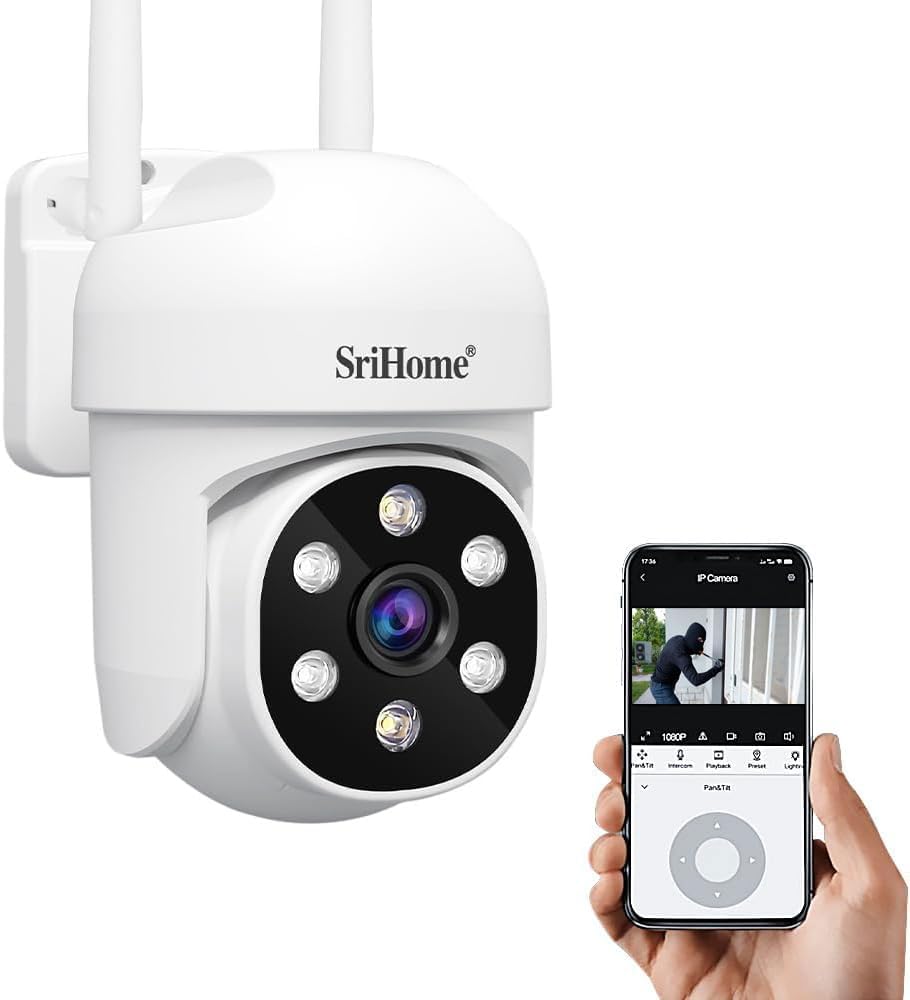
Figure 1: Main view of the Srihome SH061 WiFi Outdoor Security Camera, showing its compact design and integrated lens.
2. Setup and Installation
2.1 Package Contents
Before beginning installation, please verify that all components are present in the package:
- Srihome SH061 Camera Unit
- Power Adapter (5V)
- Mounting Screws
- Reset Pin
- Quick User Manual

Figure 2: Illustration of the Srihome SH061 camera and its included accessories, such as the power adapter, mounting screws, and reset pin.
2.2 App Download and Account Registration
To operate the camera, download the official SriHome app on your mobile device. The app is compatible with both iOS and Android operating systems.
- Scan the QR code provided in the quick user manual or search for "SriHome" in the Apple App Store (for iOS) or Google Play Store (for Android).
- Download and install the app.
- Open the app and follow the on-screen instructions to register a new account or log in if you already have one.
Figure 3: Visual guide for downloading the SriHome application from app stores, essential for camera setup and control.
2.3 Camera Connection and Setup
- Power on the camera by connecting the provided power adapter to the camera's 5V power port and plugging it into an electrical outlet.
- Wait for the camera to initialize. You may hear a voice prompt indicating it's ready for connection.
- Open the SriHome app, tap the "+" icon to add a new device.
- Select the appropriate camera model (SH061) and follow the in-app instructions to connect the camera to your Wi-Fi network. This typically involves scanning a QR code displayed on your phone with the camera's lens or entering Wi-Fi credentials.
- Once connected, you can name your camera and begin live viewing.
2.4 Physical Installation
The SH061 camera is designed for wall mounting. Choose a suitable location that provides the desired viewing angle and is within range of your Wi-Fi network and a power source.
- Mark the drilling points on the wall using the camera's mounting base as a template.
- Drill holes and insert wall plugs if necessary.
- Secure the camera's mounting base to the wall using the provided screws.
- Attach the camera unit to the mounted base.
- Ensure the camera is securely fastened and the power cable is routed safely.

Figure 4: The Srihome SH061 camera securely mounted on an exterior wall, demonstrating its outdoor placement capability.
3. Operating Instructions
3.1 Pan & Tilt Control
The SH061 camera offers extensive remote control over its viewing angle. You can rotate the camera horizontally by 355° and vertically by 90° using the SriHome app.
- Open the SriHome app and select your camera from the device list.
- On the live view screen, use the directional controls (usually a joystick or arrow buttons) to adjust the camera's pan (left/right) and tilt (up/down) angles.
- This allows you to monitor different areas of your property remotely.
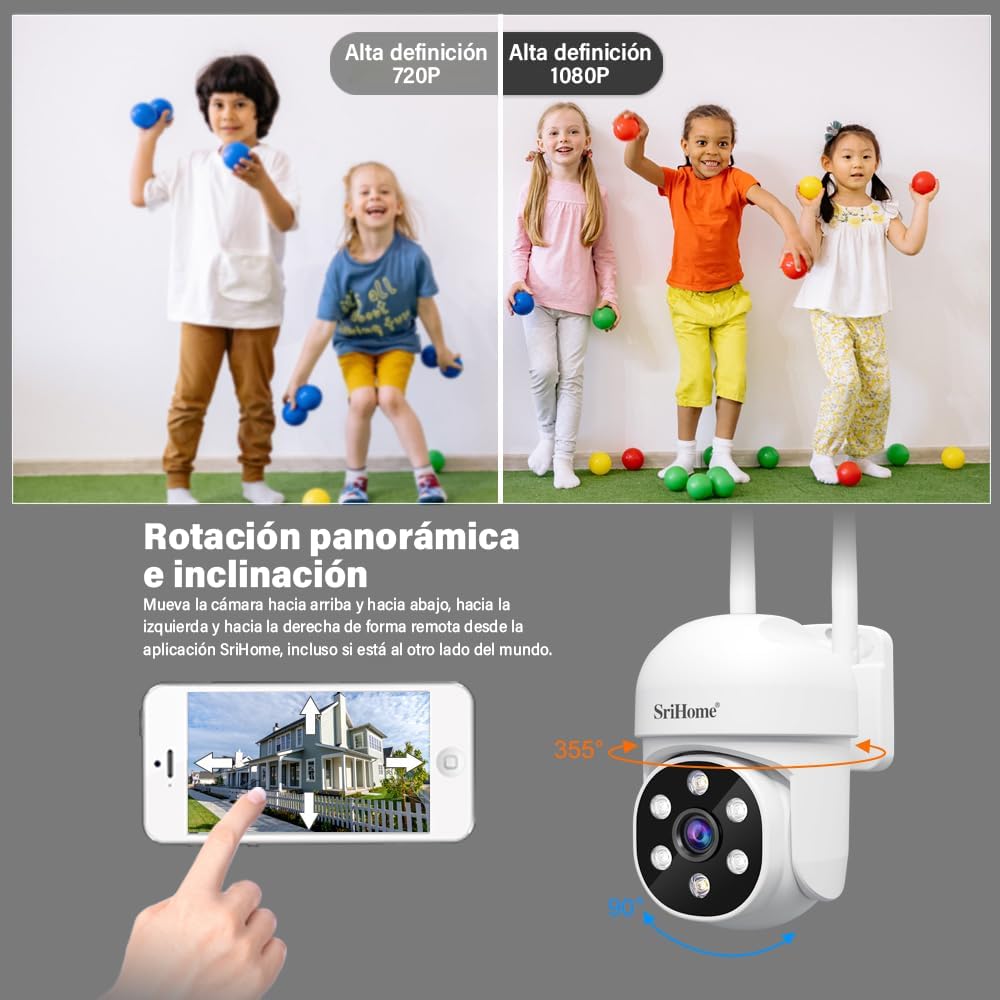
Figure 5: Diagram illustrating the 355° horizontal pan and 90° vertical tilt capabilities of the Srihome SH061 camera, enabling comprehensive area coverage.
3.2 Night Vision Modes
The camera supports two distinct night vision modes to ensure clear visibility in low-light or no-light conditions:
- Infrared (IR) Night Vision: Provides clear black-and-white video using infrared LEDs. This mode is automatically activated in very low light.
- Full-Color Night Vision: Utilizes built-in spotlights to illuminate the area, providing full-color video even at night. This mode can be activated manually or set to trigger upon motion detection.
- Smart Detection Mode: The camera can intelligently switch between IR and full-color modes based on detected motion or ambient light.

Figure 6: Comparison of the three night vision modes: Smart Detection, IR, and Full-Color, demonstrating the camera's adaptability to different nighttime scenarios.
3.3 Two-Way Audio Communication
The integrated microphone and speaker allow for real-time two-way audio communication through the SriHome app.
- From the live view in the app, tap the microphone icon to speak through the camera's speaker.
- The camera's microphone will pick up audio from the monitored area, allowing you to hear what's happening.
- This feature is useful for communicating with visitors, deterring intruders, or interacting with family members.
Figure 7: Depiction of the two-way audio feature, showing a user speaking through the camera to a delivery person and another user communicating with family indoors.
3.4 Motion Detection and Alerts
The SH061 camera features advanced AI motion detection to identify movement in its field of view and send instant alerts.
- Enable motion detection in the SriHome app settings for your camera.
- You can customize detection zones and sensitivity levels to minimize false alarms.
- When motion is detected, the camera will send a notification to your phone via the SriHome app.
- The camera can also trigger an alarm or activate spotlights upon detection, depending on your settings.

Figure 8: Visual representation of the motion tracking feature, showing the camera detecting a humanoid figure and sending an alarm notification to a smartphone.
3.5 Video Recording and Storage
The camera supports continuous recording or event-triggered recording, with options for both local and cloud storage.
- SD Card Storage: Insert a microSD card (up to 128GB, not included) into the camera's SD card slot for local video storage. The camera will automatically overwrite older footage when the card is full.
- Cloud Storage: Optional cloud storage services are available through the SriHome app for secure, off-site video backup. Refer to the app for subscription details.
- Access recorded footage via the playback feature in the SriHome app.
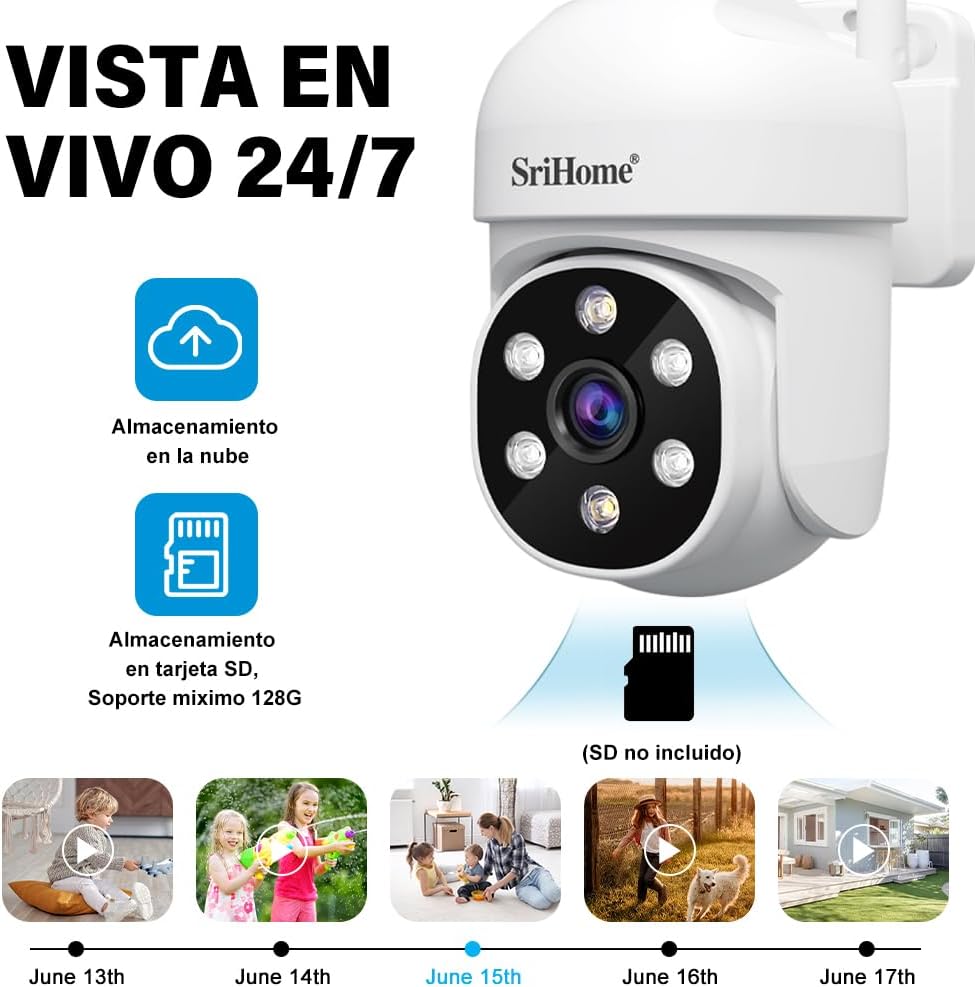
Figure 9: Illustration of the camera's 24/7 live view capability and storage options, including cloud storage and local SD card storage (up to 128GB).
3.6 Weather Resistance (IP66)
The SH061 camera is rated IP66 for water and dust resistance, making it suitable for outdoor use in various weather conditions.
- The robust housing protects internal components from rain, dust, and extreme temperatures (-20°C to 50°C).
- Ensure all cable connections are properly sealed during installation to maintain the IP66 rating.

Figure 10: Visual demonstration of the camera's IP66 waterproof and dustproof design, showing it operating effectively in rainy conditions.
4. Maintenance
Regular maintenance helps ensure the longevity and optimal performance of your Srihome SH061 camera.
- Lens Cleaning: Periodically clean the camera lens with a soft, dry cloth to remove dust or smudges that may affect image clarity. Avoid abrasive cleaners.
- Housing Inspection: Inspect the camera housing and mounting bracket for any signs of wear, damage, or loose connections, especially after severe weather.
- Firmware Updates: Check the SriHome app regularly for available firmware updates. Keeping the camera's firmware updated ensures access to the latest features, security patches, and performance improvements.
- Power Supply: Ensure the power adapter and cable are free from damage and securely connected.
- Wi-Fi Signal: Verify that the camera maintains a strong Wi-Fi signal for stable operation. Relocate your Wi-Fi router or use a Wi-Fi extender if the signal is weak.
5. Troubleshooting
If you encounter issues with your Srihome SH061 camera, refer to the following common troubleshooting steps:
- Camera Offline:
- Check if the camera is powered on and the power adapter is securely connected.
- Verify your Wi-Fi network is active and the signal strength at the camera's location is adequate.
- Restart the camera by unplugging and re-plugging the power adapter.
- If the issue persists, try resetting the camera using the reset pin (refer to the quick user manual for location) and re-add it to the app.
- No Image/Poor Image Quality:
- Ensure the camera lens is clean and free from obstructions.
- Check your internet connection speed. A slow connection can affect live view quality.
- Verify that the camera's resolution settings in the app are appropriate for your network bandwidth.
- Motion Detection Not Working:
- Confirm that motion detection is enabled in the SriHome app settings.
- Adjust the detection sensitivity and detection zones to ensure they cover the desired areas.
- Check if the app has notification permissions enabled on your mobile device.
- Two-Way Audio Issues:
- Ensure the microphone and speaker volumes are not muted in the app.
- Check for any physical obstructions blocking the microphone or speaker on the camera.
- Verify your mobile device's microphone and speaker are functioning correctly.
- SD Card Not Recording:
- Ensure the SD card is correctly inserted into the slot.
- Check if the SD card is formatted within the SriHome app.
- Verify that the SD card is not full. If it is, enable loop recording or replace the card.
- Test with a different compatible SD card if possible.
For further assistance, please contact SriHome customer service.
6. Specifications
| Feature | Specification |
|---|---|
| Model Name | SH061 (1080P) |
| Connectivity Protocol | Wi-Fi |
| Video Capture Resolution | 1080p |
| Mounting Type | Wall Mount |
| Pan & Tilt Range | Horizontal 355°, Vertical 90° |
| Night Vision | Full-Color, Infrared (IR), Smart Detection |
| Night Vision Range | 15 Centimeters (effective range for detailed viewing) |
| Audio | 2 Way Audio (Built-in Microphone & Speaker) |
| Special Features | Motion Sensor, PTZ Technology, Spotlight |
| Storage Support | SD Card (up to 128GB), Cloud Storage |
| Water Resistance Level | IP66 (Water Resistant) |
| Operating Temperature | -20°C to 50°C |
| Product Dimensions (L x W x H) | 20.32 x 12.7 x 30.48 cm |
| Item Weight | 340 g |
| Included Components | Camera, Power Adapter, Mounting Screws, Reset Pin, Quick User Manual |
Figure 11: Diagram illustrating the physical dimensions of the Srihome SH061 camera.
7. Warranty and Customer Support
For any questions regarding the Srihome SH061 WiFi Outdoor Security Camera, including setup, operation, or troubleshooting, please contact SriHome customer service.
- Customer Service: You can contact SriHome customer service at any time and expect a reply within 24 hours. Refer to the product packaging or the SriHome app for specific contact details (e.g., email, support website).
- Warranty Information: Specific warranty terms and conditions may vary by region. Please refer to the warranty card included with your product or visit the official SriHome website for detailed warranty information. Keep your purchase receipt as proof of purchase for warranty claims.
Ask a question about this manual
Ask about setup, troubleshooting, compatibility, parts, safety, or missing instructions. Manuals+ will review the question and use this page’s manual context to help answer it.