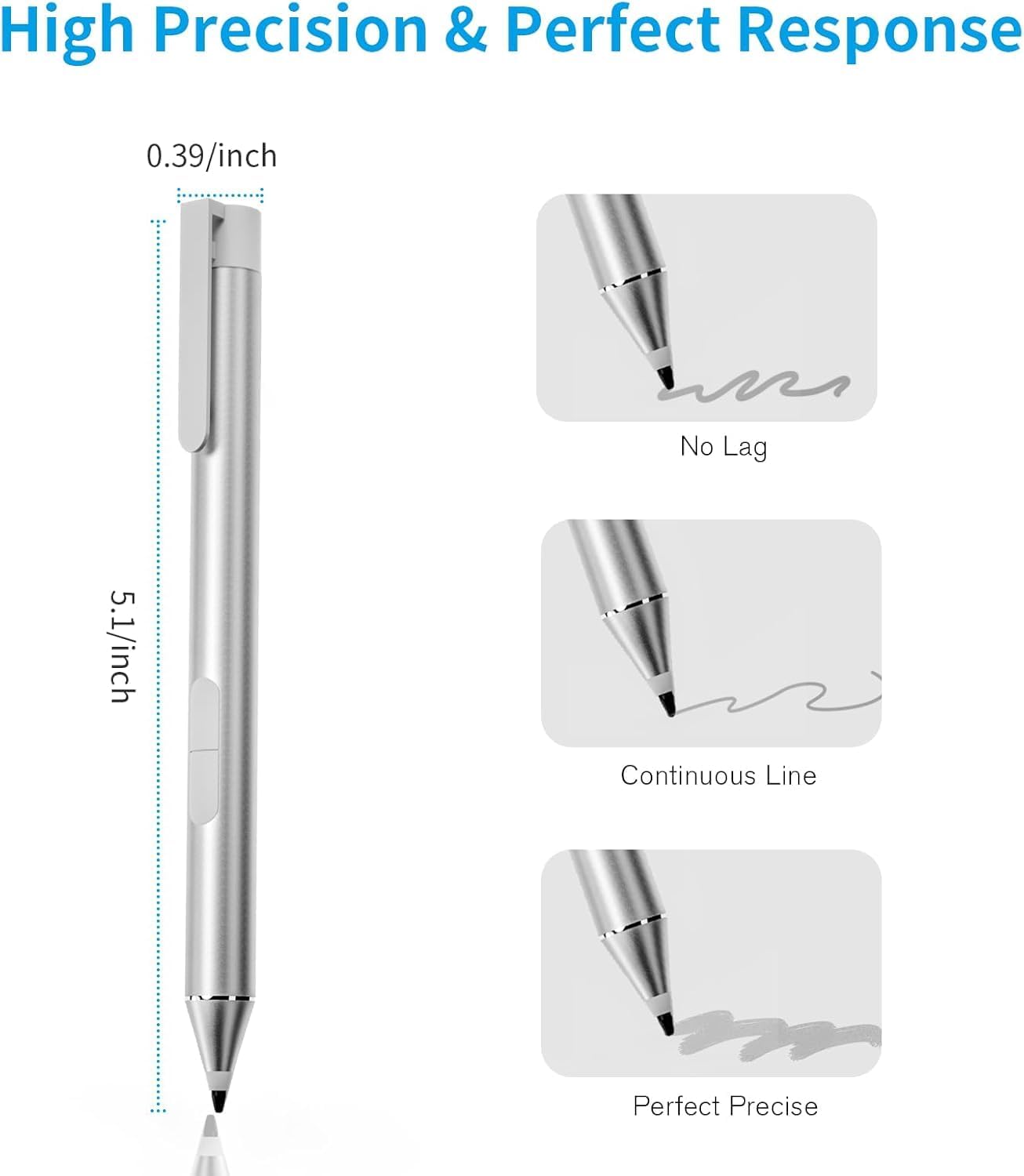
This manual provides detailed instructions for the TALTAW Active Stylus Pen G2. This stylus is designed to offer a responsive and natural writing and drawing experience on compatible Dell 2-in-1 laptops. It features 2048 levels of pressure sensitivity and palm rejection technology for enhanced usability.
2. Compatibility
The TALTAW Active Stylus Pen G2 is specifically designed for the following Dell 2-in-1 laptop models. Please verify your device's compatibility before use.
This stylus is functionally equivalent to original Dell PN5122W, PN557W, and PN7522W pens.
How to Check Compatibility:
Go to "Settings" > "System" > "About".
Check the "Pen and Touch" description. If it reads "Pen and Touch support with 10 touch points", your laptop is likely compatible. If it says "Touch support with 10 touch points", an active pen will not function.
If your model number is not listed, please contact customer support for verification.
Figure 2.1: Compatible Dell Laptop Models for the TALTAW Active Stylus Pen G2.
3. Setup and Installation
Inserting the Battery:
The stylus requires one AAAA battery (included). To insert the battery:
Unscrew the protective cap at the top of the stylus.
Insert the AAAA battery with the positive side facing down into the battery compartment.
Screw the protective cap back on securely.
Figure 3.1: Detailed view of the stylus components and battery insertion.
Initial Use:
Once the battery is inserted, the stylus is ready for immediate use with compatible devices. No drivers or Bluetooth pairing are required.
4. Operating Instructions
Basic Functionality:
Writing and Drawing: Simply touch the pen tip to the screen to write or draw. The stylus supports 2048 levels of pressure sensitivity, allowing for varied line thickness based on pressure applied.
Palm Rejection: You can comfortably rest your hand on the screen while using the stylus without causing unintended marks or inputs.
Figure 4.1: Demonstrating palm rejection during stylus use.
Figure 4.2: Illustration of 2048 level pressure sensitivity.
Button Functions:
The stylus features two buttons on its side:
Right-click button: Functions similarly to a mouse right-click. In applications like OneNote, pressing this button can bring up a menu for pen color, thickness, and other options. It can also be used to select text by clicking and holding.
Eraser button: Hold down this button and move the pen tip over the area you wish to erase.
Video 4.1: Demonstration of the stylus working in drawing software, showcasing its precision and responsiveness.
5. Maintenance
Replacing the Pen Tip:
The stylus tip is replaceable. To replace it:
Gently hold the worn pen tip.
Pull the tip straight out from the stylus body.
Insert a new tip firmly into the stylus body until it is secure.
Figure 5.1: Steps for replacing the stylus pen tip.
Cleaning:
Wipe the stylus body with a soft, dry cloth. Avoid using harsh chemicals or abrasive materials.
6. Troubleshooting
Common Issues and Solutions:
Stylus not working:
Ensure the AAAA battery is correctly inserted with the positive side down.
Replace the AAAA battery with a fresh one.
Verify your Dell laptop model is listed in the compatibility section (Section 2).
Check your laptop's "Pen and Touch" settings as described in Section 2 to confirm active pen support.
Inaccurate or inconsistent input:
Ensure the pen tip is securely in place.
Clean the screen of your device and the pen tip to remove any debris.
If the tip is worn, replace it as described in Section 5.
If issues persist, please contact TALTAW customer support.
7. Specifications
Model Number
G2
Brand
TALTAW
Color
Silvery
Material
Aluminum
Item Weight
0.634 ounces (0.02 Kilograms)
Package Dimensions
6.81 x 2.95 x 0.75 inches
Battery Type
1 AAAA battery (included, Alkaline)
Pressure Sensitivity
2048 levels
Accuracy
Down to 0.5 mm
Response Time
Within 25 milliseconds
Figure 7.1: Stylus dimensions and performance characteristics.
8. Warranty and Support
The TALTAW Active Stylus Pen G2 comes with an 18-Month Limited Warranty.
For technical support, warranty claims, or further inquiries, please contact TALTAW customer service through the retailer where the product was purchased.
Ask a question about this manual
Ask about setup, troubleshooting, compatibility, parts, safety, or missing instructions. Manuals+ will review the question and use this page’s manual context to help answer it.