
1. Introduction
Thank you for choosing the AS-US Wireless Keyboard and Silent Optical Mouse Set CW100. This set provides a convenient and reliable wireless solution for your computing needs, connecting via a single 2.4 GHz nano-transceiver. Designed for superior performance and long-lasting battery life, it offers a comfortable and efficient user experience.
The CW100 keyboard features a compact, space-saving design with a thin 2-cm profile, making it highly portable. The CW100 mouse is engineered with low-noise switches for quiet operation and offers precise control with adjustable DPI settings.
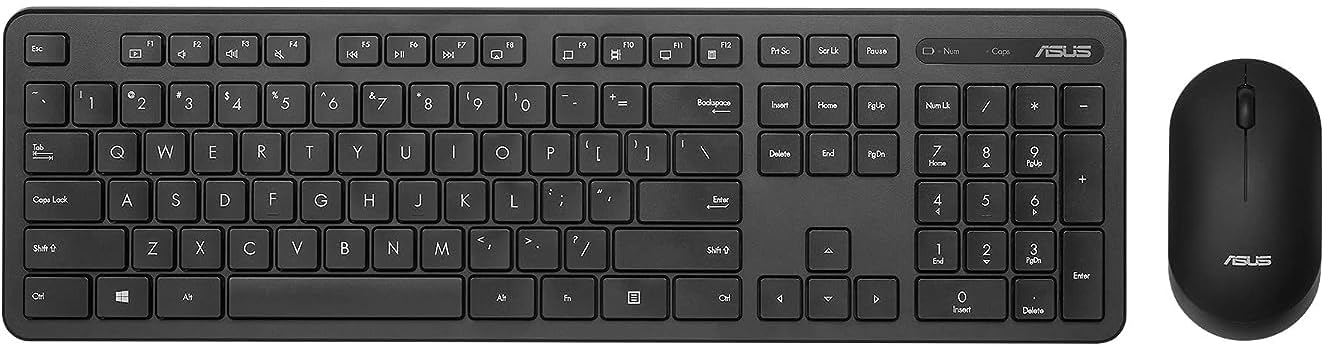
Figure 1: AS-US Wireless Keyboard and Silent Optical Mouse Set CW100. This image displays the full keyboard and mouse set, highlighting their compact and sleek design.
2. Package Contents
Please check the package contents carefully. If any items are missing or damaged, contact your retailer.
- AS-US Wireless Keyboard (CW100)
- AS-US Silent Optical Mouse (CW100)
- 2.4 GHz USB Nano-transceiver
- AA Battery (for mouse)
- AAA Batteries (for keyboard)
- User Manual (this document)
3. Setup Guide
3.1 Installing Batteries
- For the Mouse: Open the battery compartment cover on the underside of the mouse. Insert one AA battery, ensuring correct polarity (+/-). Close the cover.
- For the Keyboard: Open the battery compartment cover on the underside of the keyboard. Insert the required AAA batteries, ensuring correct polarity (+/-). Close the cover.

Figure 2: Battery life indication for the CW100 set. The keyboard offers up to 6 months of battery life, and the mouse up to 1 year, demonstrating the power-saving technology.
3.2 Connecting the Transceiver
- Locate the 2.4 GHz USB Nano-transceiver. It is typically stored in the battery compartment of the mouse for convenience.
- Plug the Nano-transceiver into an available USB port on your computer (PC or laptop).
- Your computer should automatically detect and install the necessary drivers. This may take a few moments.
- Once installed, the keyboard and mouse should be ready for use.
The wireless connection range is up to 10 meters (approximately 33 feet).
4. Operating Instructions
4.1 Keyboard Usage
The CW100 keyboard features a standard layout with durable, laser-engraved keycaps designed to resist fading. Its slim profile enhances portability and comfort.
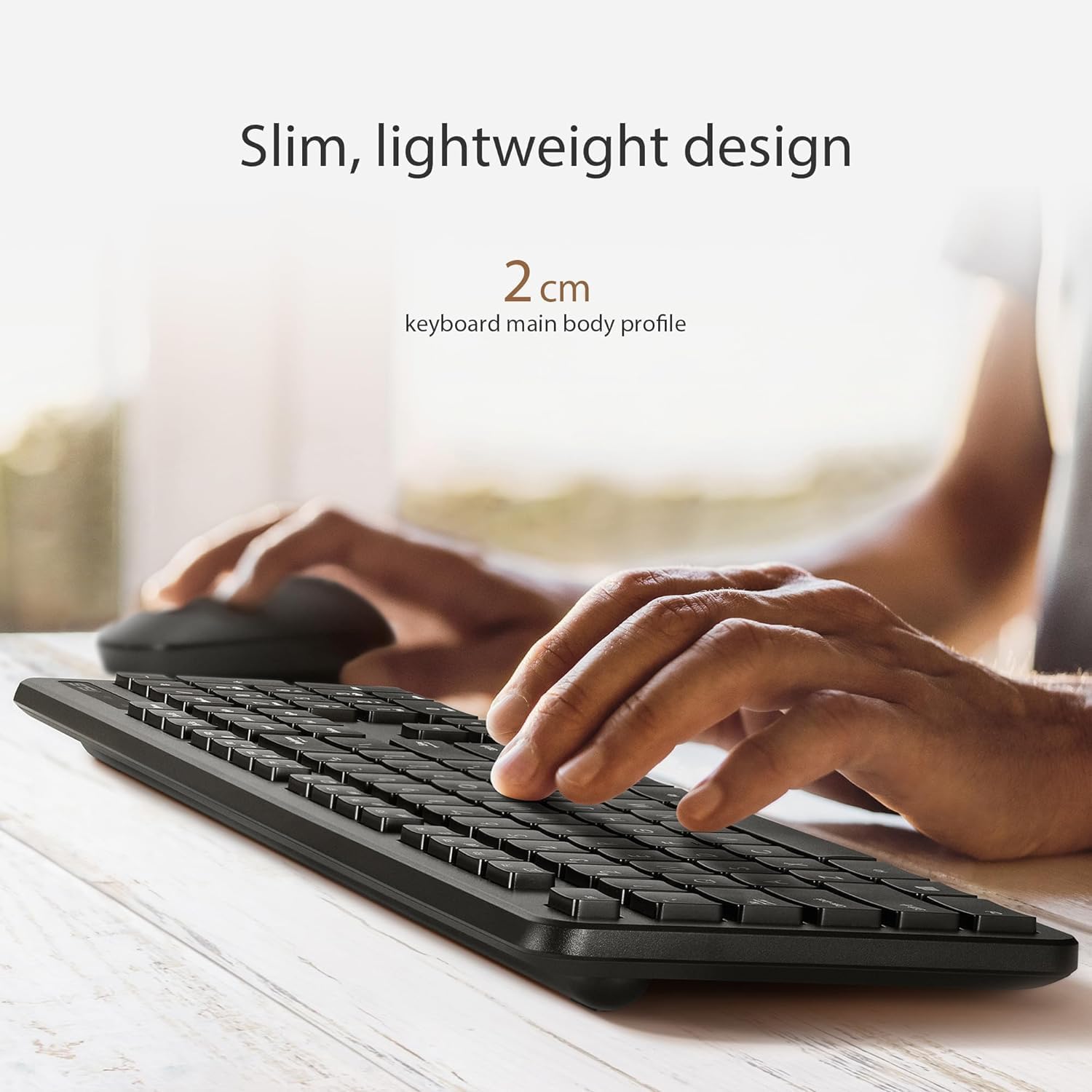
Figure 3: The slim and lightweight design of the CW100 keyboard, showcasing its 2 cm profile for enhanced portability.

Figure 4: Close-up of the CW100 keyboard, highlighting its gaming-grade, laser-engraved keycaps and dimensions (Length: 44.5cm, Width: 13.3cm).
4.2 Mouse Usage and DPI Adjustment
The CW100 mouse is designed for quiet operation with almost-silent clicks, making it ideal for quiet environments. It also offers precise control with adjustable DPI settings.

Figure 5: The CW100 mouse, emphasizing its low-noise design and precise control capabilities.
To adjust the mouse's DPI (Dots Per Inch) sensitivity:
- Simultaneously press the right mouse button and the scroll-wheel button.
- Each press will cycle through the three available DPI sensitivity levels: 800 DPI, 1000 DPI, and 1600 DPI.
- Choose the setting that best suits your task, whether it's normal daily use or more precise control for gaming.
4.3 Power Saving Features
Both the keyboard and mouse are equipped with built-in power-saving technology. When not in use for a period, the devices will automatically enter sleep mode to conserve battery life. To wake them up, simply move the mouse or press any key on the keyboard.
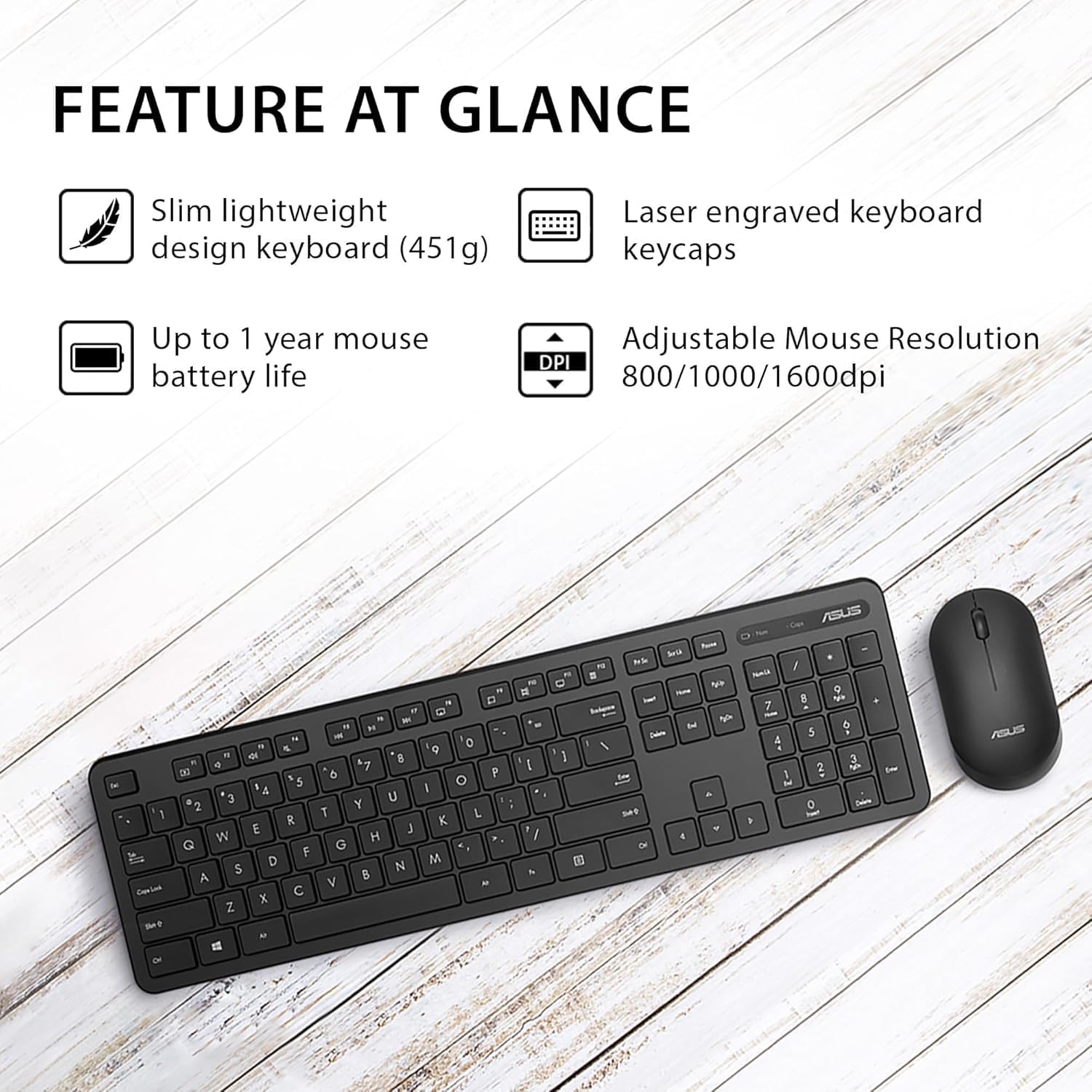
Figure 6: Overview of key features including slim lightweight design, laser engraved keycaps, up to 1 year mouse battery life, and adjustable mouse resolution (800/1000/1600dpi).
5. Maintenance and Care
- Cleaning: Use a soft, dry cloth to clean the surfaces of the keyboard and mouse. For stubborn dirt, slightly dampen the cloth with water or a mild, non-abrasive cleaner. Avoid excessive moisture.
- Battery Replacement: Replace batteries when performance degrades or the low battery indicator (if present) illuminates. Refer to Section 3.1 for battery installation.
- Storage: When not in use for extended periods, remove the batteries to prevent leakage. Store the devices in a cool, dry place away from direct sunlight and extreme temperatures.
- Handling: Avoid dropping the devices or exposing them to strong impacts. Do not disassemble the keyboard or mouse, as this will void the warranty.
6. Troubleshooting
| Problem | Possible Solution |
|---|---|
| Keyboard or mouse not responding. |
|
| Lag or intermittent connection. |
|
| Mouse cursor moves erratically. |
|
7. Specifications
| Feature | Detail |
|---|---|
| Model | CW100 |
| Connectivity | 2.4 GHz Wireless (USB Nano-transceiver) |
| Wireless Range | Up to 10 meters (33 feet) |
| Keyboard Dimensions (L x W x H) | 44.5 cm x 13.3 cm x 2 cm (approx.) |
| Keyboard Weight | 451g (approx.) |
| Keyboard Battery Life | Up to 6 months (with AAA batteries) |
| Mouse DPI Settings | 800 / 1000 / 1600 DPI (adjustable) |
| Mouse Battery Life | Up to 1 year (with 1 AA battery) |
| Compatible Operating Systems | Windows, macOS, Linux (standard USB HID support) |
8. Warranty and Support
8.1 Limited Warranty
This AS-US product is covered by a limited warranty from the date of purchase. The warranty covers defects in materials and workmanship under normal use. Please retain your proof of purchase for warranty claims. The warranty does not cover damage caused by accident, abuse, misuse, natural disaster, or unauthorized modification or repair.
8.2 Customer Support
For technical support, troubleshooting assistance, or warranty inquiries, please contact your retailer or visit the official AS-US support website. Please have your product model (CW100) and purchase information ready when contacting support.
Note: Contact information for specific regions or retailers may vary. Refer to your product packaging or retailer's website for the most accurate support details.