
1. Introduction
The wisuwore Smart Fingerprint Deadbolt Lock offers advanced security and convenience for your frameless glass doors. This 5-in-1 keyless entry system provides multiple unlocking methods including face recognition, Tuya App control, fingerprint, passcode, IC card, and traditional mechanical key. Designed for ease of use and robust performance, this manual will guide you through the installation, operation, and maintenance of your new smart lock.
2. Product Overview
The wisuwore Smart Fingerprint Deadbolt Lock is constructed from durable aluminum with a polished black finish and features a curved tempered glass panel. It is designed for frameless glass doors with a thickness of 10-12 mm. Key components include the main lock unit with a keypad and fingerprint sensor, a double hook latch, and a secure mounting system.

Figure 2.1: Multiple unlocking methods available with the wisuwore smart lock.
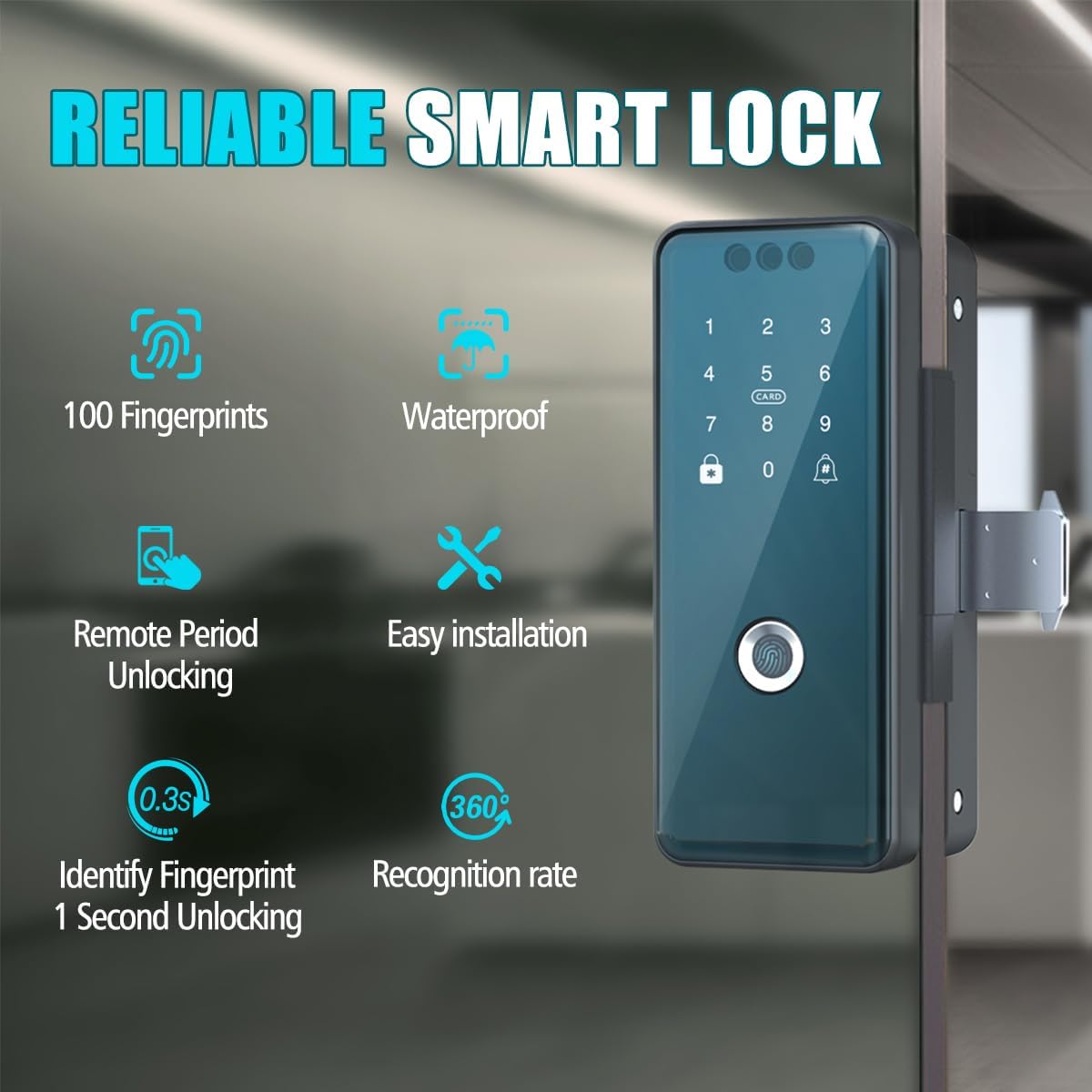
Figure 2.2: Key features of the wisuwore smart lock, including fingerprint capacity and recognition speed.
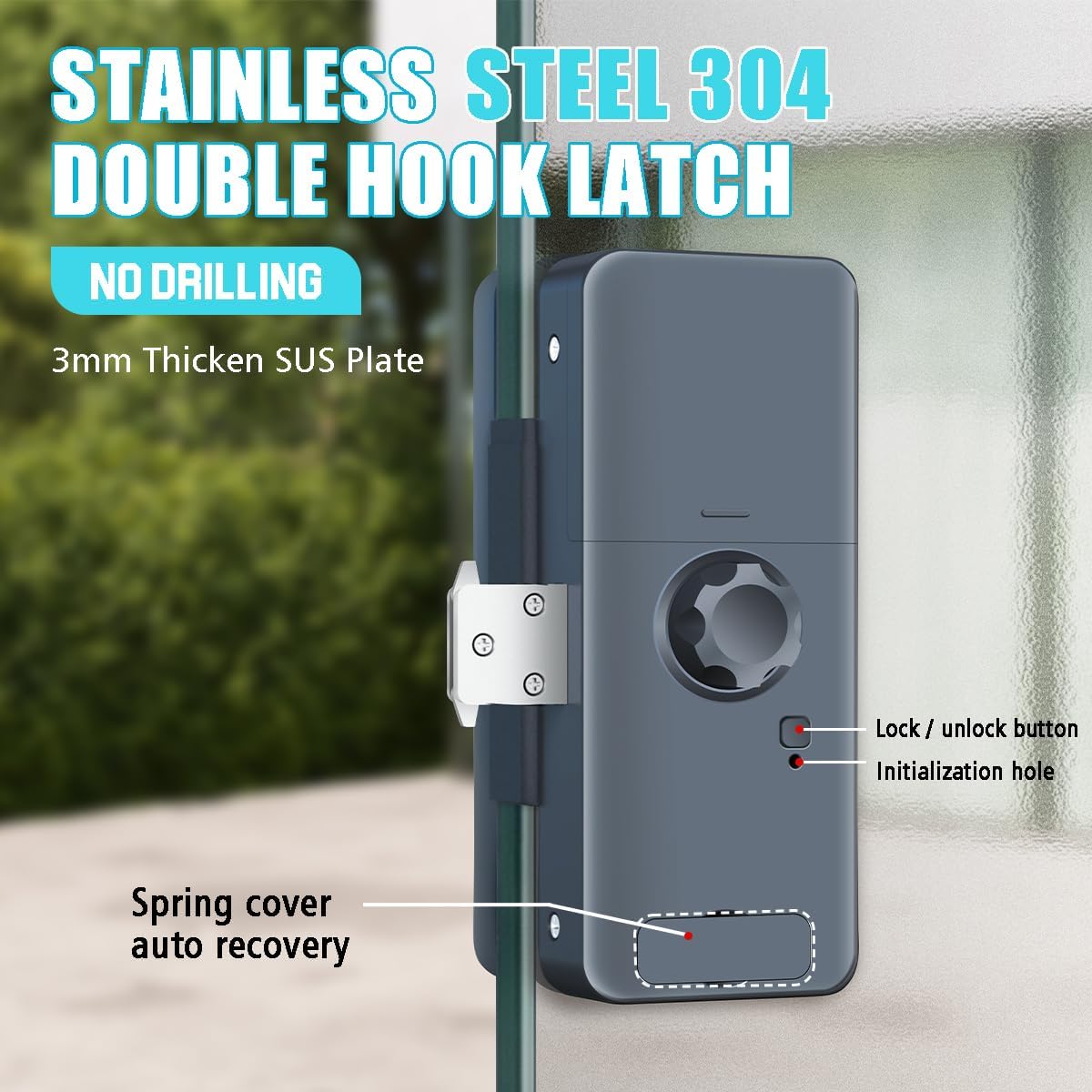
Figure 2.3: Detail of the Stainless Steel 304 double hook latch, designed for secure, drill-free installation.

Figure 2.4: Door compatibility and dimensions for the wisuwore smart lock on unframed glass doors.

Figure 2.5: The curved tempered glass panel of the smart lock, providing durability and a sleek design.

Figure 2.6: The wisuwore smart lock with its accompanying IC cards and the Tuya Smart App interface.
3. Setup and Installation
Before installation, ensure your door meets the specified requirements (frameless glass, 10-12mm thickness). The lock is designed for easy, drill-free installation.
3.1 Installation Steps
- Prepare the Door: Clean the glass surface where the lock will be mounted.
- Apply Template: Use the provided installation template to mark the precise location for the mounting plates on your glass door.
- Attach Mounting Plates: Securely attach the inner and outer mounting plates to the door using the adhesive and screws provided. Ensure they are aligned correctly.
- Install Lock Body: Connect the main lock unit to the inner mounting plate. Ensure all cables are properly routed and connected.
- Install Latch Unit: Attach the latch unit to the outer mounting plate, ensuring it aligns with the main lock unit for proper locking function.
- Secure Components: Tighten all screws to ensure the lock is firmly attached to the door.
- Insert Batteries: Open the battery compartment and insert the required batteries (not included).
3.2 App Setup (Tuya Smart App)
- Download App: Download the Tuya Smart App from your device's app store.
- Register/Login: Create an account or log in to your existing Tuya Smart account.
- Add Device: Follow the in-app instructions to add your smart lock. This typically involves putting the lock into pairing mode and connecting it to your home Wi-Fi network.
- Configure Settings: Once connected, you can configure user fingerprints, passcodes, IC cards, and face recognition data through the app.
3.3 Installation Video
Video 3.1: Official installation guide for the wisuwore Smart Fingerprint Deadbolt Lock on glass doors.
4. Operating Instructions
The wisuwore smart lock offers multiple ways to unlock and manage access.
4.1 Unlocking Methods
- Face Recognition: Stand in front of the lock, and it will automatically recognize your registered face to unlock.
- Fingerprint Unlock: Place your registered finger on the fingerprint sensor. The lock will unlock within 0.3 seconds upon successful recognition.
- Passcode Entry: Enter your registered passcode on the keypad. For enhanced security, use anti-peep virtual passwords by adding random digits before or after your actual code.
- IC Card: Tap your registered IC card against the designated area on the lock.
- Tuya App Control: Use the Tuya Smart App on your smartphone to remotely unlock the door via Wi-Fi.
- Mechanical Key: In case of emergency or power failure, use the provided mechanical key to unlock the door.
4.2 Lock Management via Tuya Smart App
The Tuya Smart App allows comprehensive management of your lock:
- User Management: Add or delete fingerprints, passcodes, and IC cards for different users (admin and regular users).
- Remote Access: Unlock the door remotely from anywhere with an internet connection.
- Temporary Passcodes: Generate one-time or time-limited passcodes for guests or service providers.
- Unlock Records: View a history of all unlock events, including method and user.
- Auto-Lock: Configure the auto-lock feature for automatic locking after a set period.
- Privacy Lock: Activate the indoor privacy lock for added security from the inside.
5. Maintenance
Proper maintenance ensures the longevity and optimal performance of your smart lock.
5.1 Battery Replacement
The lock requires batteries (not included). When the battery level is low, the lock will provide alerts. Replace batteries promptly to avoid interruption of service. Use the specified battery type and ensure correct polarity. In case of complete battery depletion, the lock can be temporarily powered via a USB emergency power source.
5.2 Cleaning
Clean the lock's exterior, especially the fingerprint sensor and keypad, with a soft, dry cloth. Avoid using abrasive cleaners or solvents that could damage the finish or electronic components.
6. Troubleshooting
Refer to the following common issues and solutions:
- Lock does not connect to Wi-Fi: Ensure your Wi-Fi router is within range and the signal is strong. Re-attempt the pairing process in the Tuya Smart App. Check if your Wi-Fi network is 2.4GHz, as some smart devices do not support 5GHz networks.
- Difficulty with programming/setup: Ensure you are following the instructions in the Tuya Smart App precisely. If issues persist, refer to the app's help section or contact customer support for assistance.
- Fingerprint/Face recognition failure: Ensure your finger/face is clean and properly positioned on the sensor/camera. Re-register your fingerprint/face if recognition continues to fail.
- Low battery alerts: Replace the batteries immediately. If the lock is completely dead, use a USB power bank to temporarily power it via the emergency USB port.
- Lock not responding: Check battery levels. If batteries are fine, try restarting the lock by removing and reinserting the batteries. If the issue persists, a factory reset might be necessary (refer to the app or support for instructions).
7. Specifications
| Feature | Detail |
|---|---|
| Brand | wisuwore |
| Model Name | Face Door Lock |
| Lock Type | Frameless Glass Doors (Face Recognition) |
| Special Feature | 3D Face, One-Touch Lock |
| Material | Aluminum |
| Color | Black |
| Item Dimensions (L x W x H) | 2.76 x 1.4 x 7.3 inches |
| Item Weight | 4 Pounds |
| Connectivity Protocol | Wi-Fi |
| Control Method | App, Remote, Touch |
| Batteries Required? | Yes (Batteries Not Included) |
| Recommended Uses | Door locks |
8. Warranty Information
This wisuwore product is covered by a manufacturer's warranty. Please refer to the warranty card included with your product packaging for specific terms, conditions, and duration. Retain your proof of purchase for warranty claims.
9. Support Contact
For any product issues, inquiries, or technical assistance, please contact wisuwore customer support. Free assistance will be provided for product-related concerns. Refer to the contact information provided in your product packaging or visit the official wisuwore website for support details.