
Beelink Z83V
Beelink Z83-V Mini PC User Manual
Model: Z83V
1. Introduction
This user manual provides detailed instructions for the setup, operation, and maintenance of your Beelink Z83-V Mini PC. Please read this manual thoroughly before using the device to ensure optimal performance and longevity.
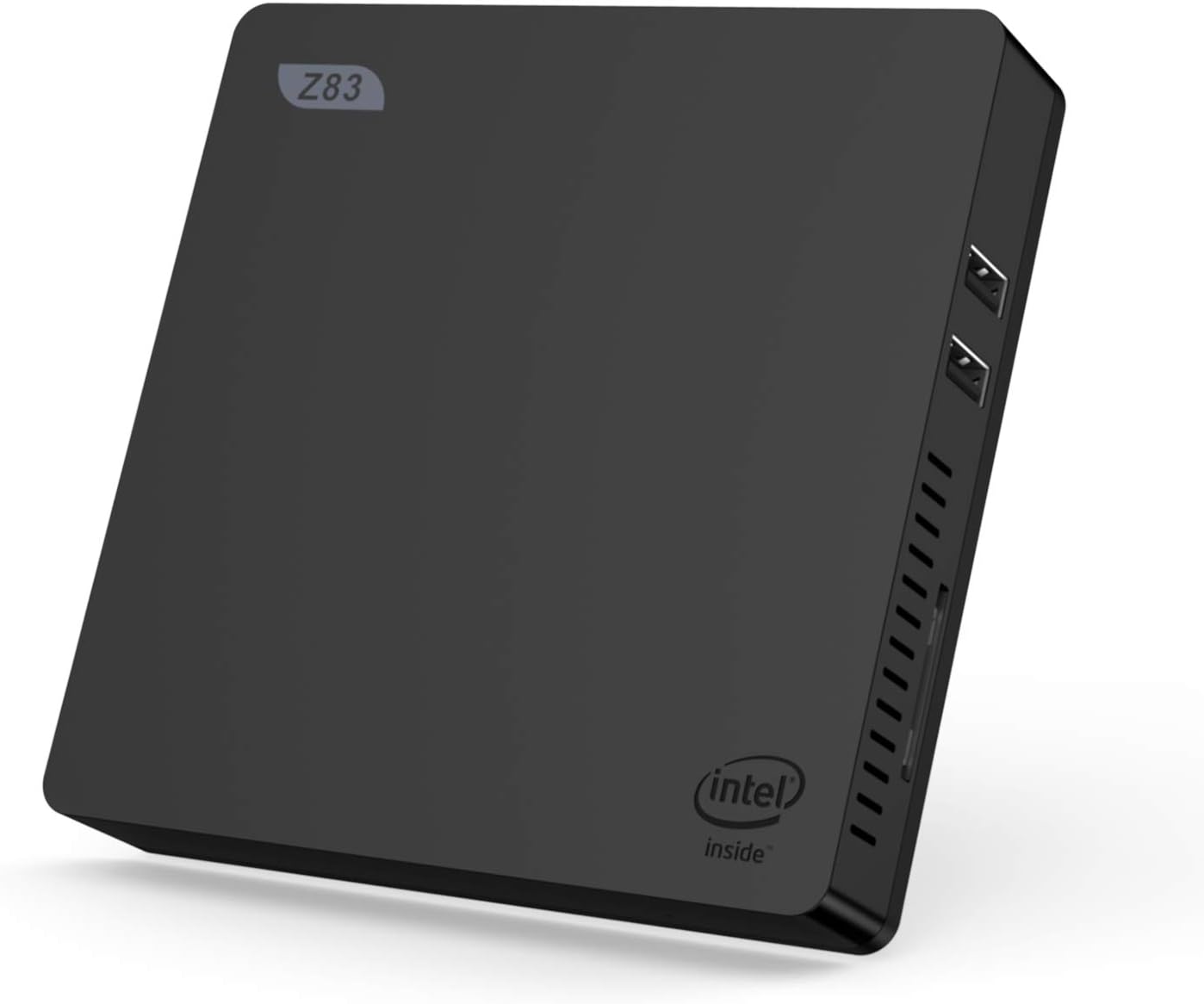
Image 1.1: Front view of the Beelink Z83-V Mini PC, showcasing its compact design.
2. Package Contents
Verify that all items listed below are included in your package. If any items are missing or damaged, please contact customer support.
- 1x Beelink Z83-V Mini PC
- 1x Power Adapter (12V/1.5A)
- 1x Mounting Bracket
- 1x User Manual
- 1x HDMI Cable
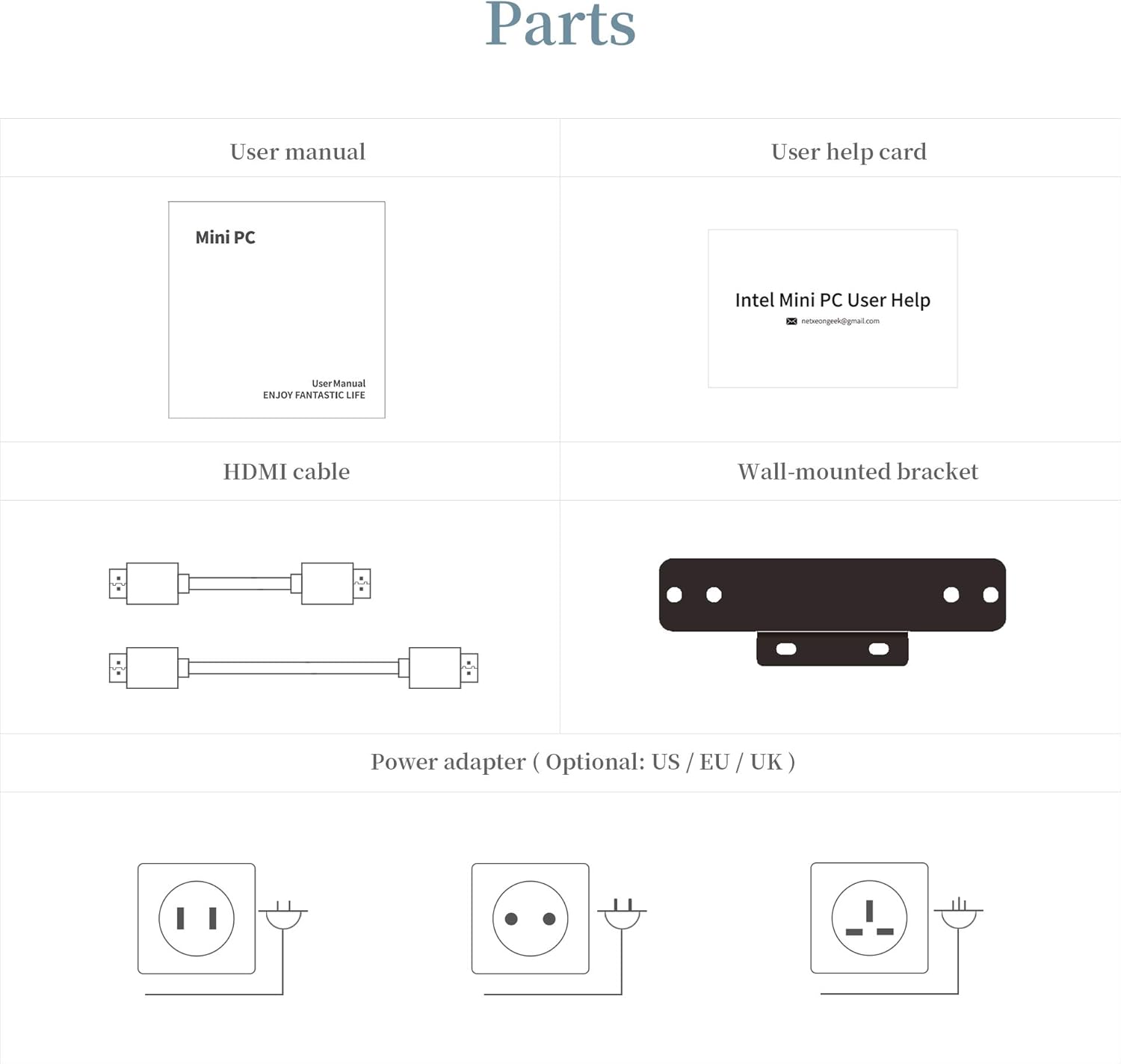
Image 2.1: Overview of the components included with the Beelink Z83-V Mini PC.
3. Product Features and Specifications
The Beelink Z83-V Mini PC is designed for efficient performance in a compact form factor. Key features and specifications are detailed below:
3.1. System Configuration
- Processor: Intel Atom x5-Z8350 (1.44GHz, up to 1.92GHz Burst Frequency, 2MB Cache)
- RAM: 4GB DDR3
- Storage: 64GB SSD
- Graphics: Intel HD Graphics 400
- Ethernet: 1000Mbps LAN
- WiFi: 802.11a/b/g/n, 2.4G+5.8G Dual WiFi
- Bluetooth: 4.0
- Operating System: OS (pre-installed)

Image 3.1: Visual representation of the Beelink Z83-V's core specifications.
3.2. Ports and Interfaces
- 1x VGA Port
- 1x HDMI Port
- 1x USB 3.0 Port
- 3x USB 2.0 Ports
- 1x RJ45 (LAN) Port
- 1x Audio Jack (HP&MIC) Port
- 1x SD Card Slot
- Power Button
- DC Power Port
- Power LED
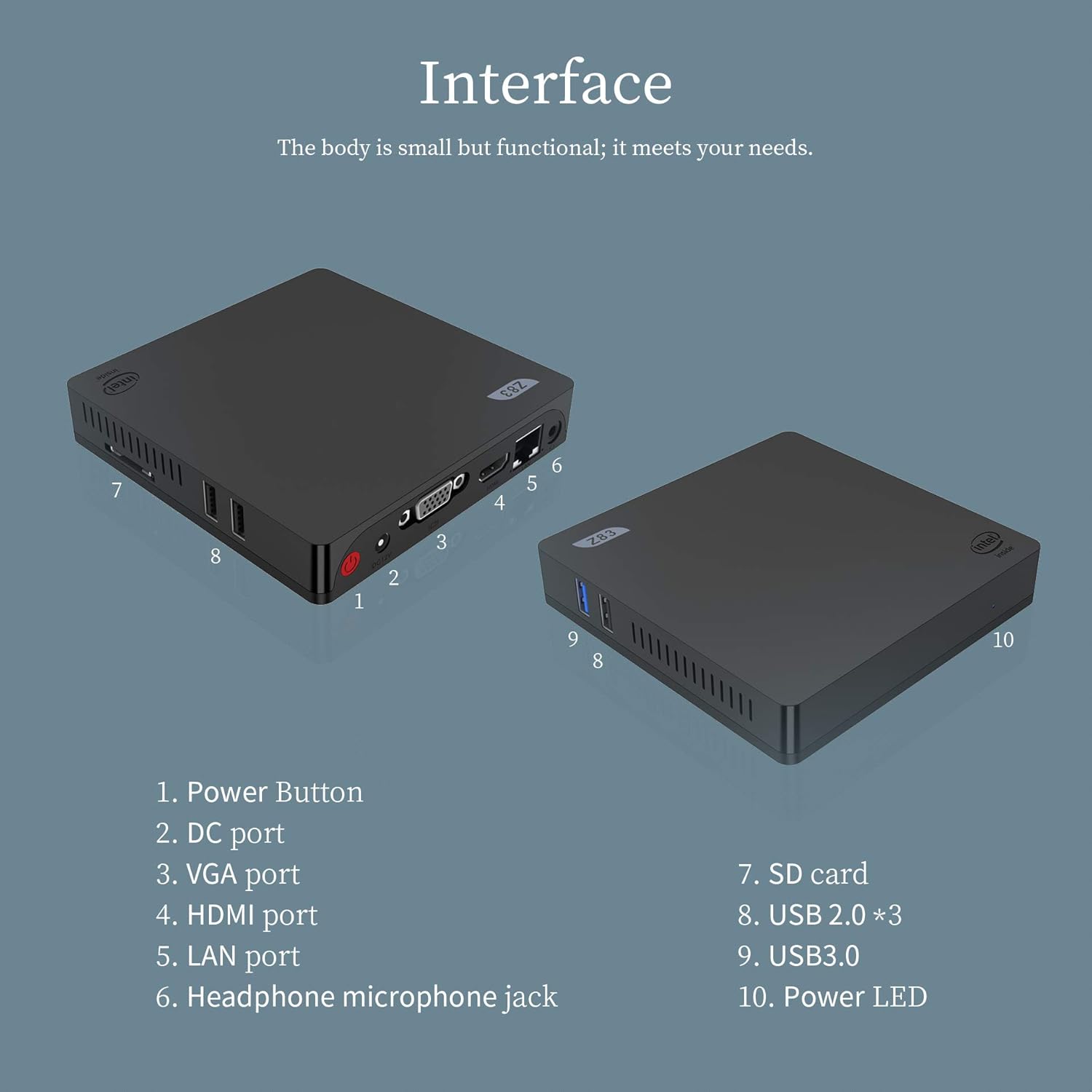
Image 3.2: Detailed view of the Beelink Z83-V Mini PC's input/output interfaces.
3.3. Physical Dimensions
- Product Dimensions: 4.7 x 4.7 x 0.9 inches (120mm x 120mm x 22mm)
- Weight: Approximately 229g

Image 3.3: Dimensions and weight of the Beelink Z83-V Mini PC.
4. Setup Guide
Follow these steps to set up your Beelink Z83-V Mini PC.
4.1. Connecting to a Display
- Connect one end of the HDMI cable (or VGA cable) to the corresponding port on the Mini PC.
- Connect the other end of the cable to your monitor or TV.
- For dual-screen setup, connect both HDMI and VGA ports to two separate displays.

Image 4.1: Dual-screen display setup with the Beelink Z83-V Mini PC.
4.2. Power Connection
- Connect the power adapter to the DC power port on the Mini PC.
- Plug the power adapter into a wall outlet.
4.3. Connecting Peripherals
- Connect your keyboard and mouse to the available USB ports.
- For wired internet, connect an Ethernet cable to the RJ45 port.
- Insert an SD card into the SD card slot if desired.
4.4. Mounting the Mini PC
The included mounting bracket allows for easy installation behind a monitor or on a wall.
- Screw the wall-mounted bracket to the Beelink Z83-V Mini PC.
- Screw the combined unit to the back of your display or desired mounting surface.
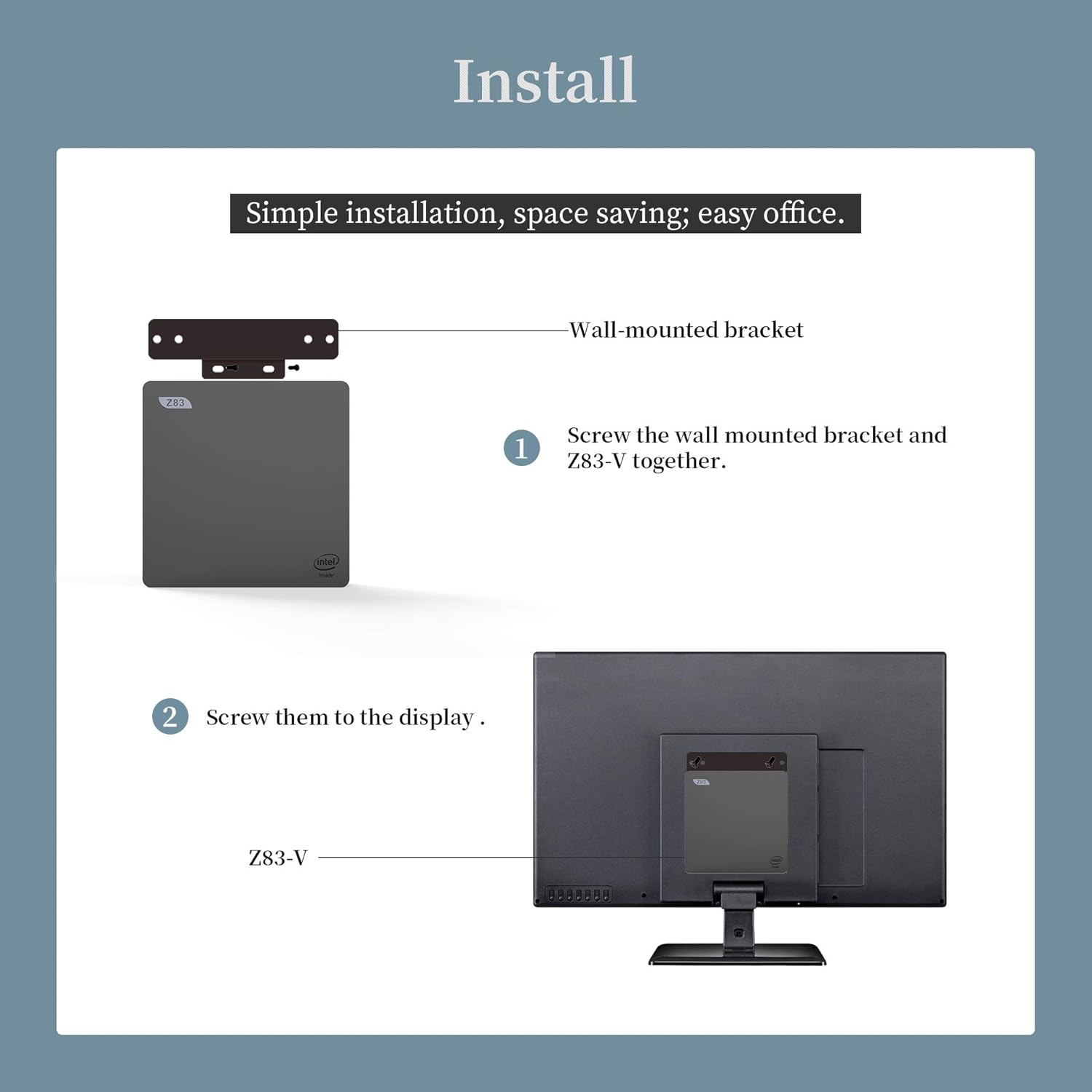
Image 4.2: Installation steps for the Beelink Z83-V Mini PC using the mounting bracket.
5. Operating Instructions
5.1. Powering On/Off
- To Power On: Press the Power Button located on the device. The Power LED will illuminate.
- To Power Off: Use the operating system's shutdown function. Alternatively, press and hold the Power Button for a few seconds for a forced shutdown (not recommended for regular use).
5.2. Network Connectivity
The Beelink Z83-V supports both wired and wireless network connections.
- Wired Connection: Connect an Ethernet cable to the RJ45 port. The system will automatically detect the connection.
- Wireless Connection (Wi-Fi): Navigate to the network settings in your operating system, select your desired 2.4G or 5.8G Wi-Fi network, and enter the password.

Image 5.1: Network capabilities of the Beelink Z83-V Mini PC.
6. Maintenance
Proper maintenance ensures the longevity and stable operation of your Mini PC.
- Cleaning: Use a soft, dry cloth to clean the exterior of the device. Avoid liquid cleaners.
- Ventilation: Ensure the cooling vents are not obstructed to prevent overheating. The device features a cooling hole design and internal heat sink.
- Software Updates: Regularly update your operating system and drivers to maintain security and performance.

Image 6.1: Cooling system design of the Beelink Z83-V Mini PC.
7. Troubleshooting
If you encounter issues with your Beelink Z83-V Mini PC, refer to the common problems and solutions below. For further assistance, please contact customer support.
7.1. Common Issues and Solutions
- Q: What should I do if there are problems with my mini computer during use?
- A: Please contact our store staff first, and we will provide you with relevant solutions.
- Q: What if I want to set the auto power on function?
- A: Please contact us and provide a picture of the barcode on the bottom of the machine for a setup guide for the automatic power on function.
- Q: What if the system or key is lost?
- A: Please contact us and provide a barcode image at the bottom of the machine for obtaining system files and reinstallation instructions.
8. Warranty and Support
Beelink is committed to providing high-quality products and customer service.
- Warranty: This product typically comes with a 1-year warranty service. Please refer to your purchase documentation for specific warranty terms.
- Technical Support: Lifetime after-sale service and technical support are available.
- Customer Service: 7 days a week, 24 hours a day customer service is provided.
- Fulfillment: Products are fulfilled by Amazon, ensuring reliable delivery and return processes.
For any inquiries or support needs, please refer to the contact information provided with your product or visit the official Beelink website.
Related Documents - Z83V
 |
Beelink Mini PC Auto Power On Configuration Guide Instructions on how to enable the automatic power-on feature for Beelink Mini PCs using either BIOS settings or a hardware jumper. |
 |
Beelink GTR7 Mini PC: Guide to Activating TPM 2.0 for Windows 11 Step-by-step instructions on how to activate TPM 2.0 on the Beelink GTR7 Mini PC to meet Windows 11 requirements. Learn to navigate BIOS settings and enable AMD fTPM. |
 |
Beelink SER6 Pro Mini PC User Guide and Specifications Comprehensive guide to the Beelink SER6 Pro Mini PC, featuring AMD Ryzen 7 7735HS processor, 32GB DDR5 RAM, 500GB NVMe SSD, and triple display support. Includes technical specifications and usage instructions. |
 |
Beelink ME Pro User Manual: Setup and Operation Guide Comprehensive user manual for the Beelink ME Pro, detailing product overview, package contents, HDD and M.2 SSD installation, cable connections, and safety precautions. Learn how to set up and operate your smart data management center. |
 |
Beelink MINI S12 Mini PC User Guide and Specifications Explore the features, specifications, and connectivity options of the Beelink MINI S12 mini PC. This guide provides detailed information on its Intel Celeron N5095 processor, dual display support, and various ports. |
 |
Beelink ME Mini PC: SSD Installation Guide and Product Overview Comprehensive guide to installing and replacing SSDs on the Beelink ME Mini PC, detailing interfaces, connections, and product specifications for optimal data management. |
Ask a question about this manual
Ask about setup, troubleshooting, compatibility, parts, safety, or missing instructions. Manuals+ will review the question and use this page’s manual context to help answer it.