Introduction
This user manual provides comprehensive instructions for the installation, operation, and maintenance of your Woibugee 7 Inch Single Din Touchscreen Car Radio. This advanced car stereo system features wireless Apple CarPlay and Android Auto, GPS navigation, Bluetooth connectivity, Wi-Fi, FM radio, USB support, hands-free calling, and mirror link capabilities, designed to enhance your in-car multimedia experience.

Image: Front view of the Woibugee 7 Inch Single Din Touchscreen Car Radio, showcasing its large display and compact single-DIN chassis.
Safety Information
Please read all safety warnings and instructions carefully before installing and operating this device. Failure to follow these instructions may result in injury or damage to the device or vehicle.
- Professional Installation Recommended: For optimal safety and performance, it is recommended to have this product installed by a qualified professional.
- Disconnect Battery: Always disconnect the vehicle's negative battery terminal before beginning any installation or wiring work on the car stereo. Reconnect the battery only after the stereo is fully installed and all wiring is secure.
- Avoid Distractions: Do not operate the device or view videos while driving. Distracted driving can lead to accidents.
- Proper Ventilation: Ensure the unit has adequate ventilation to prevent overheating.
- Check Compatibility: Before purchasing and installing, verify that the single DIN unit will not obstruct air vents, emergency switch buttons, or other critical vehicle controls.
Package Contents
Verify that all items listed below are included in your product packaging:

Image: Diagram illustrating the dimensions of the head unit and a visual list of included accessories.
- Power Cable
- GPS Antenna
- Audio Video Adapter Cable
- Backup Camera Video Input Cable
- USB Adapter Cable
- CarPlay & Android Auto USB Adapter Cable
- External Microphone
- Installation Brackets
Product Overview
The Woibugee 7 Inch Single Din Touchscreen Car Radio is an advanced multimedia system designed for seamless integration into your vehicle. Key features include:
- Wireless Apple CarPlay & Android Auto: Connect your smartphone wirelessly for navigation, music, messages, and calls via Siri or Google Assistant.
- Android System: Download and install various applications from the Google Play Store, such as Spotify, Pandora, and YouTube.
- In-Dash GPS Navigation: Utilize built-in Wi-Fi and GPS for online and offline navigation with apps like Waze and Google Maps.
- Customizable UI Options: Personalize your interface with 19 free UI options and additional paid choices.
- Bluetooth & Dual Microphone: Enhanced Bluetooth for faster transmission and stronger anti-interference, with built-in and external microphones for clear call quality.
- Mirror Link: Supports screen mirroring for both Android phones and iPhones.

Image: The car radio display showcasing a variety of downloadable applications, highlighting its Android operating system.
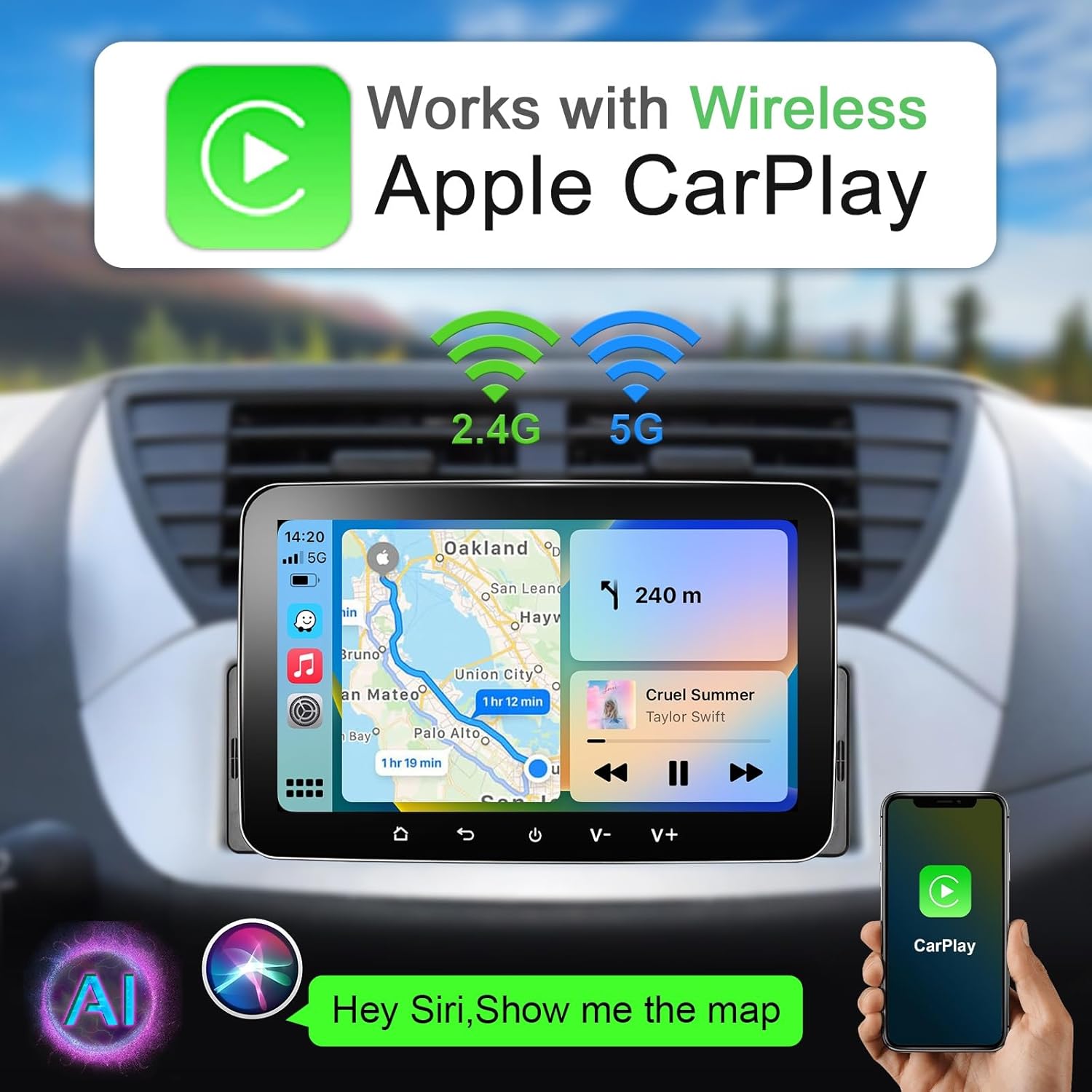
Image: The car radio screen displaying the Apple CarPlay interface, featuring navigation and music playback.
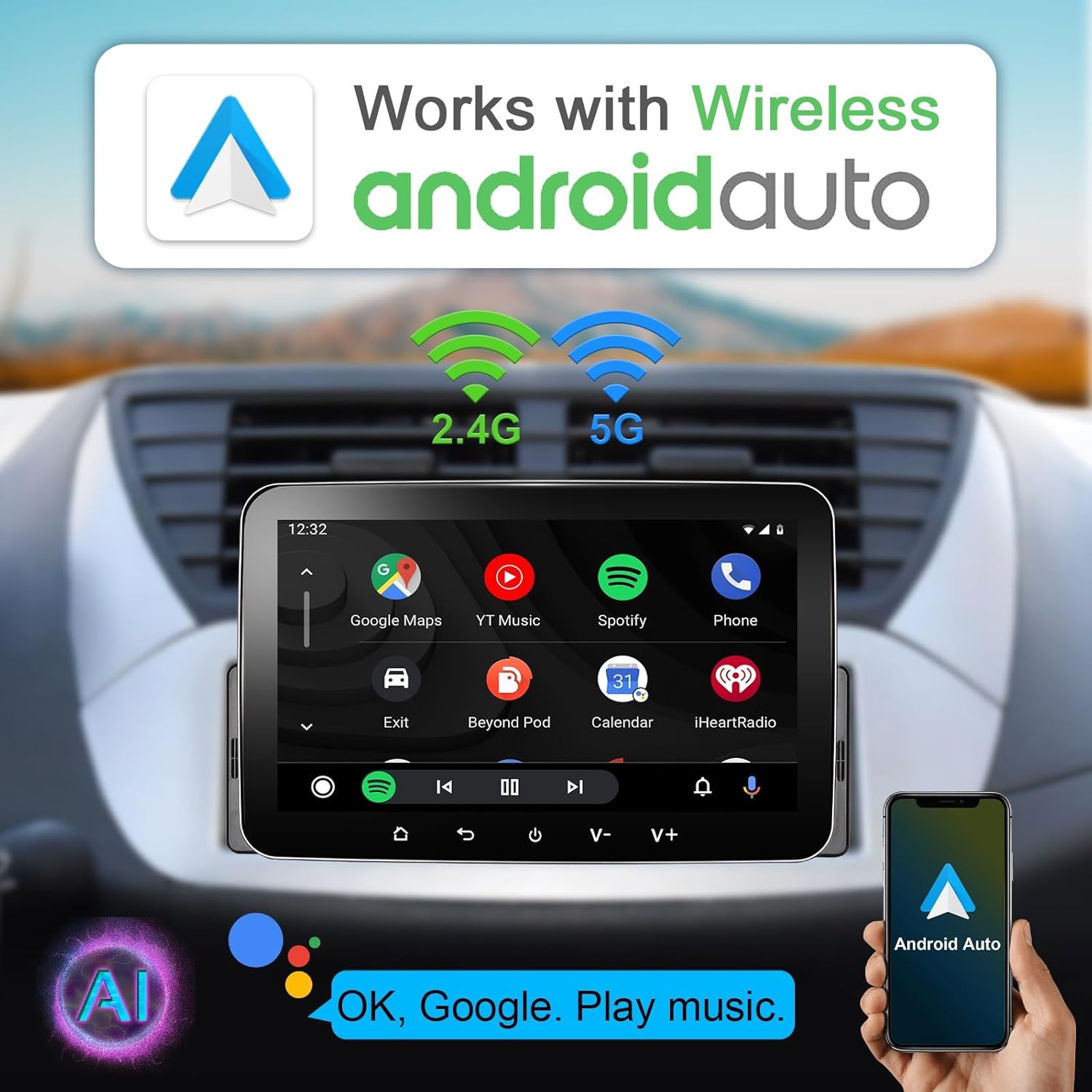
Image: The car radio screen displaying the Android Auto interface, showing Google Maps and music controls.
Installation
Proper installation is crucial for the functionality and safety of your car radio. Follow these general guidelines:
- Preparation: Before starting, ensure your vehicle's battery negative terminal is disconnected to prevent electrical shorts.
- Mounting: Install the single DIN unit into your vehicle's dashboard opening. Use the provided installation brackets to secure the unit.
- Wiring: Connect the power cable, GPS antenna, audio/video adapter cables, and any other necessary inputs (e.g., backup camera, external microphone) according to the wiring diagram provided with your unit.
- Reversing Camera Wiring (Example):

Image: A detailed wiring diagram illustrating how to connect a reversing camera to the car radio system. Note: Reversing camera is not included and must be purchased separately.
Connect the backup camera video input cable to the corresponding port on the head unit. Ensure the camera's power is connected to the vehicle's reverse light circuit for automatic activation when shifting into reverse.
- Final Check: Double-check all connections before reconnecting the battery's negative terminal.

Image: A visual comparison showing a car's dashboard with the original stereo and then with the Woibugee 7 Inch Single Din Touchscreen Car Radio installed.
Setup
After successful installation, power on the unit and proceed with the initial setup:
- Initial Boot: The system will boot up to the main Android interface.
- Wi-Fi Connection: Navigate to Settings > Network & Internet > Wi-Fi to connect to an available Wi-Fi network. This is necessary for app downloads, online navigation, and system updates.
- Bluetooth Pairing: Go to Settings > Connected devices > Bluetooth to pair your smartphone for hands-free calling and audio streaming.
- UI Customization: Access the "Theme-download" section (usually an icon in the top right corner of the screen) to select from 19 free user interface options to personalize your display.

Image: The car radio screen displaying multiple home screen themes available for customization.
Operating Instructions
This section details the primary functions of your car radio.
Wireless Apple CarPlay & Android Auto
Once your phone is paired via Bluetooth and Wi-Fi, the CarPlay or Android Auto interface should automatically launch or be accessible from the main menu. Use voice commands (Siri or Google Assistant) or the touchscreen to navigate, make calls, send messages, and control music.
Video: A demonstration of the 7 Inch Single Din Car Play Stereo, showing its interface, app navigation, music playback, equalizer settings, and app installation from the Google Play Store, including YouTube video playback.
GPS Navigation
The unit supports online and offline navigation. Ensure you have downloaded offline maps if you plan to use navigation without an internet connection. Use Waze, Google Maps, or other compatible navigation apps.

Image: The car radio screen displaying a GPS navigation map with route information.
Media Playback
Play music or videos from various sources including USB, Bluetooth streaming, or installed apps like Spotify and YouTube. The unit features a 16-band equalizer for audio customization.

Image: The car radio screen displaying the 16-band equalizer interface for audio adjustments.
Mirror Link
Connect your smartphone via USB to mirror its screen onto the car radio display. This allows you to view content from your phone directly on the larger screen.

Image: The car radio screen displaying a smartphone's mirrored display, showing a video of a basketball game.
Steering Wheel Control
If your vehicle supports it, you can connect the unit to your steering wheel controls for convenient operation of volume, track changes, and call management without taking your hands off the wheel.

Image: A diagram illustrating how steering wheel controls can be used to operate the car radio, showing icons for call, volume, and track control.
Rear View Camera Support
When a compatible rear view camera is connected and properly wired, the display will automatically switch to the camera feed when the vehicle is put into reverse, aiding in parking and maneuvering.

Image: The car radio screen displaying a rear view camera feed with parking guidelines, assisting with safe reversing.
Maintenance
To ensure the longevity and optimal performance of your car radio, follow these maintenance tips:
- Cleaning the Screen: Use a soft, lint-free cloth to gently wipe the touchscreen. For stubborn smudges, slightly dampen the cloth with water or a screen-safe cleaner. Avoid abrasive materials or harsh chemicals.
- Software Updates: Periodically check for software updates via the system settings or the manufacturer's website to ensure you have the latest features and bug fixes.
- Avoid Extreme Temperatures: Do not expose the unit to extreme hot or cold temperatures for prolonged periods, as this can affect its electronic components.
- Protect from Liquids: Keep liquids away from the unit to prevent damage.
Troubleshooting
If you encounter issues with your car radio, refer to the following common problems and solutions:
| Problem | Possible Cause / Solution |
|---|---|
| No Power / Unit Does Not Turn On |
|
| No Apple CarPlay / Android Auto Connection |
|
| No Sound |
|
| GPS Signal Lost / Inaccurate |
|
| Touchscreen Unresponsive |
|
Specifications
| Feature | Detail |
|---|---|
| Model Name | RM |
| Screen Size | 7 Inches (18 cm diagonal) |
| Resolution | 1024 x 600 |
| Display Type | LCD |
| Connectivity Technology | Wireless Apple CarPlay, Android Auto, Bluetooth, Wi-Fi, USB |
| Special Feature | Wireless Apple CarPlay, Wireless Android Auto |
| Vehicle Service Type | Car |
| Map Type | North America (offline maps not included) |
| Mounting Type | Dashboard Mount |
| Package Dimensions | 11.14 x 8.78 x 6.06 inches |
| Item Weight | 3.03 pounds |
Warranty and Support
For warranty information, please refer to the documentation included with your purchase or contact the seller directly. Woibugee is committed to providing quality products and customer satisfaction.
If you require technical assistance or have questions not covered in this manual, please reach out to the Woibugee customer support team through the retailer where you purchased the product or visit the official Woibugee store page on Amazon for contact details.
Online Resources:


