
1. Introduction
This manual provides essential instructions for the installation, operation, and maintenance of your EAZUSE Starlink Ethernet Adapter Gen 3/Mini. This adapter is designed to facilitate a direct Ethernet connection for Starlink Standard Gen 3 and Starlink Mini dishes, enabling a stable wired internet connection.

Figure 1: EAZUSE Starlink Ethernet Adapter Gen 3/Mini. This image shows the compact design of the adapter, featuring the Starlink plug on one end and the RJ45 female adapter on the other, with a protective cap.
2. Setup
The EAZUSE Starlink Ethernet Adapter offers a plug-and-play solution for integrating your Starlink system with standard Ethernet networks. Follow these steps for proper installation:
- Connect to Starlink: Plug the integrated Starlink plug of the adapter into your Starlink Standard Gen 3 or Starlink Mini dish/router. Ensure a secure connection.
- Connect Ethernet Cable: Connect a standard Ethernet cable (Cat6 or higher recommended) to the female RJ45 adapter (T568B) end of the EAZUSE adapter.
- Connect to Network Device: Connect the other end of your Ethernet cable to your desired network device, such as a computer, laptop, smart TV, gaming console, or a third-party router.

Figure 2: Multipurpose Adapter Connection Diagram. This diagram illustrates how the adapter connects the Starlink router to a custom length Ethernet cable, which can then connect to various devices or a PoE injector and a third-party router.
Installation Guidelines:
- For optimal performance, use a single Cat6 or higher Ethernet cable without additional couplers or extenders to minimize contact resistance.
- Keep the total Ethernet cable length under 175 feet (50 meters) to ensure reliable operation.
- If using crimped Ethernet cables, verify that the RJ45 connectors are securely attached.
- When installing the waterproof socket, handle cable ends carefully to prevent twisting or damage.
RV Enthusiasts Tip:
If an Ethernet cable coupler or extender is necessary, select Cat6A or higher cables with 23AWG or thicker wiring and high-quality RJ45 connectors for a stable connection. For reliable performance, especially with third-party PoE injectors, use standard Ethernet cables (23AWG or better) with a maximum length of 75 feet.
3. Operation
Once the EAZUSE Starlink Ethernet Adapter is correctly installed, your Starlink system will provide a wired internet connection through the connected Ethernet cable. The adapter is designed for seamless data transfer and high-speed connectivity up to 1200Mbps.
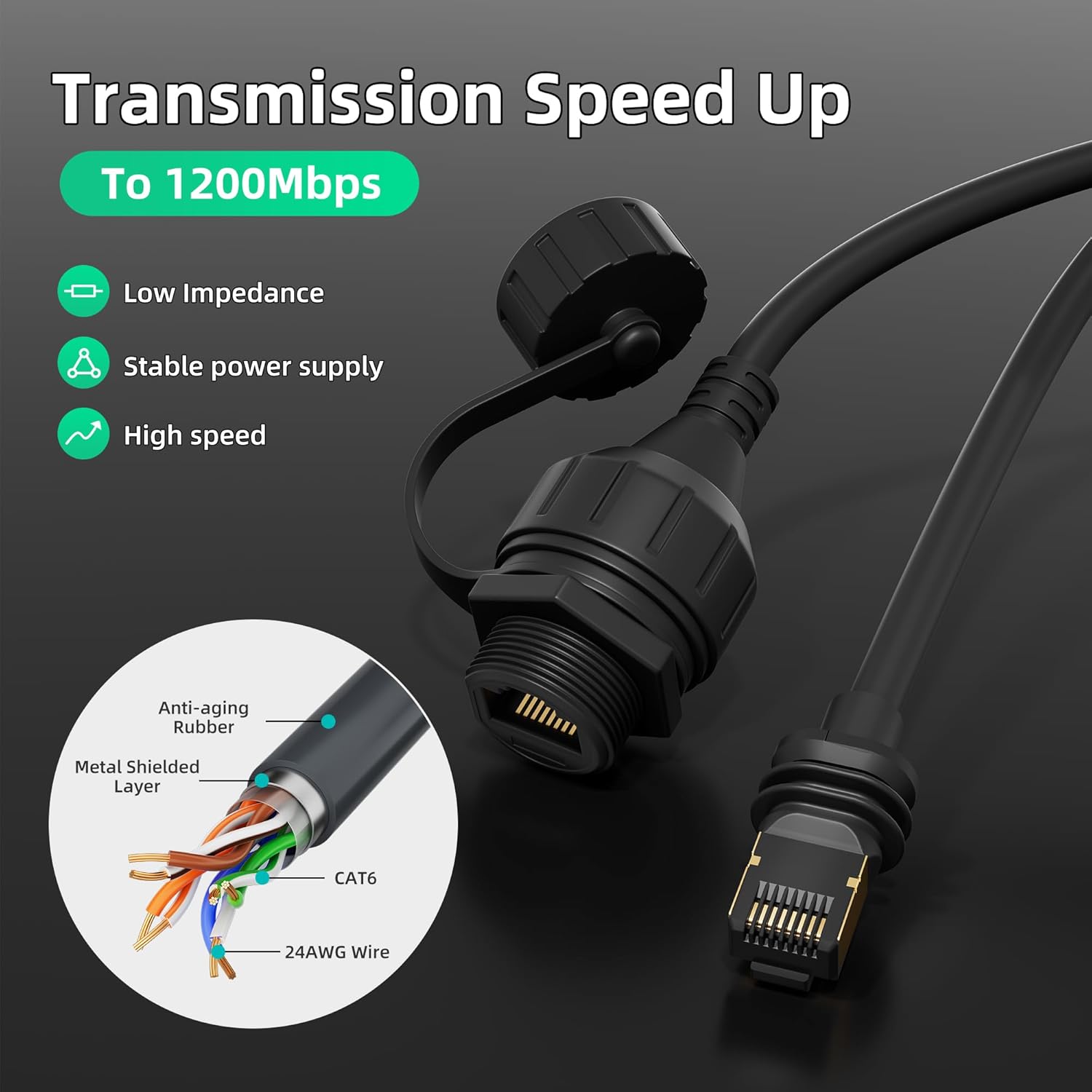
Figure 3: Transmission Speed Up. This image highlights the adapter's capability for high-speed data transfer up to 1200Mbps, featuring low impedance, stable power supply, and a detailed view of the CAT6 cable's internal structure with a metal shielded layer and 24AWG wire.
The adapter ensures a stable power supply and low impedance for consistent network performance.
4. Maintenance
The EAZUSE Starlink Ethernet Adapter is built for durability and outdoor use. Minimal maintenance is required.
Waterproof Features:
The adapter includes a waterproof kit for standard Ethernet cables. Once connected, both the female and male ends are fully waterproof, protecting your network components from moisture and dirt. This ensures reliable connections in various weather conditions.

Figure 4: IP67 Waterproof Rating. This image demonstrates the IP67 waterproof capability of the adapter, showing it in various weather conditions like clear sky, sand dust, rainy day, and snowy day, indicating its suitability for outdoor use.
Protective End Caps:
The adapter is equipped with end caps to protect the connectors from scratches or corrosion when not in use. Always ensure these caps are properly secured to maintain the integrity of the connections.

Figure 5: Equipped with End Caps. This image shows the adapter with and without its protective end caps, highlighting how the caps protect the RJ45 connector from scratches and corrosion.
5. Troubleshooting
If you encounter issues with your EAZUSE Starlink Ethernet Adapter, consider the following:
- No Internet Connection:
- Verify all cable connections are secure and fully seated.
- Ensure the Starlink dish and router are powered on and functioning correctly.
- Check the integrity of your Ethernet cable. Try a different cable if possible.
- Confirm the Ethernet cable length is within the recommended 175 feet (50 meters).
- Slow Connection Speed:
- Ensure you are using a Cat6 or higher Ethernet cable.
- Avoid using multiple couplers or extenders, as they can degrade signal quality.
- If using a third-party PoE injector, ensure it provides consistent power and use a standard Ethernet cable (23AWG or better) with a maximum length of 75 feet.
- Intermittent Connection:
- Inspect the waterproof seals and end caps for proper seating to prevent moisture or dirt ingress.
- Check for any physical damage to the adapter or cables.
6. Specifications
| Feature | Detail |
|---|---|
| Brand | EAZUSE |
| Model Name | Starlink Ethernet Adapter Gen 3/Mini |
| Part Number | ZQ-Gen3-RJ45-1 |
| Compatible Devices | Starlink Gen 3 Standard, Starlink Mini |
| Connector Type | RJ45 |
| Cable Type | Starlink |
| Ethernet Cable Category | Cat 6 (recommended Cat6A or higher for extenders) |
| Connector Gender | Male-to-Female |
| Number of Pins | 8 |
| Gauge | 23.0 (AWG) |
| Special Features | Data Transfer, High Speed, Weatherproof |
| Indoor/Outdoor Usage | Indoor, Outdoor |
| Color | One Port |
| Item Shape | Round |
| Unit Count | 1.0 Count |
| Number of Items | 1 |

Figure 6: Adapter Dimensions. This image provides a visual representation of the adapter's length, indicating 8.7 inches (22 cm) for the main body and 11.0 inches (28 cm) for the total length including the RJ45 connector.
7. What's in the Box
- 1 x Gen3 to RJ45 Adapter
8. Warranty and Support
Specific warranty information for this product is not provided in the available data. For details regarding warranty coverage, technical support, or service, please refer to the manufacturer's official website or contact EAZUSE customer service directly.