
1. Introduction
This manual provides detailed instructions for the installation, operation, and maintenance of your INLAND QN450 1000GB M.2 2280 NVMe Solid State Drive (SSD). The QN450 SSD utilizes a PCIe 4.0 Gen4x4 interface, offering high-speed data transfer rates suitable for various computing needs, including personal use, gaming, and business applications. Please read this manual thoroughly before proceeding with installation or use.

Image 1.1: The INLAND QN450 1000GB M.2 2280 NVMe SSD.
2. Safety Precautions
- Always power off your computer and disconnect it from the power source before installing or removing any internal components.
- Discharge any static electricity from your body by touching a grounded metal object (e.g., the computer chassis) before handling the SSD.
- Handle the SSD by its edges to avoid touching the gold connectors or components.
- Keep the SSD away from liquids and extreme temperatures.
3. Package Contents
Verify that your package contains the following items:
- INLAND QN450 M.2 NVMe SSD
- Mounting screw (may be included with your motherboard or laptop)
4. System Requirements
- An available M.2 slot on your motherboard or laptop that supports NVMe PCIe Gen4x4. The SSD is backward compatible with PCIe Gen3x4 slots, but performance will be limited to Gen3 speeds.
- Compatible operating system: Windows 8, 10, or 11.
- The SSD is also compatible with Sony PlayStation 5 for storage expansion.

Image 4.1: The INLAND QN450 SSD is widely compatible with various systems.
5. Installation
5.1. Desktop PC Installation
- Prepare your system: Power off your computer and unplug the power cable. Open the computer case.
- Locate the M.2 slot: Identify an available M.2 slot on your motherboard. Refer to your motherboard's manual for exact location and any necessary standoff/screw installation.
- Insert the SSD: Gently insert the INLAND QN450 SSD into the M.2 slot at a 30-degree angle, ensuring the gold contacts are fully seated.
- Secure the SSD: Push the SSD down until it is parallel with the motherboard. Secure it with the M.2 screw.
- Close the case: Reassemble your computer case and reconnect the power cable.
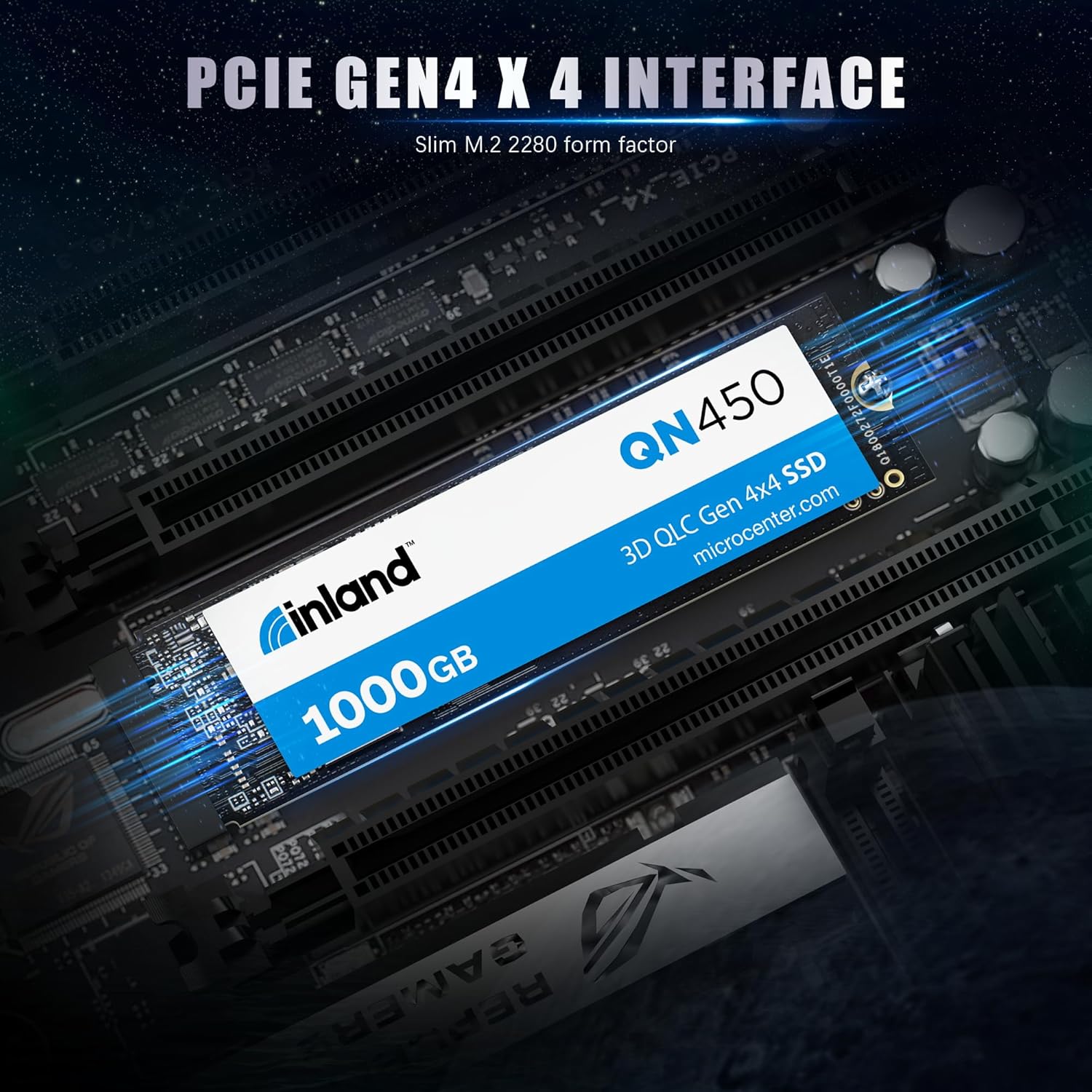
Image 5.1: The INLAND QN450 SSD featuring a PCIe Gen4x4 interface.
5.2. Laptop Installation
Laptop installation steps vary significantly by model. Consult your laptop's service manual for specific instructions on accessing and installing an M.2 SSD.
- Prepare your laptop: Power off your laptop, disconnect the power adapter, and remove the battery if it is external.
- Access the M.2 slot: Carefully remove the laptop's bottom cover to access the internal components.
- Insert and secure: Locate the M.2 slot, insert the SSD, and secure it with the provided screw or clip.
- Reassemble: Replace the bottom cover and battery.
6. Initial Setup and Operation
After physical installation, the SSD needs to be initialized and formatted before it can be used for storage.
6.1. Windows Operating System
- Boot your computer: Start your computer normally.
- Open Disk Management: Right-click on the Start button and select 'Disk Management'.
- Initialize Disk: A window will pop up asking you to initialize the new SSD. Select 'GPT (GUID Partition Table)' for modern systems and drives larger than 2TB. Click 'OK'.
- Create New Simple Volume: Right-click on the 'Unallocated' space of your new SSD and select 'New Simple Volume'.
- Follow the wizard: Assign a drive letter, choose a file system (NTFS is recommended for Windows), and perform a quick format. Click 'Finish'.
Your INLAND QN450 SSD is now ready for use. You can transfer files, install applications, or use it as a boot drive.
7. Maintenance
Proper maintenance ensures the longevity and optimal performance of your SSD.
- Enable TRIM: Ensure TRIM is enabled in your operating system. Windows typically enables TRIM by default for SSDs. TRIM helps the SSD manage data more efficiently, preventing performance degradation over time.
- Avoid Defragmentation: Do not defragment your SSD. Defragmentation is designed for HDDs and can reduce the lifespan of an SSD without providing any performance benefits.
- Firmware Updates: Periodically check the INLAND website for firmware updates for your QN450 SSD. Firmware updates can improve performance, stability, and compatibility.
- Monitor SSD Health: Use S.M.A.R.T. (Self-Monitoring, Analysis, and Reporting Technology) tools to monitor the health and status of your SSD. Many third-party utilities are available for this purpose.

Image 7.1: The INLAND QN450 SSD features advanced power management and reliability features.
8. Troubleshooting
8.1. SSD Not Detected
- Check physical connection: Ensure the SSD is correctly seated in the M.2 slot and the screw is tightened.
- Check BIOS/UEFI settings: Enter your system's BIOS/UEFI settings and ensure the M.2 slot is enabled and configured for NVMe. Some motherboards require specific settings for M.2 slots.
- Driver installation: For some older operating systems or specific motherboard chipsets, NVMe drivers might need to be installed. Check your motherboard manufacturer's website.
- Disk Management: Verify if the drive appears in Disk Management (Windows) as an uninitialized disk. If so, proceed with initialization and formatting as described in Section 6.
8.2. Slow Performance
- PCIe Slot: Ensure the SSD is installed in a PCIe Gen4x4 compatible M.2 slot to achieve advertised speeds. If installed in a Gen3 slot, performance will be limited.
- TRIM Status: Verify that TRIM is enabled for the SSD.
- Drivers: Ensure you have the latest NVMe drivers installed.
- Thermal Throttling: High temperatures can cause performance degradation. Ensure adequate airflow in your system and consider a heatsink for the M.2 SSD if temperatures are consistently high.

Image 8.1: Performance metrics of the INLAND QN450 SSD.
9. Specifications
| Feature | Specification |
|---|---|
| Model Name | QN450 |
| Digital Storage Capacity | 1000 GB |
| Hard Disk Interface | PCIE x 4 |
| Connectivity Technology | PCIe |
| Form Factor | M.2 2280 Inches |
| Read Speed | Up to 5000 MB/s |
| Write Speed | Up to 3500 MB/s (Sequential Writes) |
| Random Read/Write IOPS | 350K/450K IOPS |
| MTTF (Mean Time To Failure) | 1.5 million hours |
| TBW (Total Bytes Written) | 300 TBW |
| Special Features | Backward Compatible, Power Management Support (APST / ASPM / L1.2), SMART and TRIM commands, Advanced Wear Leveling, Bad Block Management, Over-Provision |
| Compatible Devices | Desktop, Gaming Console (Sony PlayStation 5), Laptop, Tablet, Television |
| Item Weight | 0.02 Kilograms |
10. Warranty and Support
INLAND products are designed for reliability and performance. For information regarding the warranty period and terms for your QN450 SSD, please refer to the warranty card included with your product or visit the official INLAND website. For technical support, troubleshooting assistance, or to inquire about warranty claims, please contact INLAND customer service or the retailer from whom you purchased the product.
You can find more information and support resources on the INLAND Store on Amazon.