
Aiacmea W10
Aiacmea 1080P Mini Pen Camera User Manual
Model: W10
Introduction
Thank you for choosing the Aiacmea 1080P Mini Pen Camera. This discreet and portable device is designed for effortless surveillance and recording in various environments, including home security, office recording, and exam monitoring. Its one-button operation and invisible design ensure ease of use and versatility. This manual provides detailed instructions for setting up, operating, and maintaining your pen camera to ensure optimal performance.
Product Overview
Familiarize yourself with the components of your Aiacmea Mini Pen Camera:
- Top Button: Used for power ON/OFF and initiating recording.
- Lens: The hidden camera lens for capturing video and photos.
- Indicator Light: Provides status feedback (e.g., power, recording, charging).
- Reset Button: Small pinhole for resetting the device.
- USB Charging Port: For charging the device and connecting to a computer.
- Micro SD Card Slot: For inserting the memory card (up to 64GB supported).
- Writing Refill: Standard pen refill for writing functionality.

This image displays the front and back of the Aiacmea Mini Pen Camera, highlighting key components such as the top button (ON/OFF), lens, indicator light, reset button, USB charging port, Micro SD card slot, and the replaceable writing refill. Dimensions are also shown: 14.5cm/5.7inch in length and 1.27cm/0.5inch in width.
Setup
1. Memory Card Installation
Before first use, ensure a Micro SD card (up to 64GB) is correctly inserted into the pen camera. The device requires a memory card to store recordings.
- Gently twist and pull the pen apart to reveal the internal components, including the USB charging port and Micro SD card slot.
- With the charging port facing upwards, insert the Micro SD card into the slot with the chip facing up. Push gently until it clicks into place.
- Reassemble the pen by twisting the two halves back together.
This video demonstrates how to correctly insert the memory card into the Aiacmea Mini Pen Camera. It shows the pen being disassembled, the Micro SD card being inserted with the chip facing up and the charging port facing upwards, and then the pen being reassembled. This step is crucial for enabling recording functionality.
2. Initial Charging
Fully charge the pen camera before its first use to ensure optimal battery life and performance.
- Connect the pen camera to a USB power source (e.g., computer USB port, USB wall adapter) using the provided USB cable.
- The indicator light will flash red during charging.
- Once fully charged, the indicator light will turn blue.
- A full charge typically provides up to 120 minutes of continuous recording.

This image illustrates the charging process for the Aiacmea Pen Camera. The pen is shown connected to a laptop via its USB charging port. The image also indicates the light status during charging: a red light flashing signifies charging, and a blue light indicates a full charge, emphasizing the 'Long Battery Life' feature.
Operating Instructions
1. Power On and Video Recording
The pen camera features a simple one-button operation for recording.
- Press and hold the top button for approximately 3 seconds.
- The blue indicator light will flash 3 times and then go out, indicating that the pen camera is powered on and has automatically started recording video.
- To stop recording and save the video, press and hold the top button again for 3 seconds. The red indicator light will flash 3 times, and then the camera will turn off, saving the video automatically.
This video demonstrates the one-button operation for the Aiacmea Mini Pen Camera. It shows how to press and hold the top button to power on the device and begin video recording (indicated by the blue light flashing and then turning off), and how to press and hold again to stop recording and power off (indicated by the red light flashing).
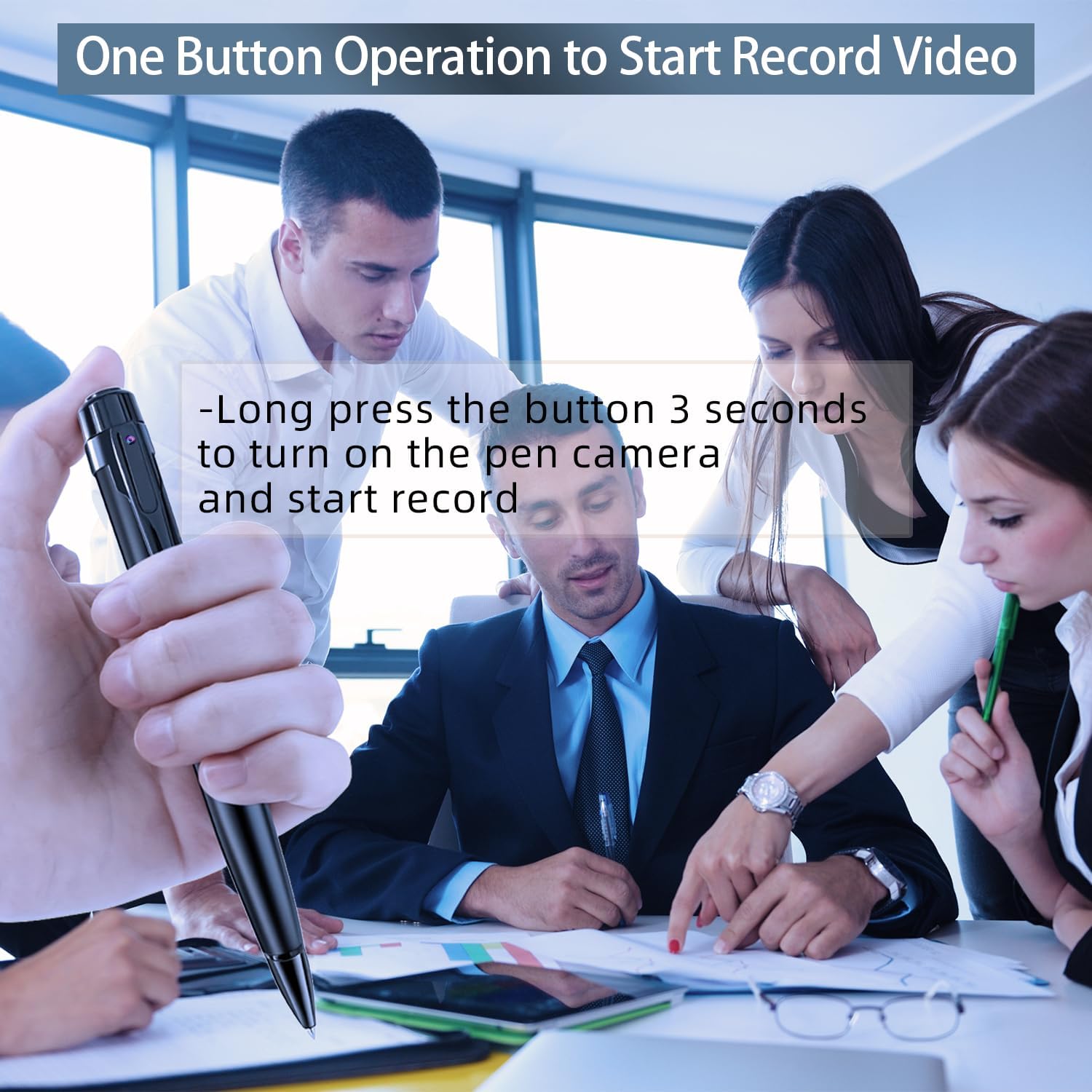
This image visually reinforces the simple one-button operation of the pen camera. A hand is shown holding the pen, with text overlay explaining to long-press the button for 3 seconds to turn on and start recording. This highlights the ease of use for capturing video.
2. Taking Photos
While primarily designed for video recording, the pen camera also supports taking still photos. Specific instructions for photo mode are typically detailed in the included physical manual. Generally, a short press of the top button after powering on (without initiating video recording) may switch to photo mode, or a specific sequence of presses might be required. Refer to the detailed instructions provided with your product for precise photo capture steps.
Data Transfer
To access your recorded videos and photos, connect the pen camera to a computer.
- Ensure the pen camera is turned off.
- Connect the pen camera to your computer using the provided USB cable.
- The device will be recognized as a removable disk.
- Open the removable disk to access the stored video and photo files. You can then copy them to your computer.

This image demonstrates how to easily upload videos from the Aiacmea Pen Camera to a computer. The pen is shown connected to a laptop via a USB cable, indicating compatibility with both Mac OS and Windows operating systems for USB charging and data access.
Maintenance
- Cleaning: Use a soft, dry cloth to clean the pen camera. Avoid using liquid cleaners or solvents.
- Storage: Store the device in a cool, dry place away from direct sunlight and extreme temperatures.
- Battery Care: To prolong battery life, avoid fully discharging the battery frequently. Charge the device regularly, even if not in use, to prevent deep discharge.
- Refill Replacement: The pen uses standard refills. Replace them as needed for continued writing functionality.
Troubleshooting
| Issue | Possible Cause / Solution |
|---|---|
| Device not turning on. | Battery is low or depleted. Charge the device fully. Ensure the top button is pressed and held for 3 seconds. |
| Cannot record video. | Memory card not inserted or not inserted correctly. Ensure the Micro SD card is properly seated. Memory card is full. Transfer files to a computer and format the card. Device battery is low. Charge the device. |
| Video quality is poor. | Insufficient lighting. Ensure adequate lighting in the recording environment. Lens is dirty. Gently clean the lens with a soft cloth. |
| Computer not recognizing device. | USB cable is faulty. Try a different USB cable. USB port is faulty. Try a different USB port on your computer. Device is not powered off before connecting. Ensure the device is off when connecting to a computer for data transfer. |
| Indicator light not responding. | Device may be frozen. Use a small pin to press the reset button. |
Specifications
| Feature | Detail |
|---|---|
| Model Number | W10 |
| Video Capture Resolution | 1080p Full HD |
| Storage | Supports Micro SD card up to 64GB (card not always included, check packaging) |
| Battery Life | Up to 120 minutes (continuous recording) |
| Connectivity | USB 2.0 |
| Dimensions | 0.5 x 0.5 x 5.7 inches (approx. 1.27 x 1.27 x 14.5 cm) |
| Item Weight | 2.89 ounces (approx. 81.9 g) |
| Color | Black |
What's in the Box
The Aiacmea 1080P Mini Pen Camera package typically includes the following items:
- 1 x Hidden Camera Pen
- 1 x USB Charging Cable
- 1 x Card Reader (USB 2.0)
- Multiple Pen Refills
- User Manual (this document)

This image displays the typical contents of the Aiacmea Mini Pen Camera package. It shows the pen camera itself, a USB 2.0 card reader, a 64GB Micro SD card (though card inclusion may vary by seller), several pen refills, and the necessary USB charging cables, providing a visual guide to what is included.
Warranty and Support
Aiacmea products are designed for reliability and performance. For specific warranty information, please refer to the warranty card included with your product or contact Aiacmea customer support directly. If you encounter any issues or have questions regarding your pen camera, please reach out to the seller or manufacturer for assistance. Keep your purchase receipt for warranty claims.