
1. Introduction
This manual provides essential instructions for the proper installation, operation, and maintenance of your WMSNUH MK-4105 Drum Kit. Adhering to these guidelines will help ensure optimal performance and longevity of the drum unit in your compatible Kyocera Mita TASKalfa printer.
The MK-4105 drum kit is designed to deliver high-quality print output with a yield of approximately 80,000 pages at 5% coverage on A4 paper. It features high-quality components for reliable and consistent printing results.
2. Compatible Printers
The WMSNUH MK-4105 Drum Kit is compatible with the following Kyocera Mita TASKalfa printer models:
- TASKalfa 1800
- TASKalfa 2010
- TASKalfa 2011
- TASKalfa 2200
- TASKalfa 2211
- TASKalfa 1801
- TASKalfa 2201
- TASKalfa 4105
Please verify your printer model before installation to ensure compatibility.

Figure 2.1: List of compatible Kyocera Mita TASKalfa printer models.
3. Setup and Installation
Follow these general steps for installing the MK-4105 Drum Kit. For detailed, printer-specific instructions, always refer to your Kyocera Mita TASKalfa printer's official user manual.
- Unpack the Drum Kit: Carefully remove the new drum kit from its packaging. Avoid touching the green or blue drum surface, as oils from your skin can affect print quality.
- Power Off Printer: Ensure your printer is turned off and unplugged from the power source before beginning installation.
- Open Printer Cover: Open the front cover or access panel of your Kyocera Mita TASKalfa printer as indicated in your printer's manual.
- Remove Old Drum Unit: Locate the old drum unit. Grasp its handle and carefully pull it out of the printer. Place it in the protective bag from the new drum kit for proper disposal.
- Prepare New Drum Unit: Gently shake the new drum unit horizontally a few times to distribute the toner evenly (if applicable, some drum units come pre-assembled with toner). Remove any protective covers or seals as instructed on the packaging.
- Install New Drum Unit: Align the new MK-4105 Drum Kit with the guides inside the printer and slide it in until it clicks securely into place.
- Close Printer Cover: Close the printer cover or access panel.
- Power On Printer: Plug in and power on your printer. The printer may perform a calibration cycle.
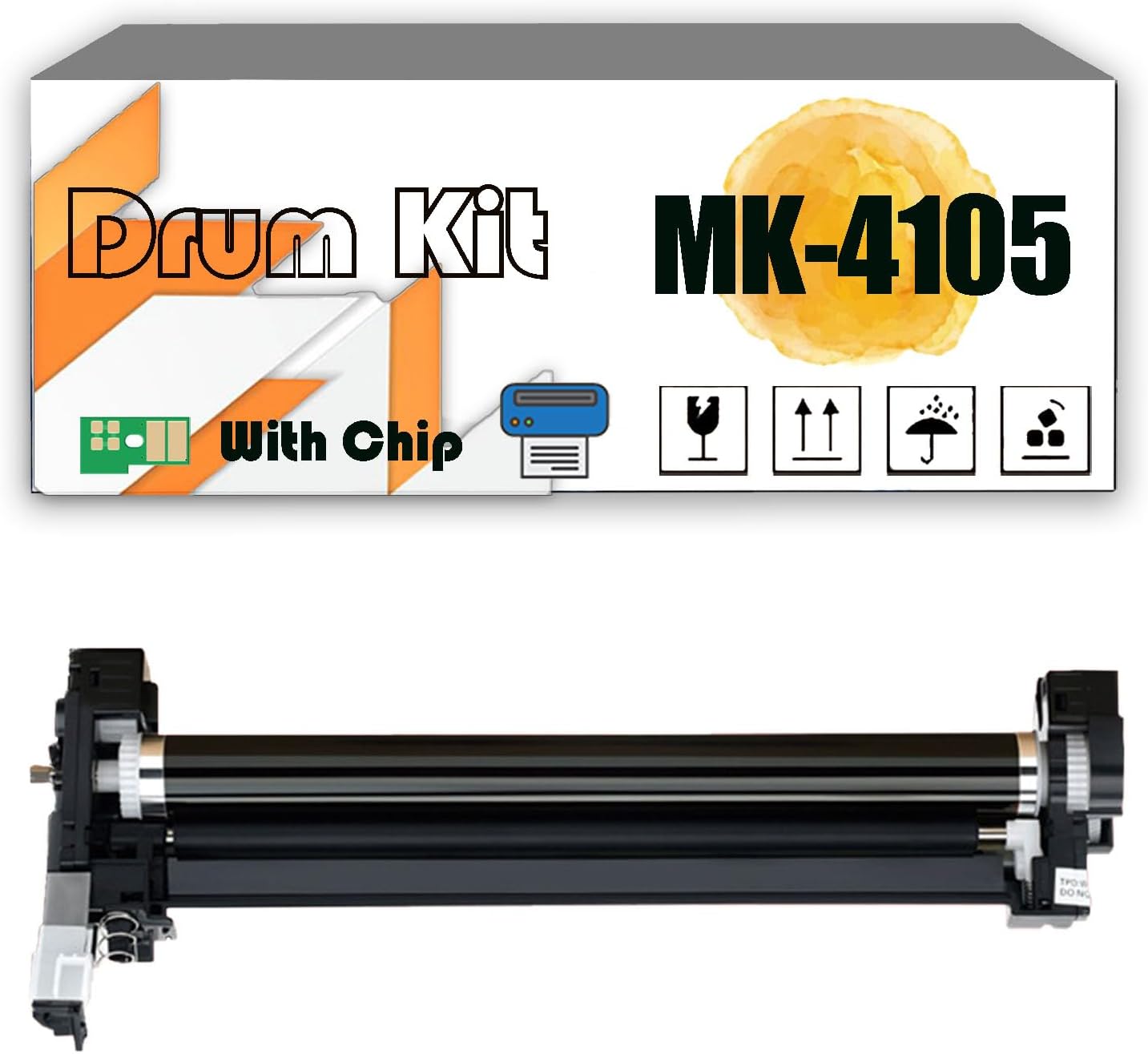
Figure 3.1: WMSNUH MK-4105 Drum Kit and its components.

Figure 3.2: Close-up of the drum unit, emphasizing integrated chip technology.
4. Operating Instructions
Once installed, the MK-4105 Drum Kit operates seamlessly with your Kyocera Mita TASKalfa printer. The printer's internal system will recognize the new drum unit and manage its usage.
- Print Quality: The drum kit is designed to produce crisp texts, clear images, and stable print quality.
- Page Yield: Expect a high page yield of approximately 80,000 pages based on 5% coverage on A4 paper. Actual yield may vary depending on print content and environmental conditions.
- Monitoring: Your printer's display or software utility will indicate the remaining life of the drum unit. Replace the drum unit when prompted by the printer.

Figure 4.1: High page yield capacity of the MK-4105 Drum Kit.

Figure 4.2: Examples of brilliant print output quality.
5. Maintenance
Proper maintenance helps extend the life and maintain the quality of your drum kit.
- Storage: Store new drum kits in their original, unopened packaging in a cool, dry place away from direct sunlight and extreme temperatures.
- Handling: Always handle the drum unit by its designated handles or edges. Avoid touching the sensitive drum surface.
- Cleaning: Do not attempt to clean the drum unit with liquids or abrasive materials. If print quality issues arise, consult the troubleshooting section or your printer's manual.
- Disposal: Dispose of used drum units according to local environmental regulations. Many manufacturers and retailers offer recycling programs.
6. Troubleshooting
If you encounter issues with print quality or drum unit recognition, consider the following:
- Poor Print Quality (Streaks, Fading, Spots):
- Ensure the drum unit is correctly installed and seated firmly.
- Check if the toner cartridge associated with the drum unit has sufficient toner.
- Perform a printer cleaning cycle or calibration from your printer's control panel or software.
- If the issue persists, the drum unit may be nearing the end of its life.
- Drum Unit Not Recognized:
- Remove and re-install the drum unit to ensure it is properly seated.
- Verify that you have installed the correct drum kit model (MK-4105) for your printer.
- Restart the printer.
- Error Messages: Refer to your printer's official user manual for specific error code interpretations and solutions.
If troubleshooting steps do not resolve the issue, please contact customer support.
7. Specifications
| Specification | Detail |
|---|---|
| Model Number | MK-4105 (MK4105) |
| Brand | WMSNUH |
| Compatible Printers | Kyocera Mita TASKalfa 1800, 2010, 2011, 2200, 2211, 1801, 2201, 4105 |
| Page Yield | Approx. 80,000 pages (at 5% coverage on A4 paper) |
| Manufacturer | WMSNUH0012786 |
8. Warranty and Support
For information regarding warranty coverage and customer support, please refer to the purchase documentation or contact the seller directly. Ensure you have your product model (MK-4105) and purchase details available when seeking support.