
Inefala Inefala-A7210A3453H1MI2IT53-C8882
Inefala Android Car Radio User Manual
Model: Inefala-A7210A3453H1MI2IT53-C8882
1. Introduction
This user manual provides comprehensive instructions for the installation, operation, and maintenance of your Inefala 8 Core 4+64GB Android Car Radio. Please read this manual thoroughly before using the product to ensure proper functionality and safety.
This device is designed specifically for Peugeot 207 models from 2006 to 2015, offering advanced features such as Wireless Carplay, Android Auto, Bluetooth connectivity, GPS navigation, FM RDS radio, and AHD Rear Camera support.
2. Package Contents
Verify that all items listed below are included in your package. If any items are missing or damaged, please contact customer support.
- 1 x Inefala Android Radio for Peugeot 207
- 3 x Power Cable
- 1 x Audio Cable
- 1 x Radio Antenna Cable
- 1 x RCA Cable
- 2 x USB Cable
- 1 x GPS Antenna
- 1 x AHD Backup Camera
- 1 x Rear Camera Input Cable
- 1 x External Microphone
- 1 x Installation Tool and Accessories

Image: The Inefala Android Car Radio unit with its various cables, GPS antenna, external microphone, and AHD backup camera, illustrating the complete package contents.
3. Technical Specifications
| Feature | Specification |
|---|---|
| System | Android 13 |
| Core | 8-Core |
| CPU | 8257 |
| Memory (RAM + ROM) | 4GB + 64GB |
| Main Frequency | 2.0GHz |
| Radio Band | FM/RDS |
| Rear Camera Standard | AHD720 & CVBS |
| Power Amplifier Chip | 7388 |
| Radio Chip | 8035 |
| Audio Decoder | 2133 |
| Split Screen | Supported |
| Bluetooth Version | 5.0 |
| USB Interface | Dual USB |
| Screen Resolution | 1280*720 |
| Factory Set Keyword | 1234 |
| Audio Formats | APE/FLAC/WAV/MP3/WMA etc. |
| Video Formats | MKV/RMVB/AVI/MP4/MDV etc. |
| Image Formats | PNG/JPEG/JPG/GIF/WBMP/BNP etc. |
| Supported Languages | Chinese/English/French/Italian/Korean/Japanese/Arabic/Spanish/Portuguese/Russian/Turkish/Vietnamese/Hebrew/Polish/German |
| Product Dimensions | 23.7 x 24 x 12.5 cm |
| Weight | 1.78 kg |
4. Vehicle Compatibility
This car radio is specifically designed for the following vehicle models:
- Peugeot 207 (2006-2015)
Important Note: Before purchasing and installing, please verify that the power cord port on the details page matches your original car's wiring. If the airbag light remains on after installation, ensure that the original airbag wiring is correctly connected.

Image: A visual guide showing the compatible dashboard configuration for the Peugeot 207 (2006-2015) and an incompatible configuration, highlighting the correct fitment area.
5. Installation and Setup
5.1. Pre-Installation Checklist
- Ensure the vehicle's ignition is off and the battery is disconnected.
- Gather all necessary tools (included installation tools, screwdrivers, wire cutters/strippers).
- Confirm the power cord port matches your car's original wiring.
5.2. Installation Steps
- Remove Original Radio: Carefully remove the existing car radio unit from your Peugeot 207 dashboard. Refer to your vehicle's specific service manual for detailed instructions on dashboard disassembly.
- Connect Power Cables: Connect the provided power cables to the corresponding ports on the new Inefala Android radio and your vehicle's wiring harness. Ensure all connections are secure.
- Connect Antenna and USB Cables: Attach the radio antenna cable and the dual USB cables to the designated ports on the unit. Route the USB cables to a convenient location for future use.
- Connect GPS Antenna: Connect the GPS antenna and position it in a location with a clear view of the sky, typically on the dashboard or under the windshield.
- Connect AHD Backup Camera (Optional): If installing the backup camera, connect the AHD backup camera and its input cable to the unit. Route the camera cable to the rear of the vehicle and mount the camera securely.
- Connect External Microphone (Optional): Connect the external microphone for improved call quality and voice commands. Position it near the driver for optimal performance.
- Test Connections: Before fully reassembling the dashboard, reconnect the car battery and briefly turn on the ignition to test basic functions (power, display, audio).
- Secure the Unit: Carefully slide the Inefala Android radio into the dashboard opening and secure it using the provided installation tools and accessories.
- Reassemble Dashboard: Reassemble any removed dashboard panels, ensuring all clips and screws are properly secured.
For visual guidance, refer to the product images that illustrate the unit's components and potential installation scenarios.
6. Operating Instructions
6.1. Basic Operation
- Power On/Off: Press and hold the power button on the unit or use the vehicle's ignition.
- Volume Control: Adjust volume using the physical buttons or on-screen controls.
- Home Screen: Tap the home icon to return to the main interface.
- Settings: Access system settings via the gear icon on the home screen. The factory set keyword for advanced settings is 1234.
6.2. Wireless Carplay & Android Auto
The unit supports both wireless and wired Apple Carplay and Android Auto. This allows for voice control and access to mobile phone functions like music, navigation, calls, and messages.
- Wireless Connection: Connect your smartphone via Bluetooth and then enable the Wi-Fi hotspot on your phone. The unit will automatically detect and connect to Carplay/Android Auto.
- Wired Connection: Connect your smartphone using its original USB cable to one of the unit's USB ports.

Image: Diagram illustrating the wireless and wired connection methods for Apple Carplay and Android Auto, showing hotspot and USB/Bluetooth connections.

Image: Screenshots of the Wireless Apple Carplay and Wireless Android Auto interfaces, displaying common applications like iHeartRadio, Spotify, Waze, and YouTube.
6.3. Mirror Link
Mirror Link allows you to sync your mobile phone content (videos, navigation) to the larger screen of the car stereo via the original USB cable. iOS phones support one-way control, while Android phones support bidirectional control.
6.4. GPS Navigation
The unit supports free offline maps (e.g., Waze) and online maps. You can download navigation apps from the Google Play Store.
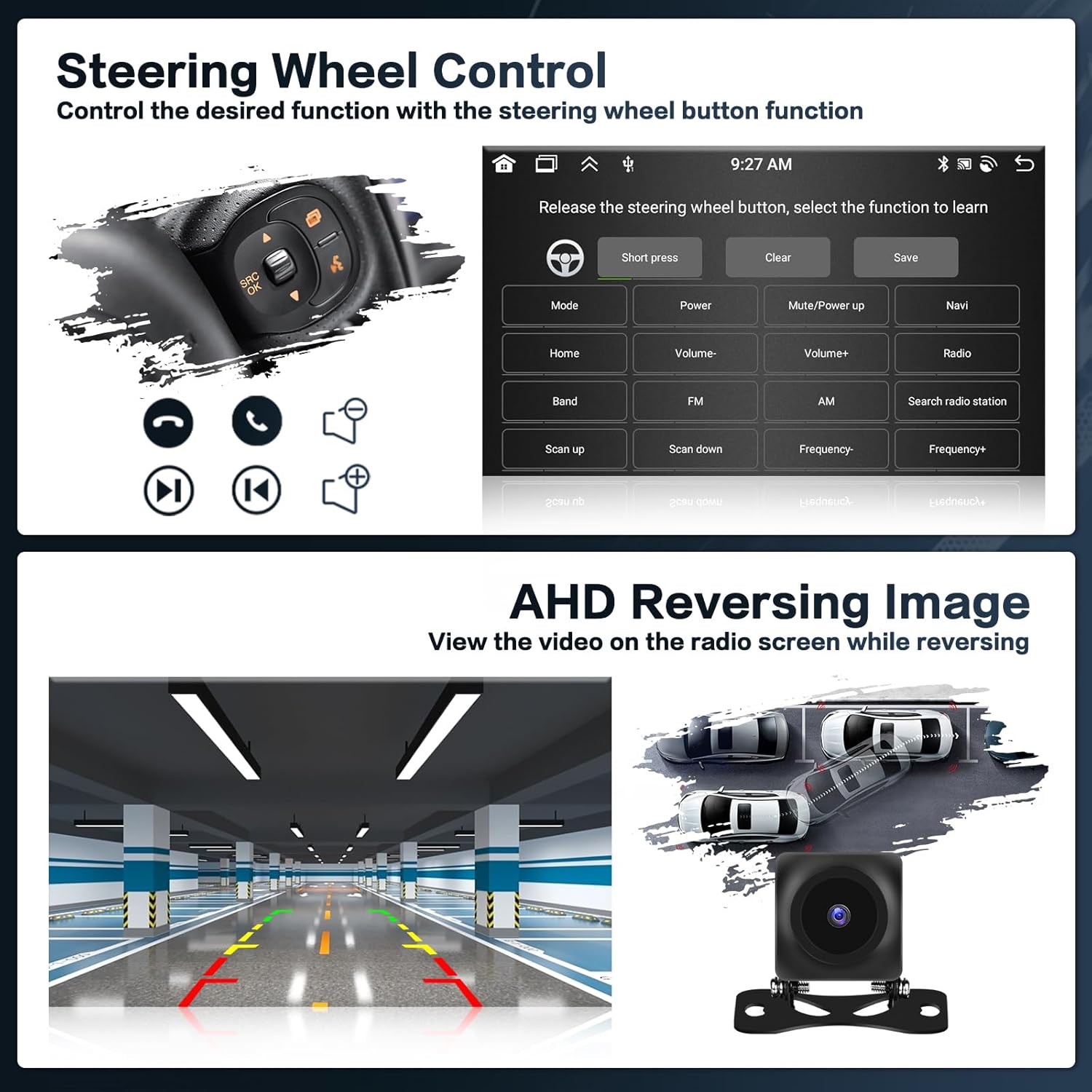
Image: Display of the GPS navigation interface with map views and icons for navigation applications. Also shows icons for downloading apps like YouTube and TikTok via WiFi or hotspot.
6.5. Bluetooth Functionality
Built-in Bluetooth 5.0 enables hands-free calling, phonebook downloads, and music playback.
- Pairing: Go to Bluetooth settings on the unit and your phone, search for the unit's Bluetooth name, and pair.
- Hands-free Calls: Make and receive calls directly from the unit's screen.
- Music Playback: Stream audio from your phone to the car speakers.

Image: Screenshots showing the Bluetooth hands-free calling interface with a dial pad and contact options, and the FM/RDS radio interface with frequency display and station presets.
6.6. FM/RDS Radio
Listen to FM radio stations, get live weather forecasts, traffic updates, and news. You can save up to 18 favorite radio stations.
6.7. Steering Wheel Control (SWC)
The unit supports steering wheel controls for quick response, editing, and playback. Activating steering wheel controls requires key learning in the settings menu.

Image: A visual representation of the steering wheel control learning interface, showing options to assign functions to buttons. Also displays a screenshot of the AHD reversing image view.
6.8. AHD Reversing Image
The AHD camera automatically displays the rear view camera screen when reverse gear is engaged, providing a clear image day and night.
6.9. Display Customization
The unit offers extensive display customization options:
- Wallpaper Options: Tap the colored circle in the lower left corner of the screen to switch between 19 different backgrounds.
- Desktop Themes: Long press on the home screen to switch to 59 desktop themes.
- EQ Options: Supports 32-band EQ options for a superior music listening experience.

Image: Screenshots demonstrating the 19 wallpaper options and 59 desktop themes available for customizing the unit's display.
7. Maintenance
- Cleaning: Use a soft, dry cloth to clean the screen and exterior. Avoid abrasive cleaners or solvents.
- Software Updates: Periodically check for software updates through the system settings or the manufacturer's website to ensure optimal performance and access to new features.
- Temperature: Avoid exposing the unit to extreme temperatures, both hot and cold, as this can affect performance and lifespan.
8. Troubleshooting
| Problem | Possible Cause | Solution |
|---|---|---|
| Unit does not power on. | Loose power connection; Blown fuse; Vehicle battery issues. | Check all power cable connections. Inspect vehicle fuses. Ensure car battery is charged. |
| No sound. | Volume too low; Mute activated; Speaker wiring issues; Incorrect audio source. | Increase volume. Check if mute is on. Verify speaker connections. Select correct audio source (FM, Bluetooth, USB). |
| GPS signal weak or lost. | GPS antenna obstructed or improperly placed; Antenna connection loose. | Ensure GPS antenna has a clear view of the sky. Check GPS antenna connection. |
| Steering wheel controls not working. | Controls not learned; Wiring issue. | Go to settings and perform "key learning" for steering wheel controls. Check wiring connections. |
| Backup camera not displaying. | Camera not connected; Incorrect input selected; Camera faulty. | Check AHD camera and input cable connections. Ensure reverse gear is engaged. Test camera functionality. |
| Bluetooth connection issues. | Device not paired; Bluetooth off; Interference. | Ensure Bluetooth is enabled on both devices. Re-pair the device. Move away from sources of interference. |
If the problem persists after attempting these solutions, please contact Inefala customer support for further assistance.
9. Warranty and Support
Inefala products come with a standard manufacturer's warranty. Please refer to your purchase documentation for specific warranty terms and conditions.
For technical support, troubleshooting assistance, or warranty claims, please contact Inefala customer service. Contact information can typically be found on the product packaging or the official Inefala website.
Note: Extended warranty options may be available from third-party providers. Please check with your retailer for details.
Ask a question about this manual
Ask about setup, troubleshooting, compatibility, parts, safety, or missing instructions. Manuals+ will review the question and use this page’s manual context to help answer it.