
Introduction
This manual provides detailed instructions for the installation, operation, and maintenance of your Rimoody 9.7-inch Android Car Stereo. This unit is designed for Chevrolet Cruze J300 models from 2009 to 2014, offering features such as wireless CarPlay, Android Auto, GPS navigation, Bluetooth, FM/RDS radio, steering wheel control (SWC), and support for a backup camera.
Please read this manual thoroughly before installation and use to ensure proper function and to avoid damage.
Product Compatibility Check
Before proceeding with installation, it is crucial to verify compatibility with your vehicle's original car system configuration. This unit is specifically designed for Chevrolet Cruze J300 models manufactured between 2009 and 2014.
Examine your vehicle's dashboard to confirm it matches the compatible configuration. Incompatible configurations may prevent proper installation or functionality.

Image: Comparison of compatible (left) and incompatible (right) Chevrolet Cruze dashboards. The compatible dashboard features a simpler, integrated radio unit, while the incompatible one has a more complex, multi-button layout with a smaller screen.
Setup and Installation
Installation of the car stereo requires careful attention to wiring and dashboard disassembly. If you are unsure about any steps, it is recommended to seek professional assistance.
Package Contents (Product List)
Verify that all components are present in the package before beginning installation:

Image: A detailed diagram illustrating the various components included in the package, such as the main unit, power cable, RCA input/output cables, USB cables, GPS antenna, instruction manual, USB adapter, Canbus box, small horn, radio extension cable, and rear camera.
- Main Head Unit (9.7-inch touchscreen)
- Power Cable
- RCA Input/Output Cables
- USB Cables (x2)
- GPS Antenna
- Instruction Manual
- USB Adapter
- Canbus Box
- Small Horn
- Radio Extension Cable
- Rear Camera (if included in your specific package)
Installation Overview
The installation process involves removing the original car stereo and dashboard trim, connecting the new unit's wiring harness, and securing the new stereo in place. The new unit integrates seamlessly into the Chevrolet Cruze J300 dashboard.
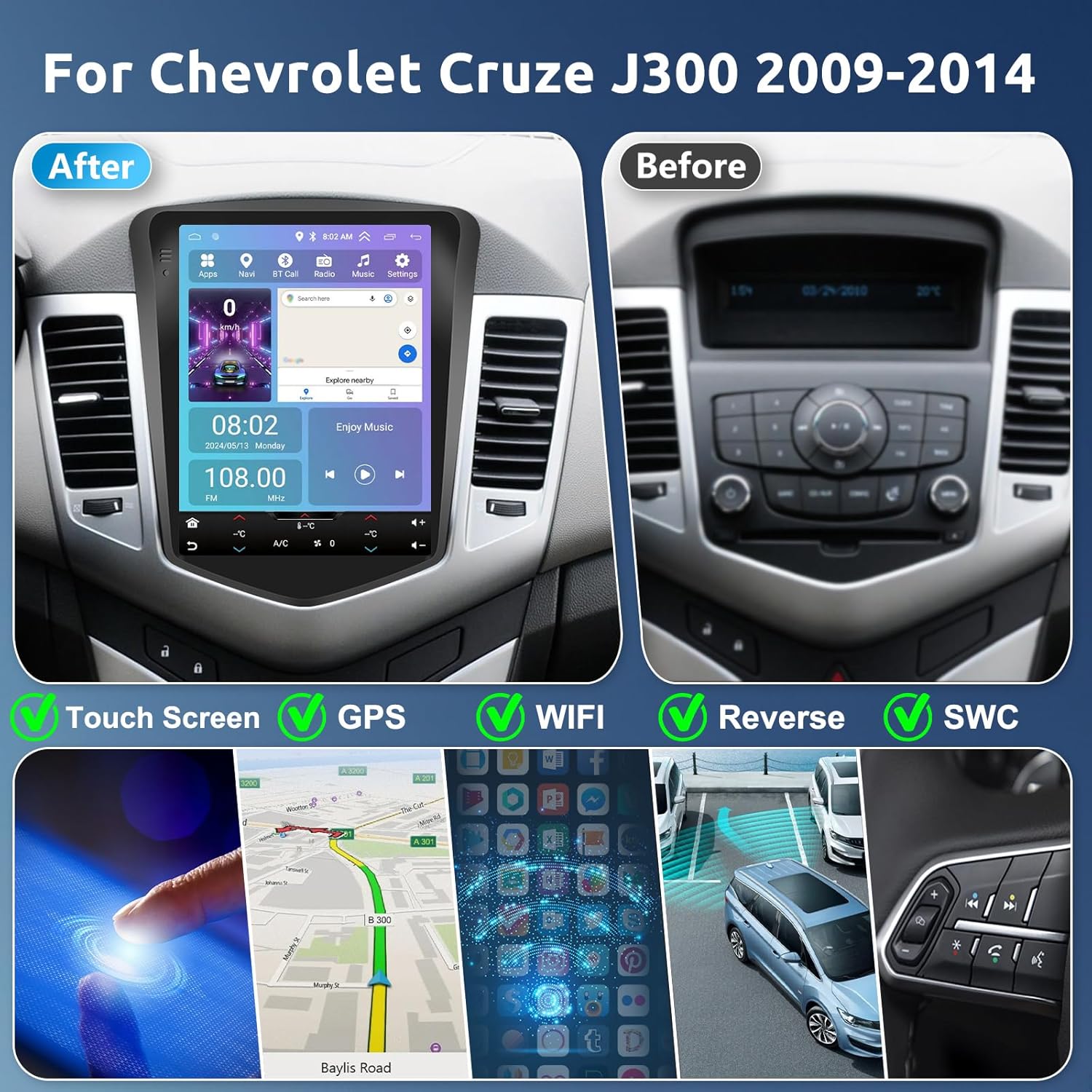
Image: A side-by-side comparison showing the original Chevrolet Cruze dashboard (Before) and the dashboard with the Rimoody 9.7-inch Android Car Stereo installed (After).

Image: An illustration detailing the dimensions of the 9.7-inch stereo unit and a visual representation of the installation process, including the various cables and accessories.
Wiring Instructions
Refer to the following video for a visual guide on connecting the wiring harness and other components. Ensure all connections are secure before powering on the unit.
Video: This video demonstrates the wiring instructions for the Rimoody car stereo, showing how to connect the various cables and components to the main unit and the vehicle's electrical system.
The Canbus box (included) is essential for integrating the stereo with your vehicle's existing systems, such as steering wheel controls. Connect it according to the wiring diagram provided in the physical instruction manual.
Operating Instructions
Wireless CarPlay & Android Auto / Mirror Link
Connect your smartphone wirelessly or via USB to access features like navigation, music, calls, and messages directly on the stereo's screen. The system supports both Apple CarPlay and Android Auto, as well as Mirror Link for screen mirroring.

Image: The car stereo displaying the user interfaces for Apple CarPlay, Android Auto, and Mirror Link, demonstrating smartphone integration.

Image: A visual guide illustrating the wireless and wired connection methods for CarPlay, Android Auto, and iOS/Android Mirror Link functionalities.
GPS Navigation & WiFi
The unit features built-in GPS navigation. You can download offline maps for use without an internet connection. Connect to a WiFi hotspot to access online maps, streaming services (YouTube, Spotify), and other applications from the app store.

Image: The car stereo displaying GPS navigation with a map, alongside icons representing WiFi connectivity and various Android applications.
Bluetooth & FM/RDS Radio & EQ
Pair your phone via Bluetooth for hands-free calling and audio streaming. The integrated FM/RDS radio allows you to listen to local stations with 18 preset options. Adjust audio output using the built-in Equalizer (EQ) for a personalized sound experience.

Image: Displays the Bluetooth interface for calls, the FM radio tuning screen, and the graphic equalizer settings for audio customization.

Image: A visual breakdown of the Bluetooth connectivity for phone calls, the FM/RDS radio interface, and the Equalizer (EQ) settings for audio adjustment.
Steering Wheel Control (SWC)
The stereo supports your vehicle's existing steering wheel controls. After installation, you can configure the buttons to control various functions of the stereo, such as volume, track skipping, and answering calls, enhancing driving convenience and safety.

Image: The car stereo screen showing the interface for learning and configuring steering wheel control buttons, with an inset image of typical steering wheel controls.
Rear Camera Support
The unit supports AHD (Analog High Definition) rear camera input. When the vehicle is shifted into reverse, the screen automatically displays the rear camera feed, assisting with parking and maneuvering.

Image: A split image showing the rear camera view on the car stereo screen during reverse, and the steering wheel control interface.
Split Screen Functionality
Utilize the split-screen feature to run two applications simultaneously. For example, you can have navigation displayed on one side of the screen while controlling music playback on the other, enhancing multitasking capabilities.

Image: The car stereo screen demonstrating split-screen functionality, with a navigation app on one side and a music player on the other.
Optional Functions
The stereo supports various optional functions to enhance your driving experience:
- Voice Control: Use voice commands for navigation, calls, and music playback.
- Global Weather: Access real-time weather information.
- Network Radio: Stream online radio stations via WiFi.
- Supported Accessories: The unit is compatible with external accessories such as DAB+ tuners, OBD2 diagnostic tools, and DVRs (sold separately).

Image: Displays the interfaces for voice control, global weather forecasts, and network radio applications on the car stereo.
Maintenance
To ensure the longevity and optimal performance of your car stereo, follow these maintenance guidelines:
- Screen Cleaning: Use a soft, lint-free cloth to gently wipe the touchscreen. Avoid abrasive cleaners or solvents that could damage the display.
- Software Updates: Periodically check for and install available software updates to ensure the system runs efficiently and has the latest features and security patches.
- Cable Connections: Ensure all cables remain securely connected. Loose connections can lead to intermittent issues with power, audio, or data transfer.
- Environmental Conditions: Avoid exposing the unit to extreme temperatures, direct sunlight for prolonged periods, or excessive moisture.
Troubleshooting
If you encounter issues with your Rimoody car stereo, refer to the following common troubleshooting steps:
| Problem | Possible Cause | Solution |
|---|---|---|
| No Sound Output | Incorrect wiring, volume muted, or faulty speaker connection. | Check all audio wiring connections. Ensure volume is not muted and is turned up. Verify speaker connections. |
| Steering Wheel Controls Not Working | Canbus box not correctly connected or configured. | Ensure the Canbus box is properly installed and connected. Access the stereo's settings to reconfigure or recalibrate the steering wheel controls. Refer to the physical manual for specific Canbus settings. |
| Touchscreen Unresponsive | Software glitch, screen protector interference, or hardware issue. | Restart the unit. Remove any screen protectors to check if they are causing interference. If the issue persists, contact customer support. |
| GPS Signal Lost/Inaccurate | GPS antenna improperly installed or obstructed. | Ensure the GPS antenna is securely connected and placed in a location with a clear view of the sky, free from obstructions. |
| Bluetooth Connectivity Issues | Pairing mode not active, device too far, or interference. | Ensure both the stereo and your device are in pairing mode. Keep devices within range. Try unpairing and re-pairing the device. |
For issues not covered here, please contact Rimoody customer support.
Specifications
| Feature | Detail |
|---|---|
| Brand | Rimoody |
| Model Name | 2G+64G |
| Model Number | d87f907a-b893-423d-8235-37ec61cc314c |
| Operating System | Android |
| Memory Storage Capacity | 64 GB |
| Screen Size | 9.7 Inches |
| Display Type | LCD, Touch screen |
| Touch Screen Type | Capacitive |
| Connectivity Technology | Bluetooth, WiFi |
| Supported Navigation System | GPS |
| Map Type | North America (pre-loaded, offline maps downloadable) |
| Audio Output Mode | Stereo |
| Vehicle Service Type | Car (Chevrolet Cruze J300 2009-2014) |
| Mounting Type | Dashboard Mount |
| Included Components | Backup camera (if specified in package), wiring harness, GPS antenna, USB cables, Canbus box. |
| Control Method | Touchscreen, Voice, Steering Wheel Control |
Warranty and Support
Your Rimoody car stereo comes with a manufacturer's warranty and dedicated customer support.
- Warranty: A 2-year manufacturer's warranty is provided for this product. Please retain your proof of purchase for warranty claims.
- Returns: A 90-day free return policy for refund or exchange is available.
- Technical Support: Lifetime technical support is offered by the Rimoody team.
- Contact: For installation assistance, troubleshooting, or warranty inquiries, please contact Rimoody customer service. Refer to the contact information provided in your product packaging or on the official Rimoody website.

Image: Details on Rimoody's customer support, highlighting 24-hour quick response, professional installation guides, 90-day free returns, and lifetime technical support.