
MINISFORUM UM890 Pro
MINISFORUM UM890 Pro Mini PC User Manual
Model: UM890 Pro
1. Product Overview
The MINISFORUM UM890 Pro is a high-performance mini PC designed for various applications, from business and education to multimedia and gaming. It features an AMD Ryzen 9 8945HS processor with an integrated AMD Radeon 780M GPU, offering robust performance in a compact form factor. This barebone version allows for user-customized RAM and storage configurations.
Key Features:
- Processor: AMD Ryzen 9 8945HS (8 Cores/16 Threads, up to 5.2GHz) with AI Engine.
- Graphics: AMD Radeon 780M with RDNA 3 architecture.
- Display Output: Supports up to four displays with 2x USB4 (8K@60Hz), 1x HDMI (4K@120Hz), and 1x DisplayPort (4K@60Hz).
- Networking: Dual 2.5Gbps LAN ports for enhanced network capabilities and Wi-Fi 6E with Bluetooth 5.3.
- Expandability: Two DDR5 SODIMM slots (up to 64GB RAM) and two M.2 2280 PCIe 4.0 SSD slots (up to 2TB SSD).
- OCuLink Port: Dedicated port for external GPU connection (PCIe 4.0 x4 = 64G speed).
- Cooling: Cold Wave 2.2 upgraded cooling system for efficient heat dissipation and reduced noise.
- Compact Design: Mini size with wall mount support for versatile placement.
Product Introduction Video
This video provides a brief introduction to the MINISFORUM UM890 Pro Mini PC, highlighting its design and key features.
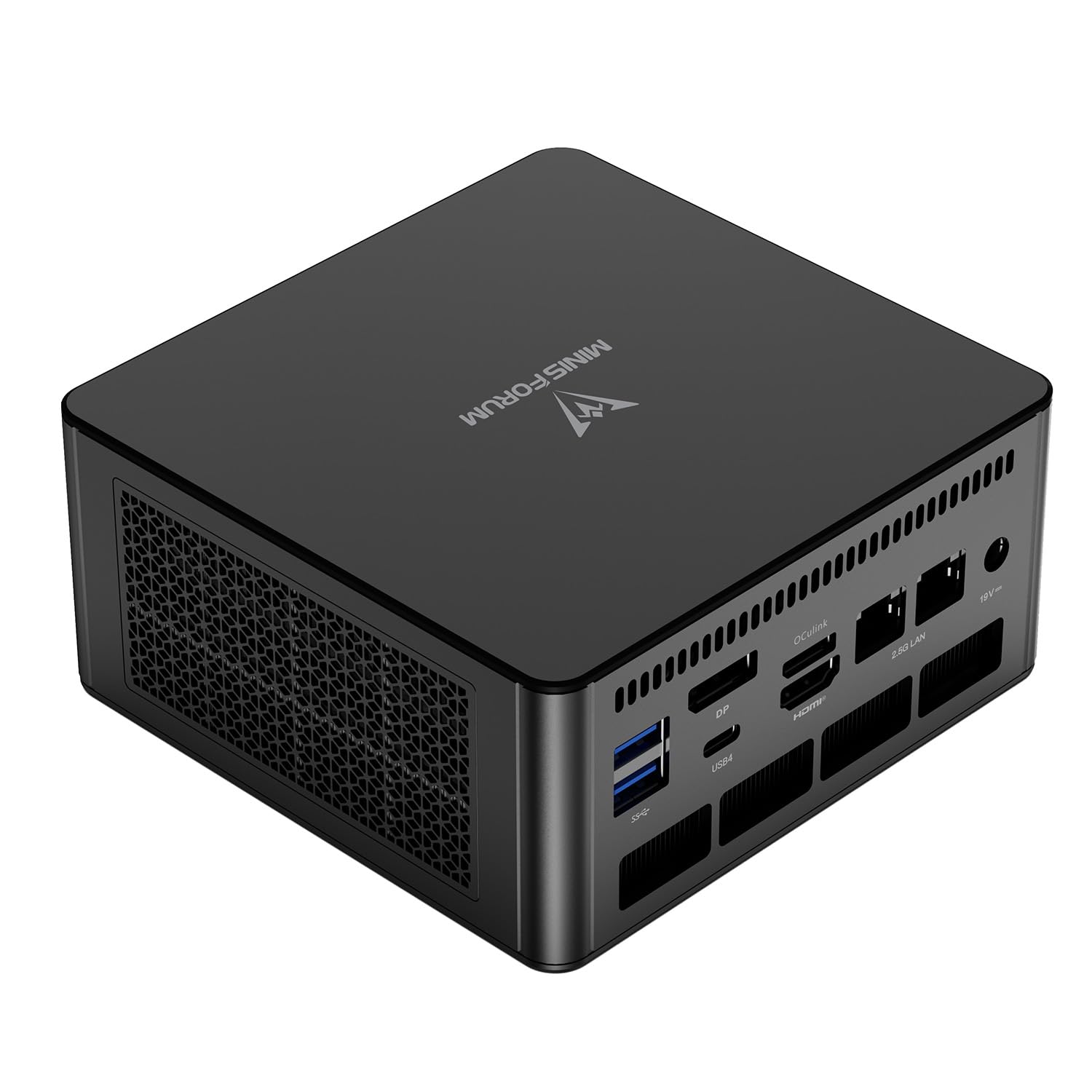
Figure 1: MINISFORUM UM890 Pro Mini PC.

Figure 2: Overview of AMD Ryzen 9 8945HS processor and Radeon 780M graphics specifications.
2. Package Contents
Please check the package for the following items:
- 1x UM890 Pro Mini PC
- 1x HDMI Cable
- 1x US Power Adapter
- 1x Manual

Figure 3: Included items in the MINISFORUM UM890 Pro package.
3. Initial Setup
The MINISFORUM UM890 Pro is a barebone system, meaning RAM and storage are not pre-installed. Follow these steps to prepare your mini PC for first use.
3.1 Installing RAM and SSD
The UM890 Pro supports dual-channel DDR5 SODIMM memory and two M.2 2280 PCIe 4.0 SSDs. Ensure the system is powered off and unplugged before proceeding.
- Carefully remove the bottom cover of the mini PC.
- Locate the DDR5 SODIMM slots and M.2 2280 PCIe 4.0 SSD slots on the motherboard.
- Insert the DDR5 RAM modules into the slots, ensuring they are seated correctly and the clips lock into place.
- Insert the M.2 SSDs into their respective slots and secure them with the provided screws.
- Replace the bottom cover, ensuring it clicks securely into place.

Figure 4: Internal view of the UM890 Pro, highlighting DDR5 SODIMM and M.2 2280 PCIe 4.0 SSD slots.
3.2 Connecting Peripherals
Connect your monitor(s), keyboard, mouse, and other peripherals to the appropriate ports on the mini PC.
- Display: Use the HDMI, DisplayPort, or USB4 ports to connect your monitor(s). The system supports up to four displays.
- USB Devices: Connect your keyboard, mouse, and other USB devices to the available USB 3.2 Gen2 Type-A or USB4 ports.
- Network: Connect an Ethernet cable to one of the two 2.5Gbps RJ45 LAN ports for a wired network connection, or use Wi-Fi 6E for wireless connectivity.
- Audio: Connect headphones or speakers to the 3.5mm audio jack.
- Power: Connect the US Power Adapter to the DC 19V input port and then to a power outlet.

Figure 5: Front and rear view of the UM890 Pro, showing available ports.

Figure 6: Illustrates USB4 ultra-high speed transmission and power delivery capabilities.
4. Operating Instructions
4.1 Power On/Off
- Power On: Press the power button located on the front of the mini PC.
- Power Off: Shut down the operating system normally. Alternatively, press and hold the power button for 5 seconds to force a shutdown (not recommended for regular use).
4.2 Operating System Installation
As a barebone system, an operating system (OS) is not pre-installed. You will need to install your preferred OS, such as Windows, after installing RAM and SSD. Refer to your chosen OS installation guide for detailed steps.
4.3 Multi-Display Setup
The UM890 Pro supports up to four displays simultaneously. Connect your monitors to the available HDMI, DisplayPort, and USB4 ports. Configure display settings within your operating system.

Figure 7: Example of a quad-screen display setup using the UM890 Pro.
4.4 OCuLink External GPU Connection
The OCuLink port allows for connecting an external GPU for enhanced graphics performance. This port provides PCIe 4.0 x4 speed (64G). Note that OCuLink connections are not hot-swappable and require one M.2 2280 PCIe 4.0 SSD slot to be utilized for the OCuLink adapter.

Figure 8: UM890 Pro connected to an external GPU via the OCuLink port.
5. Maintenance and Upgrades
5.1 General Care
- Keep the mini PC in a clean, dry environment away from direct sunlight and heat sources.
- Ensure proper ventilation by not blocking the air vents.
- Clean the exterior with a soft, dry cloth. Avoid liquid cleaners.
5.2 RAM and SSD Upgrades
The UM890 Pro is designed for easy upgrades of RAM and SSD. You can expand RAM up to 64GB (DDR5 SODIMM) and SSD storage up to 2TB (M.2 2280 PCIe 4.0). Refer to the "Installing RAM and SSD" section for disassembly instructions.
5.3 Disassembly Guide Video
This video demonstrates the disassembly process for the MINISFORUM UM890 Pro, useful for installing or upgrading internal components like RAM and SSDs.
6. Troubleshooting
If you encounter issues with your MINISFORUM UM890 Pro, please refer to the following common troubleshooting steps:
- No Power: Ensure the power adapter is securely connected to both the mini PC and a working power outlet. Test the outlet with another device.
- No Display: Verify that the monitor cable is securely connected to both the mini PC and the monitor. Try a different display port or cable. Ensure your monitor is set to the correct input source.
- System Not Booting: Check that RAM and SSDs are correctly installed and seated firmly in their slots. If recently installed, try re-seating them.
- Peripheral Not Detected: Ensure USB devices are properly connected. Try a different USB port. Install necessary drivers for specific peripherals.
- Overheating/Loud Fan: Ensure the mini PC's vents are not obstructed. Operate the device in a well-ventilated area.
For further assistance, please contact MINISFORUM customer support.
7. Technical Specifications
| Feature | Specification |
|---|---|
| Brand | MINISFORUM |
| Model Name | UM890 Pro |
| CPU Model | AMD Ryzen™ 9 8945HS (8 Cores, 16 Threads) |
| CPU Speed | 4.0 GHz (Base), up to 5.2 GHz (Max Boost) |
| Graphics Coprocessor | AMD Radeon™ 780M (Graphics Frequency 2800MHz) |
| RAM Memory Technology | DDR5 SODIMM |
| RAM Memory Maximum Size | 64 GB (2 slots) |
| Memory Speed | 5600 MHz |
| Hard Disk Interface | PCIE x 4 (2x M.2 2280 PCIe 4.0 SSD slots) |
| Video Output Interface | 2x USB4 (8K@60Hz), 1x HDMI (4K@120Hz), 1x DisplayPort (4K@60Hz) |
| Networking | Dual 2.5Gbps RJ45 LAN, Wi-Fi 6E, Bluetooth 5.3 |
| Additional Features | OCuLink Support, Auto Power On, RTC Boot, Sleep Mode, Wake On LAN |
| Power Consumption | 45 Watts |
| Color | Black |
| Dimensions (Approx.) | 130mm x 127mm x 66.6mm |

Figure 9: Approximate dimensions of the UM890 Pro Mini PC.
8. Warranty and Support
MINISFORUM products come with a standard manufacturer's warranty. For specific warranty details, registration, and technical support, please visit the official MINISFORUM website or contact their customer service directly.
You can find more information and support resources at the MINISFORUM Store on Amazon.
Ask a question about this manual
Ask about setup, troubleshooting, compatibility, parts, safety, or missing instructions. Manuals+ will review the question and use this page’s manual context to help answer it.