
1. Introduction
This user manual provides comprehensive instructions for the HP 435 Programmable Keypad. This device is designed to enhance productivity with its 9 customizable keys, low-profile switch technology, and interchangeable keycaps. It connects wirelessly via Bluetooth 5.3, offering flexibility and convenience for various computing environments.
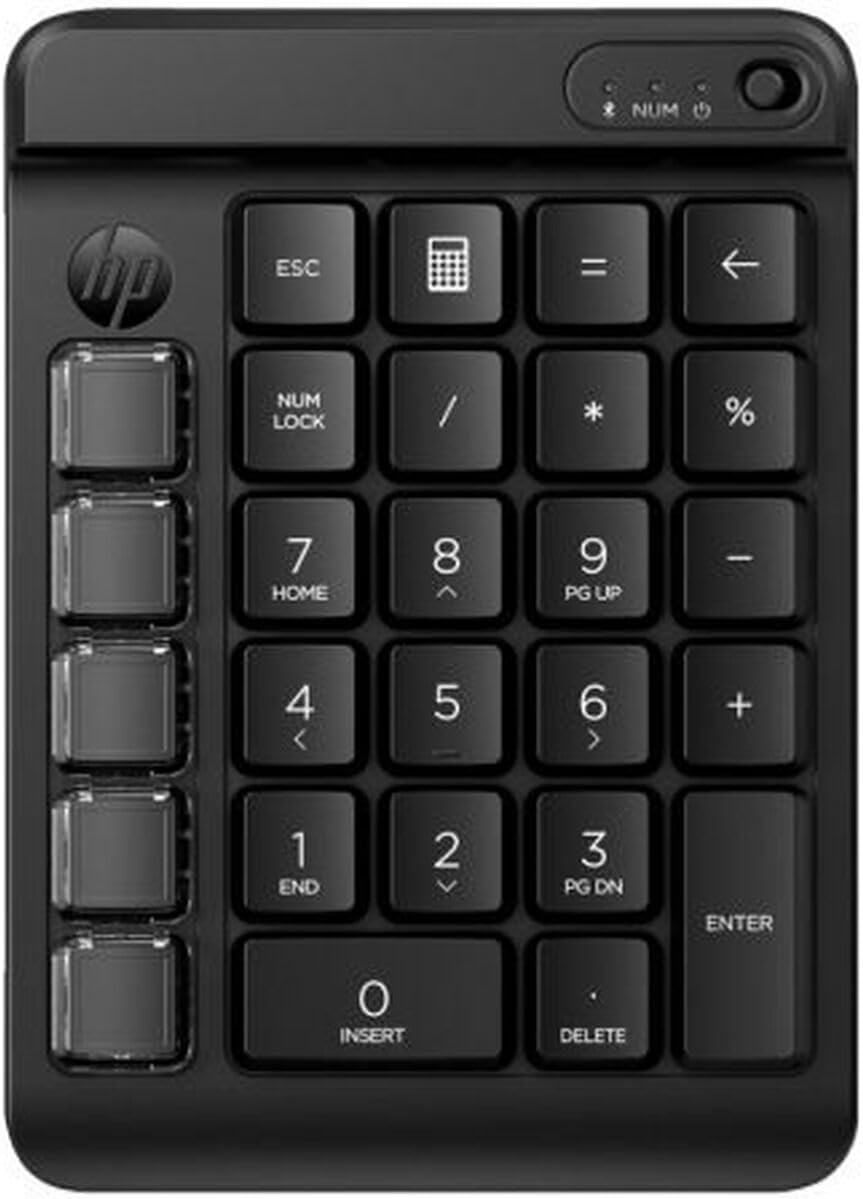
Figure 1: HP 435 Programmable Keypad, front view. This image displays the black keypad with its 9 customizable keys on the left side and the standard numeric keypad layout on the right. Key labels such as ESC, NUM LOCK, ENTER, and DELETE are visible, along with a power button and NUM Lock indicator light at the top.
2. Setup
2.1 Battery Installation
The HP 435 Keypad requires one AA battery (included).
- Locate the battery compartment cover on the back of the keypad.
- Slide or lift the cover to open the compartment.
- Insert one AA battery, ensuring correct polarity (+ and - ends match the markings inside the compartment).
- Replace the battery compartment cover.
2.2 Bluetooth Pairing
To connect the keypad to your device via Bluetooth 5.3:
- Ensure the keypad is powered on. The power switch is located at the top right of the keypad.
- Activate Bluetooth on your computer, smartphone, gaming console, or tablet.
- Go to your device's Bluetooth settings and search for available devices.
- Select "HP 435 Keypad" (or similar name) from the list of discovered devices.
- Follow any on-screen prompts to complete the pairing process. The NUM Lock indicator light may flash during pairing and become solid once connected.
3. Operating Instructions
3.1 Standard Keypad Functions
The HP 435 Keypad functions as a standard numeric keypad, providing keys for numbers (0-9), arithmetic operations (+, -, *, /), decimal point (.), Enter, and Delete.
- NUM LOCK: Toggles the numeric keypad between number input and navigation functions (Home, End, Pg Up, Pg Dn, arrow keys). An indicator light at the top of the keypad shows the NUM Lock status.
- ESC: Functions as an Escape key.
- Calculator Icon Key: This key is typically programmed to launch the calculator application on your connected device.
- Back Arrow Key: Functions as a Backspace key.
3.2 Programmable Keys
The keypad features 9 dedicated programmable keys located on the left side. These keys can be customized to perform specific functions, macros, or launch applications, depending on the software provided by HP or compatible third-party customization tools. Refer to the HP support website for specific software and instructions on programming these keys.
3.3 Interchangeable Keycaps and Stickers
The HP 435 Keypad comes with interchangeable keycaps and stickers, allowing for visual customization and clear identification of programmed functions.
- Gently remove the existing keycap from the desired programmable key. A keycap puller (if included) can assist in this process.
- Select the appropriate new keycap and/or sticker for your programmed function.
- Place the new keycap onto the switch stem and press down firmly until it clicks into place.
4. Maintenance
4.1 Cleaning the Keypad
To maintain optimal performance and appearance:
- Ensure the keypad is powered off before cleaning.
- Use a soft, lint-free cloth slightly dampened with water or a mild, non-abrasive cleaning solution.
- Avoid spraying liquids directly onto the keypad.
- For dust and debris between keys, use compressed air.
4.2 Battery Replacement
Replace the AA battery when the keypad's performance degrades or it stops responding. Follow the battery installation steps outlined in Section 2.1. Dispose of used batteries according to local regulations.
5. Troubleshooting
| Problem | Possible Cause | Solution |
|---|---|---|
| Keypad does not power on. | Battery is dead or incorrectly installed. | Check battery polarity or replace the AA battery. Ensure the power switch is in the ON position. |
| Keypad does not connect via Bluetooth. | Bluetooth is off on the host device, keypad is out of range, or pairing failed. |
|
| Keys are not responding. | Keypad is not connected, battery is low, or NUM Lock is off for numeric input. |
|
| Programmable keys do not work. | Keys are not programmed or programming software is not running. | Ensure you have installed the necessary HP software for key customization and that your custom profiles are active. |
6. Specifications
- Brand: HP
- Model Number: S9912755
- Product Dimensions: 21 x 19 x 3 cm (8.27 x 7.48 x 1.18 inches)
- Weight: 420 g (0.93 lbs)
- Connectivity Technology: Wireless (Bluetooth 5.3)
- Number of Keys: 9 programmable keys + standard numeric keypad
- Key Type: Low-profile switches
- Keycap Features: Interchangeable keycaps with stickers
- Power Source: Battery
- Battery Type: 1 AA battery (included)
- Compatible Devices: Laptop, Smartphone, Gaming Console, Tablet
- Color: Black (Note: Product specifications may list 'colorful' referring to keycap options, but the device itself is black.)
- Keyboard Backlight Support: RGB
- First Available Date: July 5, 2024
7. Warranty and Support
HP products are covered by a limited warranty. For detailed warranty information, product registration, and technical support, please visit the official HP support website. You can typically find support resources by searching for your product model number (S9912755) on the HP website.
Online Support: www.hp.com/support