
Introduction
This manual provides detailed instructions for the installation, operation, and maintenance of your FeirTon 9-inch Android 12 Car Stereo. Please read this manual thoroughly before installation and use to ensure proper functionality and safety. Keep this manual for future reference.
Important Compatibility Note
This Android car stereo is designed for KIA Sportage 3 models from 2010 to 2016. Before installation, confirm the shape and size of your vehicle's center console. This unit is not compatible if your original car is equipped with a large screen, an amplifier, or an OEM camera system.
What's in the Box
Verify that all components are present before beginning installation:
- Car Radio (1280*720) with Frame x1
- User Manual x1
- Power Cord x1
- RCA Cable x1
- USB 4Pin Cable x1
- USB 6Pin Cable x1
- GPS Antenna x1
- CVBS 720P Rear View Camera x1
- Removal Tool (for installation)

Image: Contents of the FeirTon car stereo package, including the main unit, cables, GPS antenna, and rear view camera.
Setup and Installation
1. Pre-Installation Check
- Ensure the vehicle's ignition is off and the battery is disconnected before starting.
- Confirm compatibility with your KIA Sportage 3 (2010-2016) and that your vehicle does not have an original large screen, amplifier, or OEM camera.
2. Removing the Original Unit
Carefully remove the existing car stereo and dashboard trim using the provided removal tools. Refer to your vehicle's specific service manual for detailed instructions on trim removal.

Image: Comparison view showing the original car stereo setup and the FeirTon 9-inch Android 12 Car Stereo seamlessly integrated into the dashboard of a KIA Sportage 3 (2010-2016).
3. Wiring Connections
Connect the power cord, RCA cables, USB cables, and GPS antenna to the corresponding ports on the new FeirTon stereo. Ensure all connections are secure.
- Power Cable: Connect to the vehicle's power harness.
- RCA Cables: For audio output to external amplifiers or subwoofers, and video input/output.
- USB Cables: For connecting external devices, USB drives, or for wired CarPlay/Android Auto.
- GPS Antenna: Mount in a location with a clear view of the sky for optimal signal reception.
- Rear View Camera: Connect the CVBS 720P rear view camera as per the wiring diagram.
4. Mounting the Unit
Carefully slide the new stereo unit into the dashboard opening and secure it using the appropriate mounting brackets and screws. Reattach the dashboard trim.
5. Initial Power-On
Reconnect the vehicle's battery. Turn on the ignition and power on the car stereo. Follow any on-screen prompts for initial setup.
Operating Instructions
1. Basic Navigation and Home Screen
The Android 12 operating system provides an intuitive interface. Swipe left or right to access different app screens. Tap on app icons to launch them.
2. CarPlay & Android Auto
The stereo supports both wired CarPlay and wired Android Auto. Connect your Apple or Android smartphone using the original USB data cable to sync your phone's apps with the car radio. This allows for seamless navigation, music playback, and communication.

Image: Screenshots demonstrating the Apple CarPlay and Android Auto interfaces, highlighting navigation, music, and communication features accessible via wired connection.
3. Built-in GPS Navigation
Utilize the built-in GPS for navigation. Connect to Wi-Fi or a mobile hotspot to download maps or use online navigation services. The system supports both online and offline map applications.

Image: The car stereo displaying a GPS navigation map, showing route information and points of interest.
4. Bluetooth 5.4 Connectivity
Pair your smartphone via Bluetooth 5.4 for hands-free calling and wireless audio streaming. Access your phone's contacts and call history directly from the stereo interface.
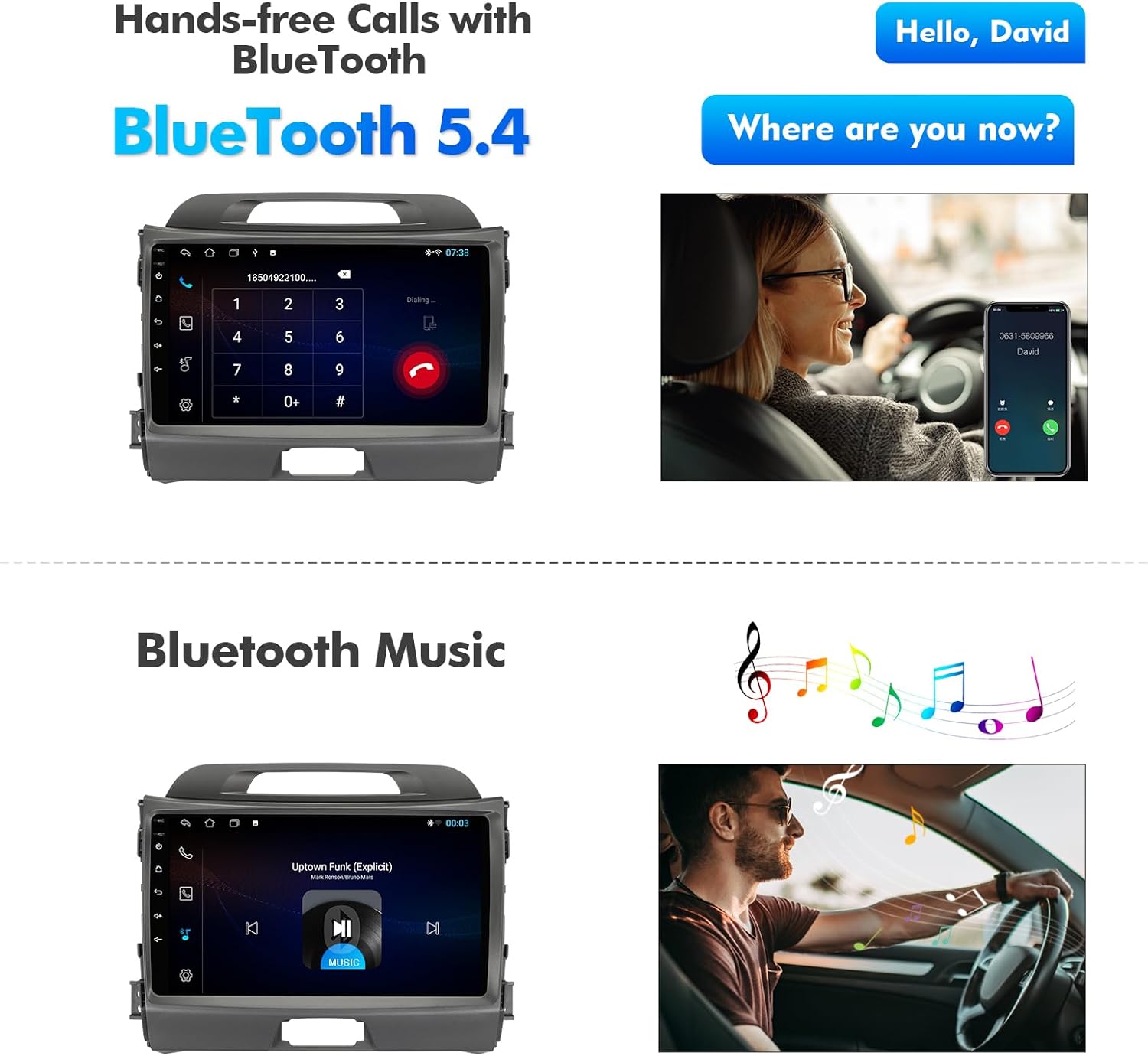
Image: Illustrations of the Bluetooth 5.4 functionality, enabling hands-free phone calls and wireless music streaming directly from a connected smartphone.
5. Wi-Fi 6 (Dual-Band)
Connect to available Wi-Fi networks (2.5GHz and 5GHz) or your mobile phone's hotspot to access the internet. This enables downloading apps from the Play Store, browsing, and using online services directly on the stereo.

Image: Visual representation of the advanced Bluetooth 5.4 and Wi-Fi 6 technologies, emphasizing faster transfer rates, improved stability, and extended link range compared to older versions.
6. FM Radio
Access the FM radio tuner to listen to local stations. The interface allows for easy station scanning and saving presets.
7. Steering Wheel Control (SWC)
The car radio supports the original car's steering wheel control functions. Use the pre-installed "Settingwheel" application to pair and configure the buttons on your steering wheel to control the stereo's functions.
8. Backup Camera Display
The system supports AHD high-definition rearview cameras (720P 25/30 frames, 1080P 25/30 frames) and ordinary CVBS signals (aftermarket). When the vehicle is in reverse, the camera feed will automatically display on the screen, providing parking assistance with guidelines.

Image: The car stereo displaying the rearview camera feed with dynamic parking guidelines, supporting OEM cameras and aftermarket CVBS/AHD 720P cameras for enhanced safety.
9. Media Playback
The unit supports various media formats for music and video playback from USB drives or streaming services. The QLED HD screen (1280x720) provides clear visuals for 4K HD video playback.
Video: An overview video demonstrating the user interface, key features like CarPlay, Android Auto, Bluetooth, GPS navigation, and the responsive touchscreen of the FeirTon car stereo.
Maintenance
- Cleaning: Use a soft, dry cloth to clean the screen and unit. Avoid abrasive cleaners or solvents.
- Software Updates: Periodically check for software updates to ensure optimal performance and access to new features.
- Temperature: Avoid exposing the unit to extreme temperatures.
Troubleshooting
- No Power: Check all power connections and the vehicle's fuse box. Ensure the battery is properly connected.
- No Audio Output: Verify speaker connections. If your vehicle has a factory amplifier, ensure proper integration or check for compatibility issues (as noted in the compatibility section).
- GPS Signal Issues: Ensure the GPS antenna is mounted in a location with a clear view of the sky. Check antenna connection.
- Bluetooth Pairing Failure: Ensure Bluetooth is enabled on both the stereo and your device. Try restarting both devices.
- CarPlay/Android Auto Not Connecting: Use the original USB cable. Ensure the phone's operating system is up to date.
- Screen Unresponsive: Try restarting the unit. If the issue persists, contact customer support.
Specifications
| Feature | Specification |
|---|---|
| Model Name | for KIA Sportage 3 2010-2016 |
| Display Size | 9 Inches |
| Display Resolution | 1280x720 (QLED HD Screen) |
| Operating System | Android 12 |
| Memory/Storage | 2GB RAM + 32GB Storage |
| Connectivity | Bluetooth 5.4, Wi-Fi 6 (2.5GHz & 5GHz) |
| Special Features | Wireless CarPlay, Android Auto, Backup Camera Support (AHD/CVBS), FM, AUX, Hi-Fi, SWC, Touchscreen |
| Audio Output Mode | Stereo |
| Item Weight | 3.32 pounds |
| Manufacturer | FeirTon |
Warranty and Support
This FeirTon touchscreen car radio comes with a 12-month quality assurance warranty. For any questions during installation or use, please contact our professional after-sales support team, available 7 days a week, 24 hours a day.
The product is designed with powerful processing capabilities, anti-interference features, and high stability.