
Introduction
The Spovii H9 is a state-of-the-art motorcycle helmet intercom system designed to enhance your riding experience with seamless communication and high-quality audio. Featuring advanced Bluetooth 5.1 technology, it ensures reliable and uninterrupted connectivity. Its robust, IP65 waterproof design is built to withstand various weather conditions, and a powerful 900mAh battery provides extended usage. Whether for urban commuting or long-distance touring, the Spovii H9 delivers superior audio clarity and optimal comfort.

Image: Two Spovii H9 intercom units, one white and one black, stacked on top of each other, showcasing their sleek design and the Spovii logo. Below them are four interchangeable color plates (black, blue, white, grey).

Image: Four Spovii H9 intercom units in different colors (black, blue, white, grey) displayed on pedestals, illustrating the interchangeable color options available to customize your device.
Key Features
- Advanced Bluetooth 5.1 Connectivity: Ensures quick, stable, and seamless connections with fast pairing technology. Supports simultaneous connection to two devices (e.g., phone, MP3 player, GPS).
- Powerful Full-Duplex Intercom: Offers communication up to 1000 meters for two users, maintaining clear voice at speeds up to 120 km/h in open terrain. Includes voice activation and automatic answering.
- High-Quality Audio & Noise Cancellation: Utilizes 40mm tuned speaker diaphragms, advanced DSP, and 12th-generation CVC noise cancellation technology for high-definition call and music experiences. 16K voice bandwidth provides crystal-clear voice quality.

Image: A close-up of the Spovii H9 unit with graphical overlays highlighting its key audio technologies: DSP CVC Tech, 40mm Speakers, and a Windproof Mic, emphasizing high-speed, crystal-clear calls.
- Durable & Universal Compatibility: IP65 waterproof rating for all-weather use. Compatible with third-party Bluetooth intercom systems and various helmet types (open-face, modular, full-face).
- Extended Battery Life: Equipped with a 900 mAh battery, providing up to 28 hours of intercom/phone use, 33 hours of music playback, and 500 hours of standby time.
Package Contents
Please check the box to ensure all items are present:
- Spovii H9 Intercom Unit(s)
- Microphone Speakers (with interchangeable microphone options)
- Charging Cable
- Mounting Tool / Accessories
- User Manual (this document)
Safety Information
For your safety and to prevent damage to the device, please read and follow these guidelines:
- Always prioritize road safety. Do not operate the device in a way that distracts you from riding.
- Ensure the device is securely mounted to your helmet before riding.
- Do not attempt to disassemble or modify the device. This may void the warranty and cause damage.
- Keep the device away from extreme temperatures, direct sunlight, and open flames.
- Use only the provided charging cable and a compatible power adapter.
- Avoid prolonged exposure to high volume levels to prevent hearing damage.
Setup
1. Charging the Device
Before first use, fully charge the Spovii H9. Connect the provided USB charging cable to the charging port on the intercom unit and plug the other end into a USB power source (e.g., computer, wall adapter). The LED indicator will show charging status and turn off when fully charged.

Image: An illustration of the Spovii H9's internal battery, highlighting its 900mAh capacity and indicating extended battery life with icons for 28 hours talk/call, 33 hours music, and 500 hours standby.
2. Installation on Helmet
The Spovii H9 can be mounted using either the clip-on bracket or the adhesive bracket. Choose the method that best suits your helmet type and preference.
- Mounting the Intercom Unit: Securely attach the chosen bracket to the side of your helmet. Slide the intercom unit onto the bracket until it clicks into place.
- Installing Speakers: Place the 40mm speakers inside the helmet's ear pockets. Ensure they are positioned directly over your ears for optimal sound quality.
- Installing Microphone: Choose between the boom microphone (for open-face/modular helmets) or the soft-wire microphone (for full-face helmets). Position the microphone close to your mouth for clear voice pickup.
- Cable Management: Route all cables neatly under the helmet's padding to avoid interference and ensure comfort.
3. Initial Bluetooth Pairing
To connect your Spovii H9 to your smartphone or other Bluetooth devices:
- Ensure the Spovii H9 is powered off.
- Press and hold the Multi-function Button (MFB) for approximately 5-7 seconds until the LED indicator flashes red and blue alternately, indicating pairing mode.
- On your smartphone, enable Bluetooth and search for new devices.
- Select "Spovii H9" from the list of available devices.
- Once connected, the LED indicator will flash blue slowly.
Operating Instructions
1. Power On/Off
- Power On: Press and hold the MFB for 3 seconds until you hear a "Power On" prompt and the blue LED flashes.
- Power Off: Press and hold the MFB for 5 seconds until you hear a "Power Off" prompt and the red LED flashes briefly before turning off.
2. Volume Adjustment
- Increase Volume: Press the Volume Up (+) button.
- Decrease Volume: Press the Volume Down (-) button.
3. Intercom Communication
The Spovii H9 supports full-duplex intercom communication between two units.
- Ensure both H9 units are powered on and within range (up to 1000m in open terrain).
- On one unit, short press the Intercom Button to initiate pairing. The LED will flash rapidly.
- On the second unit, short press the Intercom Button to accept the connection.
- Once connected, both units will have a steady blue LED, and you can begin communicating.
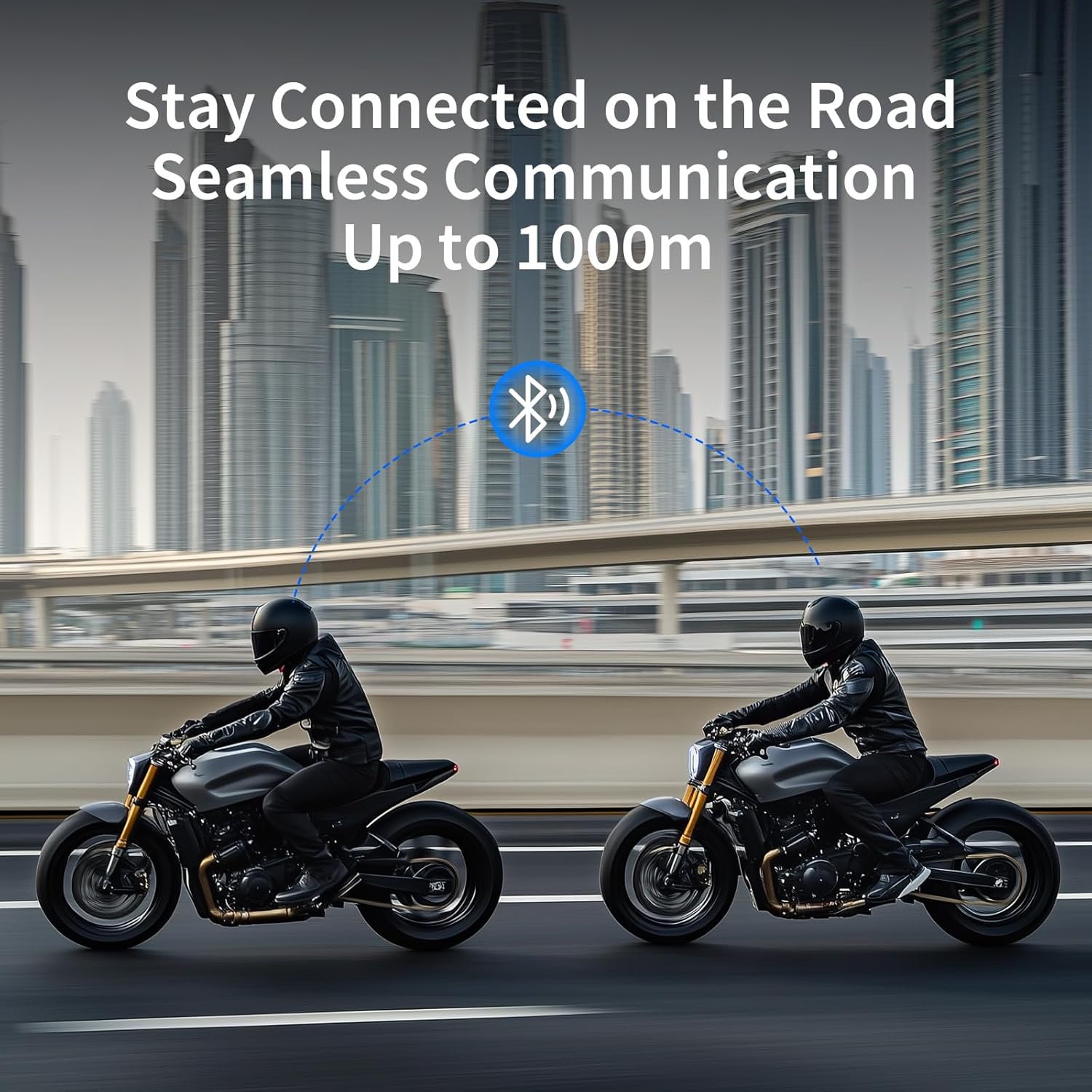
Image: Two motorcyclists riding on a highway with city buildings in the background, illustrating seamless communication up to 1000m between their Spovii H9 intercom units.
4. Music Playback
Once connected to your smartphone via Bluetooth:
- Play/Pause: Short press the MFB.
- Next Track: Long press the Volume Up (+) button.
- Previous Track: Long press the Volume Down (-) button.
5. Phone Calls
- Answer Call: Short press the MFB when a call comes in.
- End Call: Short press the MFB during a call.
- Reject Call: Long press the MFB when a call comes in.
- Redial Last Number: Double press the MFB.
6. Voice Assistant
Activate your smartphone's voice assistant (Siri, Google Assistant) through the Spovii H9.
- Activate: Triple press the MFB.
7. Music Sharing
Share your music with another Spovii H9 unit.
- Ensure both units are connected via intercom.
- Start playing music on the unit connected to the phone.
- On the music-playing unit, long press the Music Sharing button (refer to device diagram for button location).
- The music will then be streamed to the connected intercom unit.

Image: Two motorcyclists riding, with musical notes flowing between them, symbolizing the dual headset music sharing feature of the Spovii H9.
8. Universal Intercom Pairing
The Spovii H9 can pair with third-party Bluetooth intercom systems.
- Put the Spovii H9 into universal pairing mode (refer to device diagram or quick start guide for specific button combination, typically a long press of the Intercom button until a specific LED pattern).
- Put the third-party intercom into its pairing mode.
- Allow the devices to connect. Once paired, communication should be established.

Image: Two motorcyclists, one with a Spovii H9 and another with an "Other Brands" intercom, connected via Bluetooth 5.1, illustrating the universal compatibility feature.
Maintenance
- Cleaning: Wipe the device with a soft, damp cloth. Do not use harsh chemicals or abrasive cleaners. Ensure the charging port cover is securely closed before cleaning.
- Storage: Store the device in a cool, dry place when not in use. If storing for an extended period, charge the battery to about 50% every few months to maintain battery health.
- Water Resistance: While IP65 rated, avoid submerging the device in water. Ensure all ports are sealed before exposure to rain or splashes.
Troubleshooting
| Problem | Possible Cause | Solution |
|---|---|---|
| Device does not power on. | Low battery; device frozen. | Charge the device fully. Perform a hard reset (refer to manual for specific button combination, usually MFB + Volume Up). |
| Cannot pair with phone/intercom. | Not in pairing mode; too far apart; interference. | Ensure device is in pairing mode (flashing red/blue). Bring devices closer. Turn off other Bluetooth devices. |
| Poor audio quality/noise. | Microphone/speaker placement; environmental noise; low volume. | Adjust speaker/microphone position. Increase volume. Ensure CVC noise cancellation is active. |
| Intercom disconnects frequently. | Out of range; obstacles; low battery. | Stay within 1000m range. Avoid large obstacles. Charge both units. |
Technical Specifications
| Model Name | H9 |
| Brand | Spovii |
| Bluetooth Version | 5.1 |
| Intercom Range | Up to 1000 meters (open terrain, 2 users) |
| Battery Capacity | 900 mAh Lithium-polymer |
| Talk/Intercom Time | Up to 28 hours |
| Music Playback Time | Up to 33 hours |
| Standby Time | Up to 500 hours |
| Water Resistance | IP65 |
| Speaker Size | 40mm tuned diaphragms |
| Noise Cancellation | CVC 12th Generation, DSP |
| Frequency Range | 20 Hz - 20,000 Hz |
| Control Type | Voice Control, Button Control |
| Compatible Devices | Motorcycles, Smartphones, MP3 Players, GPS |
| Material | Plastic or Metal |
Warranty and Support
Spovii is committed to providing high-quality products. For warranty information, technical support, or service inquiries, please refer to the contact information provided with your purchase or visit the official Spovii website. Please note that spare parts availability information is not provided at this time.
For the best experience, ensure your device's firmware is up to date, if applicable. Check the manufacturer's website for any available software updates.