
Introduction
This manual provides comprehensive instructions for the MAXLEGEN Android 13 Tablet, designed for an optimal user experience with its high-performance octa-core processor and advanced features. It covers setup, operation, maintenance, and troubleshooting to ensure efficient use for work, study, and entertainment. Please read this manual thoroughly before using your tablet.
Package Contents
Verify that all items listed below are included in your package:
- 1x 10.1-inch Android 13 Tablet
- 1x Protective Case
- 1x Bluetooth Keyboard
- 1x Pair of Earphones
- 1x Mouse
- 1x Stylus
- 3x Multilingual Keyboard Stickers
- 1x Charger
- 1x USB-C Cable
- 1x User Manual

Product Overview
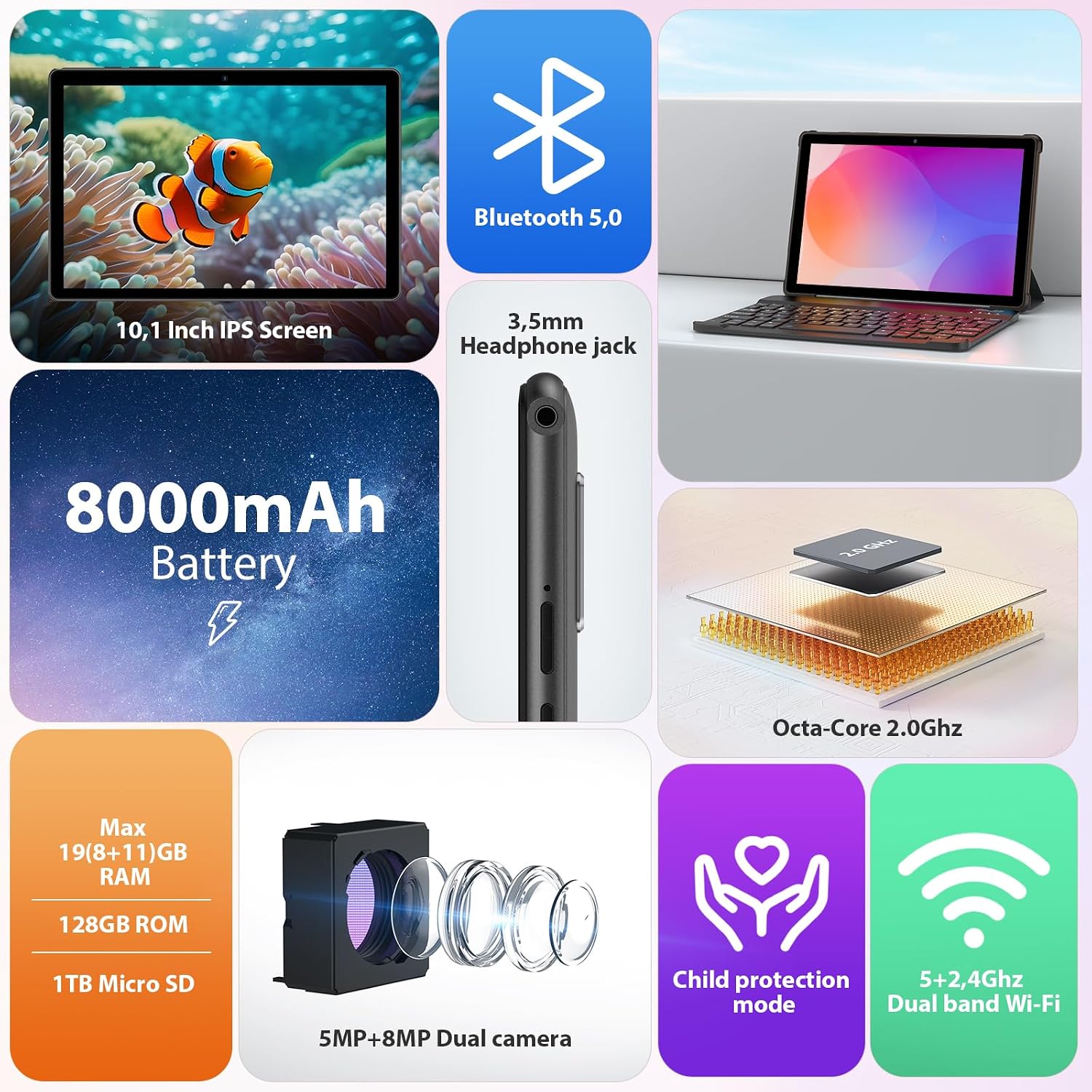
The MAXLEGEN Android 13 Tablet combines powerful hardware with the latest Android operating system for a versatile computing experience.
Key Features
- Operating System: Android 13 for enhanced performance and security.
- Processor: Octa-Core 2.0 GHz for smooth multitasking.
- Memory: 19GB RAM (8GB actual + 11GB virtual) and 128GB ROM, expandable up to 1TB via MicroSD.
- Display: 10.1-inch HD IPS touchscreen with 1280x800 resolution.
- Connectivity: Dual-band 5G/2.4GHz Wi-Fi and Bluetooth 5.0.
- Cameras: 5.0MP front camera and 8.0MP rear camera.
- Audio: Built-in dual speakers and a 3.5mm headphone jack.
- Battery: 8000mAh for extended usage.

Setup
1. Charging the Tablet
Before first use, fully charge the tablet. Connect the provided USB-C cable to the tablet's USB-C port and the charger to a power outlet. The charging indicator will show the charging status. A full charge typically takes 3-4 hours.
2. Powering On/Off
- To Power On: Press and hold the Power button until the MAXLEGEN logo appears.
- To Power Off: Press and hold the Power button until the power options appear, then select "Power off".
- To Restart: Press and hold the Power button until the power options appear, then select "Restart".
3. Initial Setup
Upon first power-on, follow the on-screen prompts to set up your tablet. This includes selecting your language, connecting to a Wi-Fi network, setting up your Google account, and configuring security options.
4. Connecting Accessories
Your tablet comes with several accessories to enhance its functionality.
- Bluetooth Keyboard & Mouse: Turn on the keyboard/mouse. On your tablet, go to Settings > Connected devices > Bluetooth. Enable Bluetooth and select the keyboard/mouse from the list of available devices to pair.
- Earphones: Plug the 3.5mm earphones into the tablet's 3.5mm headphone jack.
- Protective Case: Insert the tablet into the protective case for protection and to use its stand functionality.
- Stylus: Use the stylus for precise touch input on the screen.

Operating the Tablet
1. Basic Navigation
- Touch Gestures: Tap to select, swipe to scroll, pinch to zoom.
- Home Screen: Swipe left or right to navigate between home screens.
- Notifications: Swipe down from the top of the screen to access notifications and quick settings.
2. Wi-Fi Connection
To connect to a Wi-Fi network:
- Go to Settings > Network & internet > Internet.
- Turn on Wi-Fi.
- Select your desired network from the list and enter the password if required.
3. Bluetooth Connection
To connect to Bluetooth devices:
- Go to Settings > Connected devices > Bluetooth.
- Turn on Bluetooth.
- Ensure your Bluetooth device is in pairing mode, then select it from the list to connect.
4. Camera Usage
Open the Camera app from the home screen or app drawer. You can switch between front and rear cameras, take photos, and record videos. Tap the screen to focus and press the shutter button to capture.
5. Storage Management
Your tablet has 128GB of internal storage, expandable up to 1TB with a MicroSD card. To manage storage:
- Go to Settings > Storage to view storage usage and free up space.
- Insert a MicroSD card into the dedicated slot to expand storage for photos, videos, and documents.

6. Eye Comfort Mode
To reduce eye strain, especially in low light conditions, enable Eye Comfort Mode:
- Go to Settings > Display > Eye Comfort.
- Toggle the feature on or schedule it for specific times.
7. Child Protection Mode
For a safer environment for children, utilize the child protection features:
- Access the child protection settings (specific app or system setting may vary based on Android version and pre-installed software).
- Configure app access, screen time limits, and content filters.

Maintenance
1. Cleaning
Use a soft, lint-free cloth to clean the screen and body of the tablet. Avoid using harsh chemicals or abrasive materials that could damage the surface.
2. Battery Care
- Avoid exposing the tablet to extreme temperatures.
- Do not let the battery completely drain frequently.
- Use the original charger and cable for optimal charging.
3. Software Updates
Regularly check for and install software updates to ensure your tablet has the latest features, security patches, and performance improvements. Go to Settings > System > System update.
Troubleshooting
| Issue | Possible Solution |
|---|---|
| Tablet won't turn on | Ensure the battery is charged. Connect the charger and wait a few minutes before attempting to power on again. |
| Slow performance | Close unnecessary apps, clear cache, or restart the tablet. Check for available software updates. |
| Wi-Fi connection issues | Restart your Wi-Fi router. Forget the network on your tablet and reconnect. Ensure you are within range. |
| Bluetooth pairing failure | Ensure the Bluetooth device is in pairing mode and within range. Restart Bluetooth on both devices. |
| Screen not responding | Restart the tablet by holding the power button. If unresponsive, force restart (refer to device-specific instructions if standard power button hold doesn't work). |
Specifications
| Feature | Detail |
|---|---|
| Model | MAX13 |
| Operating System | Android 13 |
| Processor | Octa-Core 2.0 GHz |
| Display | 10.1-inch HD IPS Touchscreen (1280 x 800 pixels) |
| RAM | 19GB (8GB actual + 11GB virtual) |
| Internal Storage (ROM) | 128GB |
| Expandable Storage | Up to 1TB via MicroSD card (not included) |
| Front Camera | 5.0 MP |
| Rear Camera | 8.0 MP |
| Audio | Dual Speakers |
| Wi-Fi | 5G/2.4GHz Dual-band (802.11 b/g/n/ac) |
| Bluetooth | 5.0 |
| Battery | 8000mAh Built-in Rechargeable Battery |
| Charging Time | 3-4 hours (DC 5V 2A) |
| I/O Ports | 1x USB-C port, 1x 3.5mm headphone jack, 1x MicroSD card slot |
| Dimensions (L x W x H) | 24 x 16 x 0.9 cm |
| Weight | 1.27 kg |
Warranty and Support
Your MAXLEGEN tablet comes with a one-year warranty from the date of purchase. Additionally, you are entitled to lifetime technical support. For any questions, technical assistance, or warranty claims, please contact our customer service team. Refer to the contact information provided in your package or on the official MAXLEGEN website for prompt and efficient support.