
1. Introduction
This manual provides detailed instructions for the setup, operation, and maintenance of your KIBU WLMOUSE Beast X Max Wireless Gaming Mouse. Please read this manual thoroughly before using the product to ensure optimal performance and longevity.
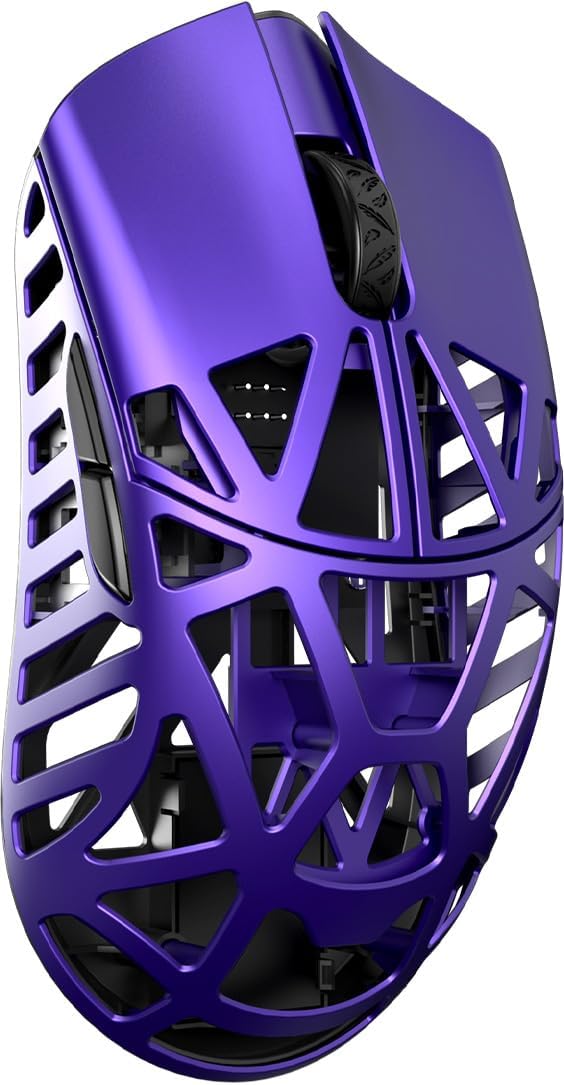
Image 1.1: Top-down view of the WLMOUSE Beast X Max Wireless Gaming Mouse in purple.
2. Package Contents
Verify that all items listed below are included in your product package:
- Mouse body ×1
- USB-C cable ×1
- 8K dongle ×1
- 1K Nano dongle ×1
- Replacement PTFE mouse feet ×1
- Mouse grip tape ×1
- Carrying case ×1

Image 2.1: Contents of the WLMOUSE Beast X Max package.
3. Product Features
- Ultra-lightweight Design: Weighs approximately 42 ±1g, constructed from magnesium alloy for durability and reduced fatigue during extended use.
- High-Performance Sensor: Equipped with the PAW3950HS sensor for precise tracking and responsiveness.
- 8KHz Polling Rate: Supports an 8000Hz polling rate for minimal input lag and smooth cursor movement.
- Dual-Mode Connectivity: Offers both wired (USB-C) and 2.4G wireless connection options.
- Switch Options: Available with Omron Optical switches for long lifespan and light clicks, or TTC Nihil Mechanical switches for stable click feel and clear tactile feedback.
- Dimensions: Body size of 126 × 65 × 39mm, designed as a 'Big Size' model.
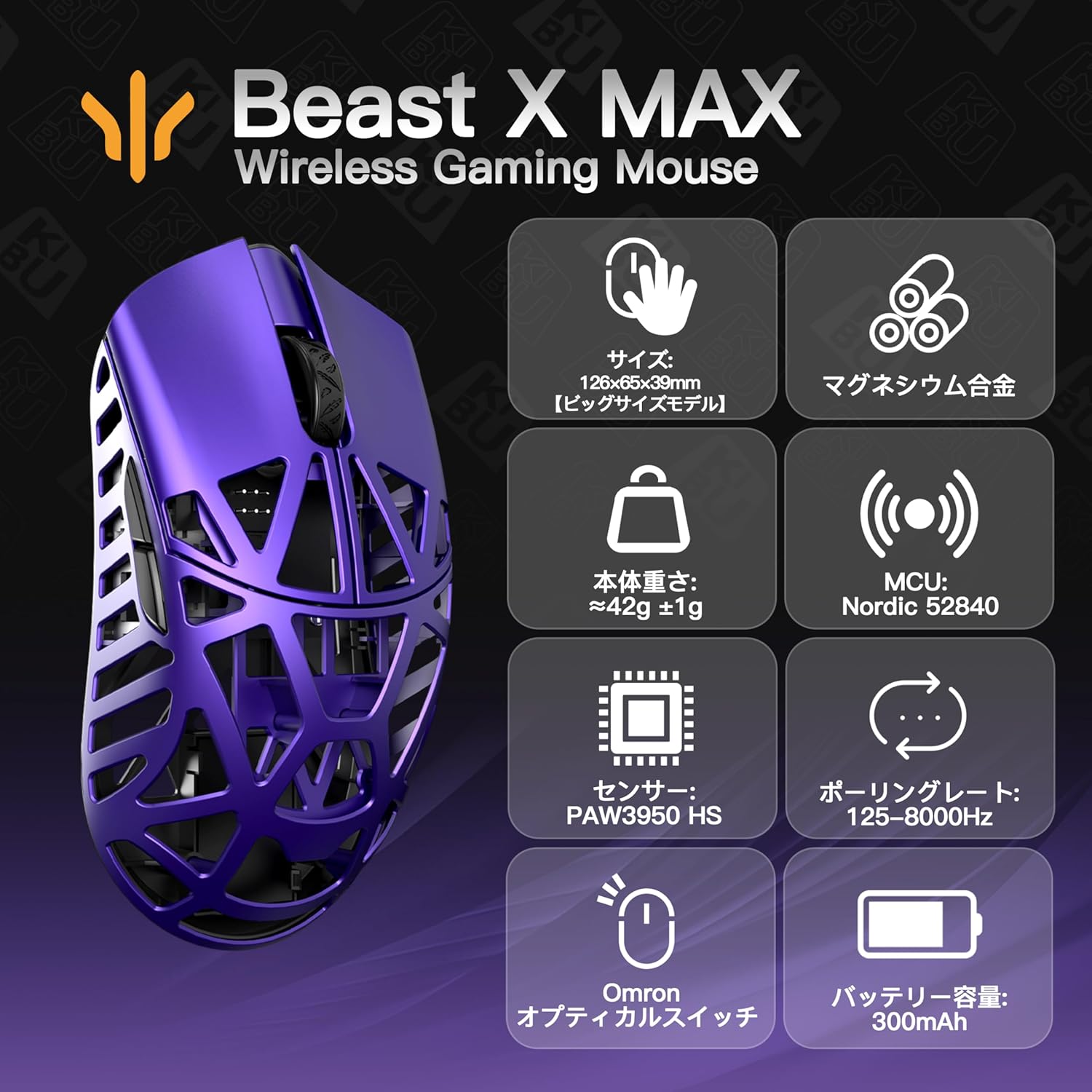
Image 3.1: Overview of key features and specifications.

Image 3.2: The PAW3950HS sensor provides advanced tracking capabilities.

Image 3.3: Choice between Omron Optical and TTC Nihil Mechanical switches.
4. Setup
4.1 Charging the Mouse
Before first use, fully charge the mouse using the provided USB-C cable. Connect the USB-C end to the mouse and the USB-A end to a powered USB port on your computer or a USB wall adapter. The LED indicator on the mouse will show charging status.
4.2 Connecting Wirelessly (2.4G)
- Insert the 2.4G wireless dongle (either 8K or 1K Nano) into an available USB port on your computer.
- Turn on the mouse using the power switch located on the bottom of the mouse.
- The mouse should automatically connect to the dongle. If not, press the pairing button (if available, refer to the diagram in the software) or cycle the power.
4.3 Connecting Via Wired Mode
Connect the provided USB-C cable directly from the mouse to a USB port on your computer. The mouse will function in wired mode and charge simultaneously.
5. Operating Instructions
5.1 Basic Functions
- Left Click: Primary action.
- Right Click: Secondary action/context menu.
- Scroll Wheel: Scroll up/down, middle click.
- Side Buttons: Typically for forward/back navigation in web browsers. Customizable via software.
5.2 DPI Adjustment
The mouse features a DPI button (location may vary, typically on the bottom or top) to cycle through preset DPI levels. Refer to the software for customizing these levels.
5.3 Polling Rate Selection
When using the 8K dongle, the polling rate can be adjusted up to 8000Hz. This setting is typically managed through the dedicated software.
6. Customization Software
The WLMOUSE Beast X Max utilizes a web-based driver for customization, eliminating the need for downloads. Access the software via your web browser to configure button assignments, DPI settings, polling rate, and other performance parameters.

Image 6.1: WLMOUSE HUB software interface for customization.
7. Maintenance
7.1 Cleaning
- Use a soft, dry cloth to wipe the mouse surface.
- For stubborn dirt, slightly dampen the cloth with water or a mild cleaning solution. Avoid harsh chemicals.
- Use compressed air to clear dust from crevices and the optical sensor.
7.2 Storage
Store the mouse in a cool, dry place away from direct sunlight and extreme temperatures. Use the provided carrying case for protection during transport.
7.3 Replacing Mouse Feet
If the mouse feet (PTFE glides) show significant wear, replace them with the spare set provided in the package for optimal glide performance.
8. Troubleshooting
- Mouse not responding: Ensure the mouse is charged and powered on. Check the USB connection for wired mode or the dongle connection for wireless mode. Try a different USB port.
- Lag or erratic movement: Ensure the dongle is close to the mouse for wireless connection. Check for interference from other wireless devices. Update mouse firmware via the customization software if available.
- Buttons not working: Check button assignments in the customization software.
- Charging issues: Ensure the USB-C cable is securely connected and the USB port is functional.
9. Specifications
| Feature | Detail |
|---|---|
| Brand | KIBU |
| Model | Beast X Max (Purple Omron) |
| Connectivity | USB (Wired), 2.4G Wireless |
| Movement Detection Technology | Optical (PAW3950HS Sensor) |
| Polling Rate | Up to 8000Hz |
| Number of Buttons | 3 (Standard) + Side Buttons |
| Weight | Approximately 43g |
| Product Dimensions | 12.6 x 6.5 x 0.1 cm (Mouse body: 126 × 65 × 39mm) |
| Compatible Devices | PC |
| Batteries Included | Yes |
| Batteries Required | Yes |
10. Warranty and Support
For warranty information and technical support, please refer to the official KIBU website or contact your retailer. Keep your proof of purchase for warranty claims.