
1. Introduction
This manual provides detailed instructions for the setup, operation, and maintenance of your Omezizy D450BT Bluetooth Thermal Label Printer. This device is designed for efficient label printing, supporting both Bluetooth and USB connectivity across various operating systems including Android, iOS, Windows, macOS, Linux, and ChromeOS. It is suitable for printing shipping labels, product labels, and other general-purpose labels for home, office, and small business use.

Image 1.1: The Omezizy D450BT printer in operation, demonstrating its compact design and wireless printing capability with a smartphone.
2. What's in the Box
Upon unboxing your Omezizy D450BT Thermal Label Printer, please verify that all the following components are included:
- D450BT Label Printer
- USB Cord & Type C Converter
- Power Adapter & Cable
- Sample Labels
- Built-in Label Holder

Image 2.1: All components included with the Omezizy D450BT printer, ensuring you have everything needed for setup.
3. Setup Guide
3.1. Physical Connection
- Connect the power adapter to the printer and then to a power outlet.
- For USB connection, connect the USB cable from the printer to your computer. Use the Type C converter if necessary.
3.2. Loading Labels
The D450BT supports both internal roll labels and fanfold labels loaded from the rear. The built-in label bin accommodates rolls up to 250 4x6 labels.
- Open the printer lid.
- Adjust the internal baffles and guide rails to match your label width (1 to 4.6 inches).
- For roll labels, place the roll into the built-in compartment. For fanfold labels, feed them from the rear slot.
- Ensure the labels are fed smoothly through the printer's output slot. The printer will automatically detect the label size and align the first label.
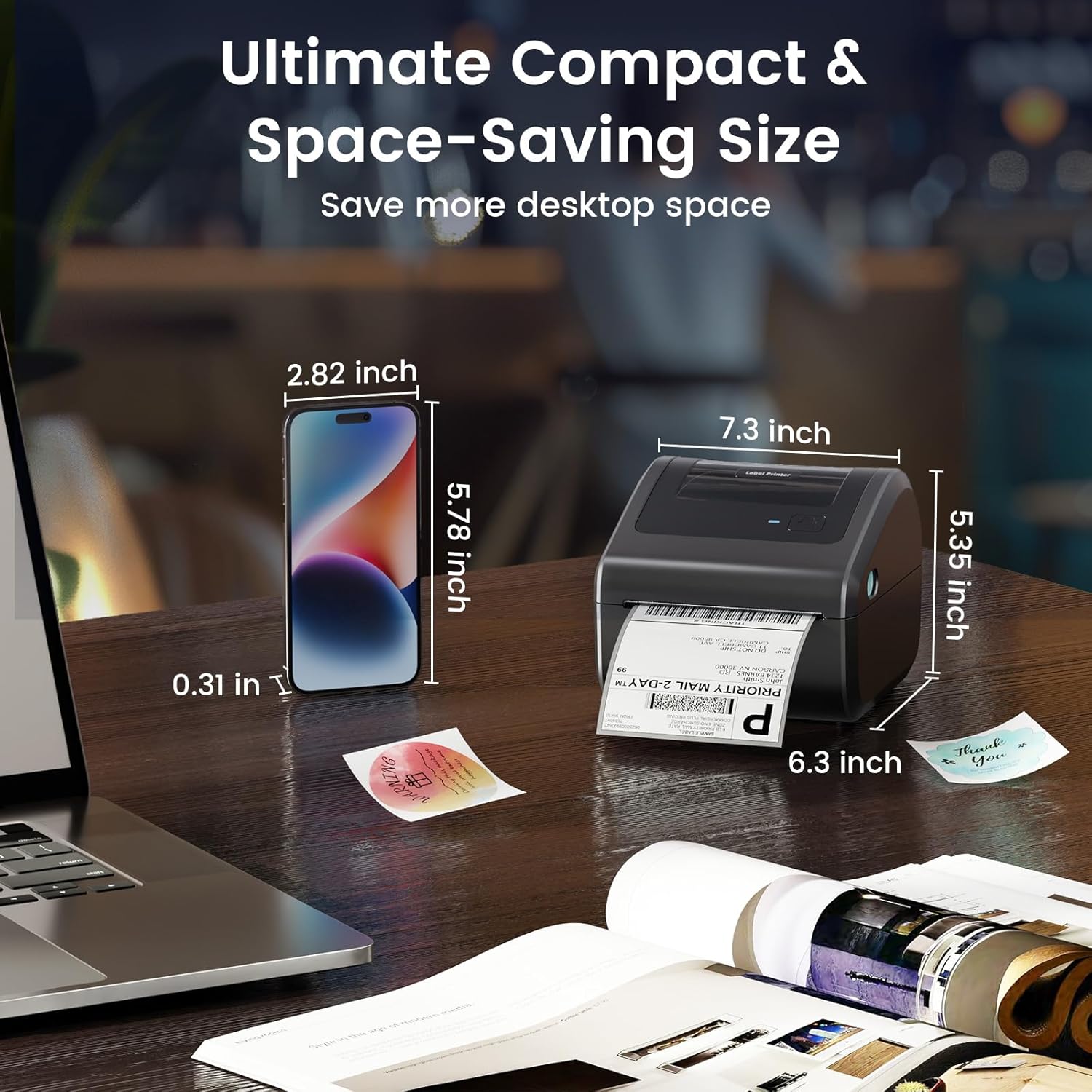
Image 3.1: The printer's internal label compartment, illustrating how to adjust the guides for various label sizes.
3.3. Driver and App Installation
For optimal performance, install the necessary drivers for your computer or the dedicated app for mobile devices.
- For Windows/macOS/Linux/ChromeOS: Download and install the printer drivers from the official Omezizy website. The printer should appear as a standard printer in your system settings.
- For Android/iOS: Download the official Omezizy printing application from your device's app store. Bluetooth connections are managed through this application.

Image 3.2: The D450BT printer demonstrating both USB and Bluetooth connectivity options for various devices.
4. Operating Instructions
4.1. Printing via USB
- Ensure the printer is powered on and connected to your computer via USB.
- Open the document or label you wish to print.
- Select the Omezizy D450BT from your printer list.
- In the print settings, ensure the paper size is set to match your labels (e.g., 4x6 inches).
- Initiate the print job.
4.2. Printing via Bluetooth (Mobile Devices)
- Ensure the printer is powered on and Bluetooth is enabled on your mobile device.
- Open the Omezizy printing application.
- Within the app, connect to the D450BT printer via Bluetooth.
- Import the label file (e.g., PDF) into the application.
- Select the correct label size and print quality settings within the app.
- Initiate the print job from the application.
4.3. Platform Compatibility
The D450BT printer is compatible with major shipping and sales platforms, including but not limited to USPS, UPS, FedEx, Amazon, eBay, Etsy, Shopify, PayPal, and Poshmark.

Image 4.1: The D450BT printer's compatibility with a wide range of e-commerce and shipping platforms.
4.4. Supported Label Types
The printer supports thermal labels with widths ranging from 1 to 4.6 inches. This includes standard 4x6 shipping labels, as well as smaller labels for barcodes, nutrition information, addresses, and custom designs.

Image 4.2: Examples of different label types and sizes that can be printed with the D450BT.
5. Maintenance
Regular maintenance ensures the longevity and optimal performance of your thermal label printer.
- Cleaning the Print Head: Periodically clean the print head with an alcohol swab or a specialized thermal printer cleaning pen. Ensure the printer is off and cooled down before cleaning.
- Label Type: Use only direct thermal labels. The printer does not require ink or toner. Using non-thermal labels or labels with adhesive residue can damage the print head.
- Storage: Store the printer in a clean, dry environment away from direct sunlight and extreme temperatures.
6. Troubleshooting
| Problem | Possible Cause | Solution |
|---|---|---|
| Label prints offset or cut off | Incorrect label size settings in software/app. | Ensure print settings (e.g., in the app or printer preferences) specify a custom 4x6 inch label size, even if the label is standard 4x6. This often resolves rotation and alignment issues. |
| Bluetooth connection fails on PC | Missing or incorrect drivers; Bluetooth not designed for native PC printing. | For PC, a USB connection is generally more reliable. If using Bluetooth, ensure official drivers are installed and consider using the dedicated printing application if available for PC. |
| Mobile printing requires an app | Bluetooth printing from mobile devices is typically managed by a dedicated application. | Download the official Omezizy printing app. You will need to import PDFs or images into the app to print. Native phone print functions may not be supported directly. |
| Poor print quality or faded labels | Dirty print head; low-quality labels; incorrect print density settings. | Clean the print head. Use high-quality thermal labels. Adjust print density settings in your software or app if available. |
| Labels not feeding correctly | Labels improperly loaded; guide rails not adjusted; label sensor obstructed. | Ensure labels are loaded straight and the guide rails are snug against the label edges. Check for any obstructions in the label path. The printer features auto-detection for proper alignment. |
7. Specifications
| Feature | Detail |
|---|---|
| Model Name | D450BT |
| Brand | Omezizy |
| Printing Technology | Thermal |
| Connectivity | Bluetooth, USB |
| Maximum Media Size | Paper Width: 1"-4.6" (25.4-117mm) |
| Print Resolution | 203 DPI (Dots Per Inch) |
| Max Print Speed (Monochrome) | 127 mm/s (72 labels per minute for 4x6) |
| Compatible Devices | iOS & Android Phone, Pad, Mac OS, Windows, Chrome OS, Linux |
| Max Input Sheet Capacity | 250 (for 4x6 roll labels) |
| Product Dimensions | 7.3"D x 6.3"W x 5.35"H |
| Item Weight | 2.13 pounds (0.97 Kilograms) |
| Included Components | Printer, USB Cable, Type C Converter, Power Adapter, Sample Labels, Built-in Label Holder |
8. Warranty and Support
For information regarding product warranty, please refer to the documentation included with your purchase or visit the official Omezizy website. For technical support, troubleshooting assistance beyond this manual, or inquiries about replacement parts, please contact Omezizy customer service through their official channels.


