
1. Introduction
Thank you for choosing the Orestree 65W USB-C Charger. This manual provides essential information for the safe and efficient use of your new power adapter. Please read these instructions carefully before use and retain them for future reference.
This charger is specifically designed for compatibility with Acer Swift Go 14 series laptops, including models SFG14-41, SFG14-41-R0FN, and N21H1.
2. Product Overview
The Orestree 65W USB-C Charger is a reliable power supply adapter designed to provide efficient charging for compatible laptops. It features a USB-C connector for modern device compatibility and includes a detachable 3-prong power cord.

Image 1: The Orestree 65W USB-C Charger with its detachable 3-prong power cord. The charger unit is black and rectangular, connected to a USB-C cable, and the power cord features a standard US plug.
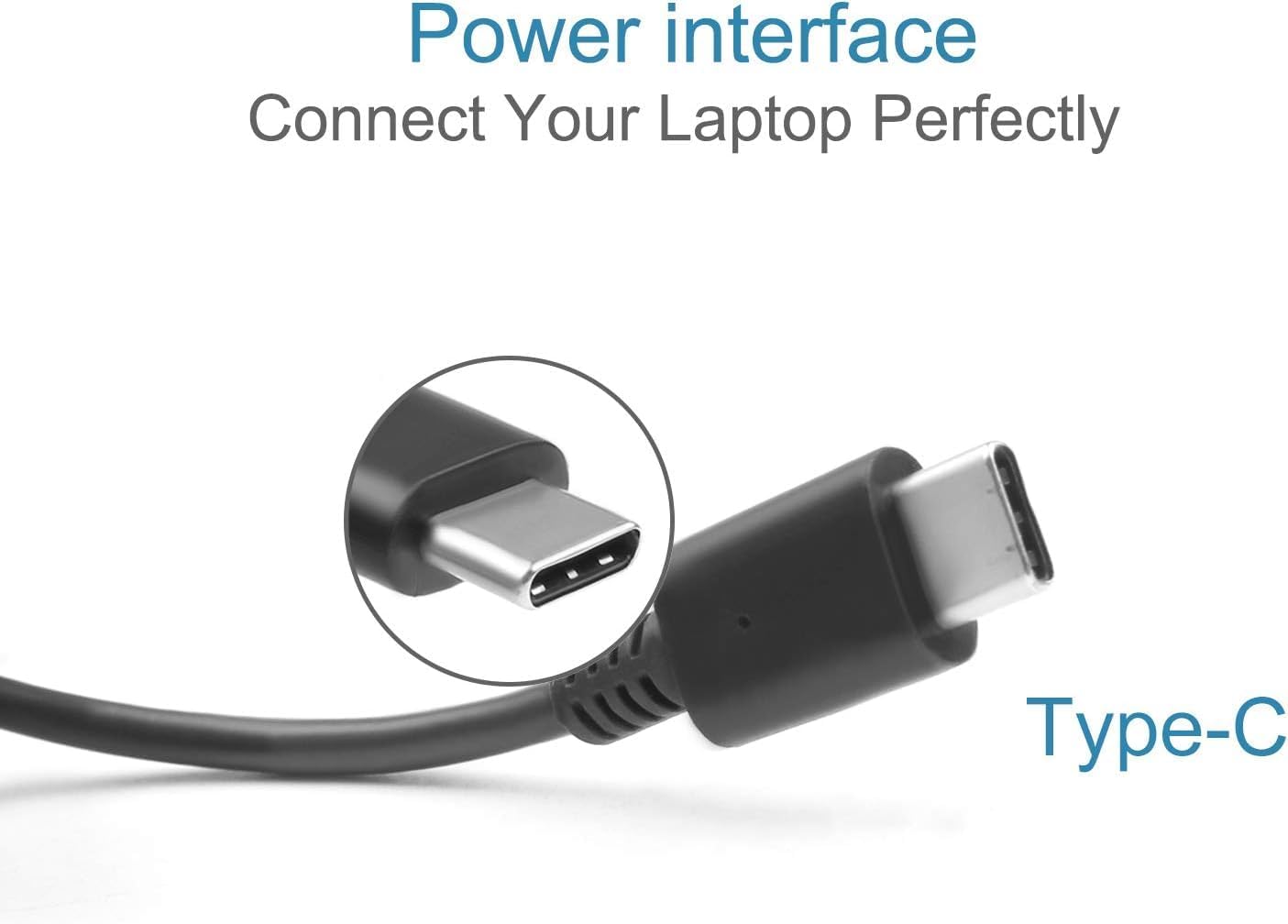
Image 2: A close-up view of the USB-C connector, highlighting its reversible design and compact form factor, ensuring easy connection to compatible devices.
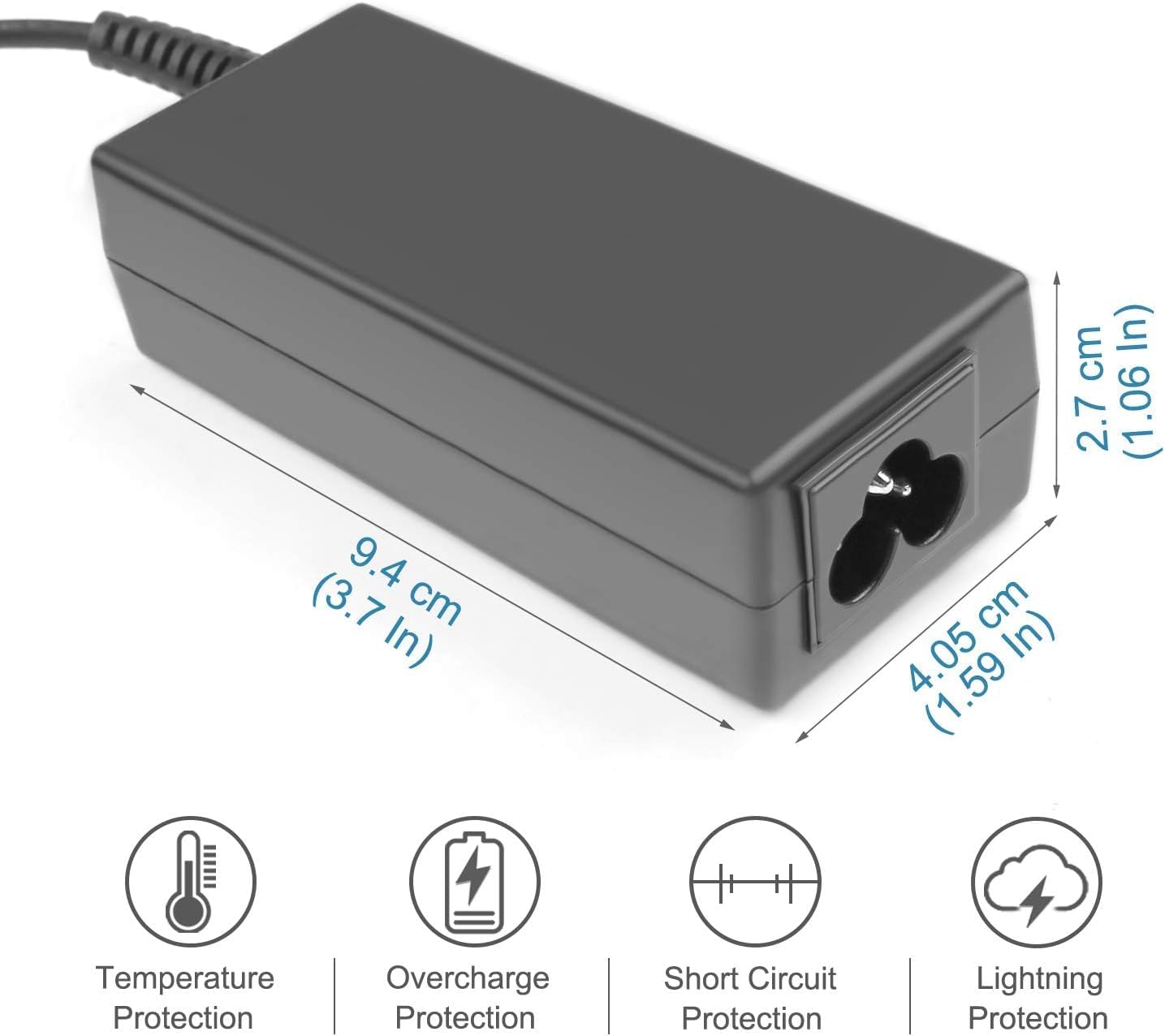
Image 3: An illustration showing the dimensions of the charger unit (9.4 cm length, 4.05 cm width, 2.7 cm height) and icons representing its built-in safety features: Temperature Protection, Overcharge Protection, Short Circuit Protection, and Lightning Protection.
3. Package Contents
Upon opening the package, please verify that all items are present and undamaged:
- 1 x Orestree 65W USB-C Charger (Model: AD200325)
- 1 x 3-Prong AC Power Cord
4. Setup Instructions
Follow these steps to set up your Orestree 65W USB-C Charger:
- Connect the Power Cord: Insert the 3-prong AC power cord firmly into the input port on the charger unit. Ensure a secure connection.
- Connect to Power Outlet: Plug the 3-prong end of the AC power cord into a standard wall outlet (100-240V AC).
- Connect to Laptop: Insert the USB-C connector from the charger into the USB-C charging port on your Acer Swift Go 14 laptop.
- Verify Connection: Confirm that your laptop indicates it is receiving power or charging.
5. Operating Instructions
Once connected, the charger will automatically begin supplying power to your laptop. The charger is designed with an 'Automatic Off' feature to prevent overcharging and ensure safety.
- Ensure the charger is placed in a well-ventilated area during operation to prevent overheating.
- Disconnect the charger from the laptop and wall outlet when not in use for extended periods.
6. Maintenance and Care
Proper maintenance ensures the longevity and safe operation of your charger:
- Cleaning: Disconnect the charger from all power sources before cleaning. Use a soft, dry cloth to wipe the surface. Do not use liquid cleaners or solvents.
- Storage: Store the charger in a cool, dry place away from direct sunlight and moisture when not in use. Avoid tightly winding the cables to prevent damage.
- Handling: Do not drop, disassemble, or attempt to repair the charger yourself. Avoid exposing it to extreme temperatures or humidity.
7. Troubleshooting
If you encounter issues with your charger, please refer to the following common problems and solutions:
| Problem | Possible Cause | Solution |
|---|---|---|
| Laptop not charging | Loose connection, faulty outlet, incompatible device, damaged cable/charger. | Ensure all connections are secure. Try a different wall outlet. Verify laptop compatibility. Inspect cables for damage. |
| Slow charging | Laptop consuming high power, background processes, charger not fully seated. | Close unnecessary applications. Ensure charger is fully connected. |
| Charger feels warm | Normal operation, poor ventilation. | A slight warmth is normal. Ensure adequate ventilation around the charger. If it becomes excessively hot, disconnect immediately and contact support. |
If the problem persists after attempting these solutions, please contact customer support.
8. Specifications
| Model Number | AD200325 |
| Input Voltage | 100-240V AC, 50-60Hz, 1.6A |
| Output Voltage | 20V DC |
| Output Current | 3.25A |
| Output Power | 65W |
| Connector Type | USB Type-C |
| Compatible Devices | Acer Swift Go 14 SFG14-41, SFG14-41-R0FN, N21H1 Laptops |
| Special Feature | Automatic Off (Overcharge Protection) |
| Color | Black |
| Item Weight | 10.6 ounces (approx. 300 grams) |
| Package Dimensions | 5.91 x 3.94 x 0.59 inches |
9. Warranty and Support
Orestree provides a 1-year warranty for this product, covering manufacturing defects from the date of purchase. Additionally, a 30-day money-back guarantee is offered.
For any questions, technical assistance, or warranty claims, please contact Orestree customer support. You can typically find contact options by navigating to the 'Ask a question' link on our storefront or by clicking 'contact seller' within your order details.
10. Safety Information
Please observe the following safety precautions to prevent injury or damage:
- Do not expose the charger to water, rain, or excessive moisture.
- Avoid using the charger in environments with high temperatures or direct sunlight.
- Do not use the charger if the cables or unit appear damaged.
- Keep the charger out of reach of children and pets.
- Ensure the power outlet used is easily accessible and not overloaded.
- Only use the provided power cord or a certified replacement.