1. Introduction
This manual provides essential information for the safe and efficient operation of your Caixun 40 inch FHD LED Smart TV, model CMX40VAFW. Please read this manual thoroughly before using the television and retain it for future reference.
The Caixun CMX40VAFW TV features a 40-inch Full HD LED display and is powered by the WebOS operating system, offering a smooth user experience with access to various applications and streaming content. It includes built-in Wi-Fi and multiple connectivity options.
2. Important Safety Information
Always follow basic safety precautions when using this television to reduce the risk of fire, electric shock, and injury.
- Power Source: Connect the TV only to a power outlet of the specified voltage.
- Ventilation: Ensure proper ventilation. Do not block ventilation openings.
- Water and Moisture: Do not expose the TV to rain or moisture. Do not place objects filled with liquids on the TV.
- Cleaning: Unplug the TV before cleaning. Use a soft, dry cloth. Do not use liquid cleaners or aerosol cleaners.
- Placement: Place the TV on a stable, level surface. Avoid placing it in direct sunlight or near heat sources.
- Servicing: Do not attempt to service this product yourself. Refer all servicing to qualified service personnel.
3. Package Contents
Verify that all items are included in the package:
- Caixun 40 inch FHD LED Smart TV (CMX40VAFW)
- Remote Control
- TV Stand Bases (2)
- Screws for Stand Bases
- Power Cord
- User Manual (this document)
- Batteries for Remote Control (if included)
4. Setup
4.1 Attaching the TV Stand
- Carefully place the TV face-down on a soft, clean surface to prevent screen damage.
- Align the stand bases with the screw holes on the bottom of the TV.
- Secure each stand base with the provided screws.
- Carefully lift the TV to an upright position on a stable surface.

Image: Front view of the Caixun 40 inch FHD LED Smart TV (CMX40VAFW) with its stand attached, displaying the Caixun logo and WebOS Hub branding.
4.2 Wall Mounting (Optional)
If you plan to wall mount your TV, remove the stand bases. Refer to the wall mount kit instructions for proper installation. Ensure the wall mount is compatible with VESA standards for a 40-inch TV.
4.3 Connecting Power
Plug the power cord into the TV's power input, then plug the other end into a wall outlet. The TV will enter standby mode.
4.4 Initial Setup
Upon first power-on, the TV will guide you through the initial setup process, including language selection, network connection, and channel scanning.

Image: A screenshot of the Caixun WebOS Hub interface, showing recent inputs, sponsored content, features like TV Guide and Home Dashboard, and an app list including Netflix, Prime Video, and YouTube.
5. Operating the TV
5.1 Remote Control
Insert batteries into the remote control. The remote allows you to navigate the WebOS interface, change channels, adjust volume, and access smart features.
5.2 WebOS Smart Features
The WebOS operating system provides access to a variety of streaming services and applications. Connect your TV to the internet via Wi-Fi or Ethernet to utilize these features.
- Home Dashboard: Access connected devices, smart home controls, and TV settings.
- App List: Browse and launch pre-installed apps like Netflix, Amazon Prime Video, YouTube, and Disney+.
- Content Store: Download additional applications.
5.3 Input Sources
Use the remote control to select different input sources (HDMI 1, HDMI 2, USB, etc.) to view content from external devices.
6. Connections
Your Caixun TV offers various ports for connecting external devices:
- HDMI Ports (3): Connect Blu-ray players, game consoles, cable boxes, and other HDMI-enabled devices.
- USB Ports (2): Connect USB storage devices to play media files or for software updates.
- Antenna/Cable Input: Connect an antenna or cable TV feed.
- Ethernet (LAN) Port: For a wired internet connection.
- Audio Output: For connecting external audio systems.

Image: Rear view of the Caixun 40 inch FHD LED Smart TV, highlighting the various input and output ports for connectivity, including HDMI, USB, and antenna inputs.
7. Maintenance
7.1 Cleaning the TV
- Always unplug the TV before cleaning.
- Use a soft, dry, lint-free cloth to wipe the screen and cabinet.
- For stubborn marks, lightly dampen the cloth with water or a mild, non-abrasive screen cleaner. Do not spray cleaner directly onto the screen.
- Avoid using alcohol, benzene, thinners, or other volatile substances.
7.2 Care and Storage
- Do not expose the TV to extreme temperatures or humidity.
- Avoid placing heavy objects on top of the TV.
- If storing the TV for an extended period, disconnect it from the power outlet and cover it to protect from dust.
8. Troubleshooting
Before contacting customer support, try the following solutions for common issues:
8.1 No Power
- Ensure the power cord is securely plugged into both the TV and the wall outlet.
- Check if the wall outlet is functioning by plugging in another device.
- Press the power button on the TV itself, not just the remote.
8.2 No Picture, But Sound is Present
- Check the input source. Ensure it matches the device connected (e.g., HDMI 1).
- Verify that the external device (e.g., cable box, Blu-ray player) is powered on and functioning correctly.
- Try a different HDMI cable.
8.3 No Sound, But Picture is Present
- Increase the volume.
- Check if the TV is muted.
- Verify audio settings in the TV menu.
- If using external speakers, ensure they are properly connected and powered on.
8.4 Remote Control Not Working
- Replace the batteries.
- Ensure there are no obstructions between the remote and the TV's IR sensor.
8.5 Wi-Fi Connection Issues
- Ensure your Wi-Fi router is on and working.
- Restart the TV and your router.
- Check Wi-Fi settings on the TV to ensure the correct network is selected and the password is entered correctly.
- Move the TV closer to the router or use a wired Ethernet connection.
9. Specifications
| Model Name | CMX40VAFW |
| Screen Size | 40 Inches |
| Display Technology | LED |
| Resolution | 1920 x 1080 (Full HD) |
| Operating System | WebOS |
| Refresh Rate | 60 Hz |
| Response Time | 8 Milliseconds |
| Viewing Angle | 178 Degrees |
| HDMI Ports | 3 |
| USB Ports | 2 |
| Connectivity | Wi-Fi, Ethernet, HDMI, USB |
| Wattage | 56 watts |
| Product Dimensions (with stand) | 18 x 71.9 x 47.1 cm (approx.) |
| Weight | 3.25 kg (approx.) |
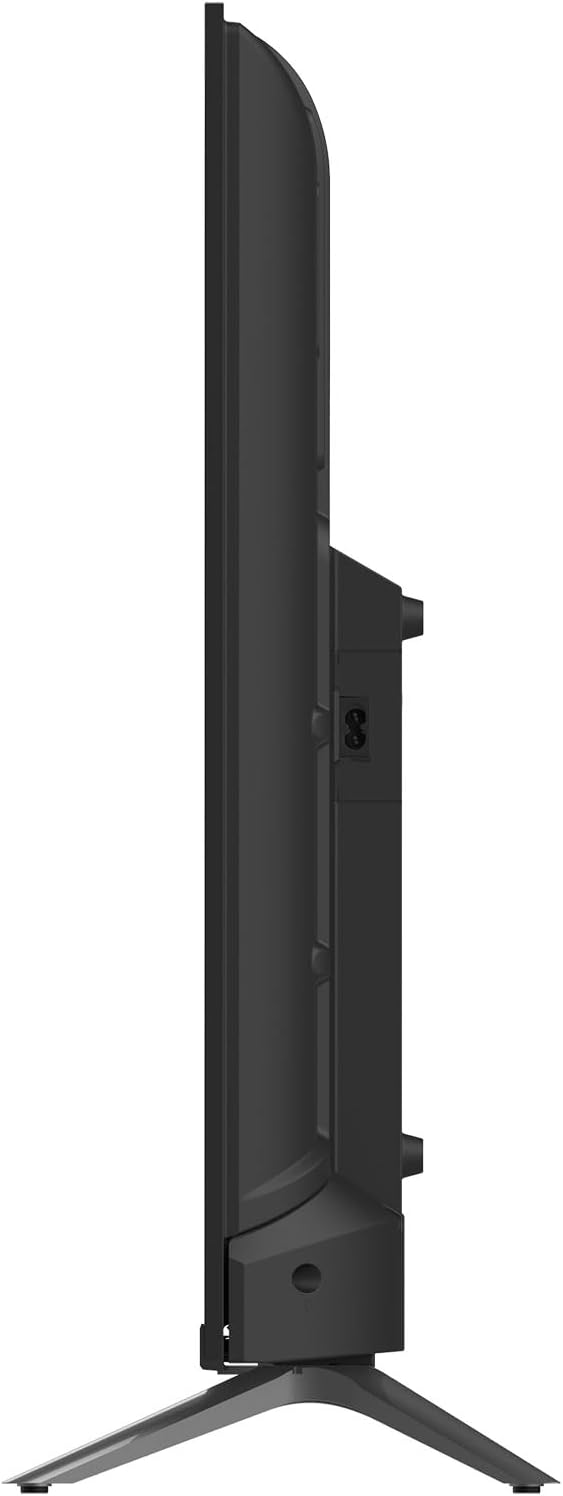
Image: Side profile of the Caixun 40 inch FHD LED Smart TV, illustrating its slim design and the depth of the television.
10. Warranty and Support
Your Caixun TV is covered by a manufacturer's warranty. Please refer to the warranty card included in your package for specific terms and conditions, including the warranty period and coverage details.
For technical support, service, or warranty claims, please contact Caixun customer service. Contact information can typically be found on the official Caixun website or on the warranty card.
When contacting support, please have your TV model number (CMX40VAFW) and serial number ready.