Introduction
This user manual provides essential information for setting up, operating, maintaining, and troubleshooting your Panasonic TN-43W70AEZ 4K Ultra HD LED Smart TV. This television features Google TV, a 4K Colour Engine processor, Google Assistant, built-in Chromecast, Dolby Vision & Atmos, and a dedicated Game Mode for an exceptional viewing and gaming experience.

Figure 1: Front view of the Panasonic TN-43W70AEZ Smart TV, showcasing its frameless design and Google TV interface.
Setup
1. Unpacking
Carefully remove the television and all accessories from the packaging. Retain the packaging materials for future transport or storage.
2. Stand Installation
To install the TV stand:
- Place the TV screen-down on a soft, flat surface to prevent damage.
- Align the stand with the designated slots on the bottom of the TV.
- Secure the stand using the provided screws. Ensure all screws are tightened firmly.

Figure 2: TV dimensions with stand, useful for placement and stand installation.
3. Wall Mounting (Optional)
If you choose to wall mount your TV, ensure you use a VESA-compatible wall mount kit (sold separately) that supports the TV's weight and VESA pattern. Refer to the wall mount kit's instructions for proper installation. Always consult a professional for wall mounting to ensure safety.
4. Connecting Devices
Connect your external devices such as Blu-ray players, game consoles, or sound systems to the TV's input ports. The TV is equipped with HDMI and USB ports, as well as Wi-Fi and Bluetooth connectivity.
- HDMI: For high-definition audio and video.
- USB: For connecting USB storage devices.
- Wi-Fi: For internet connection.
- Bluetooth: For wireless audio devices like soundbars or headphones.

Figure 3: Side view of the TV, highlighting accessible input ports.

Figure 4: Rear view of the TV, displaying the full array of connectivity options.
5. Initial Power On & First Time Setup
After connecting all cables, plug the power cord into an electrical outlet. The TV will guide you through the initial setup process, including language selection, network connection, and Google TV account setup.
Operating
1. Remote Control Overview
The included remote control allows you to navigate the Google TV interface, adjust settings, and use voice commands with Google Assistant.

Figure 5: The TV remote control, featuring dedicated buttons for easy navigation and Google Assistant activation.
2. Google TV Interface Navigation
The Google TV home screen organizes your favorite content from various streaming services. Use the directional pad on your remote to browse recommendations, apps, and your library.

Figure 6: The intuitive Google TV interface, providing access to a wide range of entertainment options.
3. Chromecast Built-in
Stream movies, shows, music, and more directly from your smartphone, tablet, or computer to your TV using the built-in Chromecast feature. Ensure your device is connected to the same Wi-Fi network as your TV.
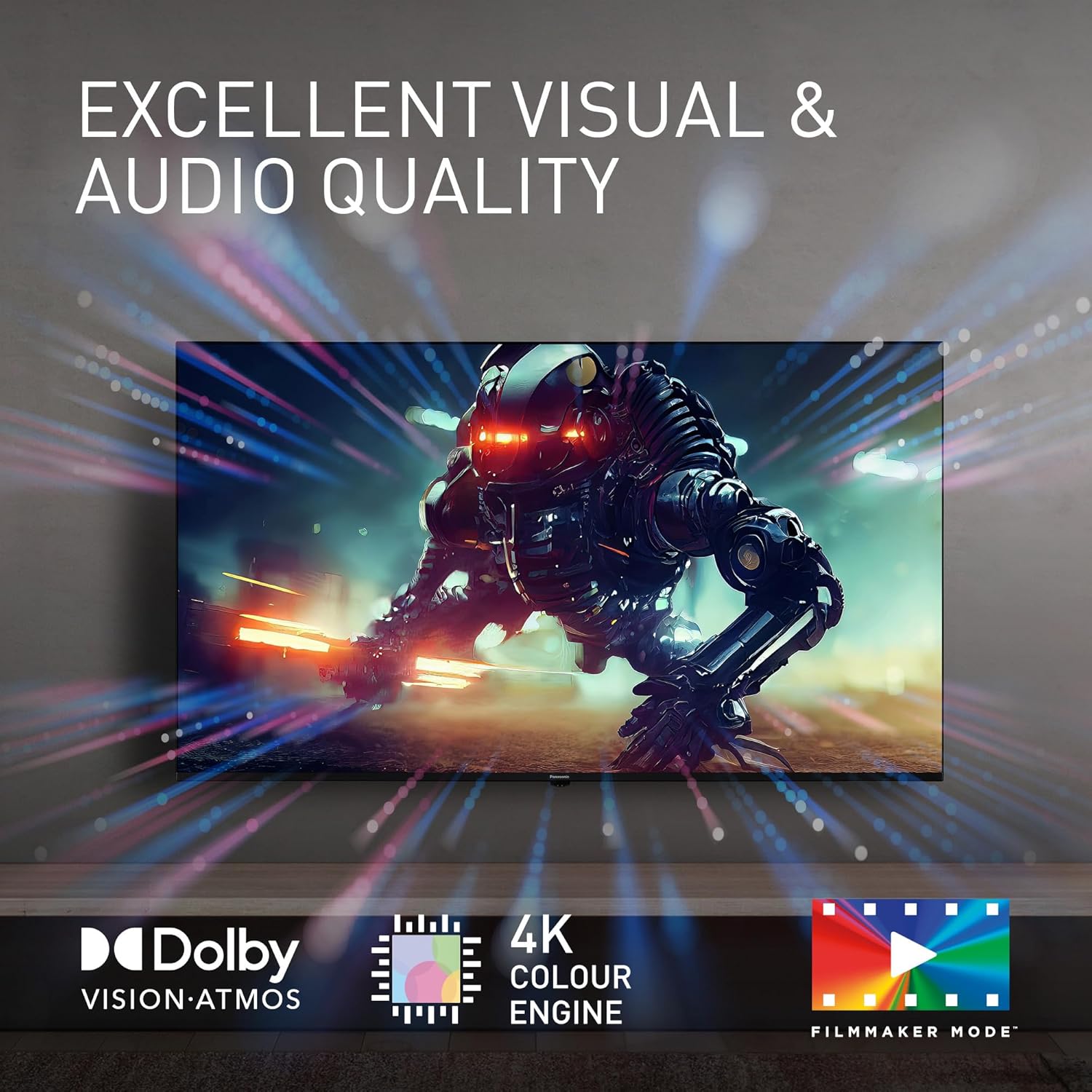
Figure 7: Seamlessly stream content from your mobile device to the TV using Chromecast built-in.
4. Google Assistant Voice Commands
Press the Google Assistant button on your remote and speak into the microphone to search for content, control smart home devices, get answers, and more.
5. Picture and Sound Settings
Access the settings menu to customize picture modes (e.g., Standard, Vivid, Cinema), adjust brightness, contrast, and color. The TV supports Dolby Vision for enhanced picture quality and Dolby Atmos for immersive audio. The 4K Colour Engine processor optimizes color reproduction for vibrant visuals.

Figure 8: Experience superior visual and audio quality with Dolby Vision, Dolby Atmos, and the 4K Colour Engine.
6. Game Mode Activation
For an optimized gaming experience, activate Game Mode. This mode utilizes Auto Low Latency Mode (ALLM) and Variable Refresh Rate (VRR) to reduce input lag and ensure ultra-responsive gameplay.

Figure 9: Enhance your gaming with Game Mode, designed for low latency and quick reactions.
7. Bluetooth Connectivity
Connect Bluetooth-enabled devices such as soundbars, headphones, or game controllers wirelessly to your TV for enhanced audio or control.

Figure 10: Easily connect external audio devices like soundbars or headphones using Bluetooth connectivity.
Maintenance
1. Cleaning the Screen and Body
To clean the screen, gently wipe it with a soft, lint-free cloth. For stubborn marks, slightly dampen the cloth with water or a screen-cleaning solution. Avoid using harsh chemicals or abrasive materials. For the TV body, use a dry, soft cloth.
2. Software Updates
Ensure your TV's software is up to date for optimal performance and new features. The TV can be set to automatically download and install updates when connected to the internet.
3. Power Management
To conserve energy, utilize the TV's power-saving features. Unplug the TV from the power outlet during lightning storms or when it will be left unattended for extended periods.
Troubleshooting
If you encounter issues with your TV, refer to the following common solutions before contacting support.
| Problem | Possible Cause / Solution |
|---|---|
| No Power | Check if the power cord is securely plugged into the TV and the electrical outlet. Test the outlet with another device. |
| No Picture / Black Screen | Ensure the correct input source is selected. Check all HDMI/AV cable connections. Try restarting the TV. |
| No Sound | Check the volume level and mute status. Ensure external audio devices are properly connected and selected as output. |
| Remote Control Not Responding | Replace the batteries in the remote control. Ensure there are no obstructions between the remote and the TV. |
| Network Connection Issues | Verify your Wi-Fi password. Restart your router and modem. Try connecting via an Ethernet cable if possible. |
Factory Reset
If issues persist, a factory reset can resolve many software-related problems. Be aware that a factory reset will erase all personalized settings and installed applications. Refer to the TV's on-screen menu for the factory reset option (usually found under System or Device Preferences).
Specifications
| Feature | Detail |
|---|---|
| Brand | Panasonic |
| Model Number | TN-43W70AEZ |
| Screen Size | 43 Inches |
| Display Technology | LED |
| Resolution | 4K Ultra HD |
| Refresh Rate | 60 Hz |
| Operating System | Android (Google TV) |
| Connectivity | Wi-Fi, Bluetooth, HDMI (multiple ports), USB (2 ports) |
| Special Features | Google Assistant, Chromecast built-in, Dolby Vision & Atmos, Frameless Design, Game Mode (ALLM, VRR) |
| Color | Black |
| Product Dimensions (DxWxH) | 22.1D x 96.4W x 61.4H centimeters |
| Included Components | Remote Control |
| Battery Type (Remote) | 2 AA batteries (Alkaline) |
Warranty and Support
Warranty Information
Your Panasonic TN-43W70AEZ television comes with a standard manufacturer's warranty. Please refer to the warranty card included in your product packaging for specific terms and conditions, including the warranty period and coverage details. Keep your proof of purchase for warranty claims.
Note: Amazon's return policy for this product is 30 days from the date of purchase.
Customer Support
For technical assistance, troubleshooting beyond this manual, or warranty service, please contact Panasonic Customer Support. You can find contact information on the official Panasonic website or in the documentation provided with your TV.
Online resources such as FAQs and software downloads may also be available on the Panasonic support website.


